Repository navigation
Administration conveniences
Enable menu duplication under Admin interface. The copy keeps native link properties, hierarchy and Site Essentials visibility, but receives no menu location. Third-party metadata is not copied. Visibility choices apply only to classic menus and do not protect target pages. Hidden parents also hide their descendants; page caches must distinguish login status.
User and content IDs offer a copy button with selectable-text fallback. Optional last-login collection stores only one successful interactive-login timestamp per user and website. Existing sessions do not update it. No IP address or history is stored. Only administrators with user-list permission see timestamps. WordPress personal-data tools can export and erase them; disabling collection retains existing timestamps, uninstall removes them.
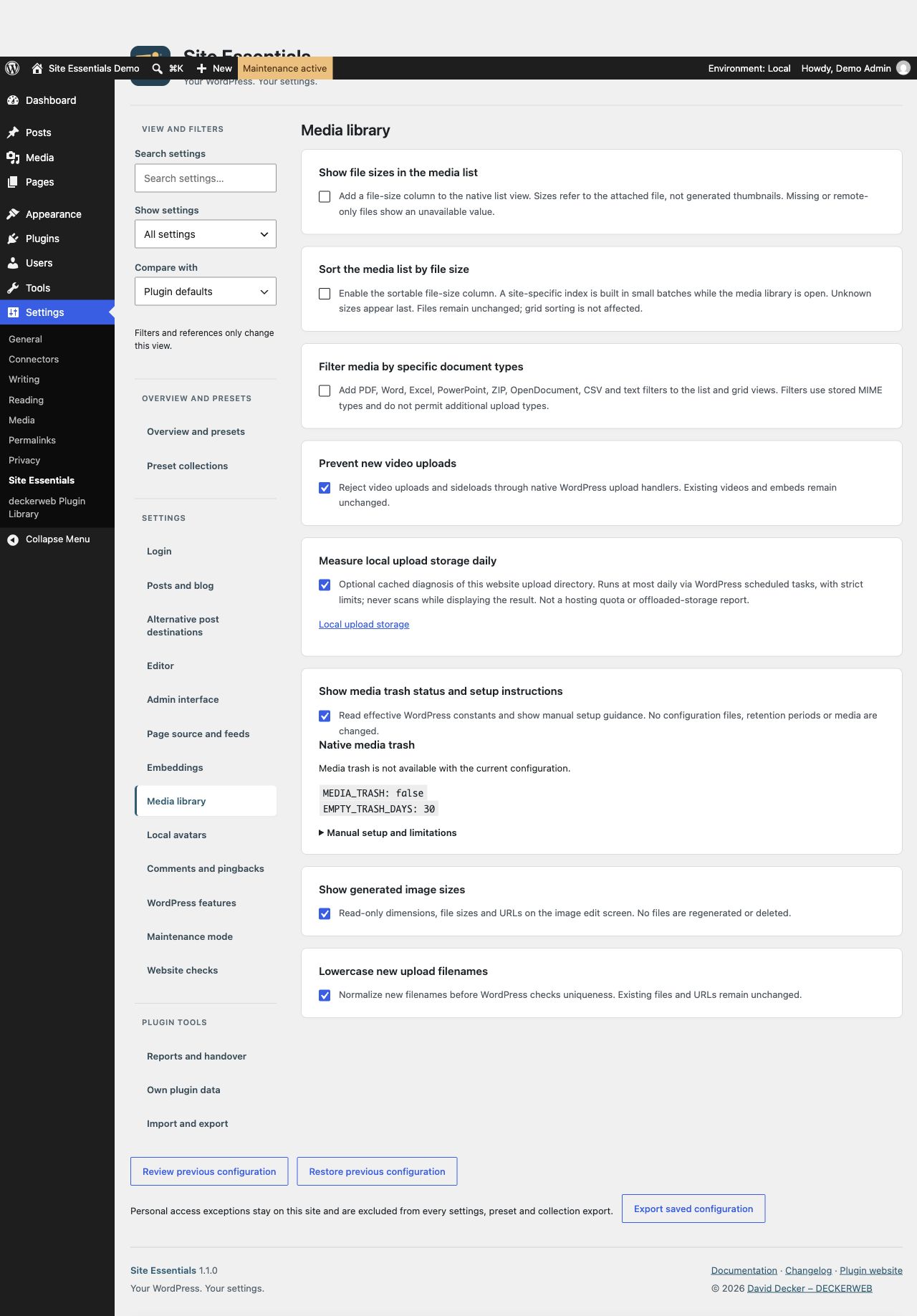
The optional status card reads MEDIA_TRASH and EMPTY_TRASH_DAYS without editing wp-config.php. Enable native media trash only through server configuration before WordPress loads, respecting existing definitions and retention. A zero retention disables trash. Files in trash remain stored and may remain directly accessible; this is not a backup or privacy barrier. Explicit permanent deletion can bypass trash. On Multisite, constants normally apply across the installation.
Enable daily local upload-storage diagnosis under Media library and view the cached result in Tools → Site Essentials: PHP. Requests never scan directories while displaying the result. Measurements stop at 10,000 entries, 512 directories or two seconds. An incomplete or unavailable result is labeled without a partial total. Manual refresh queues a task, limited to fifteen-minute intervals. Traffic-dependent WordPress cron may run late. Remote media, the database and hosting quota are not measured.
Site Essentials shows the WordPress environment on the right of the toolbar for administrators only, without changing it. When an active Brand Admin Schemes implementation provides its environment callback, BAS owns presentation and Site Essentials pauses, even if BAS hides its own badge. Site Essentials keeps its choice and resumes after BAS deactivation. The settings status explains which provider is responsible. No BAS files or settings are changed.

Profile simplification only hides the selected native fields; stored values and permissions stay unchanged. Resetting Site Essentials removes recorded login timestamps and the storage diagnosis. Menu visibility values remain stored as content properties and have no effect while the module is disabled.
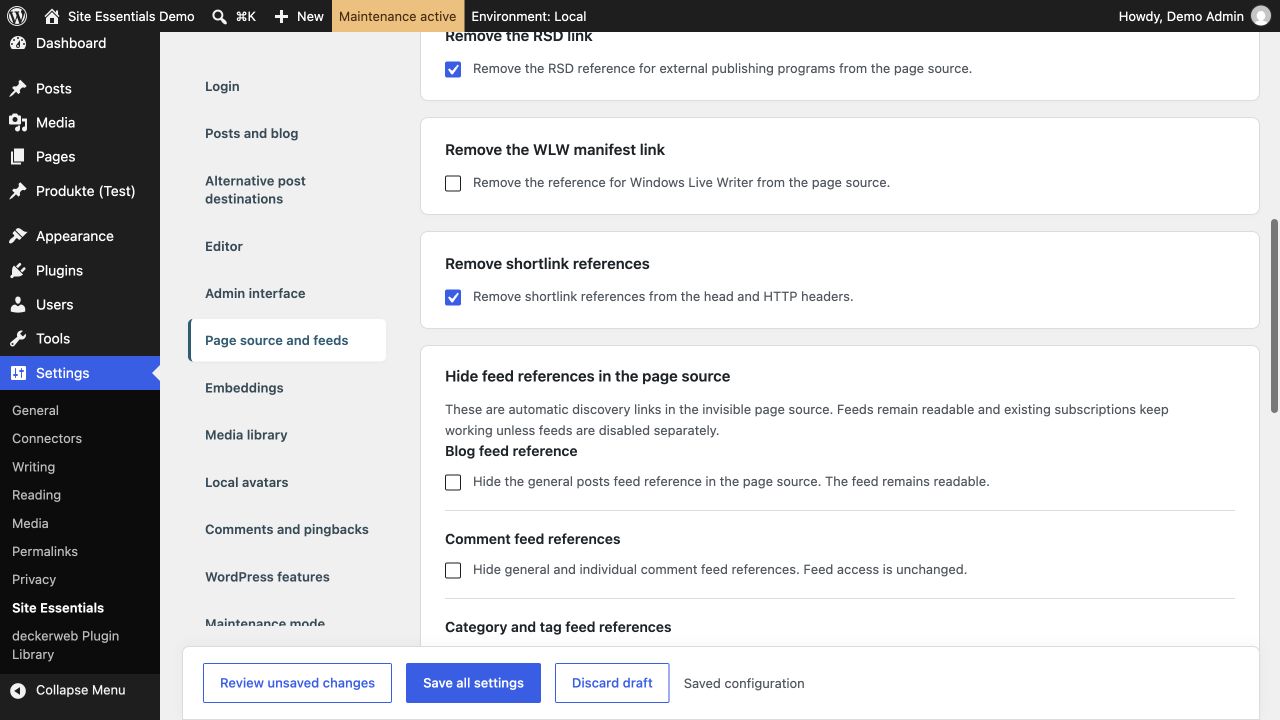
Choose which automatic feed discovery links are hidden in the page source. Blog, comment, category/tag, author and search references can be selected separately, plus registered content-type and taxonomy archives. Actual RSS/Atom feed access is unchanged; disabling feeds is a separate option. Existing broad suppression is retained, including future archives.
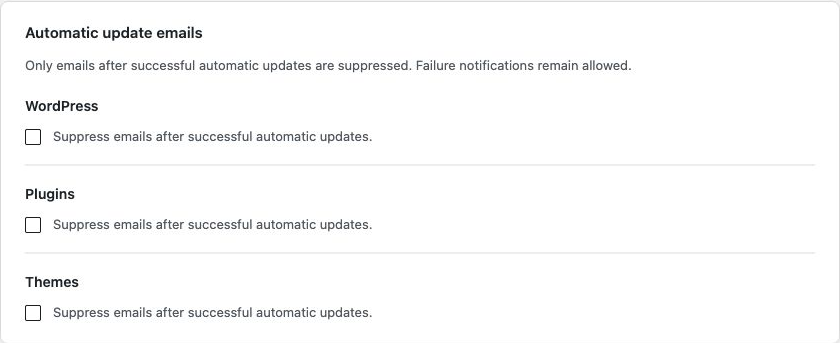
Suppress success notifications separately for WordPress, plugins and themes. Failure notifications are not suppressed by these controls. Existing broad suppression is retained for all three choices until you change them.
Click the unapplied-rule count in the overview to see the affected settings, their known reasons and direct setting shortcuts. The shortcut clears any search so matching rules are not hidden. This changes the view only.
Classic menu policies, duplication and visibility share one settings group. If classic management is unavailable, its controls are visually hidden and retained. Navigation blocks are separate. Short explanations also distinguish Classic Widgets and the Classic Editor.
Optionally inspect generated image sizes in the attachment editor without changing files. New upload filenames can be converted to lowercase; existing files stay unchanged. Native content lists can offer a visible title-only search choice, with full search as the default. Featured-image, modified-date and administrator-only user-registration columns can be enabled separately. All four helpers start off.
Known reasons for paused settings are shared across the rule overview, handover and Site Health. Support diagnostics use a reviewed allowlist: custom text, personal assignments and custom role or content-type names are omitted; lists disclose counts only. Storage diagnosis distinguishes no measurement, an incomplete measurement and an unavailable result.
Under Dashboard, configure one optional dashboard widget with a title, simple formatted text and an audience of roles plus additional site users. A matching role OR a selected user grants visibility; an empty audience grants nobody access. Users can hide it in Screen Options. Save this widget separately. Generic configuration and preset exports never include its text or personal grants. A separate, explicitly confirmed text export/import transfers only the saved title and text; it never transfers activation or audience. Disabling or uninstalling preserves the local configuration; resetting Site Essentials clears it.
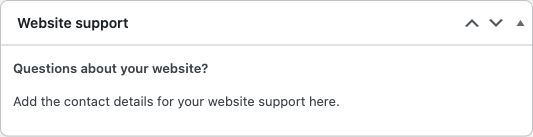
A native dashboard widget for the selected audience, with example content.
Enable local avatars first. The optional user-list column and a separate default-image card then appear below the master setting. The card previews the current default and offers local media selection, raster upload or return to the shipped SE image. Save the image separately. A missing, deleted, private or externally served selection falls back to the shipped image. No media files are copied, locked or deleted when resetting the selection. Personal profile images still take priority. Image IDs are local to each website and are excluded from configuration, preset and support exports.
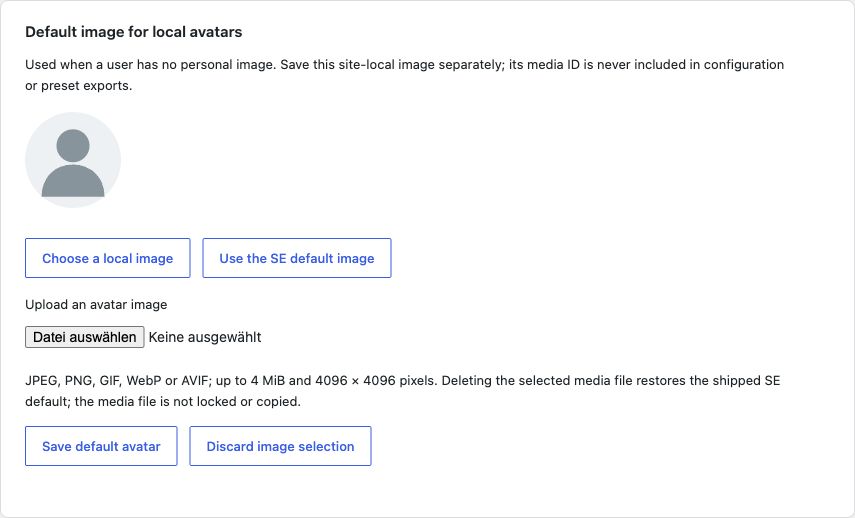
Default image with local selection, upload and reset.
Set the default avatar with code: single site and multisite
Site Health Info reports whether the dashboard widget is enabled and whether a default avatar is supplied by SE, a local selection or a developer filter. It never includes widget text, contact details, selected users or image IDs/URLs. Administrator command-palette entries open dashboard information and, while SE local avatars are enabled, the default-avatar settings. These commands navigate only; they do not save or activate anything.
The dedicated Set the default avatar with code guide contains ready-to-copy snippets for a single site, one multisite website, and multiple site mappings. It explains image IDs, priority, and fallback when images are unavailable.
Under Admin interface, enable content IDs and, if needed, Additional list columns → Last modified. In post, page and media lists, the ID appears above its copy action. The ID heading sorts numerically; Last modified sorts by modification time and uses the native WordPress date format.
Optional title search adds Title only beside the list filters. Enter a search term, choose the scope and apply the filter or search. The default remains Title and content; public website search is unchanged.
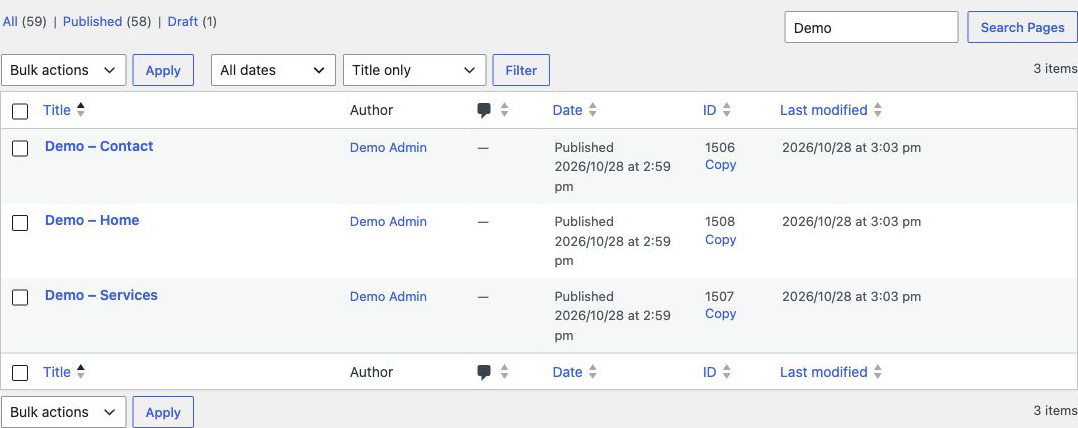
An example filtered page list; use the respective column headings to sort.
Step-by-step guides: Dashboard, Site icon and date formats, Diagnostics and command palette.