Manual Agent Workaround
title: Manual Agent Workaround (Historical) description: Portal-native isolation experiment retained after the hosted-agent release was verified working.
The hosted LangGraph path is now working and WI-11 is resolved for this implementation. Use the evaluated release workflow described in Operations, with proof in Release Evidence. The manual agent below was an independent isolation experiment during the outage, not the required workaround today. Its model and prompts differ from the hosted runtime, so its success alone was never a controlled authentication RCA. All remaining instructions and screenshots describe the historical experiment.
The azd ai agent-deployed (LangGraph/hosted-agent) path previously returned
401 PermissionDenied during Azure OpenAI chat/completions calls. See
RBAC 401 Investigation for the full diagnostic
history. Rather than block the proof of concept on a platform bug outside
customer control, this page documents a working alternative built directly
in the Foundry portal UI: same project, same tenant, same MCP tool servers,
zero automation. It proves the rest of the stack (Foundry project, model
access, MCP tool servers) is fully functional, and gives Air Canada a working
demo while the hosted-agent issue was investigated separately.
Note
This is a manual, portal-driven workaround, not a replacement for the
azd-based hosted-agent deployment. Automating this configuration (for
example, via ARM/Bicep Microsoft.CognitiveServices/accounts/projects/agents
resources or the Foundry SDK) is deferred follow-on work — see
Home for status.
A portal-native prompt agent, created with Foundry's Build an agent flow (distinct from Code an agent and Link external agent):
- Name:
threat-assessment-manual-poc - Project:
proj-air-canada-threat-assessment-poc(same project as the broken hosted agent) - Model:
gpt-5, Global Standard — auto-provisioned specifically for this agent. Portal-native agents cannot reuse a project's other connected-resource model deployments; Foundry shows an explicit banner about this: "Model deployments from connected project resources can't be used with Agents. To use these deployments, use AI Gateway." - Instructions: a threat-assessment system prompt describing the device-investigation use case
- Tools: both pre-existing MCP connectors from the original hosted-agent
deployment, added via Tools → Add → Add tools → Configured:
-
defender-conn→https://mcp-defender-server.ambitioussea-69c7df60.eastus2.azurecontainerapps.io/mcp -
anomaly-conn→https://mcp-anomaly-server.ambitioussea-69c7df60.eastus2.azurecontainerapps.io/mcp
-
-
In the Foundry portal, open the project's Agents list and select New agent → Build an agent. The project's Home page offers the same three entry points (Use a model, Build an agent, Code an agent):

-
Give the agent the name below (Foundry suggests a random one otherwise) and select Create and open playground. Wait ~10-15s while Foundry provisions a dedicated
gpt-5deployment for the agent.threat-assessment-manual-poc -
On the Playground tab, paste the exact text below into Instructions and select Save. This is copy-paste ready and matches the screenshots in this page word for word:
You are a Threat & Vulnerability Assessment assistant for Air Canada IT security. When asked to investigate a device, summarize its risk profile and known vulnerabilities in a concise report.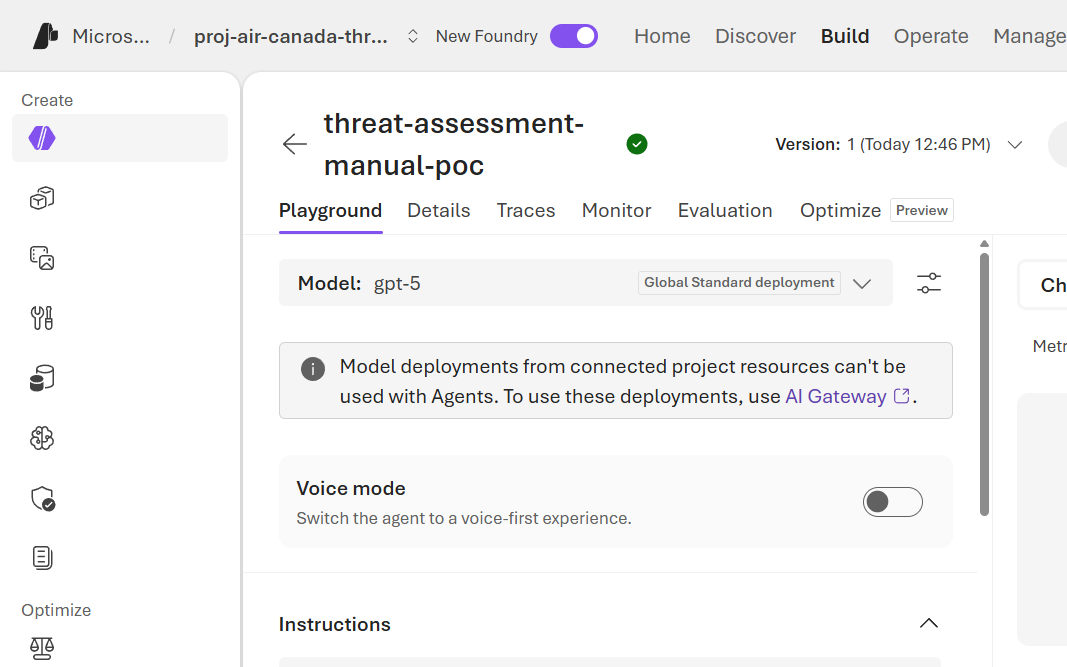
-
Verify plain chat works with zero errors before adding tools — this isolates whether any failure is tool-related or fundamental. Paste this prompt:
Hi, can you confirm you're online? What information would you need from me to assess a device's security risk?Expect a reply along these lines (matches the screenshot below):
If you can share the device's IP/hostname, OS, and whether it appears in our EDR and latest Tenable/Qualys scan, I'll pull the data and return a concise risk profile with specific CVEs, exploitability, and remediation steps.

-
Under Tools, select Add → Add tools. In the Select a tool dialog, open the Configured tab — any MCP connectors already registered in the project from prior IaC/
azddeployments appear here automatically, with no need to re-create the connection.[!IMPORTANT] The dialog only supports selecting one tool at a time; selecting a second tool deselects the first. Add one tool, confirm, reopen the dialog, and repeat for each additional tool.
-
Select Save after each tool is added (agent version increments each time).
-
Send a message that requires tool use:
Using your available tools, check the device risk for device-001 and list its vulnerabilities. -
Foundry enforces a human-in-the-loop approval gate for MCP (non-Foundry- native) tool calls. A card appears showing
Context: get_device_risk({"device_id": "device-001"})with Approve and Deny. Approving lets the call proceed; a second approval prompt typically follows for the next tool call in the same turn (list_vulnerabilities). Both must be approved for the agent to produce a final, tool-grounded answer. -
Confirmed: the agent returns the correct mock data end-to-end.

Returned values matched the MCP mock data exactly:
- Hostname:
yyz-gate-kiosk-01 - Platform: Windows10
- Risk score: High
-
CVE-2024-21306— Critical, CVSS 9.8 -
CVE-2024-30040— High, CVSS 8.1
- Hostname:
Everything above in one place, plus additional sample prompts covering every mocked tool on both MCP servers — useful for extending the demo beyond what the screenshots show.
| Setting | Value |
|---|---|
| Name | threat-assessment-manual-poc |
| Model |
gpt-5 (Global Standard deployment) |
| Tools |
defender-conn, anomaly-conn (Configured tab, added one at a time) |
You are a Threat & Vulnerability Assessment assistant for Air Canada IT security. When asked to investigate a device, summarize its risk profile and known vulnerabilities in a concise report.
All device IDs, user IDs, and metric names below are real mock data defined
in mcp/defender-server/main.py and mcp/anomaly-server/main.py — paste
any of these into the Playground and expect the paired result.
| Prompt | Tool(s) invoked | Expected result |
|---|---|---|
Check the device risk for device-001 and list its vulnerabilities. |
get_device_risk, list_vulnerabilities
|
High risk, yyz-gate-kiosk-01, Windows10, CVE-2024-21306 (Critical, 9.8), CVE-2024-30040 (High, 8.1) — matches the screenshot |
Check the device risk for device-002 and list its vulnerabilities. |
get_device_risk, list_vulnerabilities
|
Low risk, yul-checkin-03, Windows11, zero vulnerabilities — good contrast demo against device-001 |
Check the device risk for device-999. |
get_device_risk |
riskScore: Unknown, error: device not found — demonstrates graceful handling of an unknown device |
Score the anomaly for metric failed_logins_per_hour with an observed value of 15. |
score_anomaly |
High severity (observed 15 vs. baseline 3.0, deviation > 2x) |
Score the anomaly for metric data_egress_mb_per_hour with an observed value of 140. |
score_anomaly |
Low severity (observed 140 vs. baseline 120.0, deviation ~0.17x, below the 0.5x threshold) |
Detect login anomalies for user-042. |
detect_login_anomalies |
impossibleTravelDetected: true, 2 anomalous logins, confidence 0.87 — the one user ID hardcoded to trigger this flag |
Detect login anomalies for user-001. |
detect_login_anomalies |
impossibleTravelDetected: false, 2 anomalous logins, confidence 0.87 — any other user ID returns this baseline shape |
Each tool call still goes through the Approve/Deny human-in-the-loop gate described in step 8 above.
- The hosted-agent 401 does not reproduce here. A portal-native agent in the identical project, tenant, and subscription authenticates and calls Azure OpenAI successfully every time. This strongly isolates the bug to the hosted-agent's Blueprint/instance-identity mechanism specifically (see RBAC 401 Investigation, hypothesis 4), not to anything at the project, subscription, or model-deployment level.
-
MCP tool connectors are project-level, reusable assets. The
defender-conn/anomaly-connregistrations created during the original hosted-agent deployment showed up automatically for this brand-new agent, with no re-registration needed. - MCP tool calls require human approval in the Playground by design. This is a Foundry safety control for non-Foundry-native tools, and is expected UX for interactive testing — it would not apply to a programmatic/SDK-driven invocation with auto-approval configured.
- Portal-native agents get their own model deployment. They cannot share a project's other model deployments, so expect the "Deploying gpt-5…" provisioning step (~10-15s) the first time an agent is created.
The same configuration can, in principle, be captured as Bicep/ARM
(Microsoft.CognitiveServices/accounts/projects/agents) or via the Foundry
SDK, so it doesn't depend on manual portal clicks. That automation work has
not been done yet and is tracked as follow-on work in
RBAC 401 Investigation.