Repository navigation
Project architecture and setup
- Our techstack - a short introduction
- Understanding the project structure
- Your task
- Looking at the project in the browser
- Changing the style
- Sharing your changes with the team
We use Contentful as our content management system (CMS). In the CMS you can manage any content that is used in your application, for example images and text, but also coordinates for the map. Having a CMS means we don't have to change the code just to add a new image or change a text. Learn more about Contentful in their Beginner's guide.
Many modern web application are written in a JavaScript framework like Vue.js. These framework try to make it easier for developers to create user interfaces. Vue.js is similar to React and Angular, but has a reputation of being easy to learn. We also use Sass which is an extension of CSS.
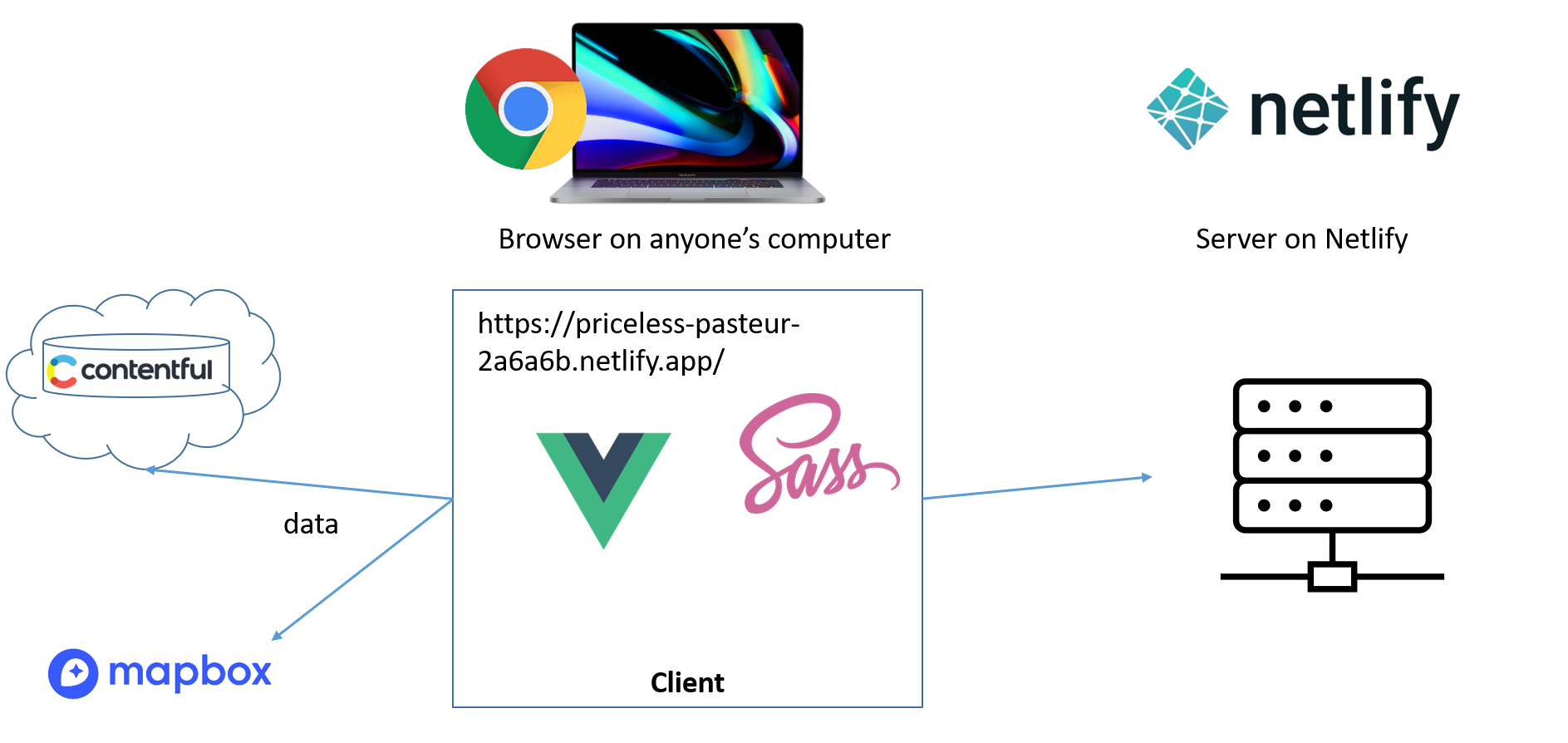
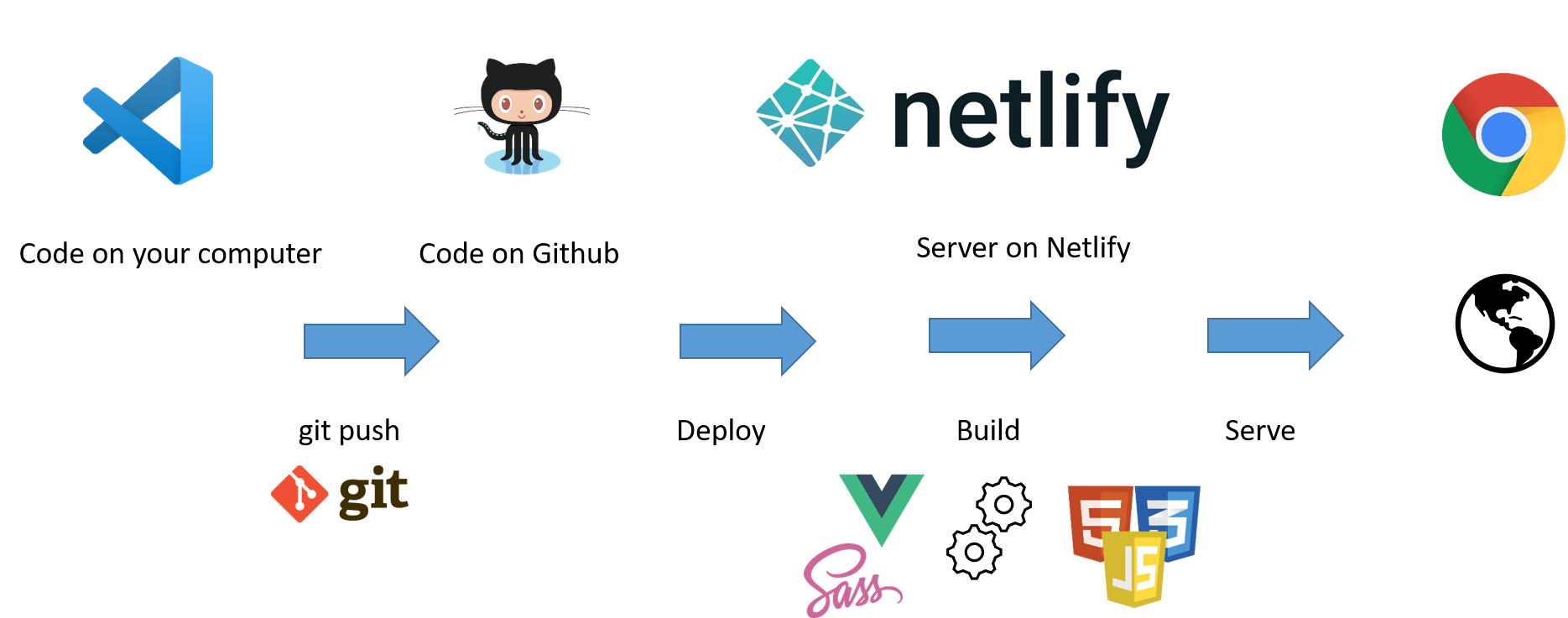
To make your application available to people on the internet, you have to run a web server somewhere. We use Netlify which makes it really easy to deploy our code from Github.
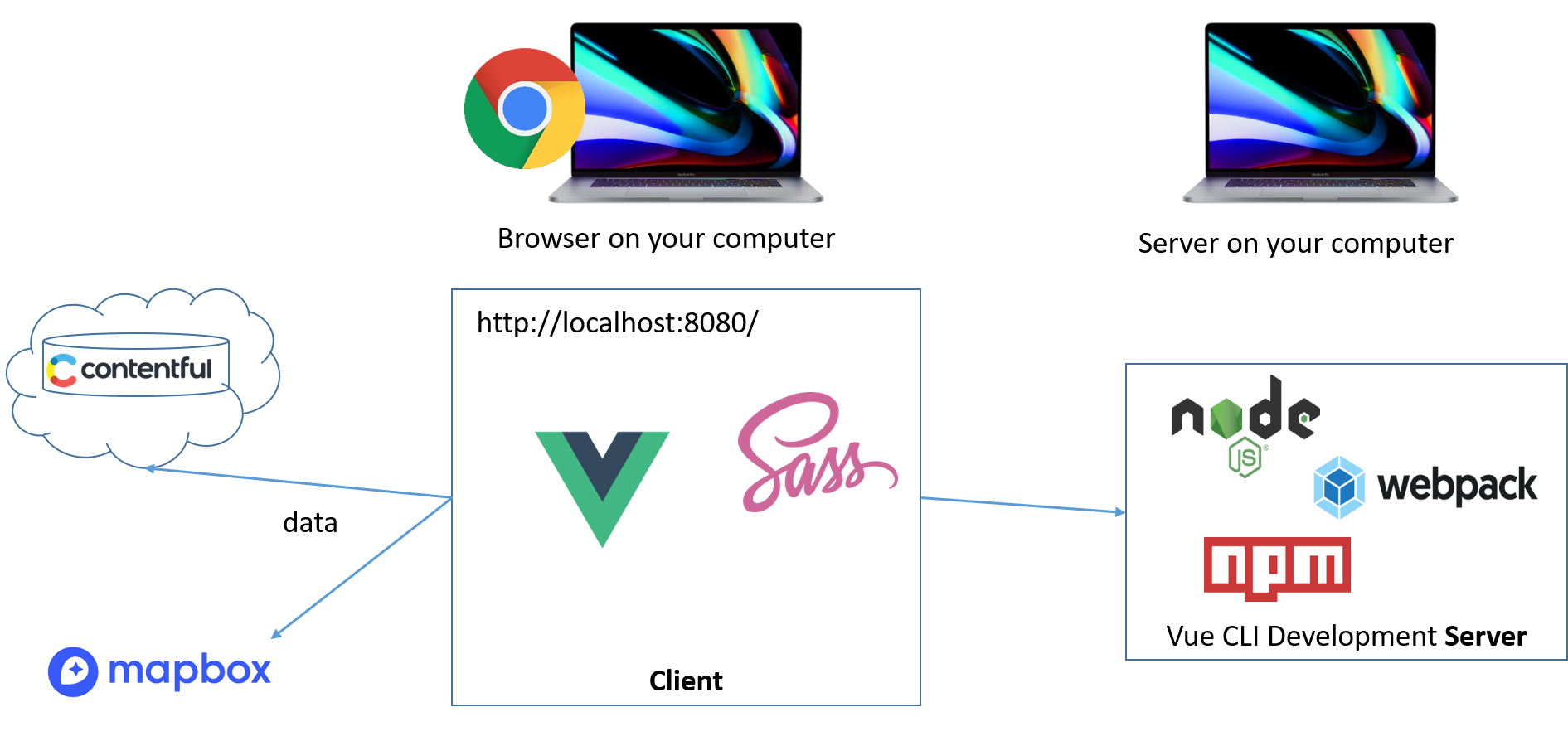
While you are working on your project, it would be inconvenient if you had to send all your changes to Netlify to see if your code works. For that reason we use a local development server that runs on your machine.
Git helps us to work with other people on the same project by providing version control. But even if you work alone, it is good to use version control. It allows you to go back to a working state, if you mess something up. Git can be quite complex to use, but we will start with the basics in this class. It is integrated in the IDE that we will use, so you don't have to use the command line if you don't want to. A project in Git is called a repository. There are many tutorial for how to use Git, for example this one. We store our Git repositories here on Github. Github can be connected to Netlify so that whenever you push a change to Github, Netlify deploys your new code.
We recommend Visual Studio Code for writing your code, but you are free to use your preferred editor or IDE. If you are new to VS Code have a look at this introduction to VS Code.
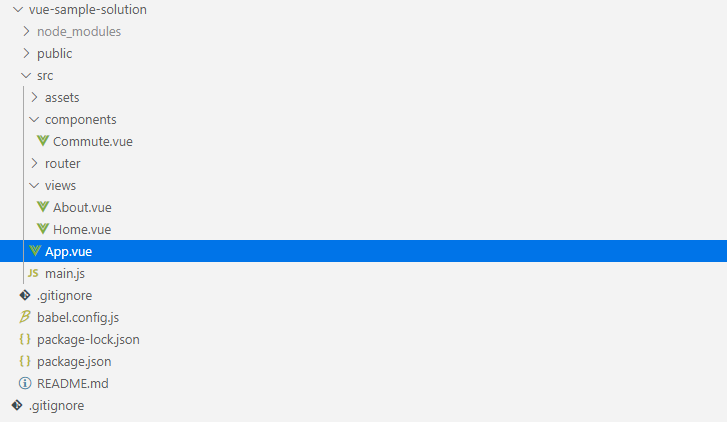
The most important files are all in the src folder. The file App.vue is the main file. It also contains the css of the project. If you add styles here, they will apply to the whole project. The views folder contains the individual pages of the project. With Vue.js we can create our components, these are like custom made HTML elements that can be reused in the project. They belong into the components folder. Style that you write for a component only apply to the component.
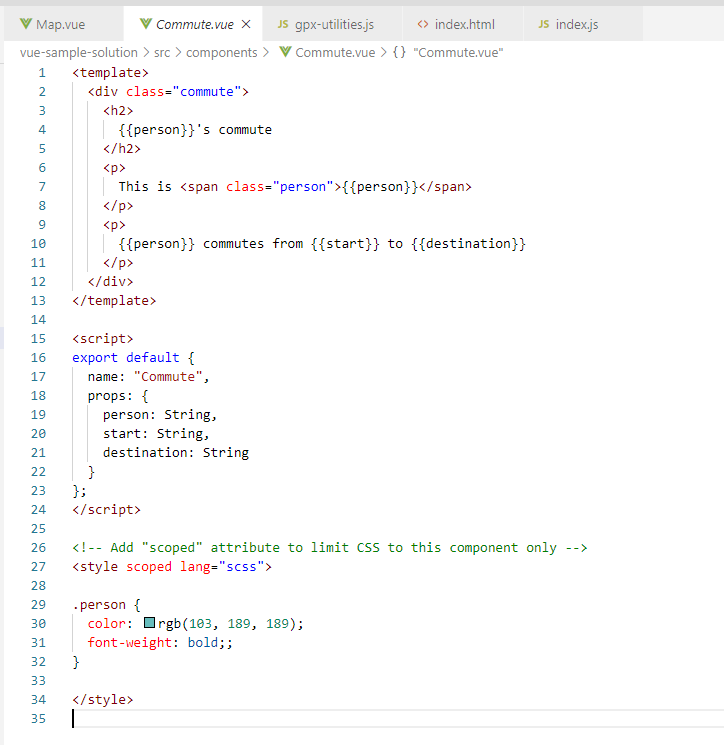
A .vue file is a bit like an HTML file. In addition to HTML, it can also contain JavaScript and CSS.
The goal of the following steps is to have to project set up on your machine so you can start working.
- Node.js, choose the LTS version.
Visual Studio Code is an integrated development environment (IDE) for web development. It has editors for writing code but also helps you with other tasks like using Git.
- Install VS Code (unless you already have your preferred IDE).
- If you don't have a Github account, create one.
- (Optional) sign up for the student pack.
- Generate an SSH key following these instructions
- Ask your team mate who created the project to add you as a project member on Github.
- Open VS Code.
- Open the folder where you want to have your project.
- Go to the project on Github and press the green Copy or Download button. Copy the HTTPS URL.
- In VS Code open a terminal (View=>Terminal). In a terminal we can execute commands. We use the $ sign to say something should be executed in the terminal. Don't copy the $, but everything that follows it.
- Execute the following command in the terminal: $ git clone
- Now you should have your project in VS code and you can look at the files.
The project uses libraries (like Vue.js) that have to downloaded and installed.
- Change into the project folder: $ cd project-folder-name
- Run the following command: $ npm install
- To start the development server run> $ npm run serve
- This will output a URL in the form of http://localhost:8080/
- Open the URL in a browser.
- TADA!
- In the project open the file App.vue
- In this file, you can change CSS that will be applied to the whole application.
- Make some changes to the CSS, for example, change the background-color
- Have a look at the application in the browser.
Git tracks your changes and VS code displays this information. Now that you have changed the project, you should see a blue icon with a number on the right.
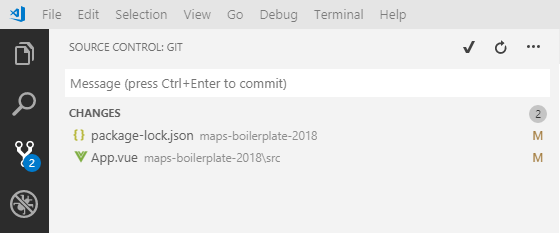
- Go the source control view (by clicking on the icon)
- Here you can see all the files that have changed or have been added/removed.
- Select the file that you have changed and review the changes.
- If you are happy with all your changes, hover with over the Changes line, where a + should appear. Press the +.
- Your changes are now staged. That means ready to be commited.
- Add a message. This helps your team mates (and yourself in the future) understand why you made changes.
- Commit your changes by pressing the checkmark button. Or changes are now commited to your local Git repository, which is on your computer.
- To share the changes with your team and to pull in new changes from your team, press the Synchronize button at the bottom of the screen
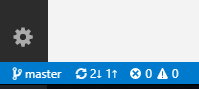
- Remember to regularly pull in changes from your team.
- If you and your team mate change the same piece of code, there can be conflicts that need to be merged. VS Code also helps us with that. You will have to decide, which changes you want to take from which user.