Full Width Toggle adds a compact, Notion-style Full Width switch to Obsidian's status bar. Click either the label or the switch to change the active note between full width and readable width.
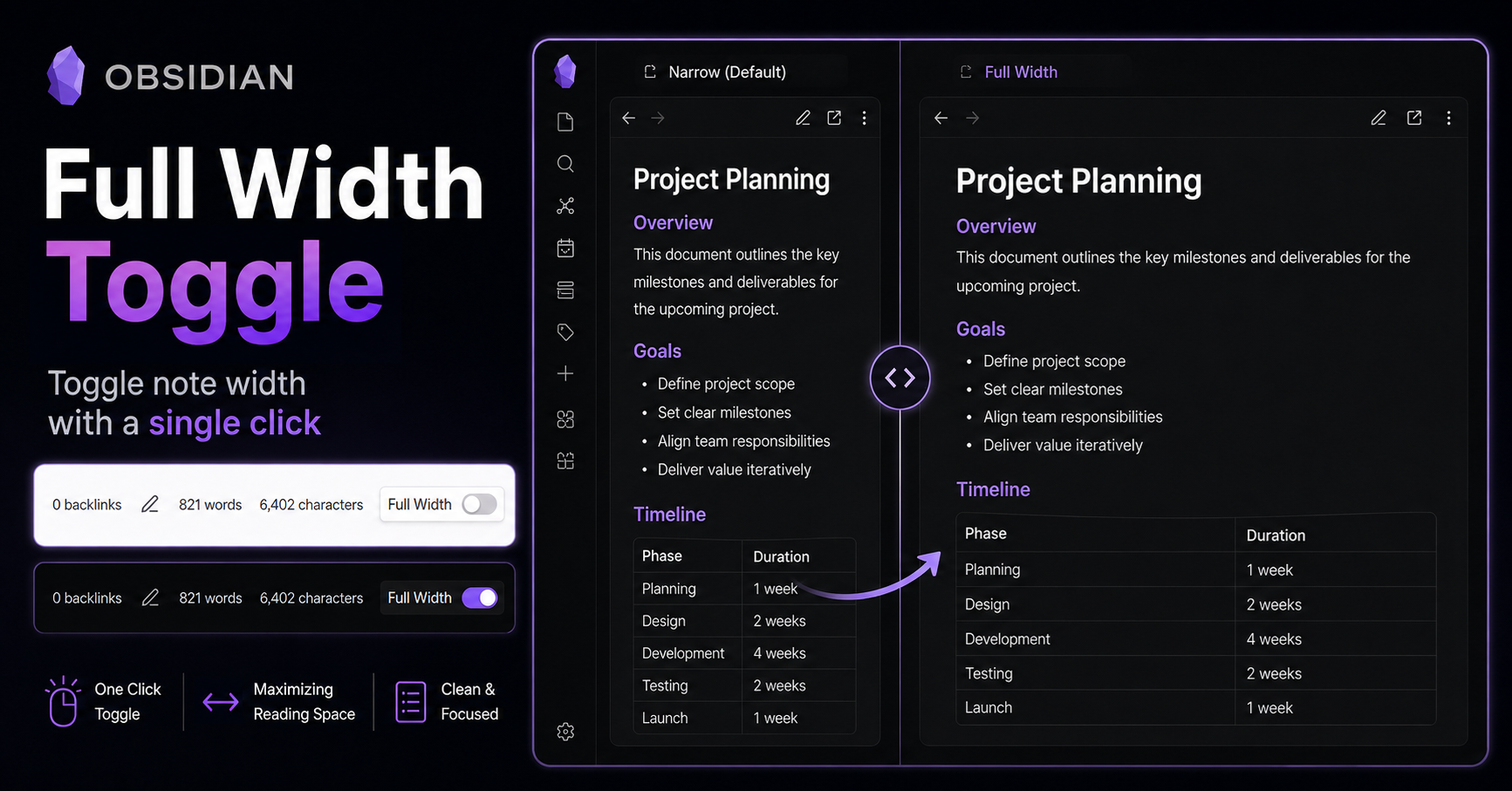

- Notion-style
Full Widthswitch in the status bar - The whole control is clickable, including both the text and the switch
- Per-note width state stored in the note's
cssclassesproperty - Ribbon and command-palette actions
- Editor and file context-menu actions
- Editing-view and reading-view support
- Self-contained styling with no separate CSS snippet
- Preserves unrelated
cssclassesvalues
Full Width is off by default. In the off state, Obsidian uses its current default note width (normally readable width). Turning Full Width on adds the following property to the active note:
---
cssclasses:
  - full-width
---
Turning it back off removes only the full-width class. Other classes are left
untouched.
-
Download
main.js,manifest.json, andstyles.css. -
Create this folder inside your vault:
<vault>/.obsidian/plugins/full-width-toggle/ -
Copy the three files into that folder.
-
Open Settings → Community plugins and enable Full Width Toggle.
Install BRAT, choose Add Beta plugin, and enter:
do0ori/obsidian-full-width-toggle
Toggle current note width
The same action is also available from the ribbon, editor context menu, and file context menu.
npm install
npm run dev
Run npm run build to create the production main.js used in GitHub
Releases.
If Full Width Toggle makes your Obsidian workflow a little nicer, you can support the project through PayPal.