Connecting Your MCP Client
The official client connection guide covers per-client setup instructions. This page provides the context around those instructions: what information you need, why the URL patterns look the way they do, and how to think about the connection process regardless of which client you use.
Every MCP client requires the same three pieces of information:
- MCP server URL — identifies which server and org you're connecting to (see URL Patterns below)
- OAuth Client ID — the consumer key from your External Client App
- OAuth Client Secret — from the same ECA (see why secrets matter)
The specifics of where you enter these values differ by client, but the information itself is consistent.
Different MCP clients use different terms for essentially the same thing. ChatGPT calls them "connectors" or "apps." Claude calls them "connectors." Cursor uses a JSON configuration file. Postman treats them as a type of request.
Try not to get hung up on the naming — these are relatively arbitrary terms in a young ecosystem. At the end of the day, every client does the same three things:
- Establishes an MCP-based connection to Salesforce
- Uses the protocol to discover and call tools
- Sends the results to the supporting LLM for processing and response
We recommend Postman as your first MCP client, regardless of which client you ultimately plan to use in production. There are two reasons:
- It's free. No subscription required for MCP testing.
- It isolates the server from the LLM. When something doesn't work, the first question is always "is it the MCP server or the AI client?" Postman removes the LLM from the equation entirely — you see the raw tool calls and responses. If it works in Postman, any issue is client-specific.
Use platform/sobject-all as your test server. It provides full CRUD access and is a good baseline for validating that authentication, permissions, and tools are all working correctly.
See Testing and Debugging with Postman for a detailed walkthrough.
Rather than replicating per-client configuration steps (which go stale fast as clients evolve), we link to each client's own documentation alongside the Salesforce-specific setup guide.
- Salesforce setup guide for ChatGPT
- OpenAI developer mode documentation
- Note: OpenAI uses terms like "connector" and "app" — these map to MCP server connections.
- Salesforce setup guide for Microsoft Copilot
- Microsoft: Connect your agent to an existing MCP server
- Note: Requires Copilot Studio (enterprise). The consumer Copilot app does not support MCP connections.
The MCP protocol doesn't support query parameters or headers for identifying which server or org type you're connecting to during the initial discovery phase. Everything must be expressed in the URL path. We also need to account for:
-
Production vs. sandbox vs. scratch org differences — these require different OAuth endpoints (
login.salesforce.comvs.test.salesforce.com) -
Orgs that require My Domain login — some orgs have disabled
login.salesforce.comentirely, so the custom domain needs to be encoded in the URL
This is consistent with how Salesforce authentication has always worked.
Developer Edition orgs:
https://api.salesforce.com/platform/mcp/v1/{servername}
https://api.salesforce.com/platform/mcp/v1/d/{mydomainname}/develop/{servername}
Sandbox orgs:
https://api.salesforce.com/platform/mcp/v1/sandbox/{servername}
https://api.salesforce.com/platform/mcp/v1/d/{mydomainname}--{sandboxname}/sandbox/{servername}
Scratch orgs:
https://api.salesforce.com/platform/mcp/v1/sandbox/{servername}
https://api.salesforce.com/platform/mcp/v1/d/{mydomainname}/scratch/{servername}
Production orgs (all other):
https://api.salesforce.com/platform/mcp/v1/{servername}
https://api.salesforce.com/platform/mcp/v1/d/{mydomainname}/{servername}
The My Domain URL option (the /d/ variant) is recommended for all orgs and required for orgs that have disabled login from login.salesforce.com or test.salesforce.com. If a user's org has this restriction and they try the non-My-Domain URL, authentication will fail.
Your My Domain name is found in Setup → My Domain → My Domain Name. For more on My Domain in Salesforce, see the My Domain help documentation.
Sandbox org example:
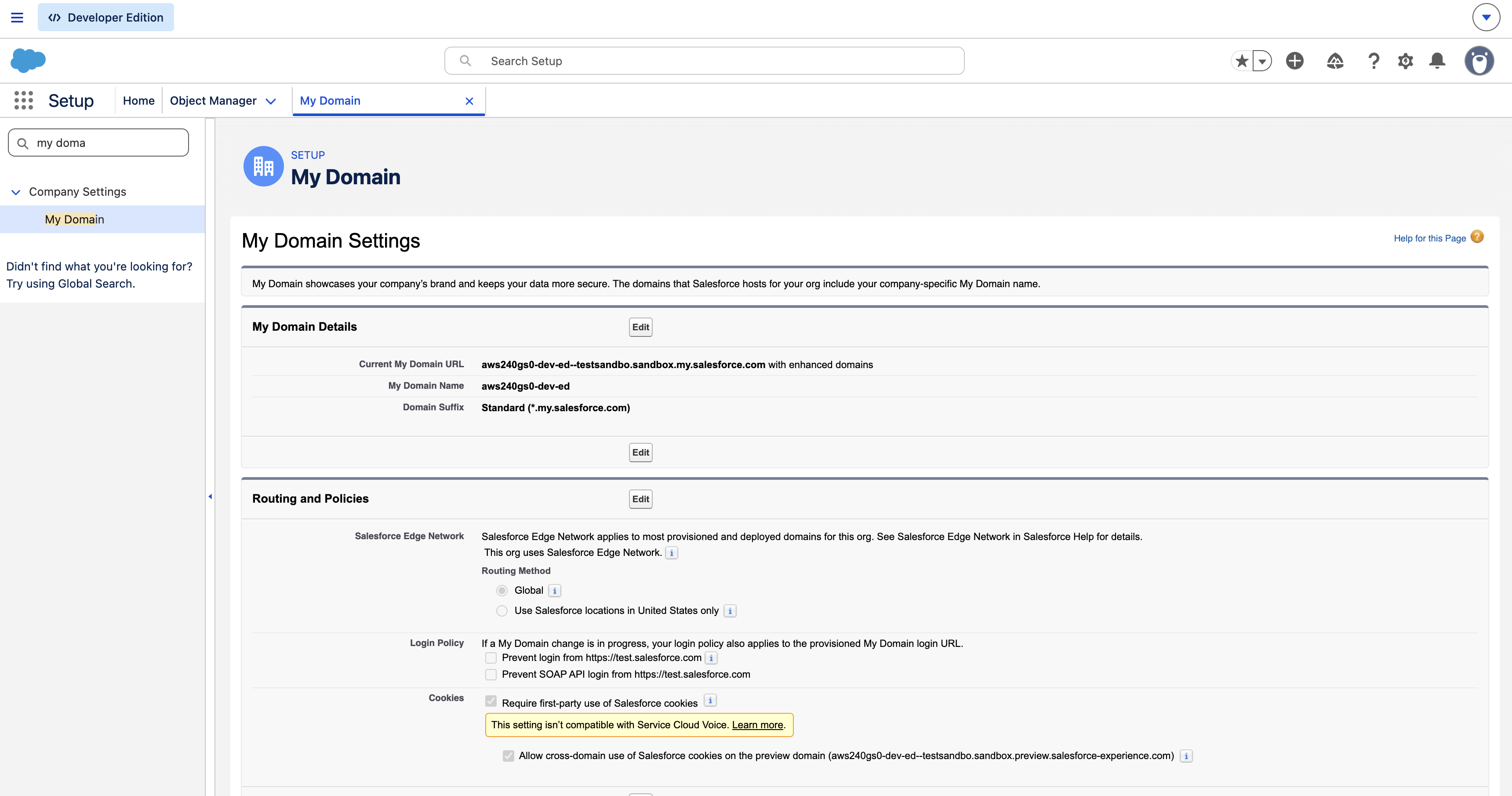
This org's My Domain name is aws240gs0-dev-ed--testsandbo, so its MCP URL would be:
https://api.salesforce.com/platform/mcp/v1/d/aws240gs0-dev-ed--testsandbo/sandbox/platform/sobject-all
Developer Edition org example:
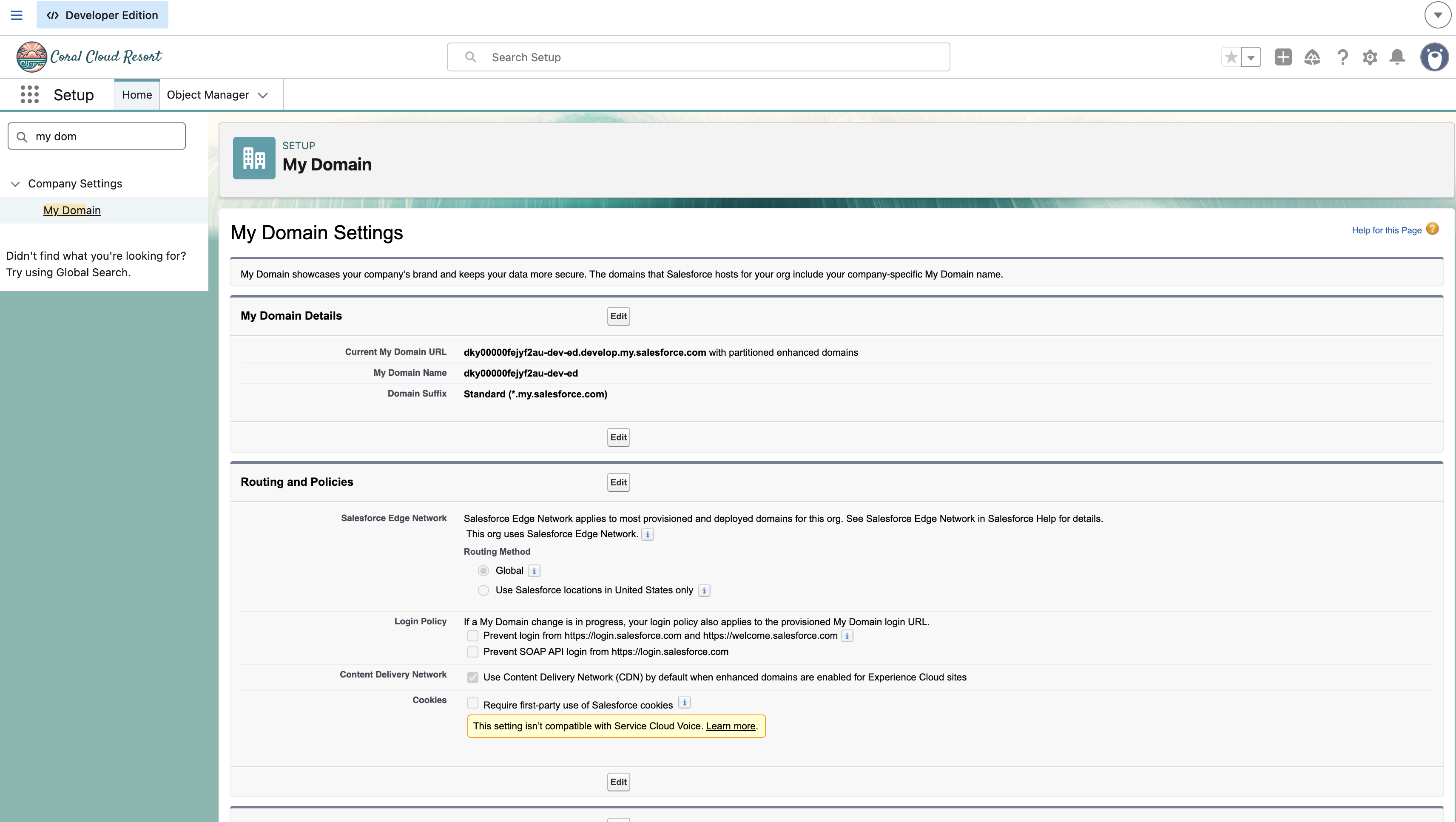
This org's My Domain name is dky00000fejyf2au-dev-ed, so its MCP URL would be:
https://api.salesforce.com/platform/mcp/v1/d/dky00000fejyf2au-dev-ed/develop/platform/sobject-all
Note: The examples above use standard servers (e.g.,
platform/sobject-all). Custom servers follow the same URL structure, substituting the custom server's domain and name. We're confirming with engineering whether the/d/{mydomainname}pattern applies identically to custom server URLs — check back for updates.
Proceed to Testing and Evaluating Your MCP Client.