Repository navigation
Dashboard
The Dashboard is the first screen you see. It answers three questions at a glance: how full are my drives, how much can I clean right now, and does anything need my attention.
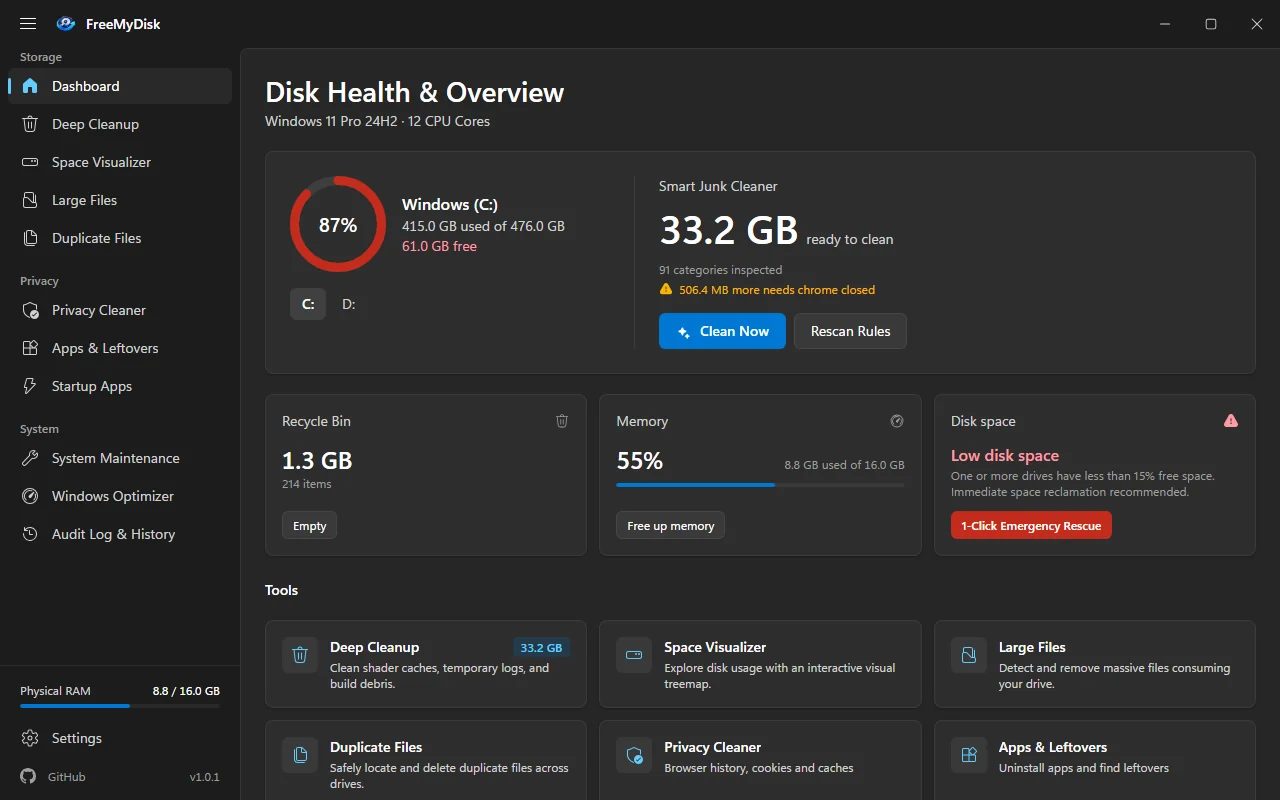
The ring on the left shows how full the selected drive is, with used, total and free space underneath. Select C:, D: and so on to switch drives. A drive with less than 15% free space is marked in red.
This card runs all 122 cleanup rules in the background when the app starts and shows how much Clean Now can remove.
- Clean Now cleans the curated default set: safe, rebuildable caches such as browser caches, app caches and logs, crash dumps, thumbnails and Windows Update downloads. It never selects AI models, package stores or app data. It is the same set that Smart Select ticks in Deep Cleanup.
- If an app holds files open, the card says so, for example "506 MB more needs chrome closed". Close that app, or use Close all & unlock in Deep Cleanup, to include it.
- Items that need administrator rights are listed separately, so the number you see is what a normal cleanup can really free.
- Rescan Rules runs the scan again, for example after you have closed an app.
| Card | What it shows | Action |
|---|---|---|
| Recycle Bin | Size and number of items in the Recycle Bin on all drives | Empty asks for confirmation, then empties it for good |
| Memory | How much RAM is in use | Free up memory asks Windows to trim the memory of idle processes |
| Disk space | A warning when any drive has less than 15% free | 1-Click Emergency Rescue (below) |
Important
Everything FreeMyDisk removes goes to the Recycle Bin first. That space is only really free once you empty it. Empty it when you are sure you don't need anything back.
When a drive is almost full, Windows updates fail and apps can crash. 1-Click Emergency Rescue frees space fast with four steps, in this order:
- Empty the Recycle Bin.
- Clean temporary files. Files changed in the last 24 hours, and files in use, are kept.
-
Turn off hibernation, which deletes
hiberfil.sys. This shows a Windows UAC prompt. - Shut down WSL, so its virtual disks are released and can be compacted later.
Every step is shown before it runs, and the result of each one (done, skipped or failed) is shown afterwards with the space it freed. You can turn hibernation back on at any time in Windows Optimizer, or with powercfg /h on.
The bottom of the Dashboard links to every tool. The Deep Cleanup tile shows the amount it found.
- Deep Cleanup: review every rule before cleaning
- Safety Model: what Clean Now will never touch
- Settings: Recycle Bin routing and confirmations