Repository navigation
Deep Cleanup
Deep Cleanup is the main cleaner. It shows every cleanup rule that found data on your PC, what each one removes, how risky it is, and exactly how much space it frees, so you decide what goes.
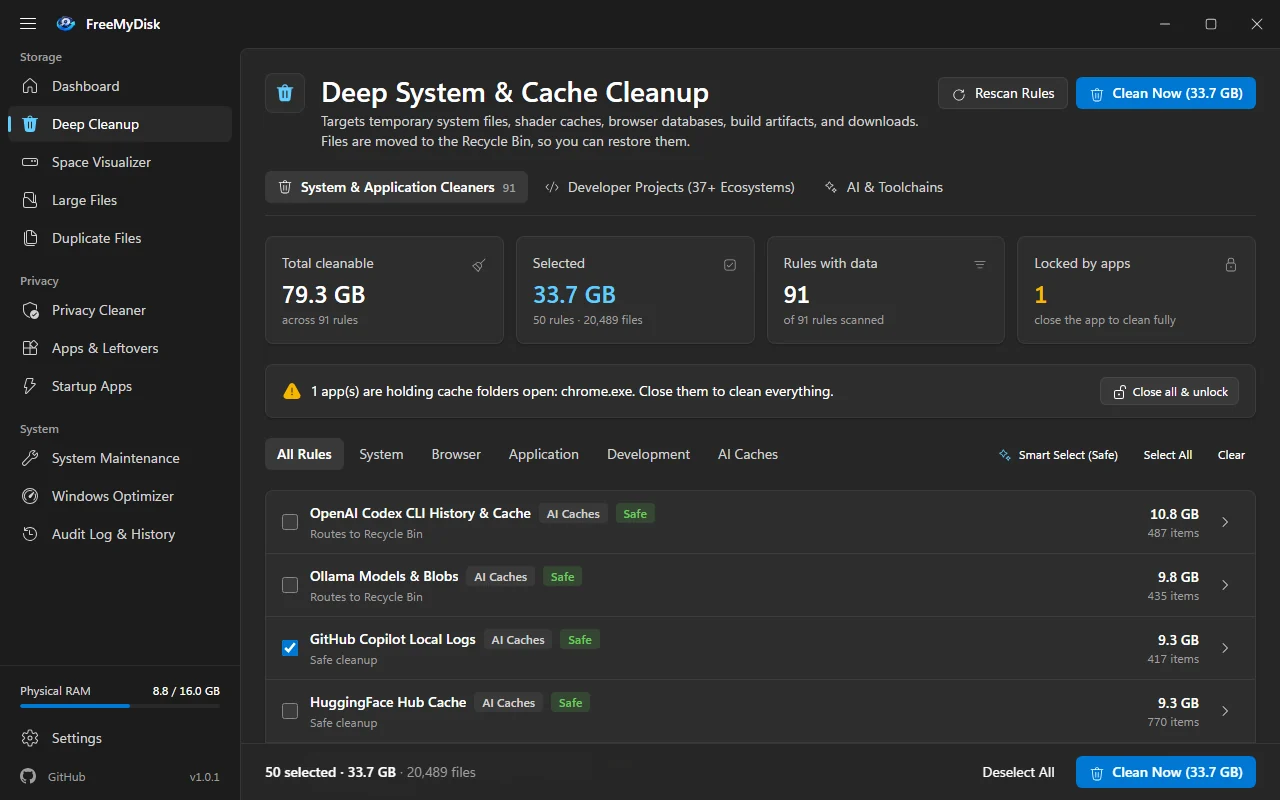
Deep Cleanup has three tabs: System & Application Cleaners, Developer Projects and AI & Toolchains.
| Card | Meaning |
|---|---|
| Total cleanable | Everything all rules found, with each file counted once even when several rules match it |
| Selected | What the ticked rules will remove, in bytes and files |
| Rules with data | How many of the 122 rules found something |
| Locked by apps | Rules whose files are held open by a running app |
If an app such as Chrome or Discord is running, its cache files are locked. FreeMyDisk never forces a locked file. A banner lists the apps, and Close all & unlock closes them for you, so the next cleanup includes their files.
Each row is one rule:
- Name and owner, for example Google Chrome Cache or Windows Update Download Cache.
- Category: System, Browser, Application, Development or AI Caches. Use the tabs above the list to filter.
- Risk label: Safe, Low, Moderate or Recoverable. See Safety Model.
- Route: Routes to Recycle Bin or Safe cleanup, so you know where the files go.
- Size and item count. Select the arrow to see every path the rule found.
- Smart Select (Safe) ticks the curated default set: about 60 safe, rebuildable caches. AI models, package stores and app data are never ticked for you.
- Select All and Clear tick or untick everything in the current tab.
- Tick rows yourself for anything else.
The bar at the bottom shows how many rules are selected and their total. Clean Now asks you to confirm, then moves everything to the Recycle Bin and records each step in the Audit Log and History.
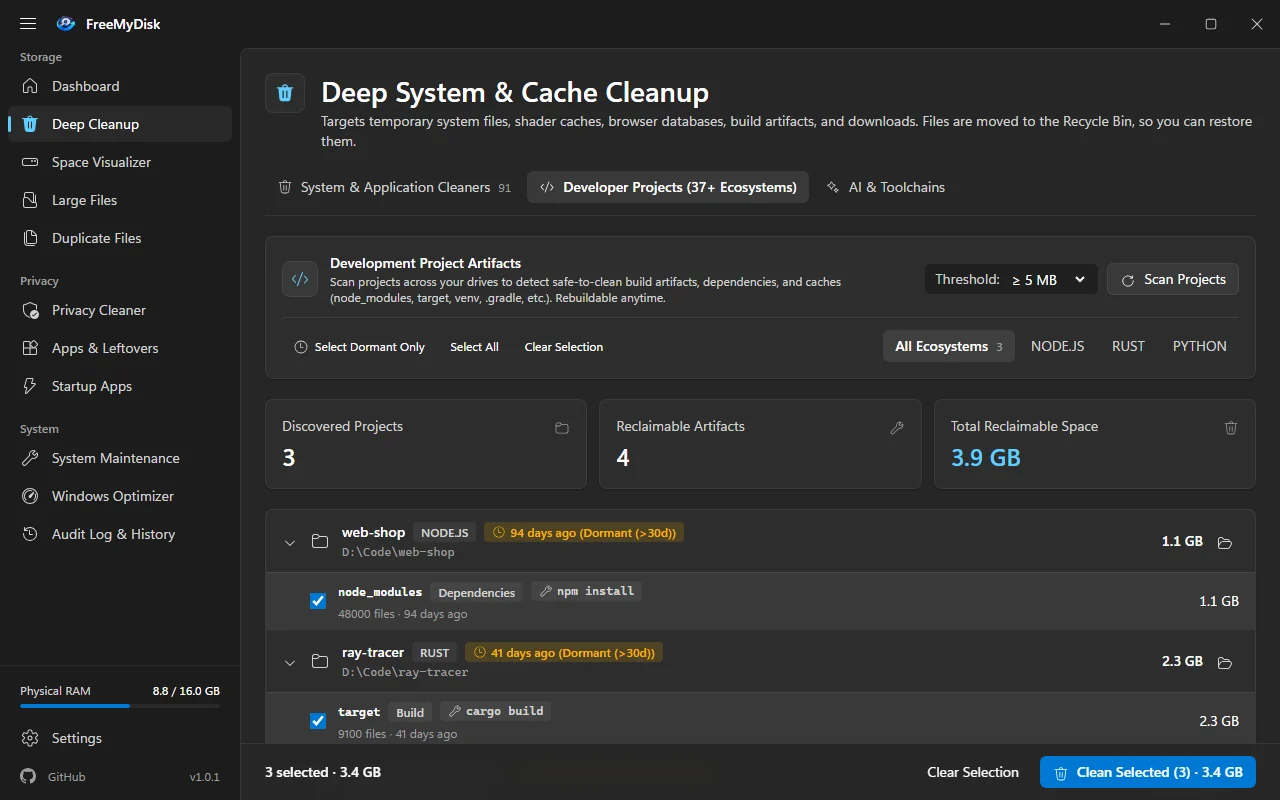
This tab finds build artifacts and dependency folders inside your own projects, across 37+ ecosystems: node_modules, Rust target, Python .venv and __pycache__, .gradle, .NET bin and obj, and many more.
- Choose a minimum size with Threshold and select Scan Projects.
- Each project shows its type, how long since you last changed it, and each artifact with its size and the command that rebuilds it, such as
npm installorcargo build. - Select Dormant Only ticks artifacts in projects you haven't changed for more than 30 days.
Your source code is never touched. Only folders that the project's own tools can rebuild are listed.
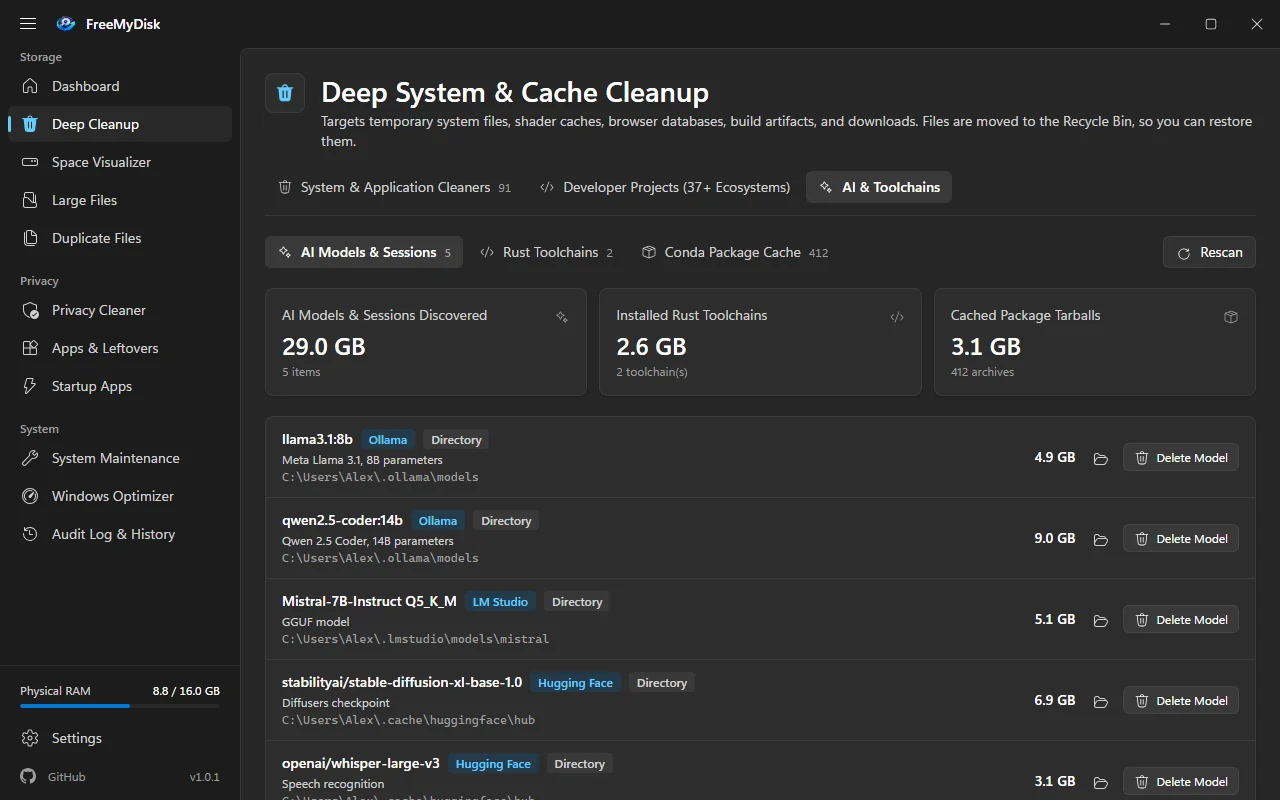
Local AI models are some of the largest files on a modern PC. This tab has three views:
- AI Models & Sessions: models and caches from Ollama, LM Studio, Hugging Face and others, with provider, path and size. Delete Model removes one model after you confirm.
-
Rust Toolchains: installed
rustuptoolchains. The active toolchain is marked and can't be removed. - Conda Package Cache: the size of Conda's downloaded package archives, with one button to clean them.
Nothing on this tab is selected for you. A model can take a long time to download again, so you choose each one.
- Writing Cleanup Rules: add a rule for an app you use
- Command Line Interface: run the same rules from a script
- Troubleshooting: "In use by", administrator rights and other messages