Repository navigation
Space Visualizer
Space Visualizer shows where your space went. Instead of a list, it draws a treemap: every folder is a block sized by how much space it uses, so the biggest folders stand out immediately.
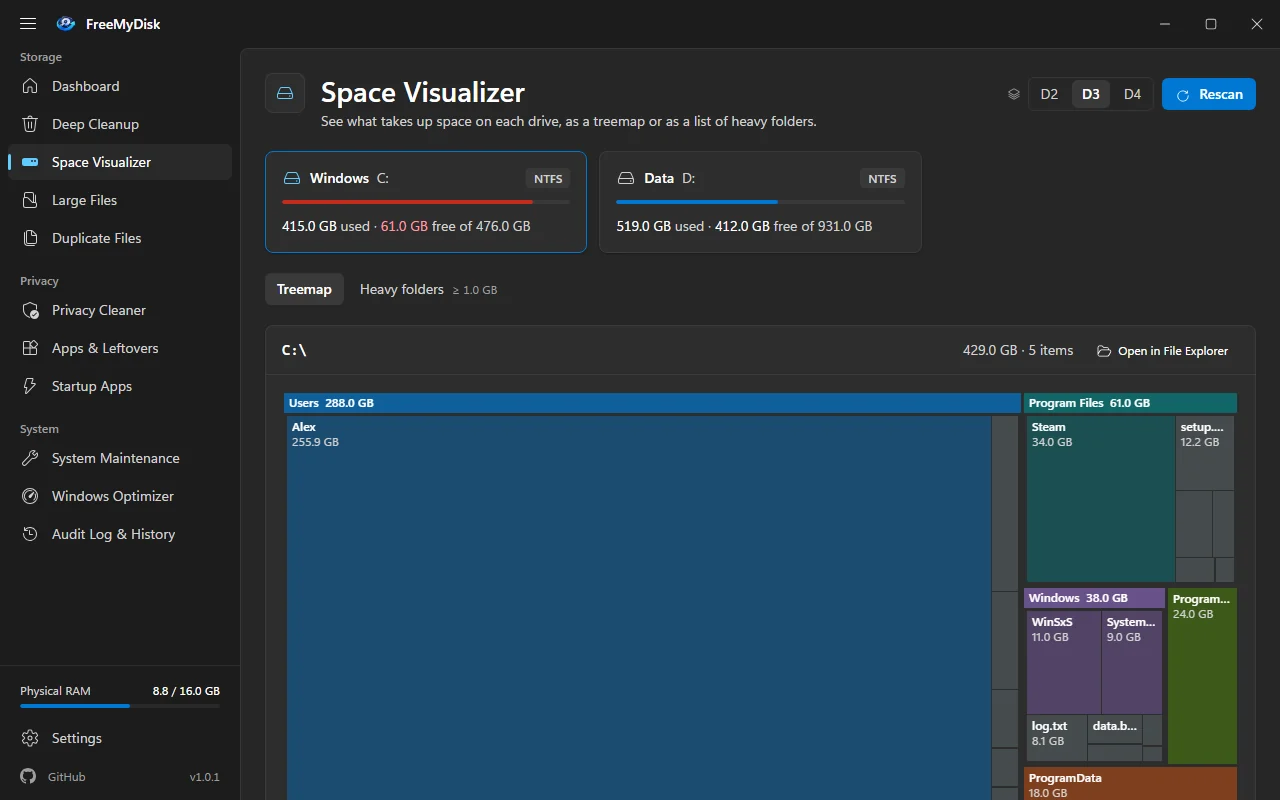
- Select a drive card at the top, for example Windows C:.
- Choose the depth with D2, D3 or D4. Deeper levels show more detail but take longer on a large drive.
- Select Generate Treemap, or Rescan later.
Each block shows the folder or file name and its size. Blocks are coloured by top-level folder, so everything inside Users shares a colour.
- Click a block to zoom into that folder. The path at the top shows where you are, and you can step back up from there.
- Open in File Explorer opens the current folder.
- System folders such as
Windowsare marked as protected. You can look, but FreeMyDisk never offers to remove anything there.
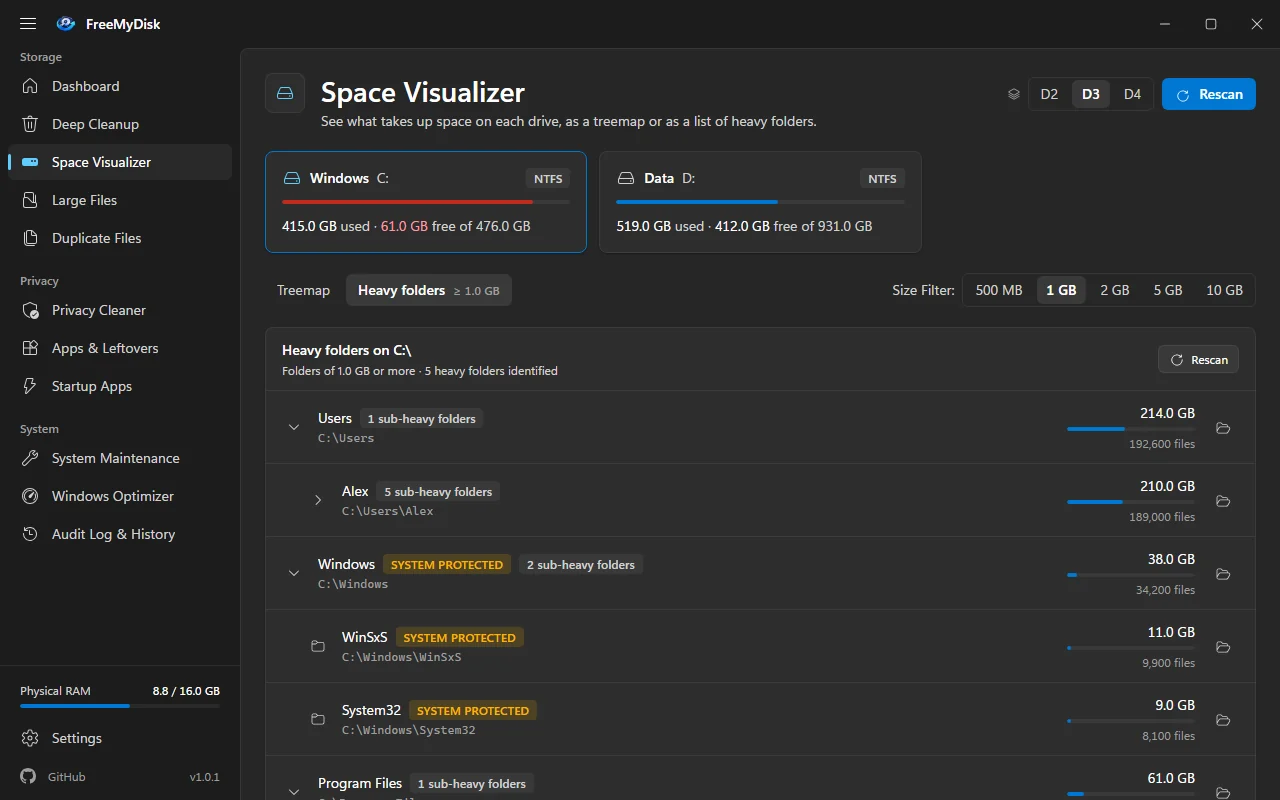
The Heavy folders tab lists every folder above a size you choose (500 MB, 1 GB, 2 GB, 5 GB or 10 GB) as an expandable tree, with its size, its number of files and a bar for each. It is the fastest way to answer "which folder grew?".
- On a full drive, start with D2 to get an overview in seconds, then zoom into the biggest block.
- If
Usersis the biggest block, open your user folder:AppData,VideosandDownloadsare the usual suspects. - Found something large? Use Large Files for single big files, or Deep Cleanup for caches.