Reading and Writing
This page covers the read/preview/write cycle: how a read populates the working copy, what the send preview shows before anything reaches the radio, where the safety snapshot goes, and how a write is verified slot by slot. Editing channels once you have a working copy is covered on The grid; importing and exporting files is covered on CSV and CHIRP; the equivalent rigprog commands are covered on Command line.
The Read Radio button in the toolbar starts a read. It is disabled until you are connected, and again while any transfer is already running. If the working copy has unsaved edits, a dirty-guard dialogue appears first, offering to discard those edits, save them, or cancel — only once that is resolved does the read itself begin.
A read's progress is shown live in the status bar at the foot of the window: phase, a done/total counter, and the slot currently being read.
Preparing a send does its own fresh read first. Clicking Send to Radio reads a current baseline from the radio before it can compare that baseline against your working copy — so the diff you are shown next is always against what the radio holds right now, not a stale earlier read.
Once Prepare Send's fresh read finishes, a review dialogue opens before anything is sent. Its header reads "Review before sending", and its subtitle states:
A snapshot of the radio's current state has been saved first, at (the snapshot path). Baseline digest (digest)…
Below that, a row of counts shows how many entries are to add, to modify, or to erase, and how many are blocked. The changes themselves are listed in up to four groups — Added, Modified, Erased, Blocked — with blocked entries showing their reason. A blocked erase also carries the radio's own front-panel procedure (see below).
If there is nothing to send, the dialogue says so, but distinguishes two situations. When the working copy genuinely matches the radio:
Nothing here can be sent — the working copy already matches the radio.
When every pending change is blocked (most often a channel deletion — this programme never sends an erase command to any radio, whether or not that radio's own manual defines one — but other blocks are possible too, see each radio's own page):
None of the pending changes can be sent to this radio — see the reasons below. Your edits are still saved in the working copy; the radio itself is unchanged.
In that second case the dialogue offers only a Close button — no Confirm send, since nothing here can become sendable. Otherwise, Confirm send starts the transfer.
Before the preview is even shown, the fresh baseline that Prepare Send just read is saved to disk as a snapshot — this happens before anything else, even if the plan that follows has nothing sendable in it. That snapshot's path is what the preview dialogue's subtitle quotes above, and it is shown again on the result screen once a send finishes or stops.
On the command line, rigprog write accepts --snapshot-dir DIR to choose where snapshots (and the write journal, see below) are kept; the default is <UserConfigDir>/rigprog/snapshots.
The snapshot exists to let you recover the radio's prior contents if a send goes wrong. As the dialogue itself puts it:
A snapshot of the radio's contents immediately before this send is saved at the path above, alongside a journal of exactly what happened. If you need to recover, load the snapshot to see what the radio held before this send — but note that erased or hidden fields cannot be restored to the radio over CAT; recovering those requires manual entry from the front panel.
Clicking Confirm send moves the dialogue into a transferring phase and starts the write. rigprog write's own usage text describes the same engine the desktop app uses underneath:
[it] writes every unblocked Added/Modified slot one at a time, verifying each write's read-back before moving to the next.
Progress during a write is shown the same way as during a read, with a progress bar: phase, done/total, and the current slot. Blocked entries — including every erase — are never sent; they were already listed with their reasons in the preview.
A transfer in progress can be stopped with the Cancel transfer button, but cancellation is only honoured between slots — the dialogue's own footer note during a transfer says so: "Stops at the next verified channel boundary." An in-flight write-and-verify pair always finishes before a cancellation is acted on.
On the command line, exit codes make the same outcomes scriptable:
Exit codes: 0 success, including "nothing to send" when the working copy genuinely matches the radio; 2 usage (also: a non-interactive run without
--yes); 3 the candidate file failed validation, OR every pending change is blocked (nothing was sendable, named with reasons — see above); 4 refused before any write reached the radio (stale baseline, session changed, confirmation declined or mismatched); 5 aborted after at least one write reached the radio — the printed journal records exactly what happened, and the printed snapshot can be re-sent with a later "rigprog write" run.
Once a transfer settles, the dialogue's result phase shows one of: Send complete, Send aborted, Send refused, Send cancelled, or a generic failure.
Refused means nothing reached the radio at all — the plan was rejected before the first write. The message names why, for example:
refused: the radio's contents changed after the plan was prepared — read the radio and prepare send again
(Other refusal reasons cover a changed session, an internal consistency check, a confirmation that didn't match the plan reviewed, or the candidate failing validation at send time.)
Aborted means the radio was partially written before something stopped the transfer — a verify mismatch, a write rejection, or a journal failure. The dialogue shows a per-slot table (slot, action, whether it verified, detail), plus the same snapshot and journal paths and recovery note quoted above.
Cancelled covers a transfer you stopped yourself with Cancel transfer: the same snapshot, journal and recovery note are shown, since the in-flight slot still completed its write-and-verify pair first.
Whenever a result carries a report, a Read radio now button is offered, which closes the dialogue and re-reads the radio to refresh the baseline. For anything other than a clean success, Prepare again is offered too, to build a fresh plan from the current working copy.
Open Rig Programmer reads the FT-710's menu (EX) settings but does not write them. docs/menu-write-decision.md records that decision, and states it plainly:
open-rig-programmer reads the FT-710's menu settings and will not write them.
That document also notes that menu writability "stays Unverified in the capability model" — see Unverified writes for what that word means for the radios where writing is offered.
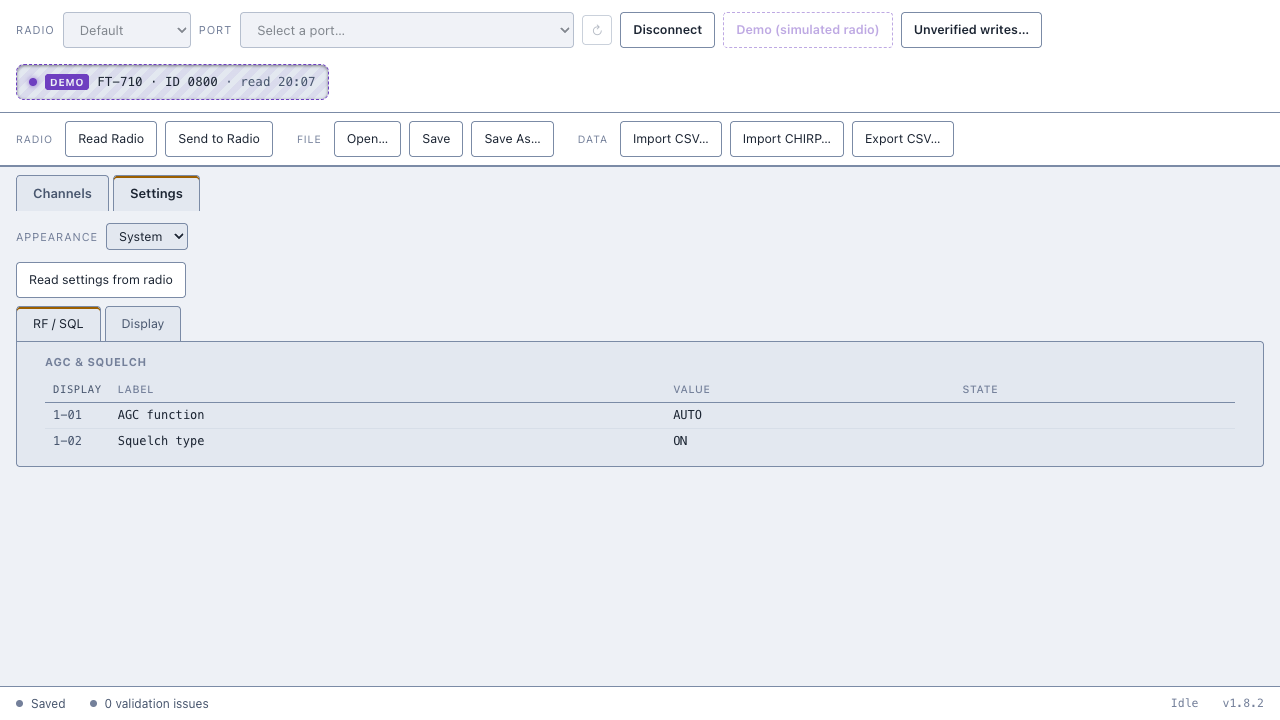
The settings view reflects this: it is a browser, not an editor. Its tabs, one per menu, and every label, ID and grouping within them, come from the radio's own settings layout rather than being hardcoded. Each tab holds one or more groups, each shown as a table of display code, label, value and state. A state badge appears next to anything that isn't a known, successfully-read value — for example an item not yet read, one the radio rejected, or one carried forward from an older, incompatible snapshot.
The Read settings from radio button is the only way to populate these tables, and it doubles as the call to action in the empty states: before any codeplug is loaded, before any settings have been read for one, and (separately) a notice when a loaded file carries older preserved menu data that cannot be shown here at all.
As of v1.9.0 (commit bec7df97).