The Grid
The channel grid is the editable table of memory channels in the desktop app — one row per memory slot, one column per field. It is driven entirely by the radio's own capabilities: which banks exist, which columns are read-only, and which vocabularies (modes, shift options, CTCSS states, tones) appear in a dropdown all come from the connected radio's own spec, not from anything hardcoded in the grid itself.
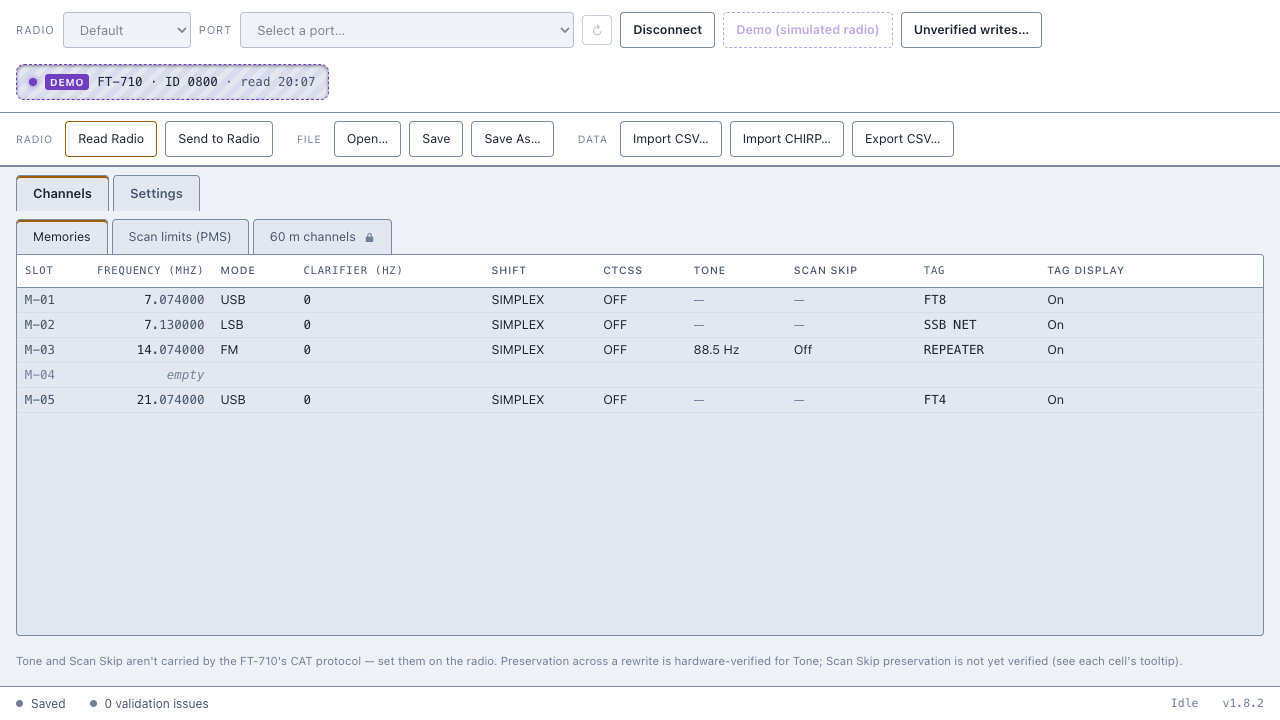
Loading a codeplug is covered on Reading and writing; this page covers the grid you land on once one is loaded.
Channels are grouped into banks, shown as tabs above the grid (role="tablist", with arrow-key navigation between tabs). A bank marked read-only over CAT shows a small padlock glyph on its tab and on every row's Slot cell; hovering the padlock shows the tooltip "read-only over CAT — the radio rejects writes to this bank". The tooltip wording is the same either way, but the lock itself has two different causes: on most radios it reflects a confirmed limit in the maker's own manual, while on some — the FT-450D's PMS bank, for example — it is this project's own caution rather than a documented radio limit, pending an owner's hardware probe. No editing, deleting, dragging, or keyboard copy/move is available in a locked bank — the grid simply takes no part in any of those actions there.
Any bank tab carrying open issues shows a count badge next to its label; the badge turns red if any of those issues is an error (in advisory/offline mode, badges always render as warnings rather than errors, since offline validation is advisory only).
Nine columns are always present: Slot, Frequency (MHz), Mode, Clarifier (Hz), Shift, CTCSS, Tone, Scan skip, and Tag display. The tenth base column, Tag, is capability-dependent: it appears only for a radio with a channel-name command over CAT, and is left out entirely for a NoTag radio (see each radio's own page). An empty slot's Frequency cell shows the word "empty" in place of a value.
Some radios' banks declare extra fields of their own (for example a tone mode, filter, or duplex-related field); where a bank's own field list names one, the grid adds that column too. Where it doesn't, the column simply doesn't appear — nothing is invented for a radio that hasn't declared the field.
Double-clicking a cell, or pressing Enter or Space on a focused cell, opens its editor; typing a printable character on a focused, editable cell opens the editor seeded with that character. Escape cancels; Enter or clicking away (blur) commits. An editor that hasn't actually changed the value is a no-op — nothing is sent.
There are a few kinds of editor:
-
Text fields — Frequency and Tag are plain text inputs. Frequency parses whatever is typed as MHz and rejects anything it can't read (an alert names the reason); an empty Frequency edit or an unchanged Tag edit is a no-op. Tag shows a live byte counter (
n/max) next to the input, since the tag length limit is a byte limit, not a character limit, and turns red once over. - The clarifier editor — a single composite: a numeric hertz input plus Rx and Tx checkboxes, committed together as one edit when focus leaves the whole group (not on each keystroke or checkbox individually). Its min/max/step come from the radio's own spec, so arrow-key stepping matches the radio's real increment.
-
Dropdowns (select editors) — Mode, Shift, CTCSS state and Tone each open a
<select>populated from the radio's own vocabulary list (Modes,ShiftOptions,CTCSSStateOptions,Tones). An unanswered Tone cell shows a "— not set" placeholder entry so blurring away without choosing anything commits nothing. - Toggle columns — Tag display and Scan skip flip with a single keystroke once a value is already known, rather than opening an editor. Scan skip only flips from a known value; Tag display's first press from "unknown" lands on Off and then flips normally from there.
Cells the app can't currently answer for a given channel — because the field isn't settable over CAT for that radio, or the channel is unpopulated — aren't editable at all.
Pasting into the grid accepts a block of cells copied from a spreadsheet or another codeplug view: tab-delimited when the clipboard text contains a tab, comma-delimited otherwise, with quoted cells for embedded delimiters or newlines. The block is mapped onto the grid starting at the focused cell; rows past the end of the bank and columns past the last visible column are clipped, and an empty cell in the pasted block leaves that field unchanged rather than blanking it.
A paste is rejected outright — nothing partially applied — when it targets a read-only bank, tries to paste into the Slot column, targets a Tone or Scan skip cell that isn't currently answerable, contains a cell the app can't parse, or populates an empty slot without giving it a parseable frequency. Tag display is a deliberate exception to the general "can't paste into a currently unanswerable cell" rule: an unknown Tag display can be pasted to a known value (since the app needs some way for the user to answer it), but an unavailable one — meaning this radio's memory frame has no display flag at all — is still refused.
Dragging a populated row onto another row in the same bank tab opens a Copy or move dialogue offering:
- Copy here — the target becomes a copy of the source; the source is unchanged. If the target already holds a channel, the button reads "Copy here (overwrites it)".
- Swap — offered only when the target already holds a channel; source and target exchange data, so nothing is lost.
- Move here — the target becomes the source's data, and the source becomes empty in the file. The dialogue's own wording: "Move here: {source} becomes empty in this file — the radio keeps its old contents until front-panel deletion."
The same dialogue opens from the keyboard (Ctrl/Cmd+M on a focused row) with no target chosen yet — it then asks for a target slot by name (e.g. "M-50"), matched against the current bank's own slots only; cross-bank move/copy isn't offered. Dragging is disabled entirely while any cell is being edited, and only a populated row in an unlocked bank can be dragged in the first place.
Each row also carries ↑ and ↓ buttons (and the equivalent Alt+↑/Alt+↓ on a focused cell) that act on the neighbouring row in the bank's current order: moving onto a populated neighbour is an instant swap (no data can be lost, so no confirmation is required), while moving onto an empty neighbour first shows a confirmation — "{target} is empty — {source} becomes empty in this file. The radio keeps its old contents until front-panel deletion." — before committing.
The per-row ✕ button, or Delete/Backspace on a focused row, asks for confirmation before clearing a channel: "Clear {slot} in this file?", with the body "The radio keeps the channel until you delete it from the front panel — sending marks it 'erased (unsupported)'." The dialogue also shows the app's own front-panel note for the connected radio; for the FT-710 that reads: "The FT-710 has no CAT erase command. To delete a channel on the radio: press and hold [V/M] to open the memory channel list, select the channel, then touch [ERASE]."
Under the grid, a standing legend explains why the Tone and Scan skip columns can look "stuck" after a rewrite. The app's own legend for the FT-710 reads: "Tone and Scan Skip aren't carried by the FT-710's CAT protocol — set them on the radio. Preservation across a rewrite is hardware-verified for Tone; Scan Skip preservation is not yet verified (see each cell's tooltip)."
A cell the grid can't currently read back is shown dimmed, and hovering it shows a per-column tooltip; for the FT-710 these read "not readable over CAT — preserved when writing (hardware-verified 13/07/2026)" for Tone and "not readable over CAT — preservation when writing is unverified (never probed)" for Scan skip.
Opening a different codeplug, or reading the radio, while the working copy has unsaved edits shows a dirty-changes prompt rather than silently discarding them: "Unsaved changes — You have unsaved changes. {Opening a different codeplug / Reading the radio} will replace the working copy — those changes will be lost unless you save first." It offers Discard changes, Cancel, and a Save first convenience button (which reads "Saving…" while a save is in progress).
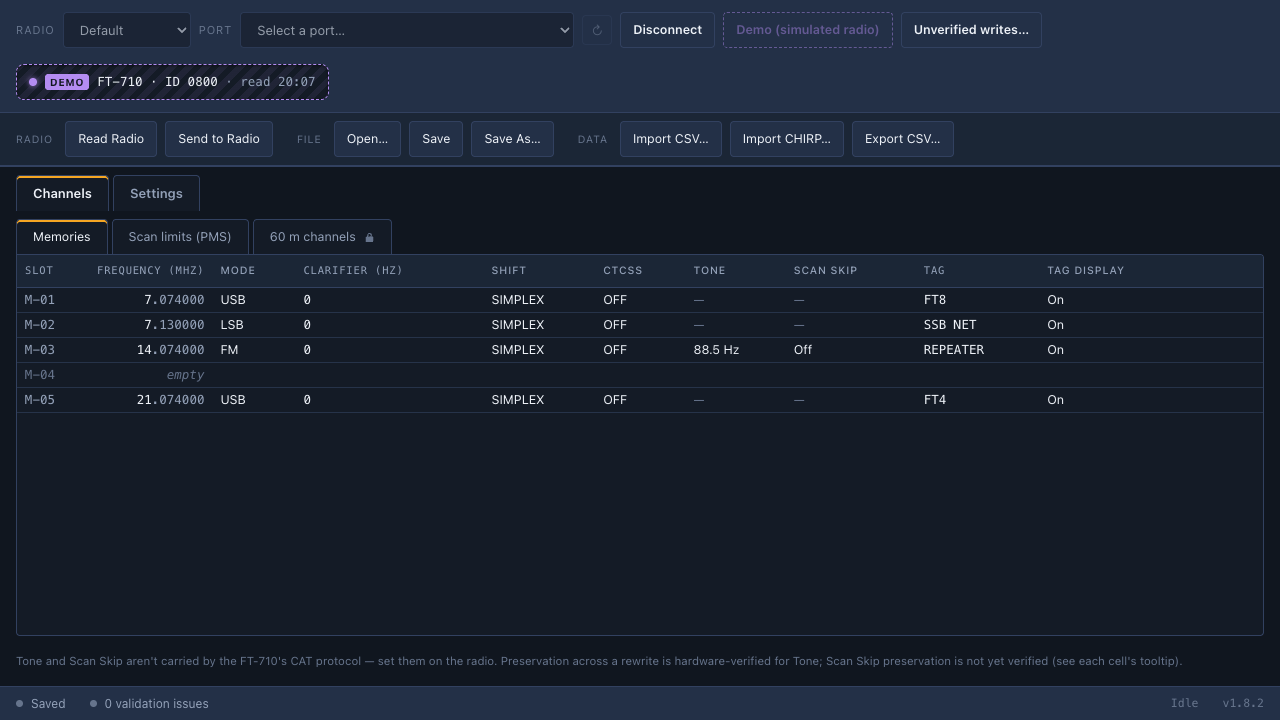
Appearance — System, Light or Dark — is set from a dropdown in Settings, not from the grid itself, and applies across the whole app including the grid. System follows the OS's own light/dark preference live; Light and Dark pin the app to that palette regardless of the OS setting, and the choice is remembered between sessions.
- Reading and Writing — getting a codeplug into the grid in the first place, and sending edits back to the radio.
- CSV-and-CHIRP — importing and exporting channels outside the grid's own paste format.
- Unverified-Writes — the consent step for radios this project hasn't proven writes on.
As of v1.9.0 (commit bec7df97).