


This project aims to be the universal interface to a growing number of Haskell tools, providing a full-featured and easy to query backend for editors and IDEs that require Haskell-specific functionality.
We are currently focusing on using the Language Server Protocol as the interface via which we talk to clients.
- Haskell IDE Engine
-
Supports plain GHC projects, cabal projects(sandboxed and non sandboxed) and stack projects
-
Fast due to caching of compile info
-
Uses LSP, so should be easy to integrate with a wide selection of editors
-
Diagnostics via hlint and GHC warnings/errors
-
Code actions and quick fixes via apply-refact
-
Type information and documentation(via haddock) on hover
-
Jump to definition
-
List all top level definitions
-
Highlight references in document
-
Completion
-
Formatting via brittany
-
Renaming via HaRe
-
Add packages to cabal and hpack package files
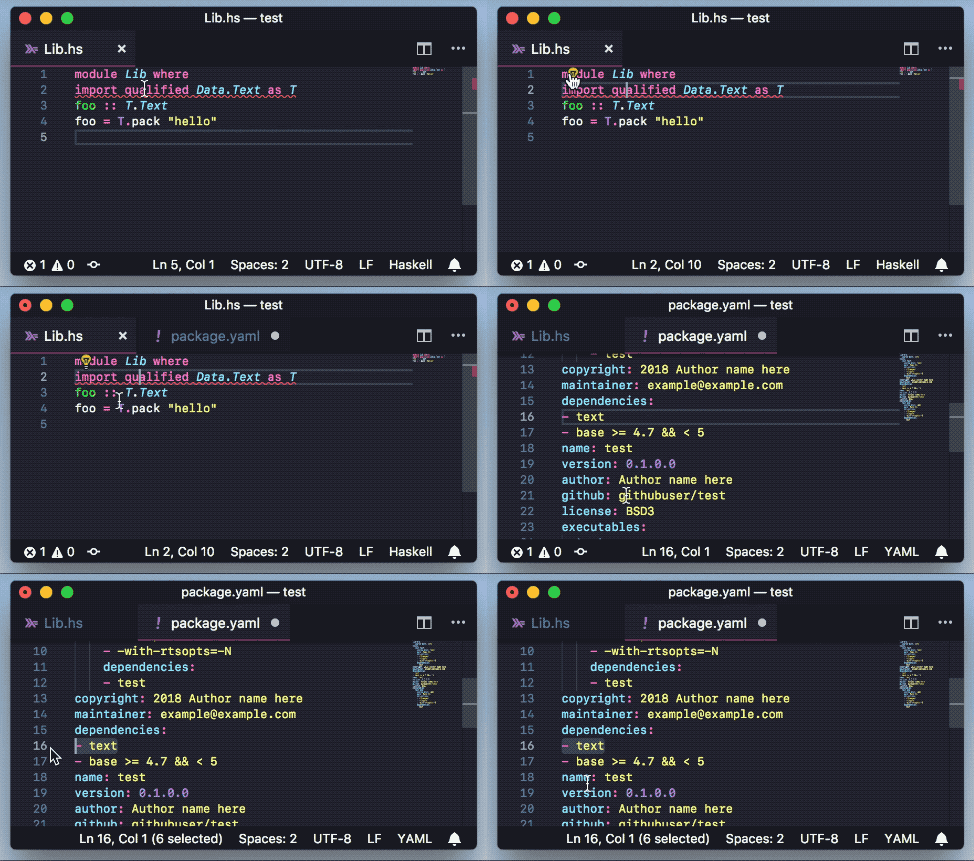
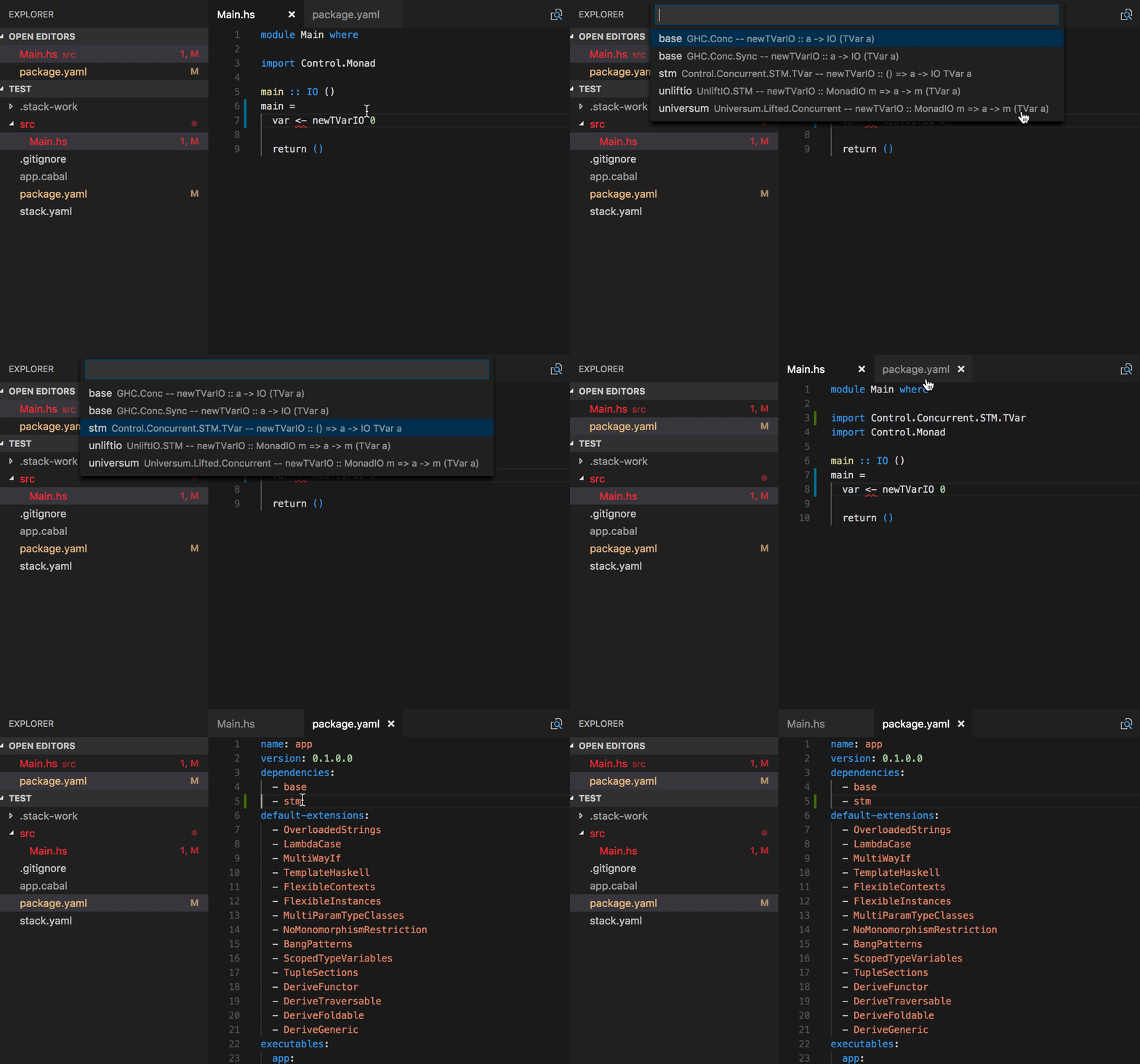
-
Typo quick fixes
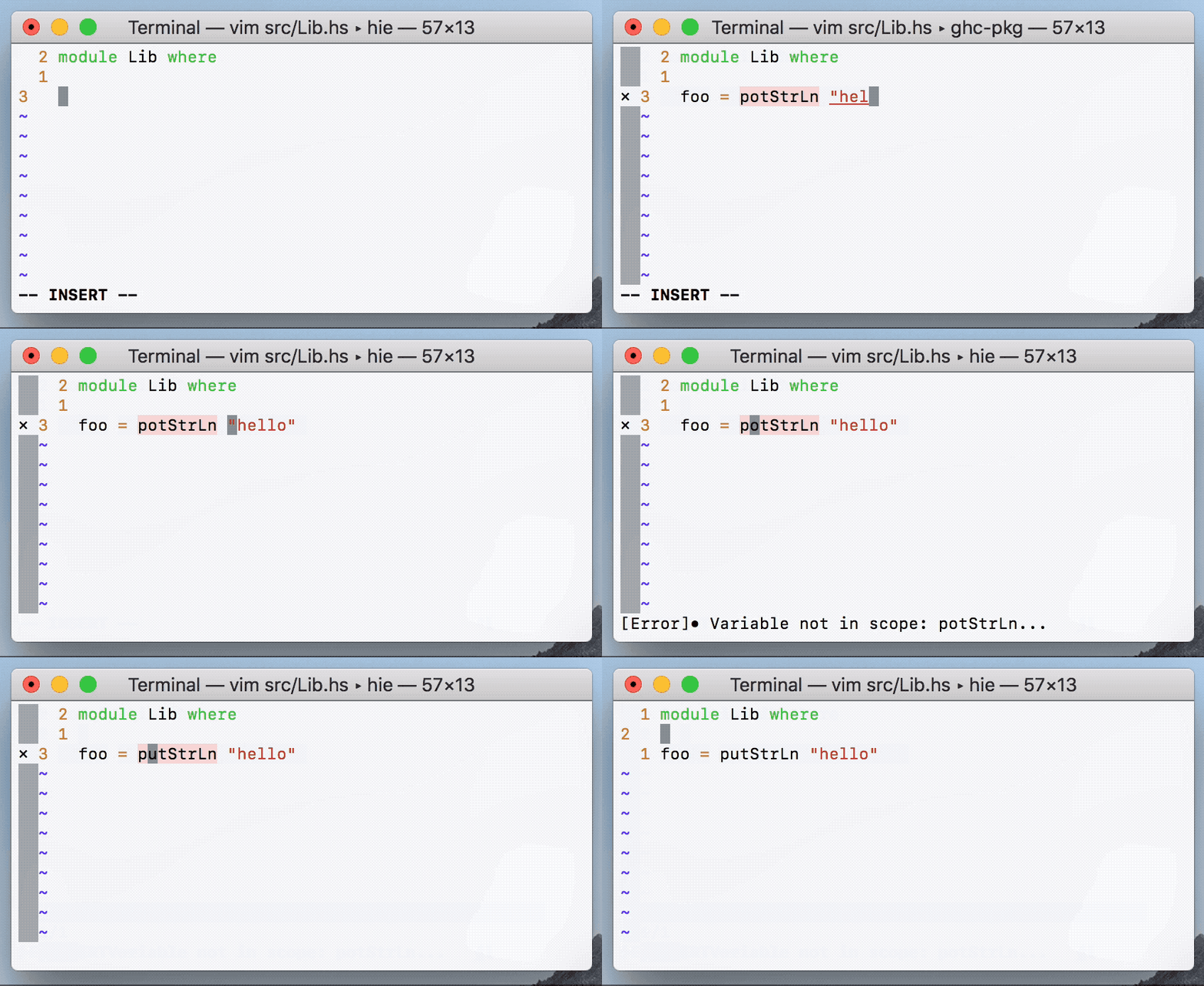
-
Add missing imports (via hsimport)
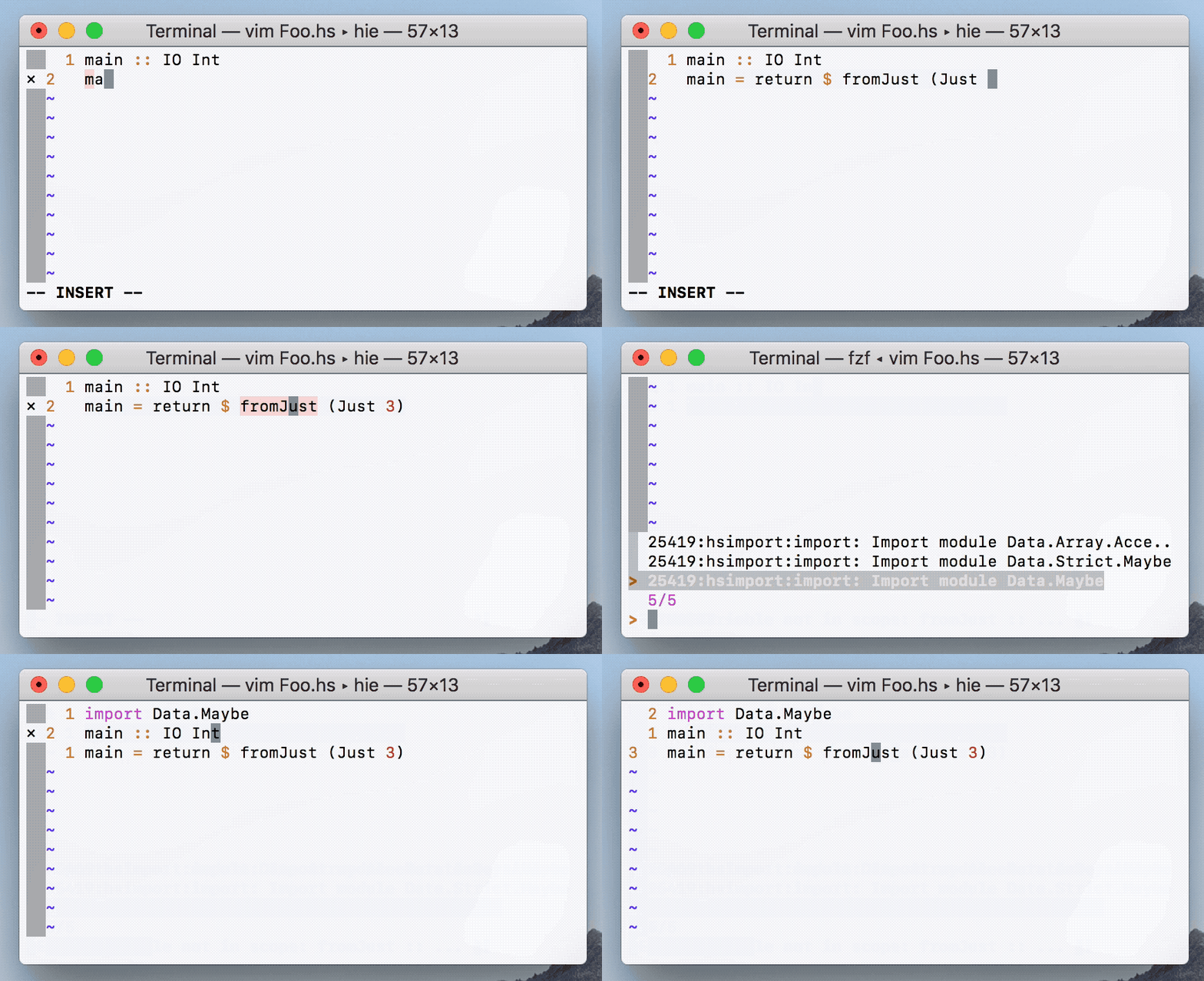




Follow the instructions at https://github.com/domenkozar/hie-nix
An haskell-ide-engine-git package is available on the AUR.
Using Aura:
# aura -A haskell-ide-engine-git
To install HIE, you need stack version >= 1.7.1.
HIE builds from source code, so there's a couple of extra steps.
On Linux you will need install a couple of extra libraries (for Unicode (ICU) and NCURSES):
Debian/Ubuntu:
sudo apt install libicu-dev libtinfo-dev libgmp-devFedora:
sudo dnf install libicu-devel ncurses-develArchLinux: see below.
In order to avoid problems with long paths on Windows you can do the following:
-
Edit the group policy: set "Enable Win32 long paths" to "Enabled" (Works only for Windows 10).
-
Clone the
haskell-ide-engineto the root of your logical drive (e.g. toC:\hie)
git clone https://github.com/haskell/haskell-ide-engine --recurse-submodules
cd haskell-ide-engineThe GHC version you are going to install HIE for depends on which version of GHC you are using for your project. If you don't have a current project there are two potential options:
By default in a stack project you will get the LTS version.
You can check which version of ghc you are using in your project by running the following at the root of your project:
stack ghc -- --versionYou can install an specific version or all available GHC versions.
We will use the make tools here to wrap stack install. The preferred installation mechanism is via make, as it makes sure the repo is synced, installs the required cabal libraries if missing, and makes copies of the executables with suffixes to be able to tell them apart.
Install Nightly (and hoogle docs):
make hie-8.6.3
make build-doc-8.6.3
Install LTS (and hoogle docs):
make hie-8.4.4
make build-doc-8.4.4
This step can take more than 30 minutes, so grab a coffee and please be patient!
The available versions depend on the stack-*.yaml config files in the haskell-ide-engine directory.
This is no longer supported on the HIE master branch, so you must switch to the hie-0.1.0.0 branch:
git checkout hie-0.1.0.0
git submodule update --init
Then you can run stack install:
stack --stack-yaml=stack-8.0.2.yaml installThis is the simplest approach as it will install all GHC versions to match against any project versions you might have.
Warning: Requires 20+ GB of space and potentially more than 2 hours to install, so please be patient!
This will:
- install all supported GHC versions (8.2.1 - 8.6.3)
- name them as expected by the VS Code plugin
- build local hoogle docs for each version
On non-Windows platforms use the command:
make build-allOn Windows use: PowerShell:
./build-all.ps1
or
cmd.exe:
powershell -ExecutionPolicy RemoteSigned -c ./build-all.ps1
Then add
"languageServerHaskell.useCustomHieWrapper": true,
"languageServerHaskell.useCustomHieWrapperPath": "hie-wrapper",
to VS Code user settings.
Experimental build script for HIE. Feedback is appreciated.
Uses the shake build system for predictable builds.
The build script is platform independent and the only prerequisites are that git and stack are installed. The dependency on make and other linux specific commands has been dropped.
Note, on first invocation of the build script, a GHC is being installed for execution. However, if you build HIE for every GHC, no GHC is downloaded twice.
The GHC used for the install.hs can be adjusted in shake.yaml by using a different resolver.
Available commands can be seen with:
stack ./install.hs helpRemember, this will take time to download a Stackage-LTS and an appropriate GHC. However, afterwards all commands should work as expected.
Install Nightly (and hoogle docs):
stack ./install.hs hie-8.6.3
stack ./install.hs build-doc-hie-8.6.3
Install LTS (and hoogle docs):
stack ./install.hs hie-8.4.4
stack ./install.hs build-doc-hie-8.4.4Warning: Requires 20+ GB of space and potentially more than 2 hours to install, so please be patient!
This will:
- install all supported GHC versions (8.2.1 - 8.6.3)
- name them as expected by the VS Code plugin
- build local hoogle docs for each version
stack ./install.hs build-allThen add
"languageServerHaskell.useCustomHieWrapper": true,
"languageServerHaskell.useCustomHieWrapperPath": "hie-wrapper",
to VS Code user settings.
There are some settings that can be configured via a settings.json file:
{
    "languageServerHaskell": {
        "hlintOn": Boolean,
        "maxNumberOfProblems": Number
    }
}- VS Code: These settings will show up in the settings window
- LanguageClient-neovim: Create this file in
$projectdir/.vim/settings.jsonor setg:LanguageClient_settingsPath
Note to editor integrators: there is now a hie-wrapper executable, which is installed alongside the hie executable. When this is invoked in the project root directory, it attempts to work out the GHC version used in the project, and then launch the matching hie executable.
All of the editor integrations assume that you have already installed HIE (see above) and that stack put the hie binary in your path (usually ~/.local/bin on linux and macOS).
Install from the VSCode marketplace, or manually from the repository vscode-hie-server.
.config/nixpkgs/config.nix sample:
with import <nixpkgs> {};

let
  hie = (import (fetchFromGitHub {
                   owner="domenkozar";
                   repo="hie-nix";
                   rev="e3113da";
                   sha256="05rkzjvzywsg66iafm84xgjlkf27yfbagrdcb8sc9fd59hrzyiqk";
                 }) {}).hie84;
in
{
  allowUnfree = true;
  packageOverrides = pkgs: rec {

    vscode = pkgs.vscode.overrideDerivation (old: {
      postFixup = old.postFixup + ''
        wrapProgram $out/bin/code --prefix PATH : ${lib.makeBinPath [hie]}
      '';
    });

  };
}- Make sure HIE is installed (see above) and that the directory stack put the
hiebinary in is in your path- (usually
~/.local/binon unix)
- (usually
- Install LSP using Package Control
- From Sublime Text, press Command+Shift+P and search for Preferences: LSP Settings
- Paste in these settings. Make sure to change the command path to your
hie
{
"clients": {
  "haskell-ide-engine": {
    "command": ["hie"],
    "scopes": ["source.haskell"],
    "syntaxes": ["Packages/Haskell/Haskell.sublime-syntax"],
    "languageId": "haskell",
  },
},
}
Now open a haskell project with Sublime Text. You should have these features available to you:
- Errors are underlined in red
- LSP: Show Diagnostics will show a list of hints and errors
- LSP: Format Document will prettify the file
As above, make sure HIE is installed. These instructions are for using the LanguageClient-neovim client.
If you use vim-plug, then you can do this by e.g.
including the following line in the Plug section of your init.vim:
Plug 'autozimu/LanguageClient-neovim', {
    \ 'branch': 'next',
    \ 'do': './install.sh'
    \ }
and issuing a :PlugInstall command within neovim.
Clone LanguageClient-neovim
into ~/.vim/pack/XXX/start/, where XXX is just a name for your "plugin suite".
set rtp+=~/.vim/pack/XXX/start/LanguageClient-neovim
let g:LanguageClient_serverCommands = { 'haskell': ['hie-wrapper'] }
You'll probably want to add some mappings for common commands:
nnoremap <F5> :call LanguageClient_contextMenu()<CR>
map <Leader>lk :call LanguageClient#textDocument_hover()<CR>
map <Leader>lg :call LanguageClient#textDocument_definition()<CR>
map <Leader>lr :call LanguageClient#textDocument_rename()<CR>
map <Leader>lf :call LanguageClient#textDocument_formatting()<CR>
map <Leader>lb :call LanguageClient#textDocument_references()<CR>
map <Leader>la :call LanguageClient#textDocument_codeAction()<CR>
map <Leader>ls :call LanguageClient#textDocument_documentSymbol()<CR>
Use Ctrl+xCtrl+o (<C-x><C-o>) to open up the auto-complete menu,
or for asynchronous auto-completion, follow the setup instructions on
LanguageClient.
If you'd like diagnostics to be highlighted, add a highlight group for ALEError/ALEWarning/ALEInfo,
or customize g:LanguageClient_diagnosticsDisplay:
hi link ALEError Error
hi Warning term=underline cterm=underline ctermfg=Yellow gui=undercurl guisp=Gold
hi link ALEWarning Warning
hi link ALEInfo SpellCap
If you're finding that the server isn't starting at the correct project root, it may also be helpful to also specify root markers:
let g:LanguageClient_rootMarkers = ['*.cabal', 'stack.yaml']Make sure HIE is installed, then install the two Atom packages atom-ide-ui and ide-haskell-hie,
$ apm install language-haskell atom-ide-ui ide-haskell-hieInstall HIE along with the following emacs packages:
Make sure to follow the instructions in the README of each of these packages.
Install HIE, and then add the following to your .spacemacs config,
(defun dotspacemacs/layers ()
  "..."
  (setq-default
   ;; ...
   dotspacemacs-configuration-layers
   '(
     lsp
     (haskell :variables ;; Or optionally just haskell without the variables.
              haskell-completion-backend 'ghci
              haskell-process-type 'stack-ghci)
     )
   dotspacemacs-additional-packages '(
      (lsp-haskell :location (recipe :fetcher github :repo "emacs-lsp/lsp-haskell"))
      )
    ;; ...
    ))
and then activate lsp-haskell in your user-config section,
(defun dotspacemacs/user-config ()
  "..."
  (require 'lsp-haskell)
  (add-hook 'haskell-mode-hook #'lsp-haskell-enable)
  )
Now you should be able to use HIE in Spacemacs. I still recommend checking out lsp-ui and lsp-mode.
If you use HIE with spacemacs on nix-built haskell projects, you may want to try out this spacemacs layer. It has installation instructions which includes a nix expression to install everything that hie needs in your environment. It wraps the hie binary calls to use nix-sandbox to find the closest ancestor directory that has nixfiles.
It is still pretty new and may change drastically as the author understands the lsp, lsp-ui, lsp-haskell, hie stack a bit better. PRs and feedback are very welcome on the layer's repo if you find it useful and/or lacking in some way.
Oni (a Neovim GUI) added built-in support for HIE, using stack, in #1918. If you need to change the configuration for HIE, you can overwrite the following settings in your ~/.config/oni/config.tsx file (accessible via the command palette and Configuration: Edit User Config),
export const configuration = {
  "language.haskell.languageServer.command": "stack",
  "language.haskell.languageServer.arguments": ["exec", "--", "hie"],
  "language.haskell.languageServer.rootFiles": [".git"],
  "language.haskell.languageServer.configuration": {},
}HIE supports fetching docs from haddock on hover. It will fallback on using a hoogle db(generally located in ~/.hoogle on linux) if no haddock documentation is found.
To generate haddock documentation for stack projects:
$ cd your-project-directory
$ stack haddock --keep-going
To enable documentation generation for cabal projects, add the following to your ~/.cabal/config
documentation: True
To generate a hoogle database that hie can use
$ cd haskell-ide-engine
$ stack --stack-yaml=<stack.yaml you used to build hie> exec hoogle generate
Or you can set the environment variable HIE_HOOGLE_DATABASE to specify a specific database.
- Multiproject support
- Project wide references
- Cross project find definition
- New-build support
- HaRe refactorings
- More code actions
- Cross project/dependency Find Definition
- Case splitting, type insertion etc.
This is not yet another ghc-mod or ide-backend project
Both the ghc-mod and ide-backend maintainers have agreed to contribute code to this new repository and then rebase the old repos on this. The reason we're using a new repo instead of modifying one of the existing ones is so that the existing projects experience no disruption during this migration process. If this was a new set of people starting a new project without support from existing projects, I'd agree with you. But Alan's reached out to existing players already, which is an important distinction.
This project is not started from scratch:
- See why we should supersede previous tools
- Check the list of existing tools and functionality
- See more other tools and IDEs for inspiration
❤️ Haskell tooling dream is near, we need your help! ❤️
- Register in our google group mailing list.
- Join our IRC channel at
#haskell-ide-engineonfreenode. - Fork this repo and hack as much as you can.
- Ask @alanz or @hvr to join the project.
Below you find a short overview of the main architectural layers of haskell-ide-engine.
For more info have a look in the docs folder at the root of this project, especially:
ghc-mod stays an AGPL project,
and is used for its "awesome sauce" in terms of
the BIOS functions that it does so well. This interface is
straightforward to use,
and if a license-constrained user wants to do something else it is also easy to
replace, if there is strong control of the operating environment.
A layer providing a point to integrate tools and existing functions, probably including ghci.
The focus is currently on LSP as the protocol we use to interface with IDEs.
Existing transports are still functional for the time being.
All the documentation is in the docs folder at the root of this project.
If you hit a problem that looks like can't load .so/.DLL for: libiconv.dylib (dlopen(libiconv.dylib, 5): image not found), it means that libraries cannot be found in the library path. We can hint where to look for them and append more paths to DYLD_LIBRARY_PATH.
export DYLD_LIBRARY_PATH="$DYLD_LIBRARY_PATH:/usr/lib:/usr/local/lib"
On practice /usr/local/lib is full of dylibs linked by brew. After you amend DYLD_LIBRARY_PATH, some of the previously compiled application might not work and yell about incorrect linking, for example, dyld: Symbol not found: __cg_jpeg_resync_to_restart. You may need to look up where it comes from and remove clashing links, in this case it were clashing images libs:
$ brew unlink libjpeg
$ brew unlink libtiff
$ brew unlink libpng
Recompile.
macOS: Got error while installing GHC 8.6.1 or 8.6.2 - dyld: Library not loaded: /usr/local/opt/gmp/lib/libgmp.10.dylib
These builds have a dependency on homebrew's gmp library. Install with brew: brew install gmp.
Should be fixed in GHC 8.6.3.
Rename the file at ~/.stack/programs/x86_64-osx/ghc-8.4.3/lib/ghc-8.4.3/integer-gmp-1.0.2.0/HSinteger-gmp-1.0.2.0.o to a temporary name.
Should be fixed in GHC 8.8.1.
Make sure that you are running the correct version of hie for your version of ghc, or check out hie-wrapper.
Delete any .ghc.environment* files in your project root and try again. (At the time of writing, cabal new-style projects are not supported with ghc-mod)
Try running cabal update.