Repository navigation
Releases: hexadevti/PicoMultiLoader
Release list
PicoMultiLoader v1.2.1

PicoMultiLoader is an SD-card firmware loader for the ClockworkPi PicoCalc. Copy firmware files to the microSD card, pick one on the LCD, and the loader flashes and starts it. This release fixes crashes and freezes on the ESP32-P4, lets the Pico 2 W start RISC-V apps, and lets the web file manager upload whole folders.
What's new
ESP32-P4: fixes
-
Apps no longer crash when started right after switching on. An app that uses PSRAM, such as pico-386, could crash as it started when the loader had just been powered on. The board then rebooted on its own, or the screen stayed black. The loader now leaves the PSRAM controller ready before it starts the app.
-
Fewer freezes on battery with Wi-Fi on. The web file manager now runs Wi-Fi at lower transmit power (13 dBm instead of about 20 dBm). This cuts the current spikes that weak or half-empty batteries can't supply. Range is shorter, which rarely matters with the PicoCalc next to the computer.
If the board still freezes on battery but never with the USB cable plugged in, the batteries can't deliver enough current. Use good, fully charged 18650 cells.
Pico 2 W (RP2350): RISC-V apps
- The boot stub now also starts apps built for the RP2350's RISC-V cores, not just ARM ones. To get this, flash the new
PicoMultiLoader-v1.2.1-rp2350.uf2through BOOTSEL (see below).
Web file manager (ESP32-P4 and Pico 2 W)
- Upload whole folders. Drag folders onto the page, or copy them and press Ctrl+V. The folders are created on the card and every file inside is uploaded. If a folder with the same name exists, you're asked before files are merged into it.
- Uploads retry once when the device is busy or short of memory, instead of failing straight away.
- Pico 2 W: the web server uses less memory, so two browser connections fit at once more reliably.
Files
| Board | File | What it is |
|---|---|---|
| ESP32-P4 (Waveshare ESP32-P4-WIFI6) | PicoMultiLoader-v1.2.1-esp32p4-full.bin |
bootloader + partition table + otadata + loader, for a first install. Flash at 0x0. |
| ESP32-P4 | PicoMultiLoader-v1.2.1-esp32p4-app.bin |
the loader only, to update and keep the installed app. Flash at 0x20000. |
| Pico / Pico W (RP2040) | PicoMultiLoader-v1.2.1-rp2040.uf2 |
the whole loader, copied through BOOTSEL |
| Pico 2 W (RP2350) | PicoMultiLoader-v1.2.1-rp2350.uf2 |
the boot stub, copied through BOOTSEL. New in this release (RISC-V support). |
| Pico 2 W (RP2350) | pml2350.uf2 |
the loader menu. Copy it to the root of the SD card and keep this exact name. |
| all | SHA256SUMS.txt |
checksums |
The ESP32-P4 files are built for chip revision v3.x with 32 MB flash. Run esptool --chip esp32p4 chip_id to check your chip. For a v1.x chip, build from source.
Updating from v1.2.0
- ESP32-P4: flash only the loader to keep your app:
esptool --chip esp32p4 -p COMx -b 460800 write_flash 0x20000 PicoMultiLoader-v1.2.1-esp32p4-app.bin - Pico 2 W (RP2350):
- Copy the new
pml2350.uf2to the root of the SD card, replacing the old file. You can do this from the web file manager too. - To run RISC-V apps, also hold BOOTSEL, plug the Pico 2 W into USB, and copy
PicoMultiLoader-v1.2.1-rp2350.uf2to theRP2350drive. Skip this if you only use ARM apps.
- Copy the new
- Pico (RP2040): hold BOOTSEL, plug the Pico into USB, and copy
PicoMultiLoader-v1.2.1-rp2040.uf2to theRPI-RP2drive. The installed app is kept. Nothing in this release changes how the RP2040 loader behaves, so this update is optional.
First install
ESP32-P4
- Connect the board's USB-C port (the CH343 serial port).
- Flash the full image:
If the board doesn't enter download mode by itself, hold BOOT, press RESET, then let go of BOOT.
esptool --chip esp32p4 -p COMx -b 460800 write_flash 0x0 PicoMultiLoader-v1.2.1-esp32p4-full.bin
Raspberry Pi Pico (RP2040)
- Hold BOOTSEL, plug the Pico into USB, and copy
PicoMultiLoader-v1.2.1-rp2040.uf2to theRPI-RP2drive. This replaces uf2loader. - Put the Pico in the PicoCalc and switch it on.
Raspberry Pi Pico 2 W (RP2350)
- Hold BOOTSEL, plug the Pico 2 W into USB, and copy
PicoMultiLoader-v1.2.1-rp2350.uf2to theRP2350drive. This replaces uf2loader. - Copy
pml2350.uf2to the root of the SD card (FAT16 or FAT32). - Put the Pico in the PicoCalc and switch it on.
Use it
- Hold Up, F1 or F5 while switching on to get the menu instead of the installed app.
- Up/Down picks a file and Enter shows its details. Press Enter again to flash and start it. Backspace or Left goes to the parent folder.
- F1: Setup and the help.
- F2: copy, move or delete.
- F4: the web file manager (ESP32-P4 and Pico 2 W).
- F5: USB drive mode.
The README has the full documentation and build instructions.
PicoMultiLoader v1.2.0
PicoMultiLoader is an SD-card firmware loader for the ClockworkPi PicoCalc. Copy firmware files to the microSD card, pick one on the LCD, and the loader flashes and starts it. This release adds file management on the PicoCalc and makes the web file manager easier to use.
What's new
Copy, move and delete on the PicoCalc (all boards)
- F2 opens a menu for the selected file or folder: Copy, Cut (to move it), Paste here, Delete, and Forget the copied item.
- Shortcuts in the file list:
C: copy.X: cut.V: paste into the folder shown.Del: delete.Esc: forget what was copied.
- The usual flow: Copy or Cut, open another folder, then Paste. The footer shows what is waiting to be pasted, and after each operation it shows the result.
- Copying:
- Works on files and whole folders, with a progress bar and the name of the file being copied.
- Copies keep the original dates.
- If the name is already taken, the copy gets a number, e.g.
app (2).uf2. - If a copy fails partway, for example because the card is full, the half-written file is removed.
- Moving:
- It is instant, even for big folders.
- It refuses if the destination already has an item with that name, and it won't move a folder into itself.
- Deleting asks for confirmation first. Deleting a folder deletes everything in it.
- Pico 2 W:
pml2350.uf2in the root (the loader menu itself) can't be deleted or moved from the PicoCalc. The web file manager keeps working while a copy runs. - Serial console: F2 works there too (
ESC O QorESC [12~).
Web file manager (ESP32-P4 and Pico 2 W)
- Select several files with the checkboxes, or use "select all", then:
- Download them (one after another, with progress).
- Move them to another folder through a folder picker.
- Delete them.
- Sort by name, size or date by clicking a column header; click again to reverse the order. Folders always stay on top, and the choice is remembered.
- Paste to upload: press Ctrl+V in any folder to upload the files on the clipboard, including screenshots. A pasted image gets a name like
pasted-20261020-153000.png. - The transfer panel no longer runs off the screen when you upload many files. It shows "Transferring X of N", and its list scrolls. Finished items disappear, failed ones stay so you can see them, and Hide closes the panel.
- Big folders show their loading progress ("Loading… 340 items"). Opening another folder while one is loading cancels the first one.
- ESP32-P4: big folders load faster, because the listing is sent in larger pieces.
Files
| Board | File | What it is |
|---|---|---|
| ESP32-P4 (Waveshare ESP32-P4-WIFI6) | PicoMultiLoader-v1.2.0-esp32p4-full.bin |
bootloader + partition table + otadata + loader, for a first install. Flash at 0x0. |
| ESP32-P4 | PicoMultiLoader-v1.2.0-esp32p4-app.bin |
the loader only, to update and keep the installed app. Flash at 0x20000. |
| Pico / Pico W (RP2040) | PicoMultiLoader-v1.2.0-rp2040.uf2 |
the whole loader, copied through BOOTSEL |
| Pico 2 W (RP2350) | PicoMultiLoader-v1.2.0-rp2350.uf2 |
the boot stub, copied through BOOTSEL. Unchanged since v1.1.0. |
| Pico 2 W (RP2350) | pml2350.uf2 |
the loader menu. Copy it to the root of the SD card and keep this exact name. |
| all | SHA256SUMS.txt |
checksums |
The ESP32-P4 files are built for chip revision v3.x with 32 MB flash. Run esptool --chip esp32p4 chip_id to check your chip. For a v1.x chip, build from source.
Updating from v1.1.0
- Pico 2 W (RP2350): copy the new
pml2350.uf2to the root of the SD card, replacing the old file. That's all: the boot stub hasn't changed, so you don't need BOOTSEL. You can do it from the web file manager too. - Pico (RP2040): hold BOOTSEL, plug the Pico into USB, and copy
PicoMultiLoader-v1.2.0-rp2040.uf2to theRPI-RP2drive. The installed app is kept. - ESP32-P4: flash only the loader to keep your app:
esptool --chip esp32p4 -p COMx -b 460800 write_flash 0x20000 PicoMultiLoader-v1.2.0-esp32p4-app.bin
First install
ESP32-P4
- Connect the board's USB-C port (the CH343 serial port).
- Flash the full image:
If the board doesn't enter download mode by itself, hold BOOT, press RESET, then let go of BOOT.
esptool --chip esp32p4 -p COMx -b 460800 write_flash 0x0 PicoMultiLoader-v1.2.0-esp32p4-full.bin
Raspberry Pi Pico (RP2040)
- Hold BOOTSEL, plug the Pico into USB, and copy
PicoMultiLoader-v1.2.0-rp2040.uf2to theRPI-RP2drive. This replaces uf2loader. - Put the Pico in the PicoCalc and switch it on.
Raspberry Pi Pico 2 W (RP2350)
- Hold BOOTSEL, plug the Pico 2 W into USB, and copy
PicoMultiLoader-v1.2.0-rp2350.uf2to theRP2350drive. This replaces uf2loader. - Copy
pml2350.uf2to the root of the SD card (FAT16 or FAT32). - Put the Pico in the PicoCalc and switch it on.
Use it
- Hold Up, F1 or F5 while switching on to get the menu instead of the installed app.
- Up/Down picks a file and Enter shows its details. Press Enter again to flash and start it. Backspace or Left goes to the parent folder.
- F1: Setup and the help.
- F2: copy, move or delete.
- F4: the web file manager (ESP32-P4 and Pico 2 W).
- F5: USB drive mode.
The README has the full documentation and build instructions.
PicoMultiLoader v1.1.0
PicoMultiLoader (formerly esp32loader) is an SD-card firmware loader for the ClockworkPi PicoCalc. Copy firmware files to the microSD card, pick one on the LCD, and the loader flashes and starts it. This release adds the Raspberry Pi Pico boards.
What's new
- Renamed from esp32loader to PicoMultiLoader.
- Raspberry Pi Pico (RP2040) support. The loader is the whole firmware and replaces uf2loader. It installs
.uf2apps from the SD card. There is no Wi-Fi on this build. - Raspberry Pi Pico 2 W (RP2350) support, with the web file manager. It replaces uf2loader and keeps its flash layout: an 8 KB boot stub, then apps from
0x2000to the end of flash. Apps made for uf2loader work unchanged, including Arduino-Pico apps with a file system at the end of flash. The menu itself is a file on the SD card and runs from RAM. - Apps written for uf2loader can still open the menu. The request is the same as uf2loader's: watchdog scratch 0 =
0xe98cc638, scratch 1 =1, then a watchdog reboot. This works on both Pico boards. - ESP32-P4:
- Wi-Fi autostart: the web file manager can start in the background at switch-on.
- The README now explains how to build apps that the loader can install.
Files
| Board | File | What it is |
|---|---|---|
| ESP32-P4 (Waveshare ESP32-P4-WIFI6) | PicoMultiLoader-v1.1.0-esp32p4-full.bin |
bootloader + partition table + otadata + loader, for a first install. Flash at 0x0. |
| ESP32-P4 | PicoMultiLoader-v1.1.0-esp32p4-app.bin |
the loader only, to update and keep the installed app. Flash at 0x20000. |
| Pico / Pico W (RP2040) | PicoMultiLoader-v1.1.0-rp2040.uf2 |
the whole loader, copied through BOOTSEL |
| Pico 2 W (RP2350) | PicoMultiLoader-v1.1.0-rp2350.uf2 |
the boot stub, copied through BOOTSEL |
| Pico 2 W (RP2350) | pml2350.uf2 |
the loader menu. Copy it to the root of the SD card and keep this exact name. |
| all | SHA256SUMS.txt |
checksums |
The ESP32-P4 files are built for chip revision v3.x with 32 MB flash. Run esptool --chip esp32p4 chip_id to check your chip. For a v1.x chip, build from source.
Install
ESP32-P4
- Connect the board's USB-C port (the CH343 serial port).
- Flash the full image:
If the board doesn't enter download mode by itself, hold BOOT, press RESET, then let go of BOOT.
esptool --chip esp32p4 -p COMx -b 460800 write_flash 0x0 PicoMultiLoader-v1.1.0-esp32p4-full.bin
To update an existing install and keep your app, flash only the loader:
esptool --chip esp32p4 -p COMx -b 460800 write_flash 0x20000 PicoMultiLoader-v1.1.0-esp32p4-app.bin
Raspberry Pi Pico (RP2040)
- Hold BOOTSEL, plug the Pico into USB, and copy
PicoMultiLoader-v1.1.0-rp2040.uf2to theRPI-RP2drive. This replaces uf2loader. - Put the Pico in the PicoCalc and switch it on.
The loader occupies the last 256 KB of flash. Apps can use up to 1788 KB.
Raspberry Pi Pico 2 W (RP2350)
- Hold BOOTSEL, plug the Pico 2 W into USB, and copy
PicoMultiLoader-v1.1.0-rp2350.uf2to theRP2350drive. This replaces uf2loader. An app uf2loader installed stays and still starts. - Copy
pml2350.uf2to the root of the SD card (FAT16 or FAT32). - Put the Pico in the PicoCalc and switch it on.
Apps can use up to 4088 KB. You can also install an app by copying its .uf2 to the BOOTSEL drive; it goes into the app area.
If neither an app nor pml2350.uf2 is found, the Pico 2 W drops into BOOTSEL so you can fix it over USB.
Use it
- Hold Up, F1 or F5 while switching on to get the menu instead of the installed app. The menu also opens when no app is installed.
- Up/Down picks a file and Enter shows its details. Press Enter again to flash and start it. Backspace or Left goes to the parent folder.
- F1 opens Setup and the help. F4 opens the web file manager (ESP32-P4 and Pico 2 W). F5 opens USB drive mode.
The README has the full documentation and build instructions.
esp32loader v1.0.0
First release of esp32loader, an SD-card firmware loader for a Waveshare ESP32-P4-WIFI6 fitted in a ClockworkPi PicoCalc. Copy .bin files to the microSD card, pick one on the LCD, and the loader flashes and boots it.
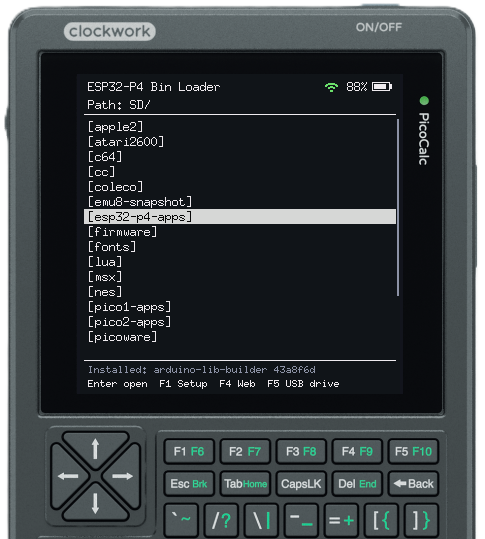
Features
- File browser on the PicoCalc LCD. Before flashing, it checks the chip ID, chip revision and app descriptor of the selected
.bin. Plain app images and merged*.factory.binimages both work. - Hold Up (or F1/F5) while resetting to come back to the loader from any app.
- F1 Setup: pick the Wi-Fi network, the folder to open at switch-on, and the on-screen help.
- F4 Web file manager: upload, download, rename, delete and flash files from a browser. It keeps running in the background after you press Esc, and a Wi-Fi icon shows it is on.
- F5 USB drive mode: share the SD card with a PC. This needs the board's 4-pin USB OTG header.
- The serial console works as a second keyboard.
Files
| File | What it is | Flash at |
|---|---|---|
esp32loader-v1.0.0-full.bin |
bootloader + partition table + otadata + loader, for a first install | 0x0 |
esp32loader-v1.0.0-app.bin |
the loader only, to update an existing install and keep the installed app | 0x20000 |
These files are built for ESP32-P4 chip revision v3.x with 32 MB flash. Run esptool.py --chip esp32p4 chip_id to check your chip. For a v1.x chip, build from source as described in the README.
First install
- Connect the board's USB-C port (the CH343 serial port) to the PC.
- Install esptool with
pip install esptool. You can also use the copy that comes with ESP-IDF. - Flash the full image. On Windows the port is
COMx; on Linux and macOS it is/dev/ttyACM0or similar.If the board doesn't enter download mode by itself, hold BOOT, press RESET, then let go of BOOT.esptool --chip esp32p4 -p COMx -b 460800 write_flash 0x0 esp32loader-v1.0.0-full.bin - Press reset. The loader starts, because no app is installed yet.
This replaces the board's bootloader and partition table. The partition layout is factory (loader, 2 MB), then ota_0 (your app, 10 MB), then a ~20 MB FAT storage partition.
Update an existing install
To update the loader but keep the app you installed:
esptool --chip esp32p4 -p COMx -b 460800 write_flash 0x20000 esp32loader-v1.0.0-app.bin
Use it
- Format a microSD card as FAT32 and copy
.binfiles to it, in any folder. - Switch the PicoCalc on. To reach the loader once an app is installed, hold Up (or F1/F5) and press reset, or power-cycle.
- Use Up/Down to choose a file and Enter to see its details, then press Enter again to flash and run it. Backspace or Left goes to the parent folder.
- F1 opens Setup and the help, F4 starts the web file manager and F5 starts USB drive mode.
From your own app, call binloader_reboot_to_menu() from main/loader_api.h to jump back to the loader.
The README has the full documentation.