Devices
The Devices page shows every physical input device PadForge has detected. From here you can see device details, view raw input state in real time, and assign devices to virtual controller slots.
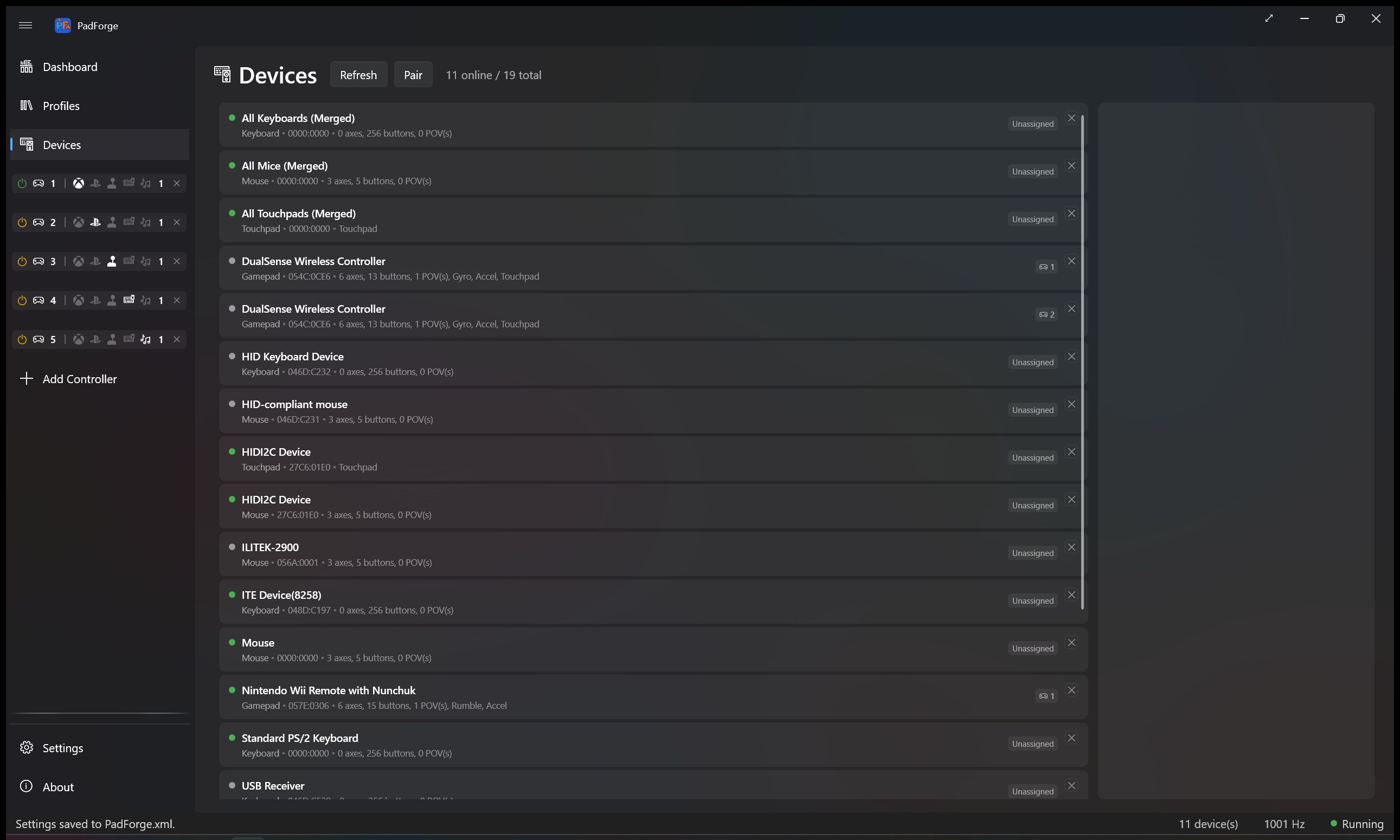
The left side of the page shows a card for each detected device. Each card displays:
| Element | Description |
|---|---|
| Status dot | Green = connected and online, gray = previously seen but currently disconnected |
| Device name | The name reported by the device (e.g., "Xbox Wireless Controller", "DualSense Wireless Controller") |
| VID/PID | Vendor ID and Product ID for identification |
| Type | Device type (Gamepad, Joystick, Keyboard, Mouse, etc.) |
| Capabilities | Icons or labels showing what the device supports (rumble, motion sensors, etc.) |
| Slot badges | Small numbered badges showing which virtual controller slots this device is assigned to |
Click a device card to select it. The selected card is highlighted with an accent bar on its left edge. Selecting a device shows its raw input state on the right side of the page.
When a device is selected, the right panel shows its real-time input state. This is the unprocessed data coming directly from the hardware, before any mappings or dead zones are applied.
Each axis is shown as a progress bar with its current value (normalized 0 to 1). Common axes include:
- Left Stick X / Y
- Right Stick X / Y
- Left Trigger / Right Trigger
- Additional axes for specialty controllers
Buttons are displayed as a grid of circles in a wrap panel. When a button is pressed, its circle fills with the accent color. Each button is labeled with its index number.
POV hats are shown as a compass widget. A directional indicator rotates to show the current POV direction (N, NE, E, SE, S, SW, W, NW). When the POV is centered (no direction pressed), the indicator disappears.
For devices with motion sensors (like DualSense, DualShock 4, or Switch Pro Controller), a grid shows real-time gyro and accelerometer values for all three axes (X, Y, Z).
When a keyboard device is selected, the raw input display shows a visual keyboard layout with keys that light up in real time as they are pressed.
There are two ways to assign a physical device to a virtual controller slot:
Each device card shows toggle buttons for available virtual controller slots. Click a slot's toggle button to assign or unassign that device from the slot. A device can be assigned to multiple slots at the same time.
You can also drag a device card from the Devices page and drop it onto a controller slot in the sidebar. This assigns the device to that slot.
A single physical device can be mapped to multiple virtual controller slots simultaneously. This is useful for scenarios like:
- Using one controller to drive both an Xbox 360 and a vJoy virtual controller at the same time
- Mapping different button subsets from the same device to different virtual outputs
- Testing multiple configurations without switching devices
PadForge uses SDL3 to enumerate and read all connected input devices. Devices are detected automatically when connected. If a device is unplugged, its card remains in the list (shown as offline/gray) so your mappings and assignments are preserved when you reconnect it.
- Check raw input first if a mapping is not working as expected. The raw state view shows exactly what PadForge is receiving from the device.
- Use slot badges on device cards to quickly see which devices are assigned where.
- Reconnecting a device restores its previous slot assignments and mappings automatically.
- Specialty controllers (flight sticks, racing wheels, etc.) may show more axes than a standard gamepad.
- Controller Slots -- Create slots before assigning devices
- Button and Axis Mappings -- Map the device's inputs after assigning it
- Dashboard -- See connected device counts at a glance
- Troubleshooting -- Help if devices are not detected