MIDI Input
Use a MIDI keyboard or pad controller as a mapping source. Notes, knobs, pitch bend, and encoders bind like buttons and axes.
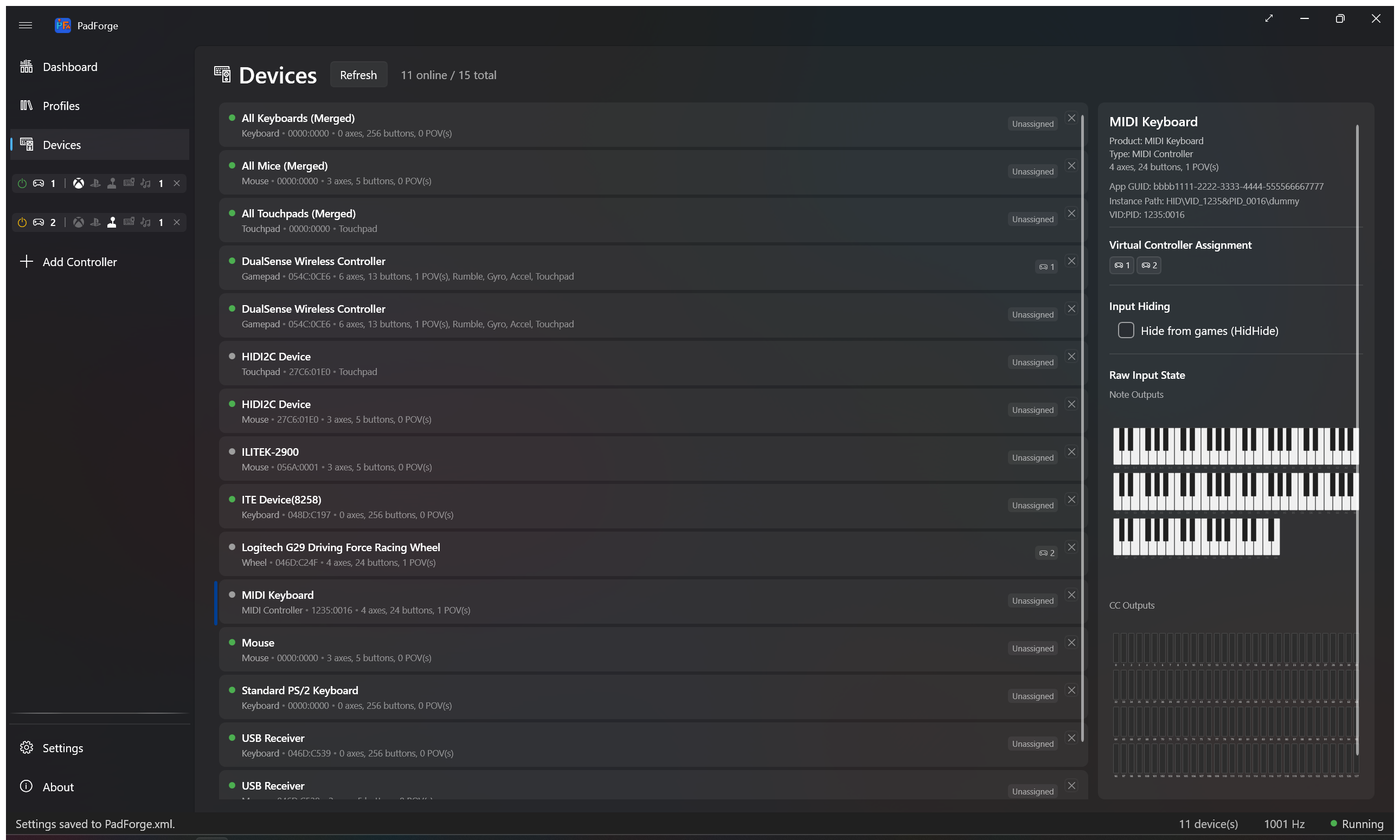
PadForge reads MIDI input devices the way it reads gamepads. A connected MIDI keyboard, pad controller, or control surface shows up on the Devices page as an input device, and its notes and controls become sources you can map to any slot. A piano key can press A. A knob can drive a trigger. A fader can move a stick axis.
This is the input direction. For the other direction, where PadForge appears to a DAW as a MIDI instrument it can play, see the MIDI virtual controller type under Controller Slots.
PadForge turns four kinds of MIDI message into mappable sources.
| MIDI message | Becomes | Maps well to |
|---|---|---|
| Note On / Note Off | A button, on while the note is held | Face buttons, bumpers, D-pad |
| Control Change (CC) | An absolute 0–127 value | Stick axes, triggers, or a button past a threshold |
| Pitch bend | A centered 14-bit axis | A stick axis that springs back to center |
| Relative encoder (CC) | Two momentary buttons, up and down | Stepping a value, cycling a layer |
Notes are on/off. A note's velocity decides on versus off, but it does not pass through as an analog value. A Control Change can act as an axis, a one-direction trigger, or a button past a threshold, picked the same way as any other axis source in Button and Axis Mappings.
The whole MIDI namespace is always available: all 128 notes, all 128 CC numbers, and pitch bend. There is nothing to configure on the device first. A message means the same thing on any MIDI channel, so a note played on channel 1 and the same note on channel 10 map to one source.
Not mapped: channel pressure, polyphonic aftertouch, and program change. Endless-encoder support covers the binary-offset style (sometimes labeled "Relative 2"). Other encoder styles read as absolute jumps. Fast encoder spins are capped at about 28 steps per second.
Select a MIDI device on the Devices page and PadForge shows a live preview: a piano that lights the notes you play and vertical sliders that follow the CC knobs and faders. Use it to find which CC number a knob sends before you map it.
- Connect the MIDI device. USB class-compliant controllers need no driver.
- Open the Devices page. The device appears as an input device with its own name.
- Watch the preview while you press a key or turn a knob to confirm which source it is.
- Assign the device to a slot and map its notes and controls on the Mappings tab.
MIDI input rides Windows MIDI Services, the same stack the MIDI virtual controller uses. It needs Windows 11 24H2 (build 26100) or later. On older Windows, MIDI input does not appear. See Driver Management for the Windows MIDI Services install.
PadForge's own MIDI virtual controllers show up in the MIDI input list on purpose, so you can test mapping without a hardware keyboard by routing one to the other on the same PC.
- Devices: the MIDI device card and its live note and CC preview.
- Button and Axis Mappings: bind MIDI notes, CC, pitch bend, and encoders.
- Controller Slots: the MIDI virtual controller type for the output direction.
- Driver Management: install Windows MIDI Services.
- Shift Layers: a MIDI button can hold a whole second mapping table.