Quick Start Selenium
This guide walks through a first Selenium cycle with a local Idelium demo stack.
Start the demo stack with Start IAS, then sign in with the generated
demo or administrator identity stored in the ignored secrets/ files.
Install Idelium CLI on the machine that will execute the test:
python3 -m venv .venv
source .venv/bin/activate
python -m pip install --upgrade pip
python -m pip install idelium
You also need a supported browser and driver, or a reachable Selenium Grid configured in the Idelium environment.
The sample Selenium IDE file is stored in the API repository:
https://github.com/idelium/idelium-api/blob/main/testfile/selenium/IdeliumTest.side
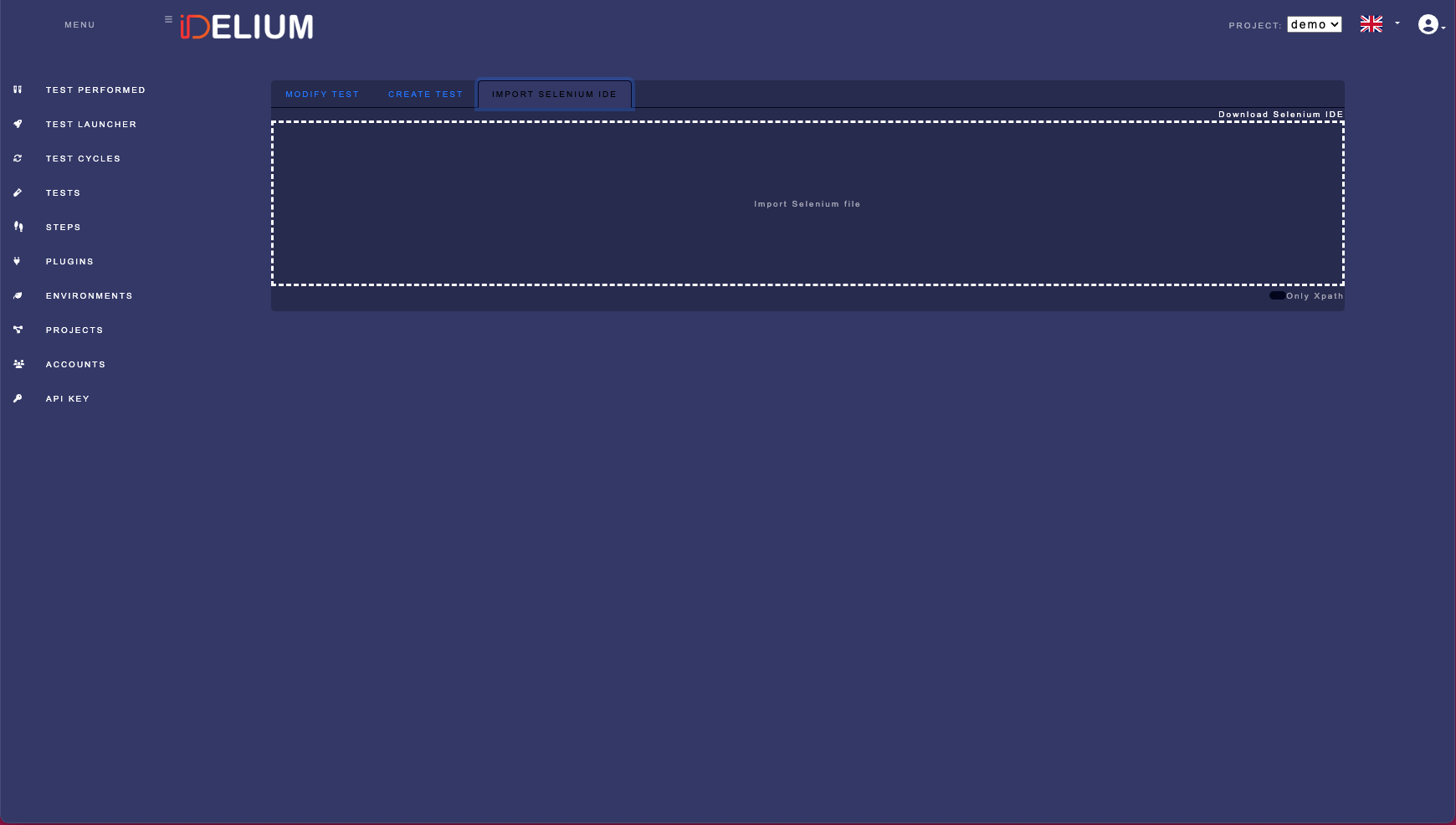
In Idelium Web:
- Open the Tests area.
- Select the Selenium IDE import tab.
- Upload
IdeliumTest.side. - Confirm the import.
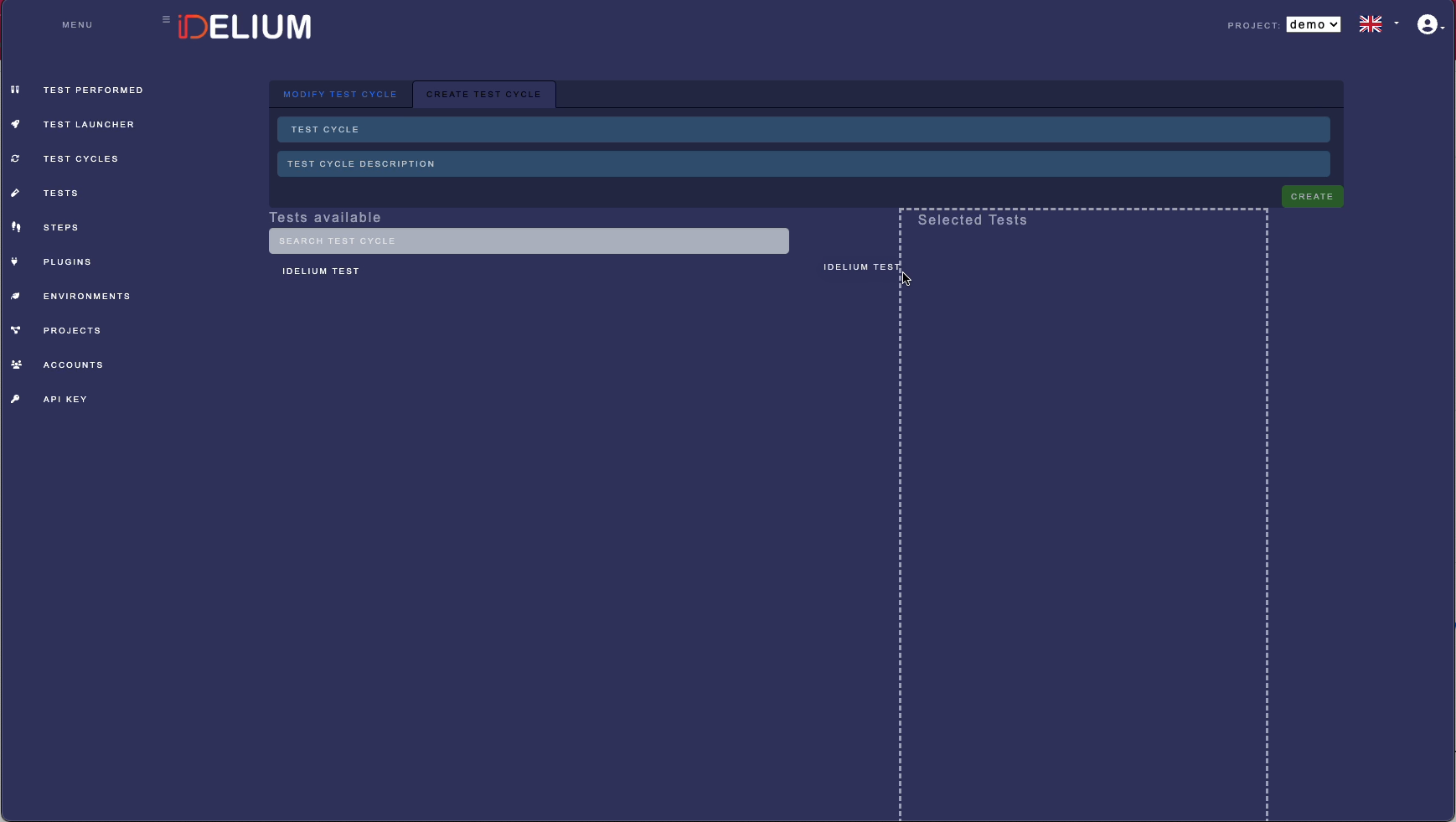
- Open Test Cycles.
- Create a cycle for the imported Selenium test.
- Fill in the required cycle fields.
- Save the cycle and note its identifier.
Download the API key from Idelium Web and store it in the protected key file:
install -m 600 /dev/null ~/.ideliumCopy the key into ~/.idelium using a secure editor or secret-management tool.
Do not print it or pass it directly in shell history.
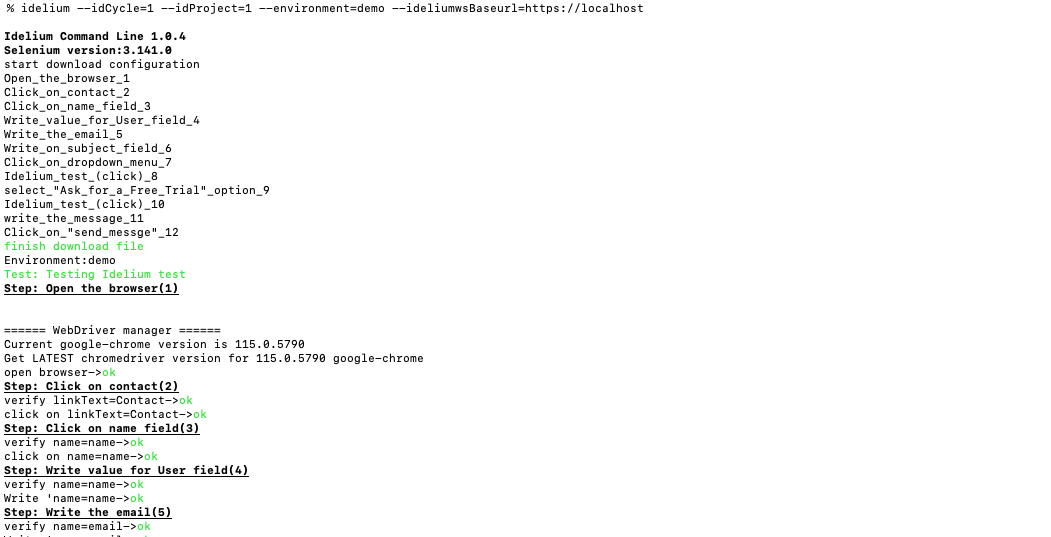
Use the project and cycle identifiers from your local instance:
idelium \
  --idProject=<project-id> \
  --idCycle=<cycle-id> \
  --environment=demo \
  --ideliumwsBaseurl=https://localhost
If your browser or CLI does not trust the demo certificate, either trust the generated local certificate in your workstation trust store or provide a CA bundle supported by your Idelium CLI version.
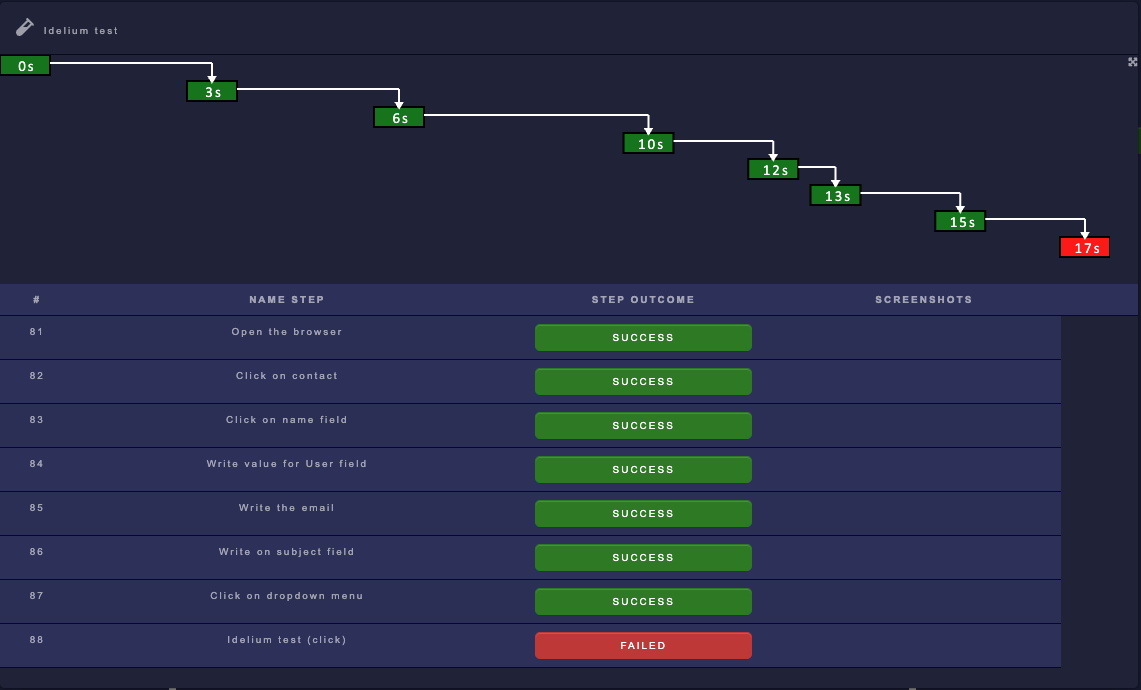
In Idelium Web, open Test Performed and select the completed cycle. Test status colors represent the execution outcome:
- Green: completed successfully.
- Red: failed.
- White: still in progress.
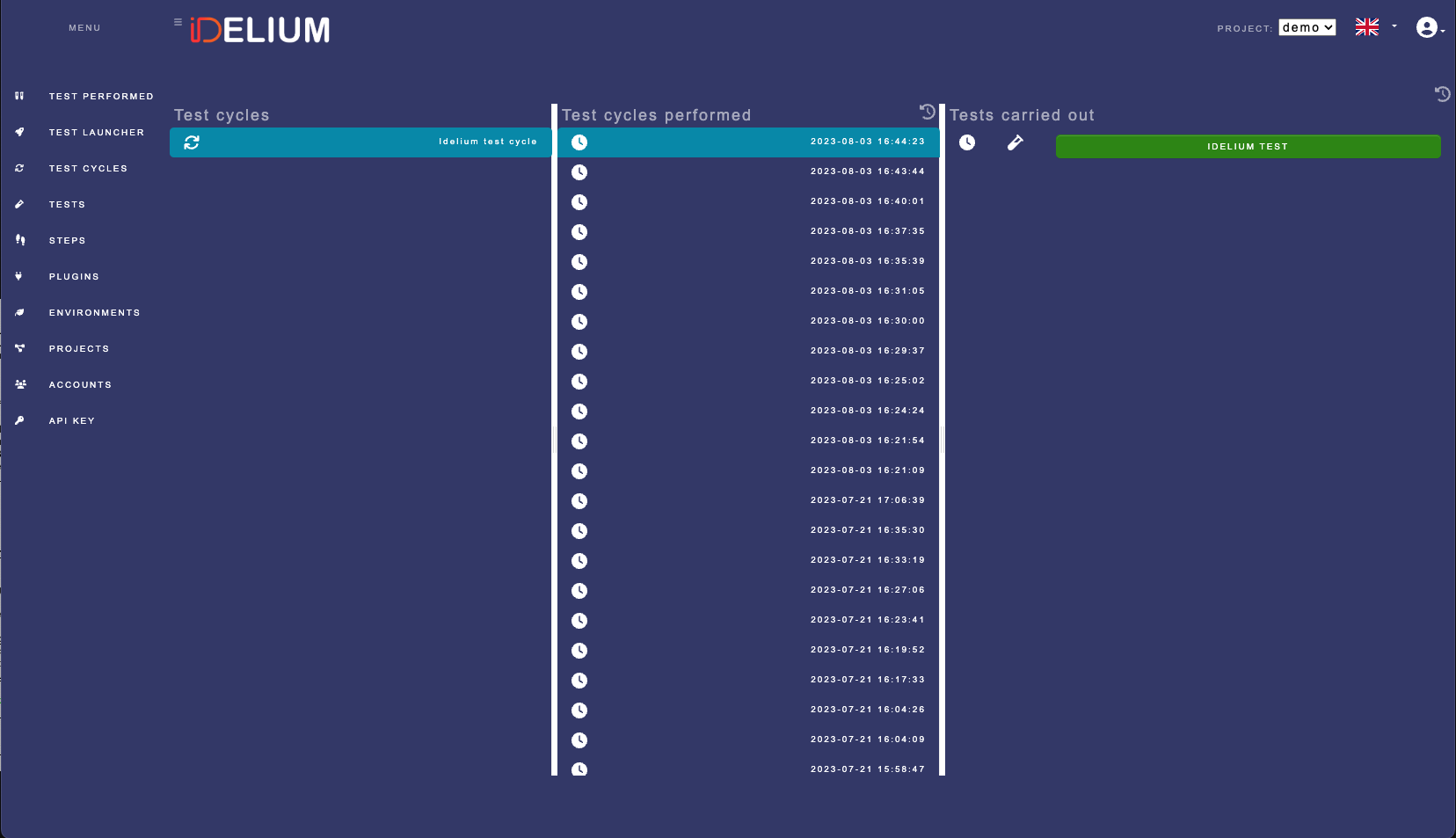
Open a test result to review step-level details: