Quick Start Test API Using Postman
This guide walks through a first API test cycle using a Postman collection.
Start the demo stack with Start IAS, then sign in with the generated
demo or administrator identity stored in the ignored secrets/ files.
Install Idelium CLI on the machine that will execute the test:
python3 -m venv .venv
source .venv/bin/activate
python -m pip install --upgrade pip
python -m pip install idelium
Idelium CLI supports two Postman execution modes:
-
postman_safe, the default Python runner for deterministic request execution without arbitrary Postman scripts. -
postman_newman, an optional Newman-backed runner for full Postman runtime compatibility, includingpm.test, pre-request scripts, test scripts, environment files, and iteration data.
Install Newman only when your collection requires the full Postman runtime:
npm install --global newmanThe Docker stack does not add Newman to the base API/Web/DB services. Run Newman from the CLI host or from an explicit runner profile so execution infrastructure remains separate from the administration stack.
The sample collection is stored in the API repository:
https://github.com/idelium/idelium-api/blob/main/testfile/postman/Postman%20Echo.postman_collection.json
In Idelium Web:
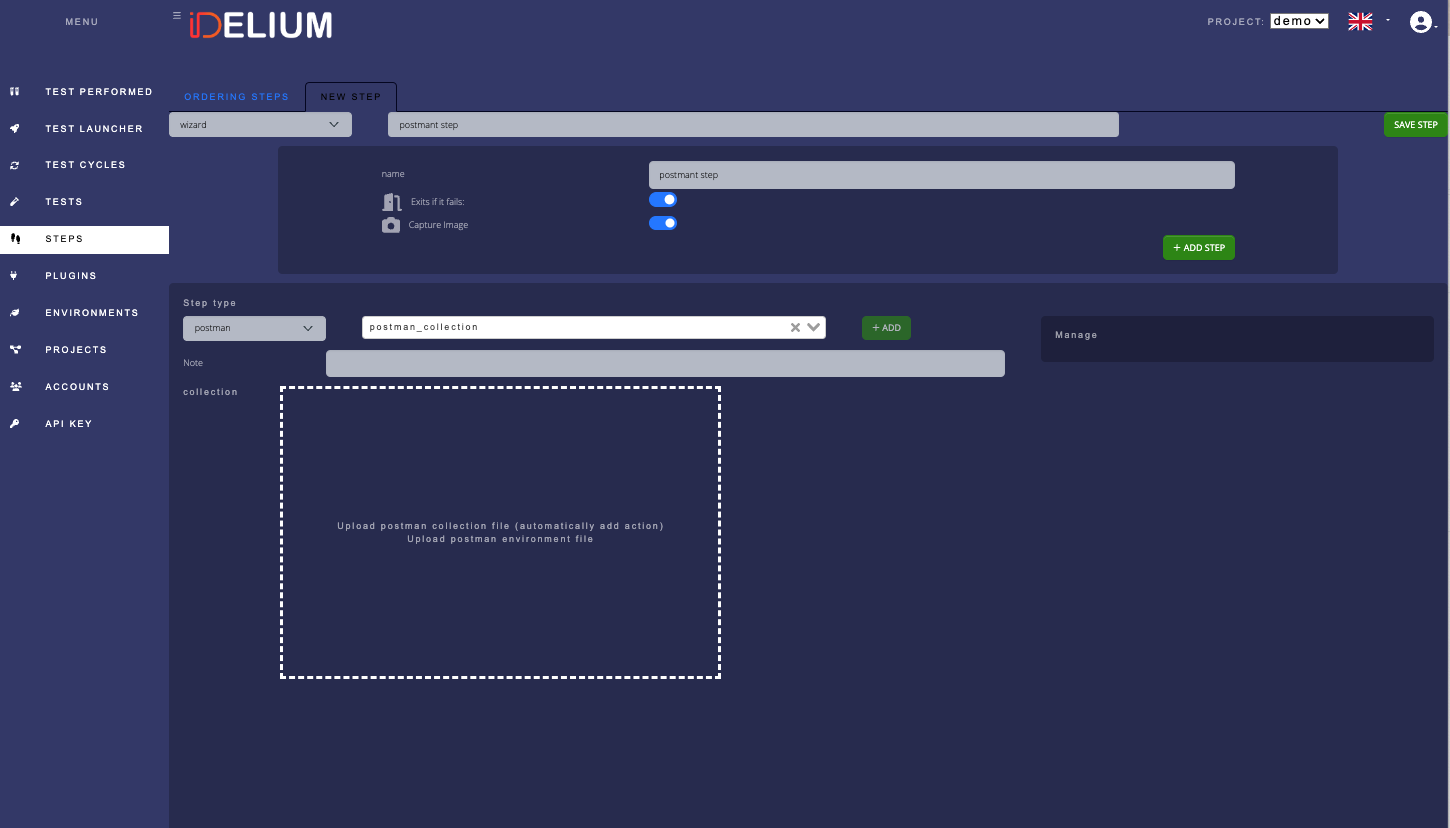
- Open Steps.
- Create a new step.
- Select the Postman step type.
- Upload the Postman collection.
- Save the step.
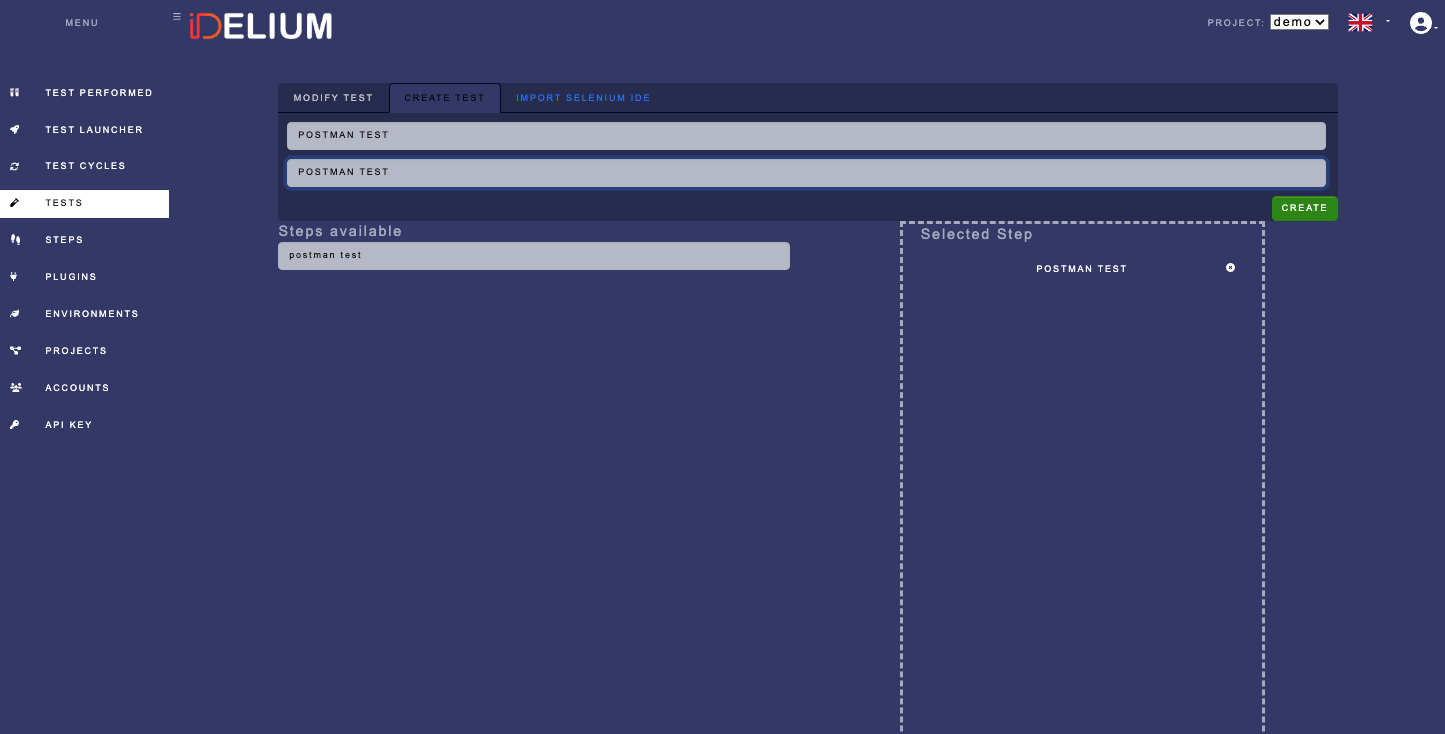
- Open Tests.
- Create a new test.
- Add the Postman step to the test.
- Fill in the required name and description.
- Save the test.
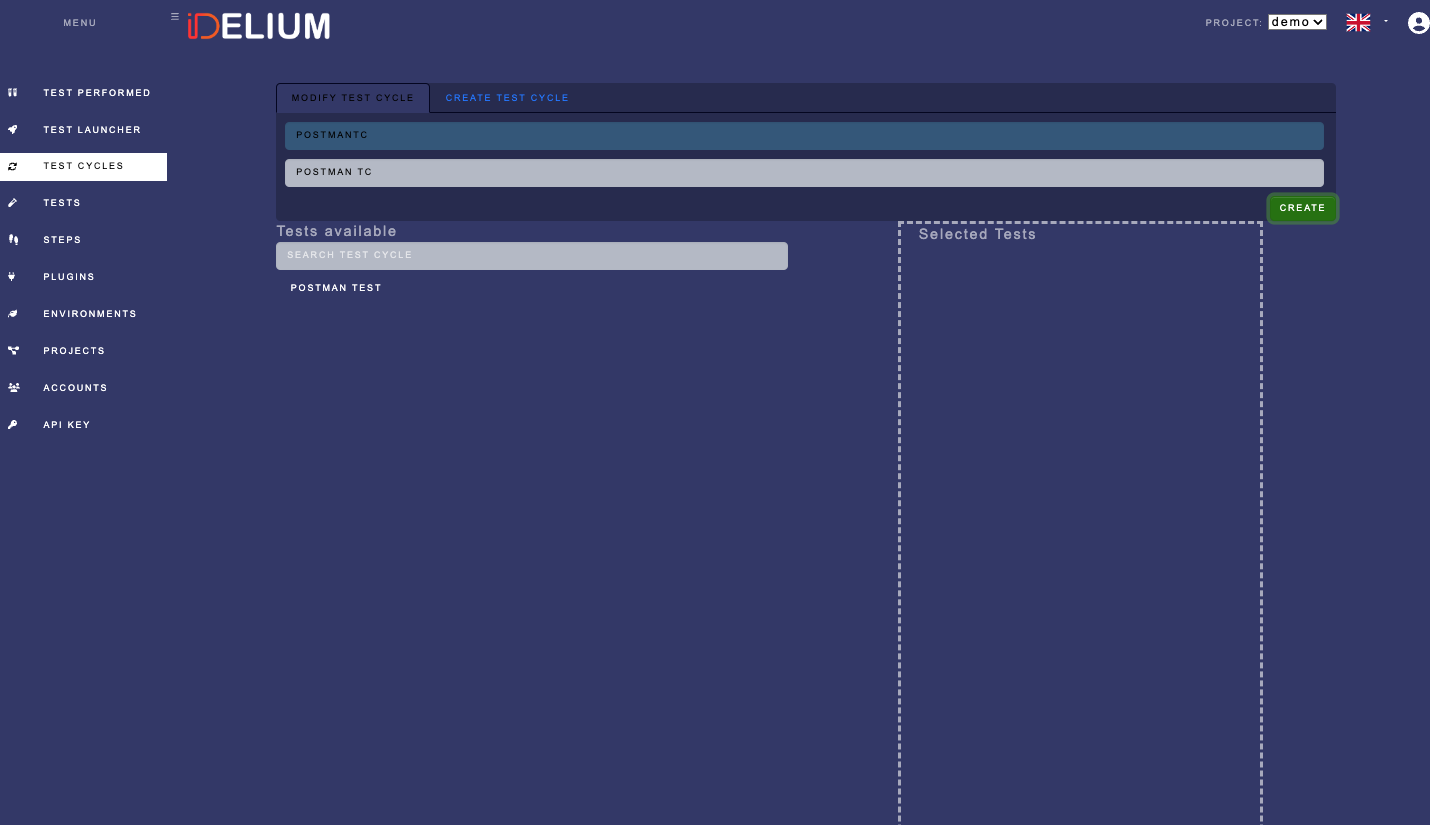
- Open Test Cycles.
- Create a cycle for the Postman test.
- Fill in the required cycle fields.
- Save the cycle and note its identifier.
Download the API key from Idelium Web and store it in the protected key file:
install -m 600 /dev/null ~/.ideliumCopy the key into ~/.idelium using a secure editor or secret-management tool.
Do not print it or pass it directly in shell history.
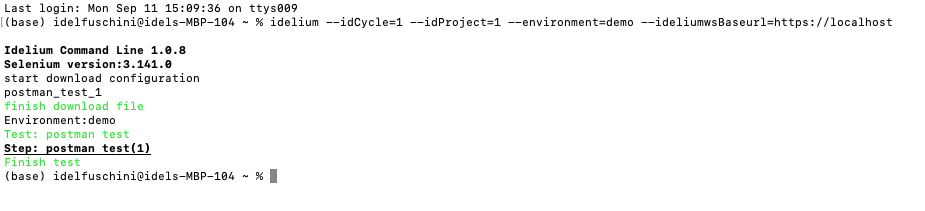
Use the project and cycle identifiers from your local instance:
idelium \
  --idProject=<project-id> \
  --idCycle=<cycle-id> \
  --environment=demo \
  --ideliumwsBaseurl=https://localhost
For uploaded steps that declare runtime: "postman_newman", the CLI writes
temporary collection, environment, and iteration-data files, executes Newman,
and maps the JSON report back to Idelium performed-step results. Bound Newman
execution time with:
idelium \
  --idProject=<project-id> \
  --idCycle=<cycle-id> \
  --environment=demo \
  --ideliumwsBaseurl=https://localhost \
  --postmanNewmanTimeout=300
If Newman is missing from PATH, the step fails safely with a clear result
instead of crashing the CLI process.
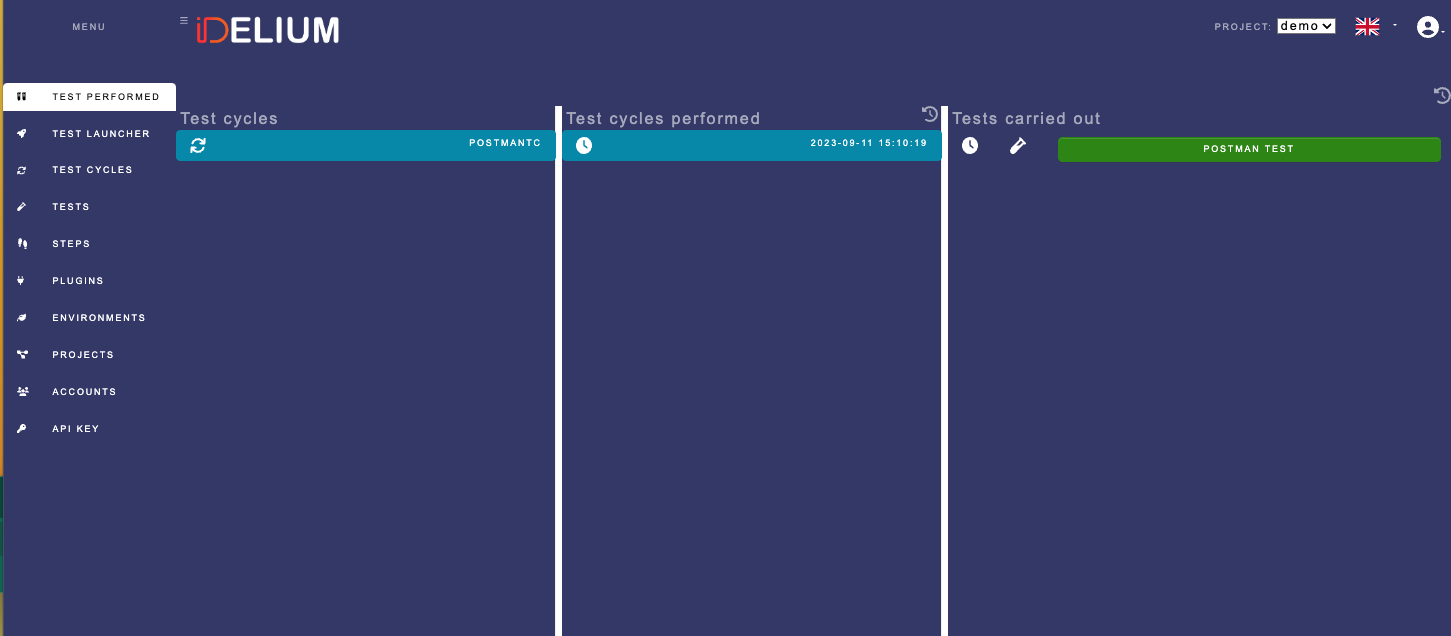
In Idelium Web, open Test Performed and select the completed cycle.
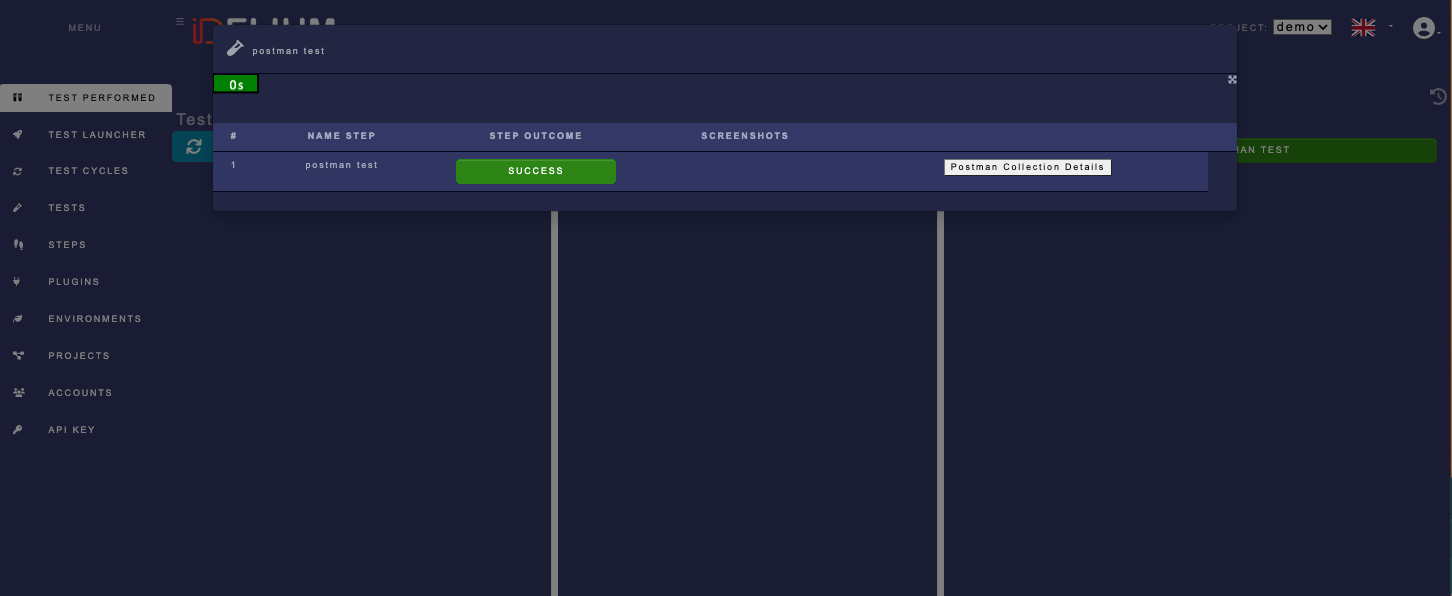
Open the test result and select Postman Collection Details:
Review each request result inside the collection:
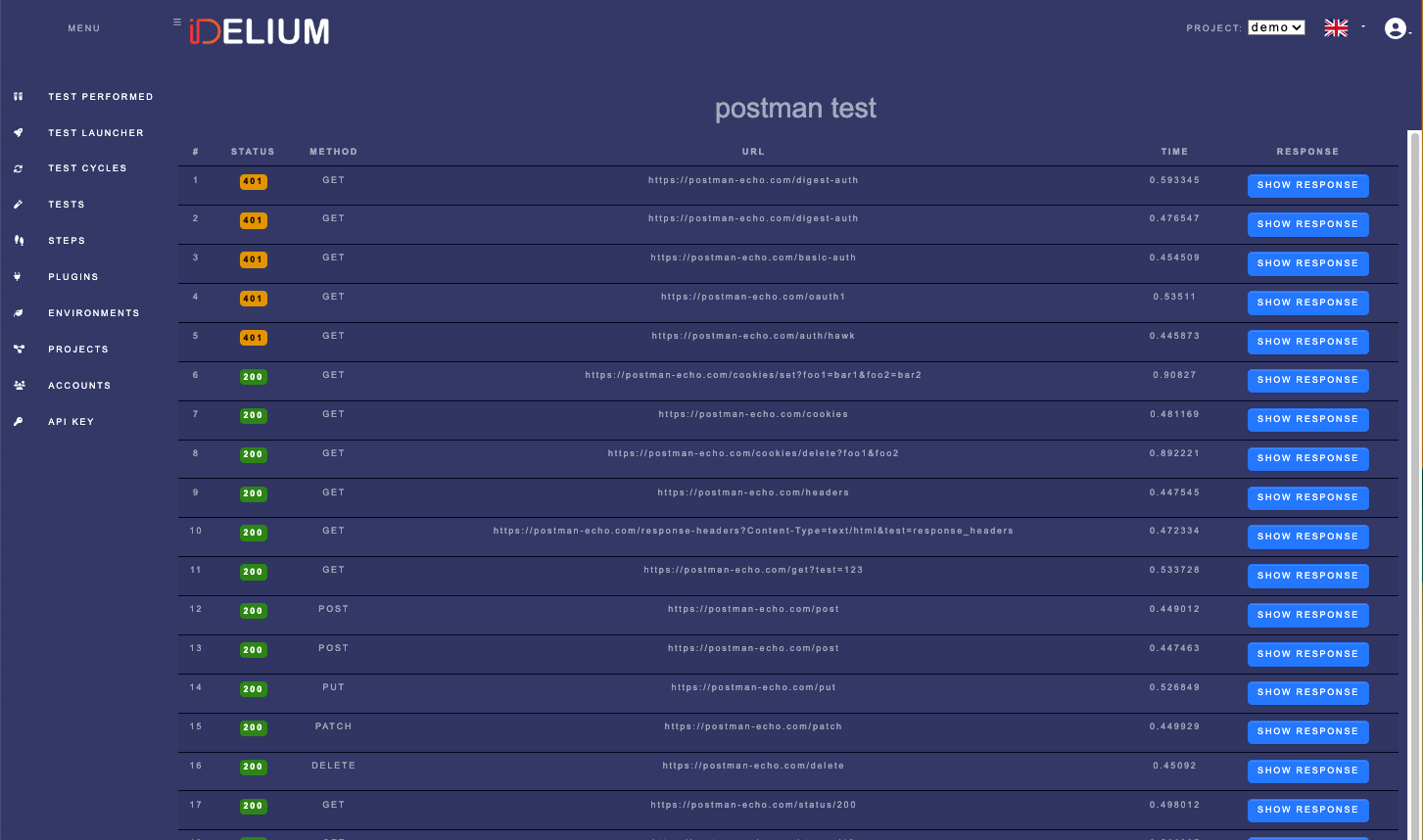
Both Postman modes return Idelium performed-step results. The Newman runtime maps request name, method, URL, status, timing, assertion failures, script failures, malformed reports, and Newman exit codes to pass/fail status.
Before results are stored, the CLI redacts common sensitive values in URL query parameters and JSON response fields, including tokens, cookies, passwords, secrets, sessions, and authorization values. Do not include real API tokens, session cookies, or passwords in screenshots or shared collection examples.