Repository navigation
Linger v0.4.4

Linger 0.4.4: a big one
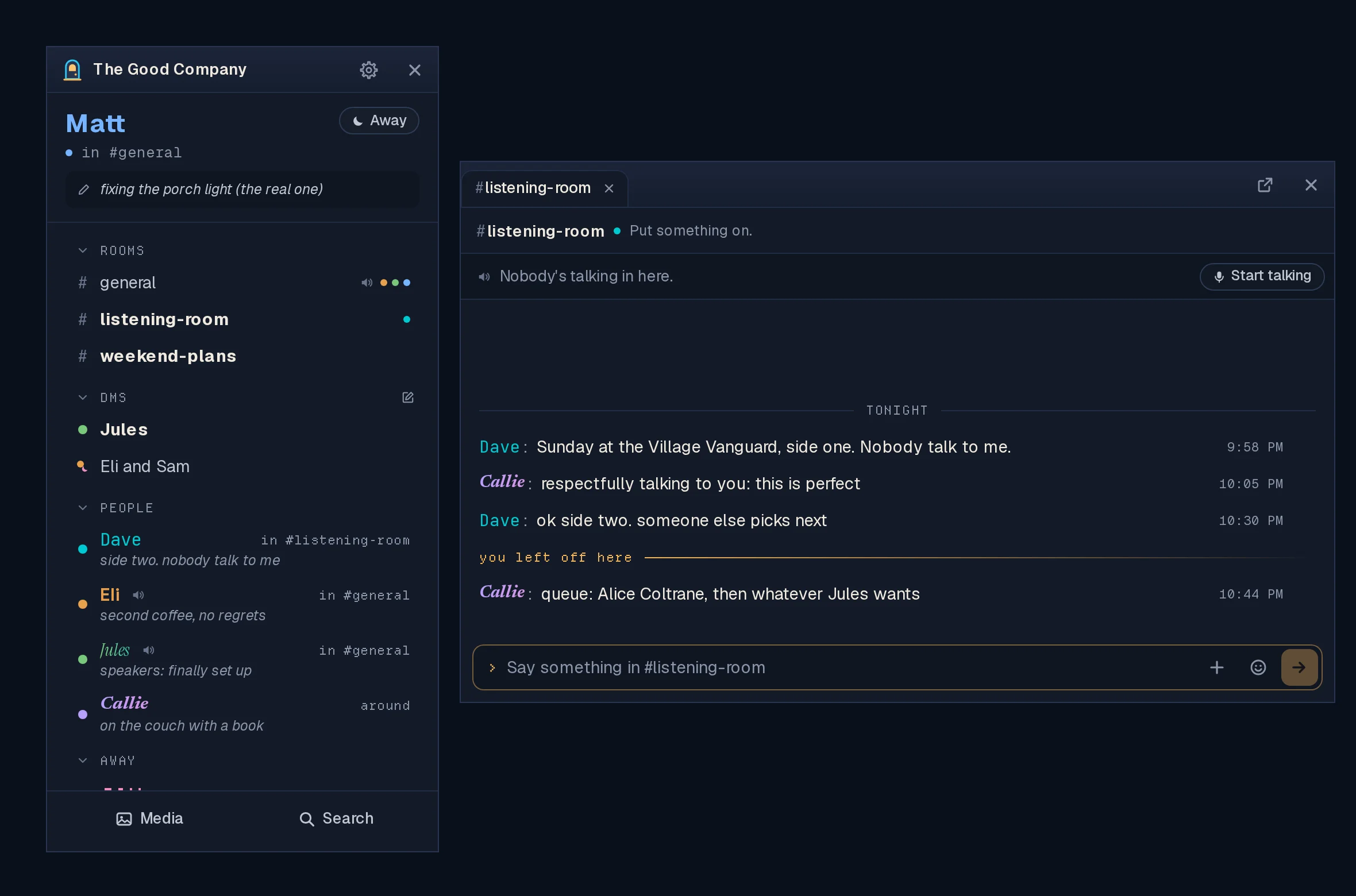
A day of real use turned into the biggest release since the Buddy list
arrived. You can now @ people by the name you know them by and paste
screenshots straight in. DMs you haven't read are hard to miss. Your status
has fields you label yourself. The list shows at a glance who's actually
here, and voice now always goes through the server.
Hosts: update the server, and make sure voice is set up first. Voice now
needs LINGER_VOICE_ADDRESS. A server without it carries no voice at all
after this update. The database also changes, so take a backup first.
For hosts has the exact commands.
Everyone: update the app. Apps older than 0.4.1 can no longer join voice.
The highlights
- @ opens a list of people, found by the name you know them by (#267).
- Paste a picture into the message box with Ctrl+V (#276).
- A DM you haven't read is lit, pops a banner and flashes the taskbar (#291).
- Status fields with your own labels, and links in them that open (#270).
- Lights off for idle, away and offline: only people who are here are lit (#301).
- A sender's name gets its own line, so every message starts on one edge (#295).
- Voice always goes through the server, and sound settings apply mid-call
(#306, #249).
Chat
- Mention people by the name you know (#267). Type
@at the start of a
word and a list of people opens by the message box. Search by display name
or username. Up and Down move through it, Enter, Tab or a click picks, and
Escape closes it. In a room it offers everyone on the server, with the
people in the room first; in a DM, only the people in it. When you read a
mention, it shows the person's display name, with their @username on hover. - Paste a picture from the clipboard (#276). A screenshot, or Copy Image
from a browser or image viewer, goes onto your message as a file, the same
as picking it with +. Plain text pastes as before. This never worked on
Linux until now. - A sender's name on its own line (#295). Messages used to start right
after "Name:", so a longer name pushed that person's words further in. Now
the name sits on its own line, and everybody's words start on one edge
just below it. A new speaker is easy to spot. - Line breaks and indentation are kept (#289). Lines typed with
Shift+Enter used to run together into one. - A very long message folds after twenty lines (#304), fading out, with
Show all under it and Show less once it's open. Only the words fold,
never a picture. Copying and screen readers still get all of it. - Back to the newest no longer loads the same page twice (#266).
DMs and notifications
- A DM you haven't read is lit (#291), not just bold. Its row gets a soft
fill and edge, and so do the DMs heading and the server's header while
they're folded, and its tab when another tab is showing. Reading it puts
the light out. Rooms stay bold only. - Every DM gets a desktop banner saying who it's from, and Linger's
taskbar button flashes until you look (Windows flashes the button, Linux
marks the window as wanting attention). Nothing happens for a DM you're
already reading. Turn both off in Settings → Notifications → Banners for
DMs. - DMs stay in order of the latest message while Linger runs (#248). They
used to go back to the order they had when Linger started, once read.
People and status
- The lights are off for idle, away and offline (#301, #274). Somebody
who's here has their name in their own style and a solid dot. Everybody
else's name is a dim grey, and their mark says which: a half-strength dot
for idle, a half-strength moon for away, a hollow dot for offline. Away
messages keep their warm color. Cards, conversations and your own name are
unchanged. - Status fields with your own labels (#270). A status had three fixed
fields: Listening to, Reading and Working on. Now you get up to three, and
you pick each label: Listening to, Reading, Working on, Playing, Watching,
or your own (24 characters). A web address in a field opens in your
browser. Your existing status carries over as it was. - A status is words now; status pictures are gone (#269). Saving one
often failed, and the Buddy list never showed them. Share a photo in a room
instead, where people see it and Media keeps it. Existing status pictures
are cleared when the server updates. - See your own card the way friends see it (#271). Click your own name,
at the top of the list or on one of your messages. Edit profile takes
the place of Message and Knock. - Display names refuse invisible and control characters (#296): line
breaks, tabs, direction controls, invisible characters outside emoji, piles
of accent marks, or nothing visible at all. Emoji, accents and every
language still work. Names saved before this keep working. - Names paint the same everywhere (#272, #287). A gradient name on a
person's card showed only its first color, and a glowing name's light
stopped at a hard edge in the list and in voice. Both are fixed.
Voice and sound
- Voice always goes through the server (#306). It has carried every call
since 0.4.1, with the older direct way kept as a fallback. That fallback is
gone, and so is the Voice through the server switch in Settings. A
room holds up to 25 people. A server that isn't set up for voice now says
"Voice isn't set up on this server" instead of offering a call nobody
could hear. - Changing your microphone or speakers applies to the call you're in
(#249). You no longer have to leave and rejoin. - When voice won't start, it says why (#261, #273), on the room's voice
line, and Start talking stays there for another go. If your default
microphone or speakers won't open, it says so, with a Pick yours in
Settings button. More microphones and headsets open than before. - Linger's own sounds play on the Speakers you picked (#250). Chimes,
knocks and the voice sounds used to go to the system default, even with
voice on your headset. - The knock is twice as loud, and mute and unmute 1.6 times (#252). They
were the hardest sounds to hear on laptop speakers.
Knocks
- Knock says why it can't (#288). While somebody is offline, Knock stays
greyed out and says "Can't knock while Jen is offline." It comes back the
moment they're online. A refused knock from a DM says why. - The knock limit says when you can knock again (#268): "Three knocks
this hour. You can knock again in 20 minutes." - Windows: a knock no longer flashes scroll bars on the list (#251).
Media, links and invites
- Shared audio gets Linger's own player (#247), with a volume slider, the
same on Linux and Windows. Linux had no way to turn a shared audio file
down. The last volume you set is kept for the next file. - A YouTube link's card shows the video's title (#300), not just
"youtube.com". Needs the updated server. - An invite for Anyone has no limit (#246). It used to run out after the
first person joined. Needs the updated server. Invites made as Anyone
before the update stay single-use, so make a new one.
Gone in this release
- The previous look (
LINGER_CLASSIC=1) is deleted (#306). The Buddy list
has been the app since 0.4.0. - Voice straight between people's computers (#306). Voice goes through the
server only. - Status pictures (#269).
Known issues
- On Hyprland (Omarchy included), opening a conversation moves the mouse
pointer into the chat window. That's Hyprland's own behaviour when an app
brings a window forward, and Linger leaves it to your desktop. The
user guide has the two lines that turn it
off, if you'd rather it didn't.
For hosts: updating the server
Server image: ghcr.io/itsmattguenther/linger:0.4.4 (amd64 and arm64), also
tagged latest.
What changes for you:
- Voice needs
LINGER_VOICE_ADDRESS. Before, a server without it fell back
to voice straight between people's computers. Now it carries no voice at
all. If you already run voice through the server (you set this up for
0.4.1), nothing changes. - The database changes (two migrations, run by themselves at startup).
Status pictures are cleared, and statuses move to the new fields. An older
server won't start on the updated database, so the backup is your only
way back to 0.4.3. - No new settings.
Run these on the server, one block at a time.
1. Go to the folder with your compose.yaml (the linger folder from
setup):
cd ~/linger2. Check voice is set up:
grep -nE '^\s*#?\s*LINGER_VOICE_ADDRESS:|3479:3479' compose.yamlYou want two lines back: LINGER_VOICE_ADDRESS: with an IP address and
no # in front of it, and - "3479:3479/udp". If either is missing or
starts with #, set up voice now, before updating, or voice stops working
after the update:
curl -4 https://api.ipify.org
nano compose.yaml
The first command prints your server's public IP address. In compose.yaml,
remove the # before LINGER_VOICE_ADDRESS and put that address after it. A
compose.yaml from before 0.4.1 has neither line, so add both to the linger
service:
    environment:
      # ...what's there already...
      LINGER_VOICE_ADDRESS: 203.0.113.7
    ports:
      - "3479:3479/udp"
Then open UDP port 3479, in your cloud provider's firewall and on the machine:
sudo ufw allow 3479/udp3. Check the image name. grep image: compose.yaml should show
ghcr.io/itsmattguenther/linger:latest. If it says matthewguenther, change
that line to ghcr.io/itsmattguenther/linger:latest with nano compose.yaml.
4. Back up (a few seconds of downtime):
docker compose stop linger
tar czf linger-backup-$(date +%F).tar.gz data
5. Update:
docker compose pull
docker compose up -d
If you run the voice relay (coturn), use these instead:
docker compose --profile voice pull
docker compose --profile voice up -d
6. Check it worked:
docker compose logs linger | grep -i "voice forwarding is on"
curl -f https://linger.example.com/api/v1/health
The first should print a line. The second, with your own address in place of
linger.example.com, should print {"ok":true,"version":"0.4.4"}.
If something goes wrong, go back to 0.4.3 by putting the backup back.
ls linger-backup-* shows the backup's name, with the date you made it:
docker compose down
mv data data-0.4.4-broken
tar xzf linger-backup-2026-09-28.tar.gz
(Use your backup's date in the last line.) Then change the image line in
compose.yaml to
ghcr.io/itsmattguenther/linger:0.4.3 and run docker compose up -d (with
--profile voice if you run the relay).
Download the app
Install the app on your own computer. Hosts run the separate server image.
| Your computer | Download |
|---|---|
| Windows | Linger_0.4.4_x64-setup.exe |
| Omarchy or Arch | Nothing to download: curl -fsSL https://raw.githubusercontent.com/itsMattGuenther/Linger/main/packaging/arch/setup.sh | bash once, then update with your system |
| Ubuntu, Debian or Mint | Linger_0.4.4_amd64.deb |
| Fedora or openSUSE | Linger-0.4.4-1.x86_64.rpm |
| Other Linux | Linger_0.4.4_amd64.AppImage |
The .msi is an alternative Windows installer. The app uses .sig files and
latest.json for updates; you do not need to download them yourself. macOS and
ARM desktop installers are not available. Windows installers are updater-signed,
not Authenticode-signed, so SmartScreen may warn: Run anyway is behind More
info. See the
user guide
for installation and troubleshooting.
Updating the app
Choose Update… at the foot of your list, or open Settings → Account & App →
Updates, or close Linger and install the new download. You stay signed in.
Windows users should keep the same installer format (.exe or .msi). On
Omarchy or Arch, the package updates with your system.
Hosts: see For hosts above.
Checks on installed clients
Record OS, package type, previous and new version, and interface size with
any failure. Use made-up messages, and keep private conversations out of
screenshots.
- With the server on 0.4.4, join voice in a room from Linux and from
Windows: you hear each other. Switch microphone or speakers in Settings
mid-call: the call carries on, on the new device. - Type
@and part of a friend's display name: they're in the list. Enter
puts in their @username; the sent message shows their display name. - Copy a screenshot and press Ctrl+V in the message box, on Linux and on
Windows: it's added as a file and sends. - Get a DM while Linger isn't focused: its row is lit, a banner names who
sent it, and the taskbar button flashes. Read it: the light goes out. Turn
off Settings → Notifications → Banners for DMs: the next DM brings neither. - In Settings → Profile, give your status a field with your own label and a
web address as its value. Save, then open your own card: it's there and
the link opens in your browser. - Somebody going idle, away and offline: their name greys, with a
half-strength dot, a half-strength moon, then a hollow dot. Back here, it's
lit again. - Send a message with three lines typed with Shift+Enter, and one over
twenty lines: the first keeps its lines, the second folds with Show all. - Try to knock on somebody offline: Knock says why. Knock on somebody four
times in an hour: it says when you can knock again. - Make an invite for Anyone and have two people join with it.
- Share an audio file: its player has a volume slider, on Linux too.
- Post a YouTube link: its card shows the video's title.