Stream Download Teams Recordings
Teams meeting recordings are stored in the organizer's OneDrive or SharePoint. When the organizer (or a tenant policy) blocks downloading, the Teams web app only lets you play the recording — not download it. ShareOneList ships a built-in streaming extractor: as long as you have playback permission, you can save the recording as a local MP4 file.
While ShareOneList's embedded player plays a recording, the video is streamed as DASH segments. The app captures those segments inside the web view, re-muxes them into an MP4, and writes it to disk through a local pipeline. No permission is bypassed — it simply saves what you are allowed to play.
Sidebar → Files → pick an account → Meeting recordings. ShareOneList aggregates every recording you can access, including ones shared by other people:
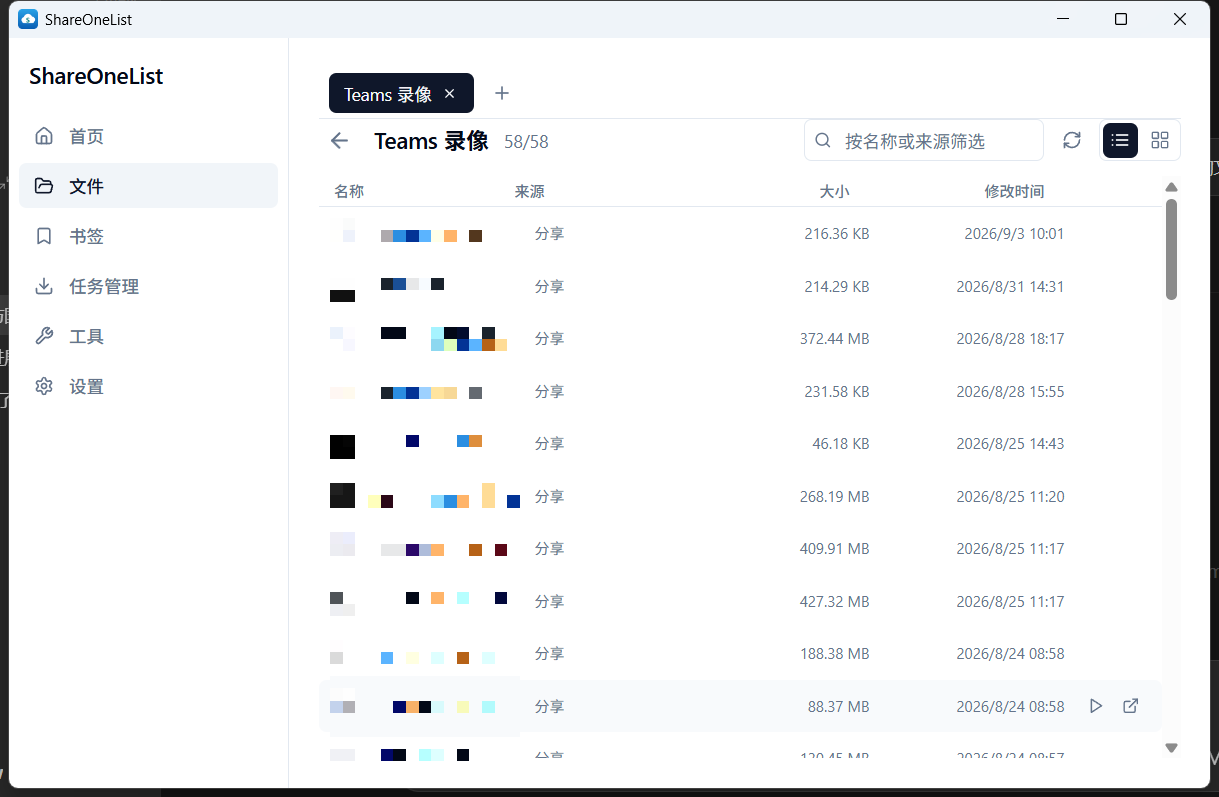
Click a recording to open the preview. The video-camera icon in the toolbar (top-right) is the "Save recording (streaming extractor)" button:
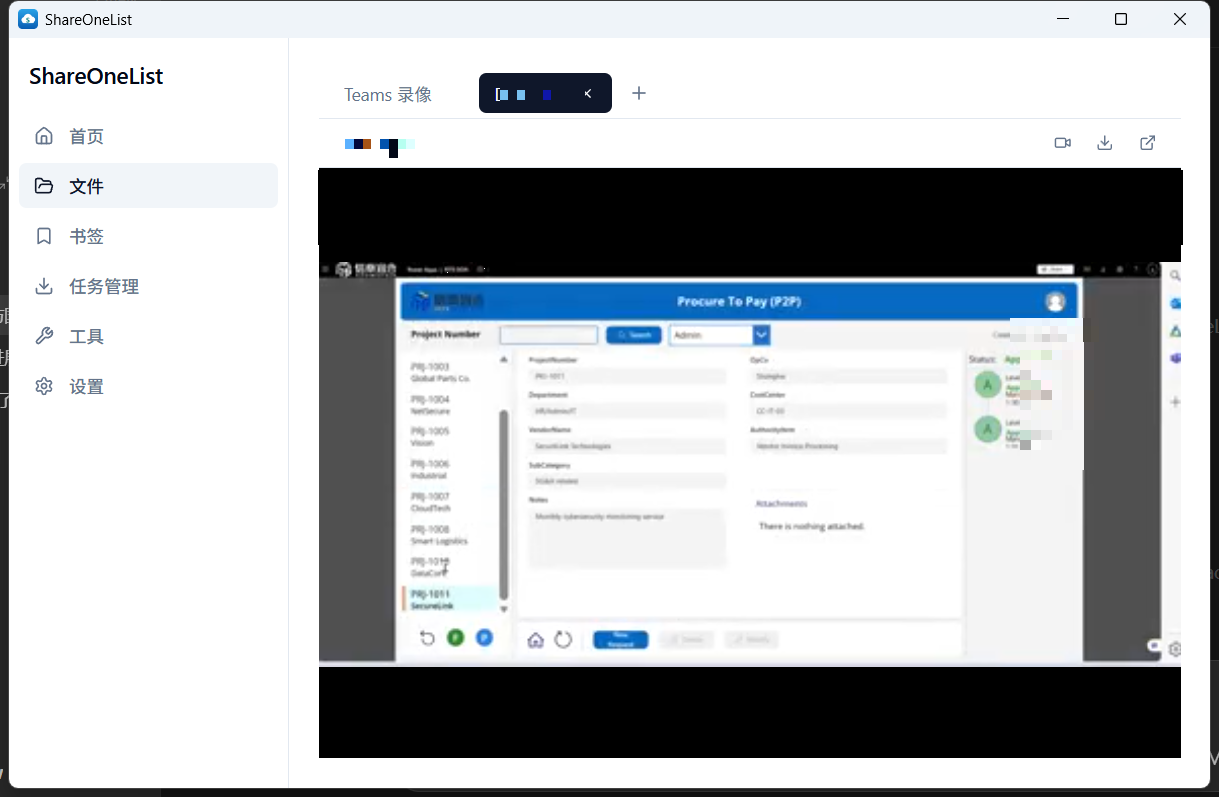
Hit play so the player starts pulling the stream. The extractor button becomes clickable once capture is ready (hovering it will tell you to play a few seconds first).
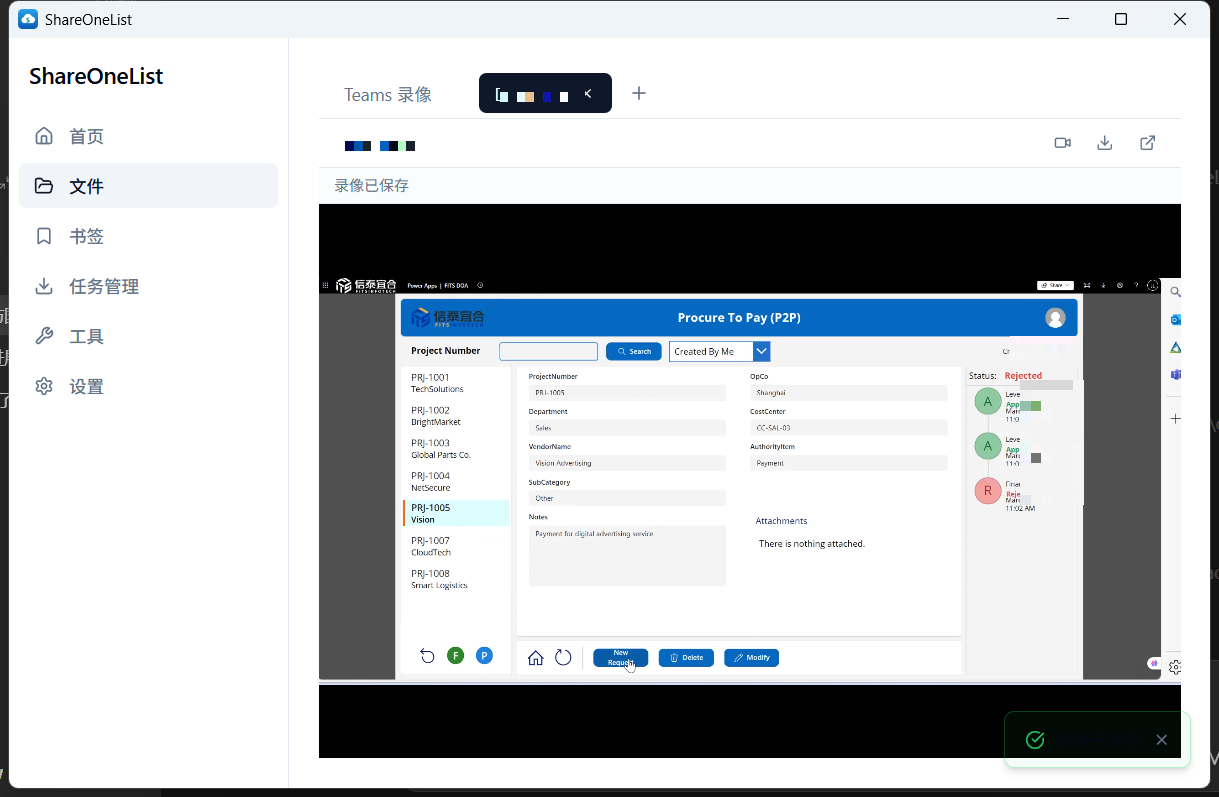
Pick a location in the save dialog and confirm. Keep the tab open and keep the video playing while the extraction runs; a "Recording saved" notice appears when it finishes:
- The button is disabled? Play the video for a few seconds first — capture becomes ready during playback.
- When do I need the streaming extractor? If downloading is not restricted, just use the download icon in the toolbar. The extractor is for recordings blocked by policy (e.g. hosted by someone else with block-download enabled).
- DRM-protected recordings cannot be saved; the app tells you explicitly.
- Slow download? Adjust the segment download concurrency in Settings → Teams Recording Downloads (1–16, default 4). Higher is faster but may trigger server throttling.
Only save content you are allowed to play, and respect your organization's compliance policies and copyright.