Repository navigation
Connecting other machines
You can run Claude Code and Codex on several machines and see them all on one board. The machine that runs the board is the hub. Each other machine is a collector: it watches its own sessions and streams what the board needs to the hub, over an encrypted link. Its sessions get live cards on the hub's board, show Needs you and send your alerts, and are saved for the Archive and Trends. See How it works for the whole picture.
This page describes version 0.4.0. If a machine of yours is on 0.3.0, see Upgrading from 0.3.0; if one was connected by 0.2.0, see Upgrading from 0.2.0 below.
Numbers, short names and a few short lines of text: tokens and cost, the model, tool names, the session's title, folder, git branch and repository, the first and the latest prompt clipped short, and whether the session is working, idle or waiting on you. From 0.4.0 it also sends the name and state of each GitHub runner running on the machine.
It never sends the agent's replies, what tools were given or returned, the commands a session ran, or the names and contents of your files. How it works has the full list.
To try all of this step by step, with what you should see at each step and where to look when you do not, follow the test guide.
-
The hub must take collectors. This is off until you turn it on. On the hub, open the VitalAIze app and click Settings (on Linux, run
bin/vitalaize setup), and turn on Take collectors under Collectors on other machines. The board restarts. See Settings. - Two ports on the hub. A new machine asks to connect on the board's port (4747), and then streams on the link's port (4748). A connected machine also uses the board's port to ask whether it was removed. If the hub has a firewall, allow both.
- Same network. The hub and its collectors are meant to sit on one network you trust, such as your home or office.

-
On the new machine, install VitalAIze as a collector. On a Mac, open the app and pick Collector only; on its Your hub page pick the hub, click Continue, then Start the collector and pair on the last step. On Linux, run
bin/vitalaize setupand answercollector. Either looks for a hub on your network for a few seconds (on Linux that needsavahi-utilson the new machine). If it finds none, or more than one, give it the hub's address, like192.168.1.20. The README has the install steps.
-
It shows a six-digit code, like
482-913, and tells you to open the mailbox on the hub's board and approve it there. The code matches only this machine and expires in 10 minutes.
On Linux, or in a terminal on a Mac, the same thing looks like this:
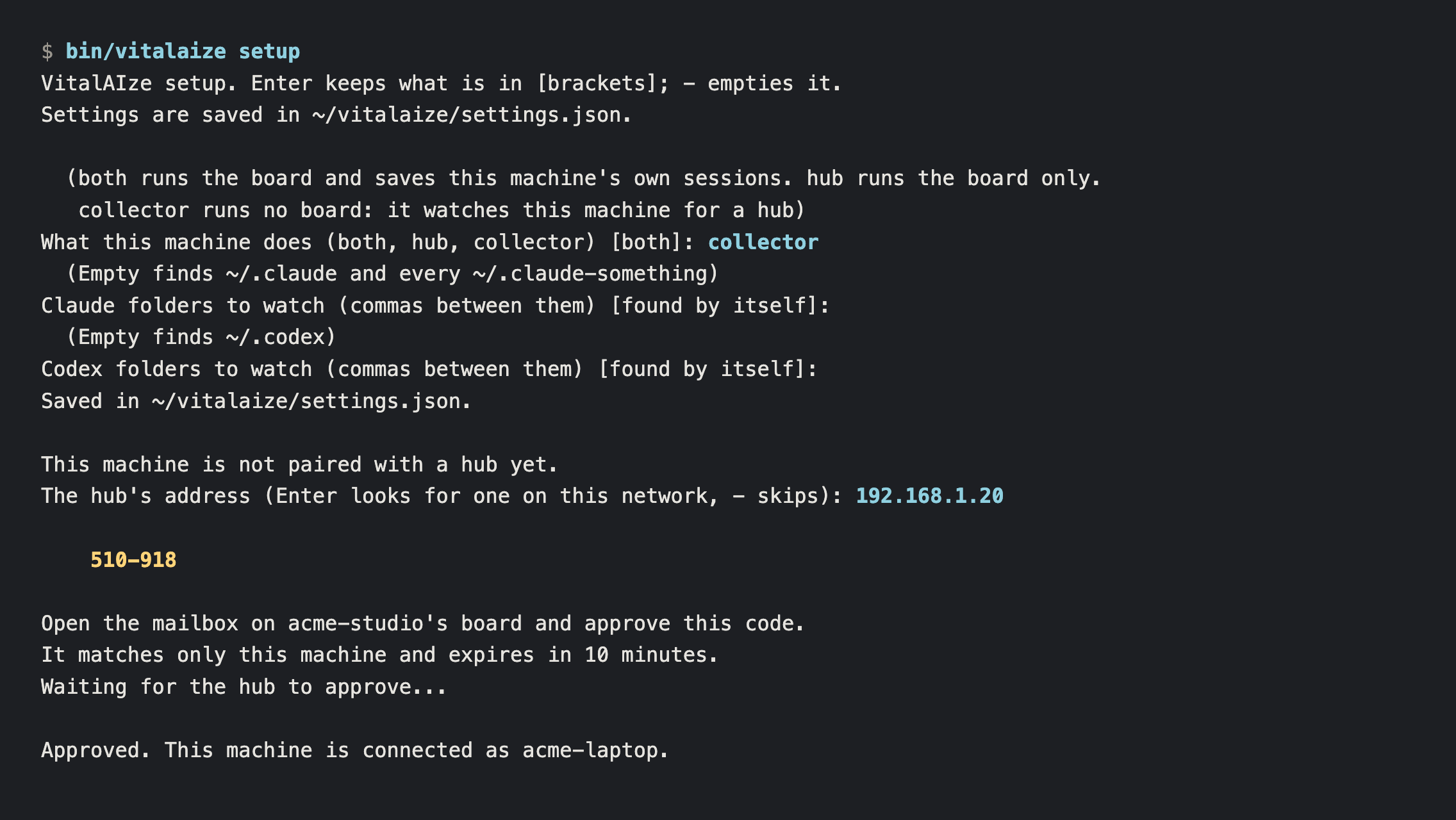
-
On the hub's board, open the mailbox, the envelope button at the top. It holds one item: "A new machine wants to connect", with the machine's name and the code it shows. Tap Approve only if the code matches what the machine shows. Refuse turns it away.

-
The machine saves its certificate and starts streaming. Within a few seconds its sessions show on the board.
There is no key to copy between the machines; at most you type the hub's address. The code is what proves that the machine asking is the one in front of you. If a code shows on a machine but never appears in your hub's mailbox, that machine is talking to something else: stop there.
- With no board password, only a browser on the hub's own machine can approve, refuse or disconnect. Anyone else who opens the board can see the mailbox, but its buttons are off.
-
With a board password (
token), any device that opened the board with the current password can.
- A code is good for 10 minutes. After that, start again for a new one.
- A machine that stops asking (you closed its window, say) leaves the mailbox after about a minute.
- The mailbox holds 5 requests at once, and one for each machine name.
- A machine's name can use letters, numbers, spaces, dots,
-and_, 63 at most, and cannot be the hub's own name.
The hub's Settings page lists Connected machines: each machine's name, its system, when it was last seen, how many sessions it has had in the last 10 minutes, and the folders it watches. The hub itself is the first row.

Disconnect takes a machine's certificate away. Tap it, then tap Tap again within 8 seconds. The hub tells the machine and closes its link at once, and the machine stops trying. To connect it again, pair it again: Pair again… in the app. On Linux, run bin/vitalaize setup and type the hub's address when it asks for one; pressing Enter there keeps the pairing the hub took away.
A machine that is off or out of reach when you tap Disconnect is not told at once. When it comes back the hub turns it away. From 0.4.0 the machine then asks the hub whether it was removed, and within about three minutes stops and shows it was removed. A machine still on 0.3.0 keeps trying and says the hub is not answering. Pair it again the same way. A machine removed in the moment it connects is told, like one that was connected.
Pair a machine again under the same name and the hub makes it a new certificate and cancels the old one. The mailbox item says so before you approve: "A machine named … is connected already; approving this one disconnects it." Use this when a machine was rebuilt, or when you think its certificate was copied.
A collector keeps what it has not sent on its own disk and keeps trying, up to a minute apart. When the hub is back it carries on from where the hub left off. On the board, that machine's cards are marked stale in the meantime.
Install 0.4.0 on the hub and on each collector the same way you installed 0.3.0; pairings are kept. A collector still on 0.3.0 keeps working with a 0.4.0 hub, but only a 0.4.0 collector reports the GitHub runners on its machine and finds out when it was removed while it was off.
In 0.2.0 a machine was connected with the Connect command from the hub's Settings page, which added upload hooks to its Claude and Codex settings and gave it the hub's key. 0.3.0 has none of that: no Connect command, no upload scripts, no key.
- A 0.3.0 or newer hub refuses the old uploads. A machine still on the old hooks gets the answer "This hub no longer takes uploads from the old collector (VitalAIze 0.2.0)", and its sessions stop arriving until you move it across.
-
To move a machine across, install the newest version on it as a collector, as above. Setup takes VitalAIze's old hooks out of that machine's Claude and Codex settings and deletes the old upload script. It leaves every other hook as it was, and keeps a copy of each file it changes beside it, such as
settings.json.before-collector. - Sessions the hub saved before stay in the Archive and Trends, and a session counts once.
-
On a Mac that had an older install, opening the new app repairs what the older one left behind, says what it did, and keeps a copy of each file it changed in a
backupsfolder beside the database.
On a Mac, open VitalAIze and click Remove VitalAIze…. On Linux, run bin/vitalaize remove. Either stops VitalAIze, takes it out of what starts at login, deletes the machine's certificate for its hub, and takes out any upload hooks an earlier version added, keeping a copy of each hooks file it edits beside it (settings.json.before-collector). Settings and saved sessions stay unless you ask the Mac app to delete them too.
- A fake hub from the very start. If something on your network answers a new machine before your hub does, that machine can pair with it and stream to it. Your check is the mailbox: the code must show up there.
- Someone who controls the hub's machine, or who holds the board password. They can approve machines.
- People on your network can fill the mailbox's five places for a while, which delays a real pairing. They cannot approve anything.