Admin Guide
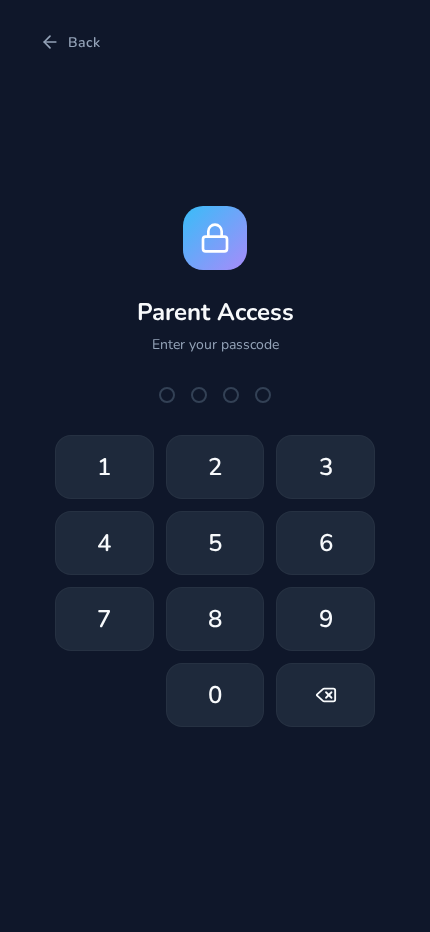
Access the admin panel by tapping Manage on the profile selection screen and entering the PIN (default: 0000 on first setup, 1234 in dev seed data).
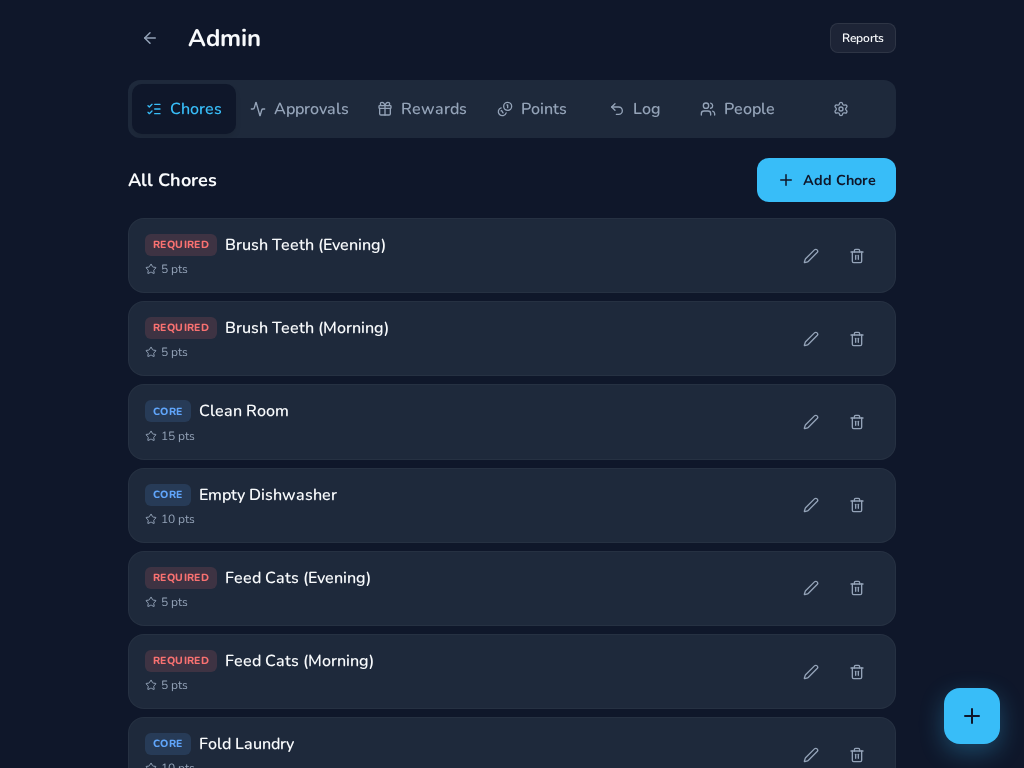
Click + Add Chore to open the creation wizard:
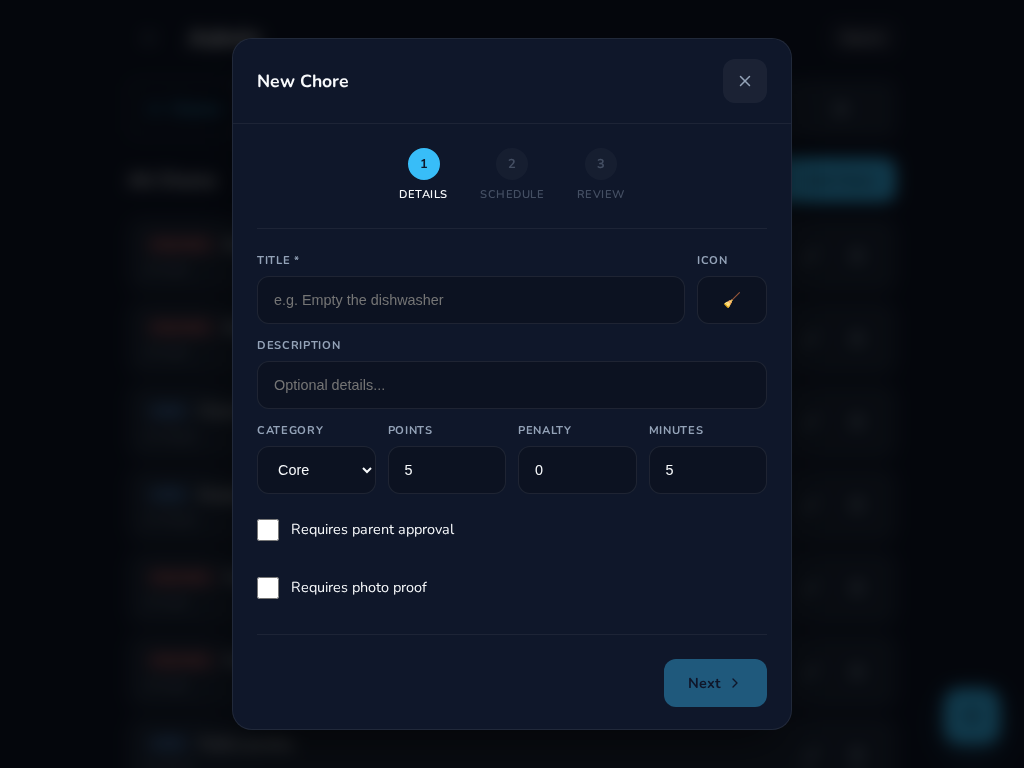
- Details — Title, icon, description, category, points, penalty, estimated time, approval/photo flags
- Schedule — Assign to kids, pick days (weekly/interval/one-off), time locks, deadlines, expiry penalties
- Review — Confirm and create
The blue + button in the bottom-right corner opens Quick Assign for instant one-off chore assignment:
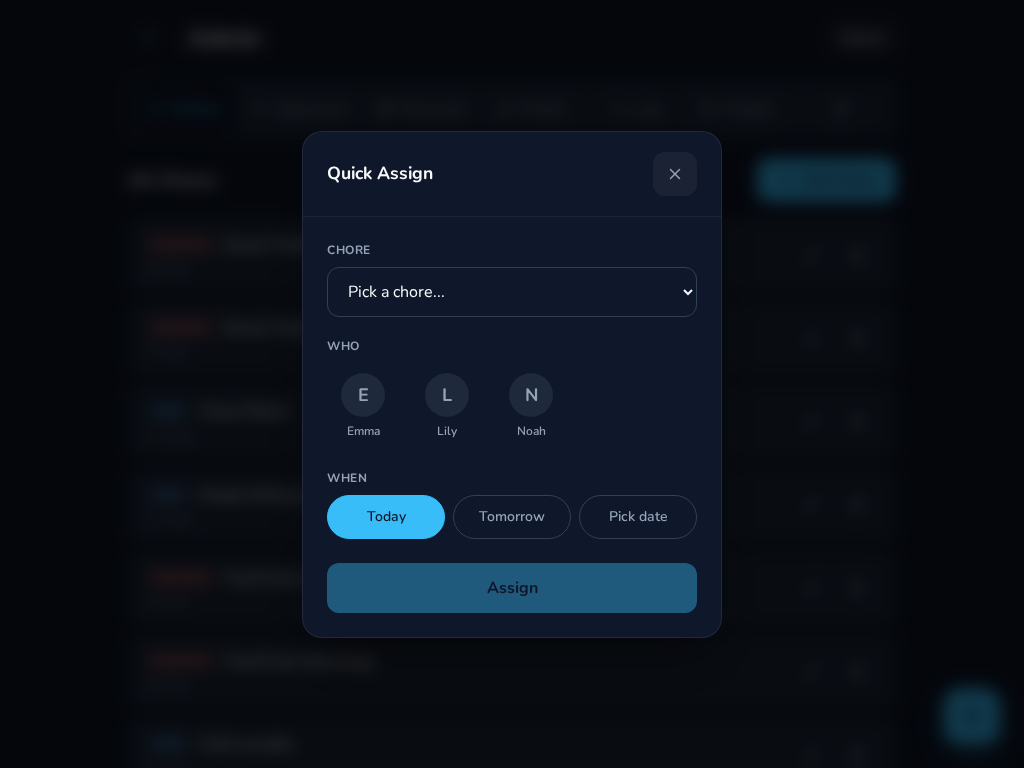
Pick a chore (or create a new one), select kids, choose today/tomorrow/custom date, and assign.
Click the edit icon on any chore to open the full edit modal with:
- Chore details (title, points, category, penalties, etc.)
- Schedule manager (add/remove schedules)
- Trigger manager (webhook URLs for external systems like Home Assistant)
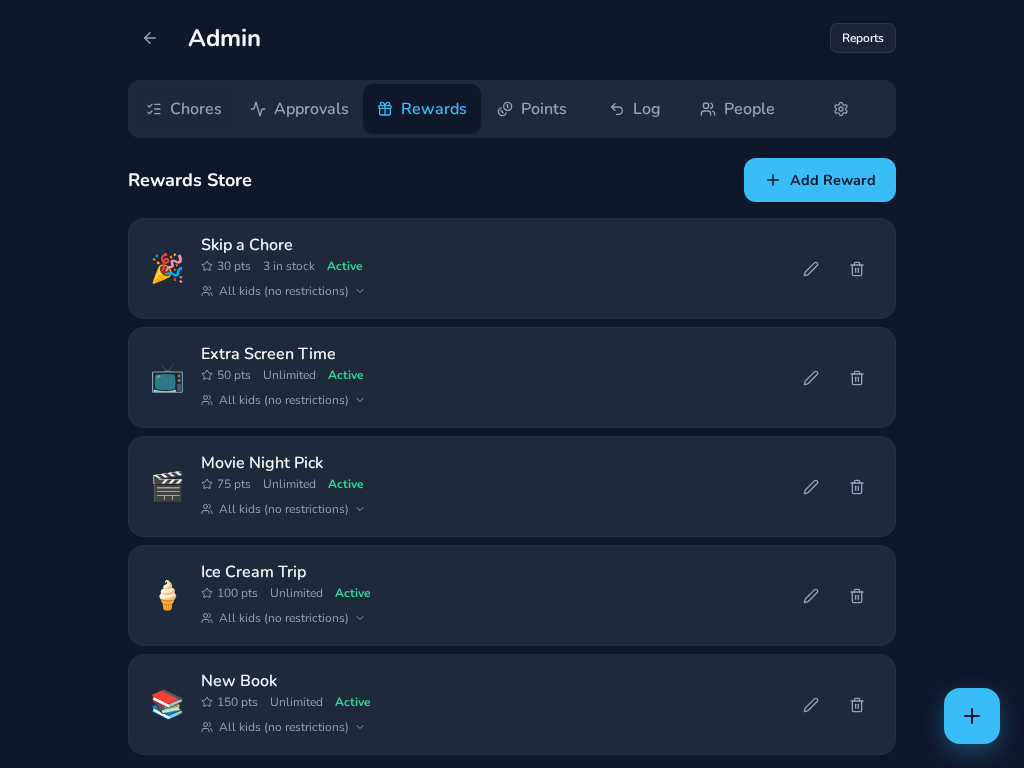
Create rewards with icons, point costs, optional stock limits, and per-kid visibility with custom pricing.
Configure bonus point awards for consecutive-day streaks (e.g., 7-day streak = +25 pts).
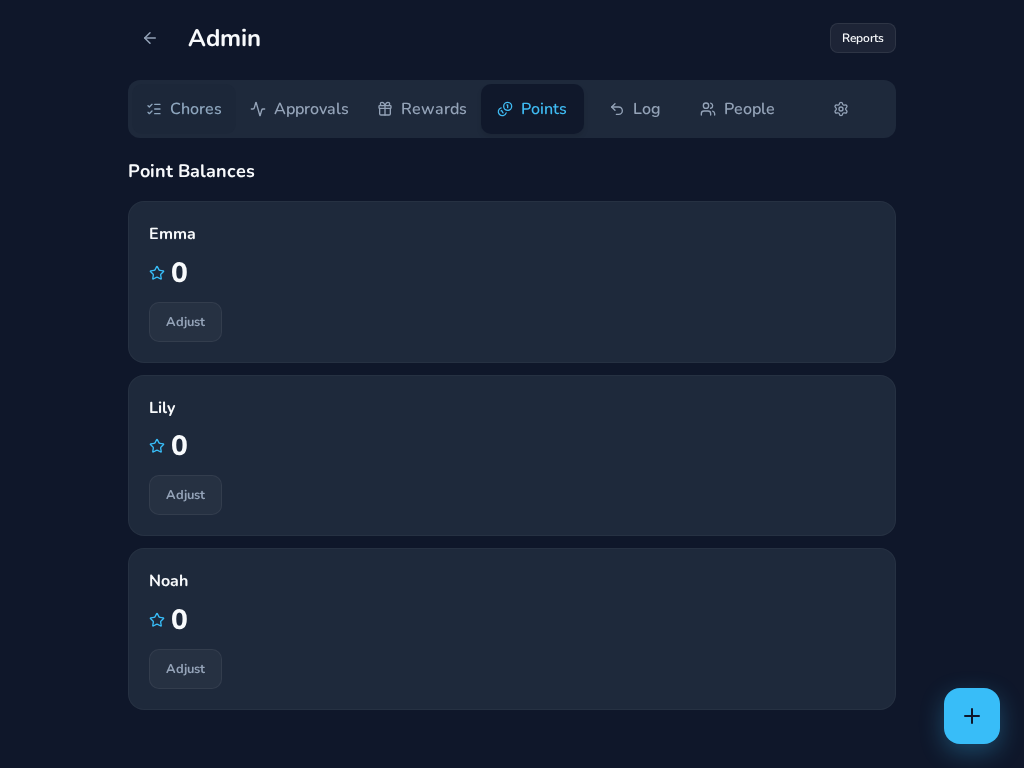
View each kid's point balance and manually adjust points with a reason note. Full transaction ledger available in the Log tab.
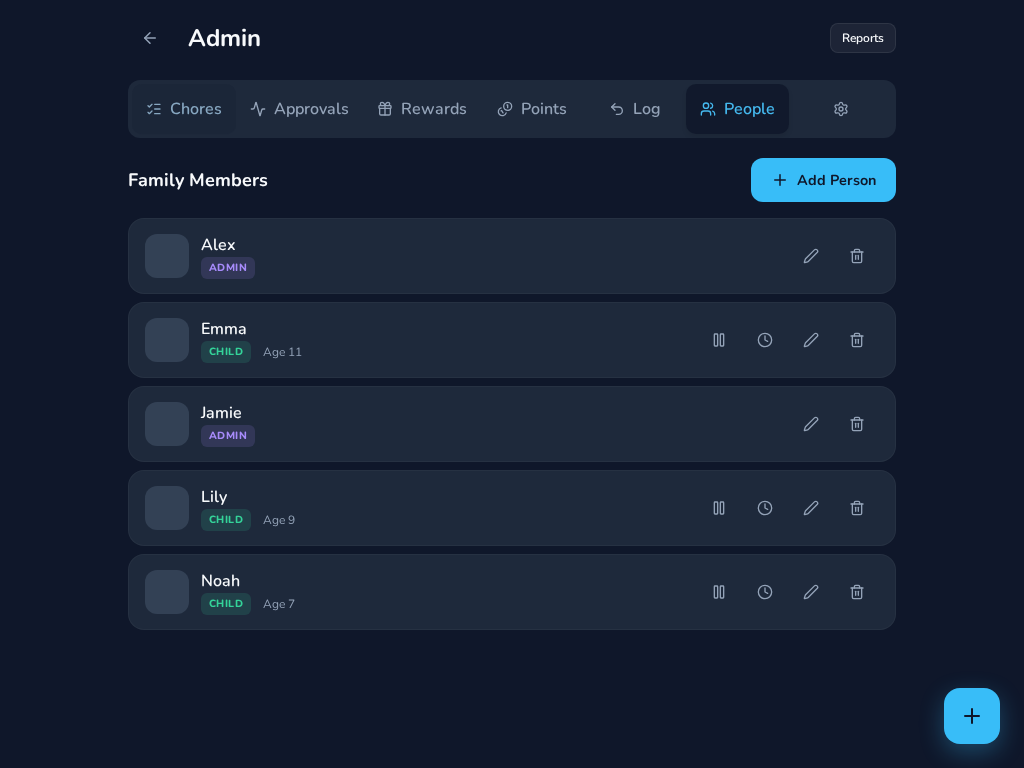
- Pause/Unpause — vacation mode, suspends a kid's chores without deleting schedules
- Point Decay — configure per-user daily decay (clock icon) if chores aren't completed
- Edit/Delete — manage user details
- Approvals — review pending chore completions that require parent approval (with photos)
- Log — full transaction history with undo capability
- Settings — system configuration, API tokens, webhooks, and AI features (photo review, TTS, LiteRT/Kokoro endpoints)