Repository navigation
User Guide en
When creating a notebook, choose its school stage (primary, junior high, senior high or university) and subject. They decide which knowledge-point library the AI uses and cannot be changed later, so keep separate notebooks per stage and subject.
Primary school offers math, English, Chinese and science. The built-in Chinese library includes chapters and knowledge points for grades 1–6, junior high and senior high; science knowledge points come from the imported PEP curriculum tag system, or are named by AI inside the notebook and converge over time when it is not imported. After upgrading Docker or an installation package, startup fills in missing built-in Chinese tags while preserving existing tag IDs, question links, custom tags and other tag systems.
University (including postgraduate exam prep) offers every built-in subject. It only has the 大一–大四 (freshman–senior) grade nodes and no built-in curriculum: AI names the knowledge points itself and saves them as tags on the question, and later recognition reuses the existing tags so the names converge. Tags hang under the matching grade node, can be filtered by grade, and can also be added manually. To separate directions such as "考研数学" or "linear algebra", use them as notebook names.
After an administrator imports the PEP curriculum knowledge points (see Settings and Users), a Tag system option appears when creating a notebook. It coexists with the built-in system and cannot be changed after creation; AI recognition and knowledge-point filters only use tags from the notebook's tag system.
The notebook list shows only each name and question count; click one to open its detail page, where you can rename or delete it. Only an empty notebook can be deleted, so move or delete its questions first.
| Entry | When to use |
|---|---|
| Image upload, drag and drop, camera | Paper tests, workbooks and existing question images |
| Clipboard paste | Copied screenshots or images, with Ctrl/⌘+V
|
| Screenshot | The browser supports screen sharing and the page runs in a secure context |
| AI solve | You already have the question text; Markdown and LaTeX are supported; tap Import from file to load a TXT / Markdown file |
| Import question file | Existing question bank files (JSON / Word / Excel / CSV / PDF), parsed and imported in batches |
| Direct entry | Manually record a known question, answer and analysis |
The add page and the crop window remember the input method (photo, AI solve, import question file, direct entry) and crop mode (single question, auto split, draw boxes) you used last time. The choice is saved in this browser; on another device or after clearing site data, photo and single question are used again. The add page inside a notebook only offers photo and AI solve, so it shows photo if another method was used last time.
Images can be cropped first. While cropping or selecting several questions, zoom with the mouse wheel, a two-finger pinch or the buttons at the top right (100%–500%; click the percentage to reset), and rotate 90° left or right with the buttons at the top left before framing so landscape and portrait photos align. When one image contains several questions, choose Auto split to let AI find each question (see "Multiple questions" below), or Draw boxes to select them for a batch import. Keep the full question, any required figure and the student's work, and avoid blurry images or cut-off conditions.
On phones there are three separate entries: Take photo opens the camera directly (if the device has no camera you are asked to use the album or a file instead); Photo album picks from your photos; Choose file accepts any file type, for photos that do not show up in the album (some systems do not treat HEIC/HEIF as images). After selection the real format is detected from the file content: HEIC/HEIF photos are converted to JPEG and rotated upright before cropping, and no extra decoder is downloaded when the browser can decode them itself. Damaged files or files that are not images show a specific reason.
When one question spans two or more sheets, frame the first part in single-question crop and tap Rest is on another sheet; that part is saved above the upload area. Take or choose the next photo, frame the continuing part and tap Join … parts and recognize: the parts are scaled to the same width and joined top to bottom into one image. A question can have up to 4 parts; while parts are saved you can also start recognition or discard them from the saved-parts panel, and cropping offers only the single-question mode.
The crop preview uses a thumbnail; after you confirm, the crop is taken from the original. A single image is limited by a 4096 px long edge, about 4.9 megapixels and 1.5 MB together and is saved as WebP when the browser supports encoding it (JPEG fallback), with quality at 0.8 or above, so small text, formulas and figures stay sharp; joined parts of one question use a wider 8192 px long edge, about 24 megapixels and 4 MB so two portrait pages are not shrunk until the text is unreadable. Enter a question source on the upload area before taking the photo; it is saved with the recognition task and written into the question after review or direct import, and can be edited on the details page.
Review before import is on by default: recognition results open on the review page for checking and editing before saving; turn it off in "Settings → General" to save directly. The AI may misread numbers, symbols and figure relationships, so check against the original before saving.
The Import question file entry on the home page imports existing question bank files. Parsed questions are imported in batches and can be saved as-is (no AI call). Supported formats:
| Format | Extension | Max size | Notes |
|---|---|---|---|
| JSON (question exchange format v1) | .json | 50 MB | The app's exchange format with the richest fields |
| Word | .docx | 50 MB | Paragraphs, auto numbering, tables and inline tags |
| Excel | .xlsx | 20 MB | Header row detected; sheet names used as sections when there is no section column |
| CSV | .csv | 10 MB | Comma/semicolon/tab and UTF-8/UTF-16/GBK auto-detected |
| 50 MB | Requires a text layer; scanned PDFs auto-convert to images for AI recognition (see below) |
- Flow: choose a file → parse (with progress) → image composition (if any) → summary (total questions, parse errors with reasons, warnings, not-yet-imported fields) → choose a target notebook (required) → create batches and go to the import center. At most 2000 questions per import; questions with parse errors are not imported.
- Not-yet-imported fields: subject, grade/semester, source, figure SVG and extension fields are not written to the draft yet; the import summary shows how many questions carry each.
- Templates: Excel / CSV templates (with sample data and column descriptions) can be downloaded from the import page; column names accept Chinese and English.
- Not yet supported: image formats browsers cannot render (TIFF, etc.) are skipped with a warning; legacy .doc binary files must first be saved as .docx in Word before importing.
The JSON question exchange format is documented in the question exchange format spec.
- Supported content: normal paragraphs, auto-numbered paragraphs, tables (cells joined with tabs), inline tags such as 【答案】 (answer), 【解析】 (analysis), 【知识点】 (knowledge points), 【难度】 (difficulty) and 【错答】 (wrong answer), as well as an "参考答案" answer section filled back by question number.
-
Auto numbering: numbers from Word auto-numbering are not in the text; the parser computes them from
numbering.xml(e.g. "1.", "一、", "(三)"). Common formats include decimal, Chinese counting (一、二、三…), enclosed circle digits (①②③), upper/lowercase letters and Roman numerals. -
Superscripts and subscripts: superscripts are output as
^{…}(pure digits as^2, e.g. x^2), and subscripts as_{…}(same rule, e.g.a_{n+1}). -
Word formulas: formulas inserted with Word's built-in equation editor (Insert → Equation) are converted to LaTeX for KaTeX rendering — inline formulas become
$…$and display equations become$$…$$; fractions, radicals, superscripts/subscripts, ∑/∫/∏, equation systems, matrices and other common structures are supported. OLE equation objects such as MathType (aw:objectplaced directly inside a run) are not OMML: their WMF preview images are first analyzed for structural recovery — simple formulas (fractions, superscripts/subscripts, common symbols such as ×÷≤≥≠π°) are converted to LaTeX and embedded in place in the text ($…$style, consistent with OMML), counted asOLE_EQUATION_LATEX:Nin the import warnings; complex formulas (radicals, geometric shapes, multiple diagonal lines, etc.) that cannot be reliably recovered are kept as images, with the formula position marked as "[公式]" in the text and counted asOLE_EQUATION_IMAGE:NandMETAFILE_RENDERED:N. EMF preview images are not rendered yet and are counted inMETAFILE_FAILED:N(MathType equations are almost always WMF). Unrecognized OMML structures keep their text and are reported in theMATH_UNSUPPORTED:元素名warning. Legacy .doc binary files must first be saved as .docx in Word before importing. -
Images: embedded images in Word (w:drawing and w:pict) are imported as the question's original image — images in the question body, answer, and analysis are attributed to the corresponding question in order of appearance; multiple images are merged vertically into one and compressed to a long edge of ≤ 1600 pixels and about ≤ 1 MB. WMF preview images of OLE equation objects (MathType / Equation Editor) are rasterized during import and kept in the question's original image (the formula position is marked as "[图片]" in the text; render counts appear in the import summary as
METAFILE_RENDERED:N, failures asMETAFILE_FAILED:N— EMF preview images are not rendered yet and are also counted as failures; when a question has more than 12 small equation images, the extras are not merged, counted inMETAFILE_TRUNCATED:N). TIFF and other formats that browsers cannot render are not supported (counted in theIMAGE_UNSUPPORTED:formatwarning) and appear as the "[图片]" placeholder in the text. - Strikethrough and hidden text: skipped during parsing; revisions keep insertions and skip deletions.
- PDF text layer: PDF files must have a text layer (text embedded by Word or a generator, selectable in a viewer). Double-column layouts are read left column first, then right; repeated headers and footers (including page numbers such as "Page 3" or "- 3 -") are removed. Scanned PDFs have no text layer; when imported, the app shows "This is a scanned PDF" and lets you pick a page range (up to 20 pages per import) to convert to images, which are rendered at the output limit (about 225 DPI for A4) and then recognized and split by AI — each page uses one AI split quota, and pages without questions (such as answer or blank pages) are skipped automatically instead of leaving failed batches. A PDF with a text layer but some blank pages imports normally using the text layer, and the warning notes the blank page count. Password-protected PDFs are not supported.
- PDF question images: when importing a text-layer PDF, every question is captured by default as a screenshot of its layout region and saved as the question's original image, so you can always see how the question originally looked (formulas, figures and tables stay intact even if the text layer is garbled). On the summary page, "Question images" can be changed to "Questions with graphics" (only questions with detected pictures, geometric figures, function graphs or table lines; unavailable when the PDF has no graphics) or "Do not save". Questions spanning columns or pages are cropped in segments and stacked vertically, compressed to a long edge of ≤ 1600 pixels and about ≤ 1 MB; the question text is still imported normally.
- AI full solve recognizes questions with an original image from the image: when a question carries an original image (PDF screenshot or merged Word embedded image) and you choose AI full solve, the model recognizes the question from the image and the file's text layer is only passed along as a reference (the text layer often garbles formulas and layout, so the image is authoritative). These questions count as image recognition uses. AI tags & difficulty only and Import as-is never invoke full recognition and are unaffected.
See "Excel / CSV question templates" below.
You do not need to paste or crop questions one at a time:
- Text: paste a whole worksheet into AI solve. Below the box you see "N numbered questions detected" as you type (local rules based on question numbers, no AI call). Tap Preview N questions to open the preview, or Solve as one question to keep a single question. A TXT / Markdown file with the question text (up to 2 MB) can be loaded with Import from file at the top right of the box; UTF-8 / UTF-16 / GBK and other common encodings are detected automatically. If the box already has text you are asked whether to replace it or append the file content at the end. Options (A–D) and sub-questions ((1)(2), ①②) stay with their question; reading passages become shared material placed before the related questions; titles, name/date lines and notes such as "9 questions in total" are left out and can be restored from Not counted as questions. Section headings (such as "兴趣篇" or "一、选择题") after which numbering restarts at 1 are also handled: each section's questions are split correctly and tagged with the section heading. Numbers right after a question stem, such as 1) 2) or "answer the following questions:", may be sub-questions of one question, so they are kept together by default; choose Split into N questions anyway if they really are separate. A batch holds up to 60 questions. If the text exceeds 20,000 characters or the local split finds more than 60 questions, it is automatically split into multiple batches (each up to 60 questions) and the UI shows "Split into N batches"; each batch appears separately in Import tasks. For several questions without numbers, use Split with AI: one AI call finds the boundaries, and the question text is always taken from what you pasted. When wrong numbers (for example from OCR) make the local split go wrong, Split wrong? Split with AI is also shown below the detection notice.
- Photo: after choosing a photo, switch the crop window to Auto split, optionally crop to the worksheet (the whole photo by default), and tap Find questions. This needs an AI model with image input. The photo is recognized on the server, so you can leave the page. Questions the model cannot locate reliably are marked Not located, left unselected and need to be marked on the photo; blurry or partial photos show a warning. Single question and Draw boxes remain available.
Answer and analysis markers: when a question contains reference answers, analysis, knowledge points, difficulty or the student's wrong answer written with line-leading markers, they are recognized automatically and filled into the matching fields of the draft (no longer mixed into the question text), and are passed to the AI as reference when solving. Supported markers: 【答案】/答案:/【参考答案】/Answer: for the answer; 【解析】/解析:/【分析】/【详解】/【解答】/【点评】 for the analysis (multiple markers are merged as separate paragraphs); 【知识点】/知识点:/【考点】/考点: for knowledge points (separated by 、, ,or ;); 【难度】/难度: for difficulty (a number 1–5, a count of ★, or 易/较易/中等/较难/难); 【错答】/我的答案:/学生答案: for the student's wrong answer. Both half-width and full-width colons and brackets are accepted. In an answer section at the end of the worksheet ("参考答案" or "答案与解析"), entries that start with a question number (such as "1. B" or "2.答案:12 解析:……") are filled back into the matching question's answer and analysis; entries that do not match any question number stay under Not counted as questions. Open a question in the split preview to review and edit these fields.
The preview shows "N questions found · N selected". Each question starts collapsed; open it to edit, split at the cursor, merge with the previous question, move it or delete it, with select-all and undo at the top. Photo questions are outlined with numbered boxes on the original; use Adjust area to reframe one (a question can have several areas, such as a stem and a figure in different columns). The text shown for photo questions only helps you recognize them; each question is recognized again from its area after you start.
When a question continues from this page onto the next, tap Continues on next page on it (shown for questions marked as possibly cut off and for the last question on each page) and take or choose the next page. The app scales this question's part of the page to match the next page's width, places it above the whole next page in one image and sends it to AI auto split as the next batch; the question is moved out of this batch (you can undo) and appears whole in the next batch. A "Page 2 is being split" notice with a link appears at the top; solve and import the rest of this batch as usual, then open the next batch to confirm. If the last question of the next batch continues again, repeat. The next batch uses the same notebook, and the split counts as one AI use. If the next batch splits the question in two, use Merge with previous to join them.
When text questions come from OCR or contain scratch work, tap AI fix text (N) at the top to fix the selected questions, or AI fix text inside an opened question to fix just that one. The AI only removes scratch work, working and crossed-out text and fixes OCR typos such as look-alike characters and punctuation; numbers, formulas, units and question numbers stay as they are, and nothing is added. Parts it is unsure about are listed under Not sure, kept as is. Each result appears as an AI suggested fix with removed text struck out and changes highlighted; Accept fix replaces the question text and Keep original discards the suggestion, or use Accept all for several questions. Results that change or add numbers are discarded and those questions keep their original text. Suggestions are saved with the preview; editing the question text by hand discards its suggestion. If suggestions are still pending when you start, you are reminded and those questions are solved with their original text. Each fix request counts as one AI use. While a fix is running, you cannot start another one for the same batch (the server prevents duplicates by target); refresh the page to keep waiting and retrieve the result automatically, or check progress later under Background tasks. Changes are saved to the server automatically, so refreshing, locking the phone or opening it on another device shows the same preview; if two pages edit at once, the later save is told and loads the latest version.
Start with the button at the bottom: with Review before import off it reads Solve and import N questions and saves each question when solved; with it on it reads Solve N questions, review later, and you Review each one (saving returns to the batch) or choose Import the other N as recognized. The batch appears as "Batch of N questions" under Recognition tasks with counts of imported, duplicate, to-review and failed questions; percentages are stage estimates. Failed questions can be retried individually or together; finished questions are never solved or imported twice.
Text batches offer three analysis modes in the start bar (defaulting to AI tags & difficulty only when every selected question has an answer):
| Analysis mode | Description |
|---|---|
| AI full solve | AI recognizes each question, generates the answer and analysis, and tags it; each question counts as one recognition use. Questions that carry an original image (PDF screenshot or merged Word embedded image) are recognized from the image — the file's text layer is only passed to the model as a reference — and count as image recognition uses |
| AI tags & difficulty only | Keeps the draft question text, answer and analysis; AI only fills in missing knowledge points, difficulty stars and question type; each question counts as one retag use, costing far less than a full solve |
| Import as-is | No AI call and no quota used; questions are saved exactly as in the draft—the question text, answer, analysis, knowledge points, difficulty and wrong answer all come from the draft |
AI tags & difficulty only and Import as-is require a target notebook to be chosen first; the subject is taken from the target notebook's name. If there are more than 5 knowledge points, only the first 5 are kept. When tag suggestion fails or the daily quota is exceeded, the question is still imported with its original fields. Retrying a failed save only retries saving and never calls AI.
Once the upload finishes, recognition continues on the server. The page shows a status card instead of a full-screen overlay, so you can leave the page, lock your phone or keep adding questions. The Recognition entry in the header shows how many tasks are running and the number of unread results, and refreshes as soon as you return to the app.
| Status | Meaning and actions |
|---|---|
| Recognizing | The server is calling the AI; the percentage is a per-stage estimate |
| Ready for review | The result when review before import is on. Continue review opens the review page; reloading, another tab or another device opens the same result without recognizing again |
| Saving / Saved | Saved tasks offer View question; duplicates are recorded in the existing question's practice history |
| Failed | Shows the reason and offers Retry. If a recognition result already exists, only the save is retried without calling the AI again. Tasks interrupted by a server restart also show as failed |
Drafts awaiting review and failed tasks are kept until you handle or discard them; saved tasks are kept for 7 days. Each task card lists the actual time spent reading, converting, cropping, compressing, receiving, recognizing and saving.
The review page can regenerate or remove the figure: frame the figure area in the original image so the AI redraws only that area; regenerate even when no figure was detected, and the reviewed figure is what gets saved.
If you already have a question bank in Excel (.xlsx) or CSV format, you can import it directly: the app recognizes the header row and reads question text, answers, analysis and other fields from the columns. There is no need to paste questions one by one, and questions that already include answers and analysis are imported without calling the AI.
Column names (Chinese or English; case, full/half-width characters and whitespace are ignored):
| Column | Description |
|---|---|
| 题干 / 题目 / question / text / stem | Question text (required) |
| 选项A, 选项B, … | Choice options; when non-empty they are appended to the question text as "A.option" |
| 答案 / 参考答案 / answer | Reference answer |
| 解析 / 答案解析 / analysis / explanation | Answer analysis |
| 知识点 / 考点 / knowledge / tags | Multiple knowledge points separated by 、, ,or ; |
| 难度 / 难度星级 / difficulty | A number 1–5, a count of ★, or 易/较易/中等/较难/难; also accepts a 0–1 difficulty score (≥0.8→1 star, ≥0.6→2 stars, ≥0.4→3 stars, ≥0.2→4 stars, below→5 stars) |
| 大题 / 题型分组 / section | Section title; when using multiple worksheets the sheet name is used if no section column is present |
| 题号 / 序号 / no / label | Original question number |
| 材料 / 阅读材料 / material | Shared reading material |
| 错答 / 我的答案 / wrongAnswer | The student's wrong answer |
| 学科 / 科目 / subject | Subject name |
| 年级学期 / grade / gradeSemester | Grade and semester |
| 来源 / 出处 / source | Question source |
| 题型 / type / questionType | Question type (e.g. multiple choice, fill in the blank) |
CSV files automatically detect comma, semicolon or tab delimiters; UTF-8, UTF-16 and GBK encodings are supported (CSV files exported from Excel in Chinese can be imported directly).
On import, the question text is compared with the current user's existing questions across all notebooks. The default threshold is 90% and can be changed in your general settings.
- When the similarity is strictly greater than the threshold, the existing question is returned and a wrong attempt is recorded on it.
- A similarity equal to the threshold does not count as exceeding it.
- Similarity is the character edit similarity of the normalized question text; it does not mean the math is the same.
- Records from repeated imports feed into later mastery evaluation; check the original question's answer history when needed.
Notebooks also offer a two-question similarity comparison to help decide whether the threshold suits your questions. If only a few characters of numbers or conditions differ, the similarity may still be high, so judge by the meaning of the question.
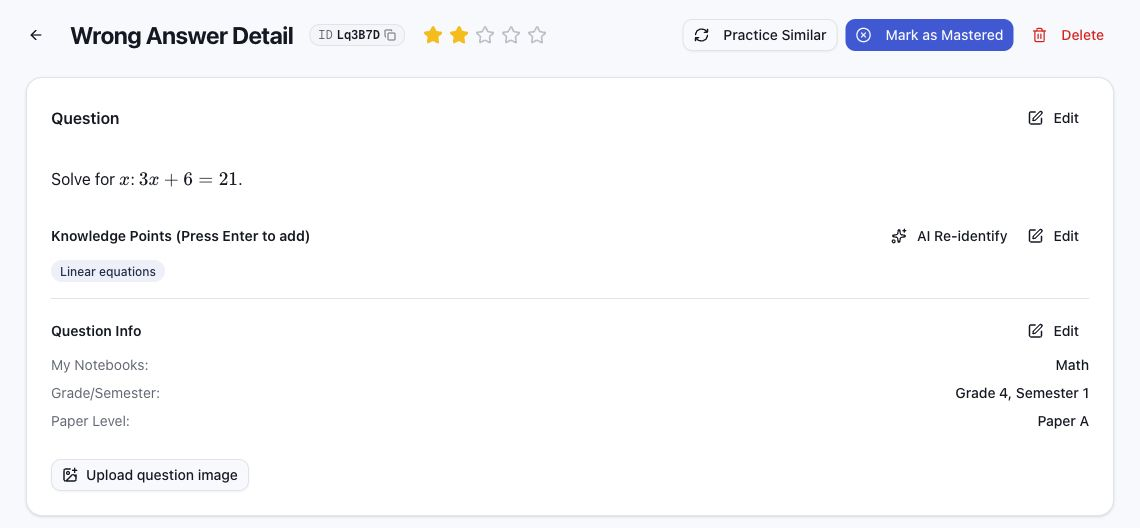
Each question shows its text, answer, analysis, knowledge points, difficulty, semester and paper level, plus the original photo.
When editing the question text, use the Pinyin tool below the box: it opens by default for Chinese notebooks. Click a tone-marked vowel button (ā á ǎ à etc.) to insert it at the cursor, or click Convert number tones to turn writing such as ma3 into mǎ. It is also available for other subjects and collapsed by default. The tool appears on the review page, batch split preview, direct entry and question details question editors.
| Information or action | Notes |
|---|---|
| Question number | The 6-character ID by default; admins can switch to serial numbers such as #1000. Copy it and locate the question by either number in a notebook; shown as the source number in printouts |
| 1–5 star difficulty | Rated by the AI with reference to competition-math difficulty; can be changed manually |
| Grade/semester | Click Edit grade/semester to change and save it; review also offers a selector, and loading the profile preserves manual edits |
| Paper level | When not set, 1–3 stars default to the "Paper A" group and 4–5 stars to the "Paper B" group; a manual choice takes priority. Customize groups in Settings → General → Paper Groups: rename defaults, add custom groups (e.g. Unit Test, Midterm, Final), deactivate or delete custom groups |
| Knowledge points | Tags from the matching stage and subject; re-recognize one question or a whole notebook |
| Regenerate full solution | Generates a new answer and analysis; asks for confirmation before overwriting |
| Fix LaTeX | Appears when formula syntax issues are detected, letting the AI correct the formulas |
| Original image | View, replace or add it to check the recognition |
Unrated questions are not assigned a paper level by the default rule alone. Regenerating the full solution keeps the knowledge points and mistake information.
Choose a fixed grade or AI recognition for new questions under Settings → General. Manual choices take priority; see Settings and Users.
- SVG figures: static SVG generated by the AI from the question (during recognition the figure is located first, then its area is cropped and redrawn in a separate request, and the SVG is checked for validity), used on the detail page, in practice and in printouts; the original image can still be viewed separately. Regenerating a figure first opens the original photo for framing the figure area (with rotation), and only that area goes to AI so a small figure in a full-page photo keeps its resolution.
- Figure display scale and alignment: saved mistakes with a figure show this setting on the details page. Enter a percentage or drag the slider to preview, from 10–200% (default 100%), and choose an alignment (left / center / right, default center); exam papers with figures also allow adjusting scale and alignment per question or uniformly across the exam. Click Save to apply it after reload and in printouts. Reset to 100% restores the default scale; save again to keep it. Enlarged figures fit the available width and keep their aspect ratio. Backups retain the scale and alignment; existing questions and older backups default to 100% and center. Image Scale in print preview controls the original photo; enable Question Text to print the figure.
- SVG animated explanations: the animation stays paused on the first frame when opened or changed; click Play to start. Step-by-step demonstrations of the solution with pause, seeking, replay and full screen; enabled by default in personal settings. Click the speaker icon in the player to turn on voice narration (off by default and remembered once on). Each step is read aloud (by the browser's speech synthesis by default; when an admin turns on cloud voice, the server synthesizes it so every device hears the same voice), the animation waits for the narration before moving on (it pauses on the complete current step and highlights the frame border while waiting), and the speed cycles between 0.75× and 1.5×. Older animations without a narration script read the subtitles at the bottom of the picture. Click Add narration above the animation to have AI write a script for the existing picture without regenerating the animation (counts as one animated-explanation AI use). When a script exists, the button reads Rewrite narration. With cloud voice on, turning on narration for the first time synthesizes the whole animation's voice at once, and Regenerate voice above the animation synthesizes it again; both appear in background tasks with progress (they use the speech provider's quota, not the AI daily limit). Animations whose cloud voice has been generated open with narration on. Animation text follows the interface language; Chinese and English versions are generated and saved separately, and switching the language shows the matching version automatically.
- GeoGebra interactive demos: interactive figures for math and physics questions; disabled by default in personal settings.
Generated animations and GeoGebra demos can be deleted after confirmation. Check generated figures and solutions manually, especially geometric positions, counting steps and conclusions.
Filter by mastery status, knowledge point, question type, time, grade and semester, or paper level, then act on the results in bulk or print them. Question types support multi-select, including "Not set" (questions without a question type). The multi-select bar's Move to Notebook moves the selected error items to another notebook under the same account, keeping their knowledge-point tags; Export offers three formats for selected error items (see Question Exchange Format): JSON has the most complete fields and suits backups or migration; Excel columns match the question bank import template so it can be re-imported directly; Word is designed for printing as an exam paper, with answers and analysis collected in an "参考答案" section at the end, and formulas exported as LaTeX text. All three formats contain only question content, without practice records or other data; for a full backup use Settings → Data Management → Export Data. Before deleting, confirm the filters and selection; back up your data when it must be kept long term.
Questions, answers and analysis support Markdown, and formulas are rendered with KaTeX:
Inline: $a^2+b^2=c^2$ or \(a^2+b^2=c^2\)
Display: $$\frac{a}{b}$$ or \[\frac{a}{b}\]
While editing you can switch between source and preview. For complex tables and formulas, see the Markdown guide and the table recognition notes.
Next: Practice and Exams.