Interface
← Home
The Solarxy GUI is built from a menu bar along the top, a dockable workspace of panels around a central viewport, pane toolbars floating on the viewport itself, and a status bar along the bottom. This page covers every chrome region. For what you do to the model once it is loaded - shading, UV, wireframe, mesh visibility, lighting, post-processing - see Inspection.
- Menu bar
- Pane toolbars
- Sidebar
- Dockable layout
- Status bar
- Viewport layouts (split view)
- Loading models and HDRIs
- Console, toasts, and modals
- Preferences
The menu bar has eight top-level menus. Toggle the whole bar with F10.
| Menu | Contents |
|---|---|
| File | Open Model… (Ctrl/⌘+O), Import HDRI… (Ctrl/⌘+Shift+O), Recent Files, Close Model, Quit. |
| Edit | Preferences… (Ctrl/⌘+,), Save View Settings as Default - persists the current display / rendering / lighting state as the launch default. |
| Render | Shading, Inspection, and Material Override submenus; Tone Mapping; Bloom and SSAO toggles; a Lighting submenu (IBL Mode, Lock Lights); Background; Save Screenshot… (C). |
| Review | Review Mode (Shift+R), Show Markers, Save Review Notes (Ctrl/⌘+S). The menu label turns amber (● Review) while review mode is active. See Review System. |
| View | Projection, Turntable, Link Cameras (in split view); a Show submenu (Grid, Axis Gizmo, Local Axes, Validation Overlay, Normals, UV Overlay, Bounds, Wireframe Weight); Show All Meshes. |
| Layout | Single (F1), Split Vertical (F2), Split Horizontal (F3), Quad (F4), Three-Left-Big (F5); Save Layout, Restore Saved Layout, Reset Layout to Default. |
| Window | Panel-visibility toggles - Viewport (Ctrl/⌘+1), Sidebar (Tab), Outliner, Properties, Review Panel, Material Inspector, Console (`), Status Bar, Menu Bar (F10). |
| Help | Solarxy Wiki, Keyboard Shortcuts (?), Check for Updates…, About Solarxy. |
Per-pane controls in the Render and View menus (Shading, Inspection, Material Override, Background, Projection) act on the active pane - the one the cursor last selected.

Each 3D pane carries a set of small bracketed text labels that float directly on the scene - a 3ds Max-style viewport menu. They are the fastest way to change just that pane:
-
[ Scene 3D ]- switch the pane between the 3D scene and UV Map view. -
[ Shaded ]- the effective display mode. Its dropdown nests the Inspection modes and Material Override. -
[ Perspective ]- projection, with Overlays and Background as nested submenus.
A UV pane shows [ UV Map ] and [ Display ] labels instead. Labels are bare
text until you hover them, when they pick up the amber accent.

Tab toggles the Sidebar. It is the canonical surface for scene-global
display, post-processing, and material settings - three collapsible groups:
| Group | Default | Controls |
|---|---|---|
| Display | Open | Lock Lights (Shift+L), Turntable (V) with an RPM slider when active. |
| Post-Processing | Open | Bloom (Shift+D), SSAO (Shift+O), Tone Map (Shift+T), Exposure slider (E / Shift+E). |
| Material | Closed | Roughness Scale and Metallic Scale sliders, plus Reset. Disabled while a material override is active. |
Per-pane view controls live on the pane toolbars; validation and HDRI details live in the Properties panel. Every sidebar control is also bound to a keyboard shortcut - you can drive Solarxy from either surface.

flowchart LR
    classDef auto fill:#1F2430,stroke:#78A0EE,color:#78A0EE
    classDef manual fill:#1F2430,stroke:#FFC44C,color:#FFC44C
    classDef def fill:#1F2430,stroke:#5C6773,color:#CCCAC2
    classDef active fill:#33415E,stroke:#FFC44C,color:#FFC44C

    DEF[default_dock_state]:::def
    LAST[last_layout_json<br/>auto, on quit]:::auto
    SAVED[saved_layout_json<br/>manual, Save Layout]:::manual
    ACTIVE[Active layout<br/>in memory]:::active

    DEF -->|first launch| ACTIVE
    LAST -->|next launch restore| ACTIVE
    ACTIVE -->|on quit| LAST
    ACTIVE -->|Save Layout| SAVED
    SAVED -->|Restore Saved Layout| ACTIVE
    ACTIVE -->|Reset Layout to Default| DEF
The three persisted layout states (default, last, saved) and the three menu actions that move between them.
The viewport and every panel live as tabs in a single dockable workspace. Drag a tab by its title to dock it against a different edge, split a region, stack it with another tab, or tear it out into a floating window.
Seven tabs:
| Tab | Contents |
|---|---|
| Viewport | The 3D scene. Special: it never floats and is transparent so the wgpu surface shows through. It can be closed and reopened from Window → Viewport (Ctrl/⌘+1). |
| Sidebar | The collapsible-groups panel described above. |
| Outliner | Mesh and Material lists - per-row hide toggles, right-click actions, click a row to frame it. |
| Properties | Model, HDRI, and Validation sections. Clicking a validation row flies the active camera to the affected mesh. |
| Review Panel | The annotation browser - see Review System. |
| Material Inspector | View-only per-material PBR introspection - see Inspection → Material Inspector. Shows a placeholder until a model is loaded. |
| Console | The docked log viewer - see Console, toasts, and modals. |
Every panel ships in the default layout, so discoverability is the layout - no panel pops open on model load. The live arrangement is auto-saved on quit and restored next launch.
| Layout menu entry | What it does |
|---|---|
| Save Layout | Snapshot the current arrangement into a saved slot. |
| Restore Saved Layout | Replay that snapshot. Greyed out until you've saved one. |
| Reset Layout to Default | Rebuild the default arrangement without touching either saved or auto-saved blob - the escape hatch when a layout gets wedged. |
If a persisted layout fails to load (for example after an upgrade adds a new tab), Solarxy logs a debug line and silently falls back to the default - your data is safe, only the arrangement resets.

A single-line status bar runs along the bottom of the window (toggle it from
Window → Status Bar). It shows the loaded file and format, validation counts,
the review badge, the active-pane label, frame time / fps, and the GPU backend.
It collapses gracefully on narrow windows.
Five viewport layouts, switchable from the Layout menu or F1-F5:
| Key | Layout |
|---|---|
F1 |
Single |
F2 |
Split Vertical (two panes, side by side) |
F3 |
Split Horizontal (two panes, stacked) |
F4 |
Quad (2×2) |
F5 |
Three-Left-Big (one large pane, three small) |
Each pane has its own camera, inspection mode, display settings, and background.
The active pane follows the cursor. Switch any pane between the 3D scene and
UV Map view with 3 (or its [ Scene 3D ] toolbar label) - a common setup is
one pane on the model and one on its UV layout.
Ctrl/⌘+L toggles camera linking so panes orbit together; Shift+L is
Lock Lights, which freezes the 3-light rig relative to the model instead of
the camera.
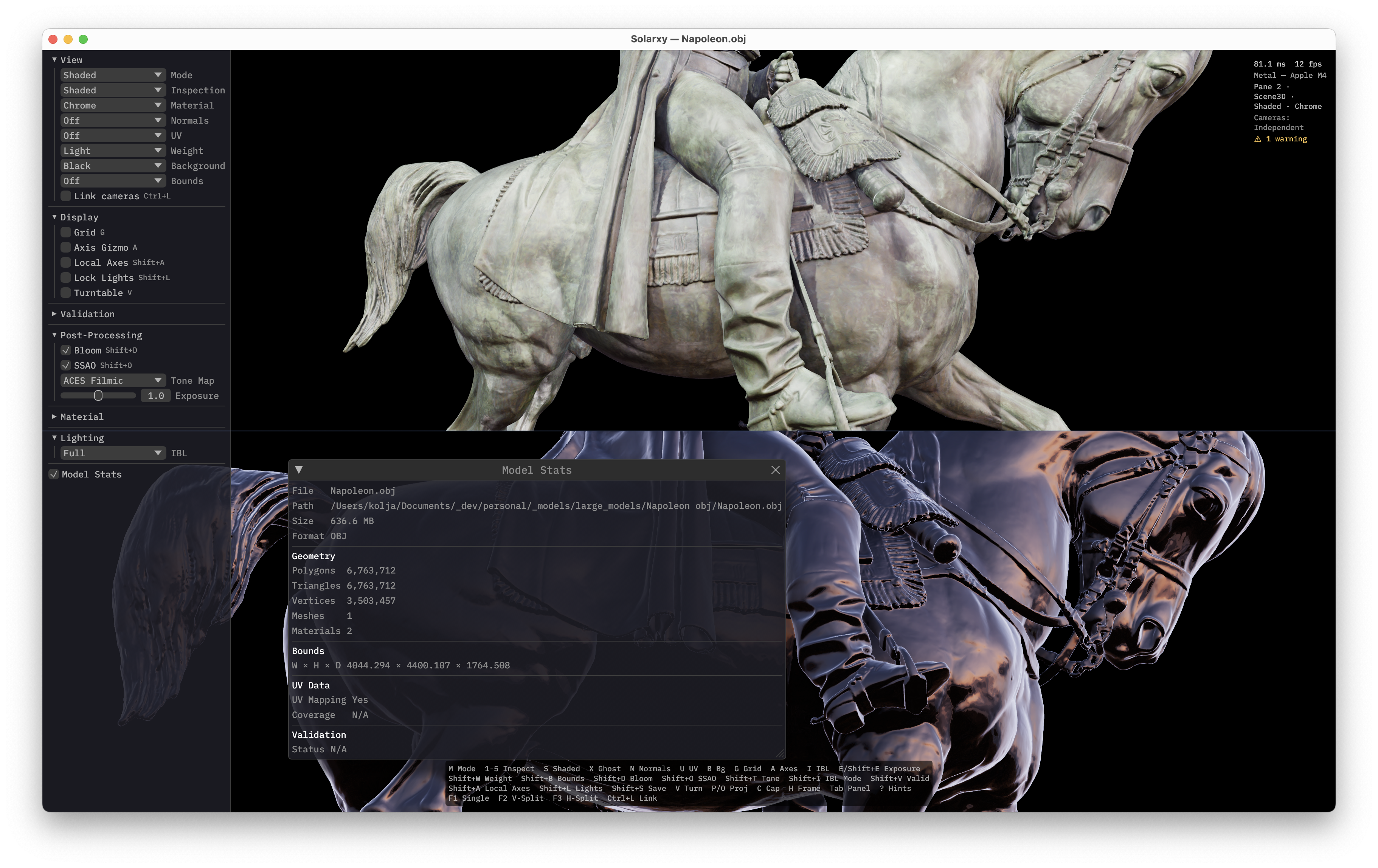


Four ways to load:
-
Drag and drop onto the window - models (
.obj,.stl,.ply,.gltf,.glb) and HDRIs (.hdr,.exr) both work. -
File menu - Open Model… (
Ctrl/⌘+O) or Import HDRI… (Ctrl/⌘+Shift+O), via a native file picker. -
Recent Files -
File → Recent Fileslists the 10 most recent; the stored history is capped byui.max_recent_files(default 20). -
CLI flag -
solarxy -m path/to/model.objopens the file at launch.

UV Map view (press 3 or pick "UV Map") shows the texture-space layout with
selectable backgrounds:

Console - ` toggles the docked log viewer. It is backed by tracing:
filter by ERROR / WARN / INFO / DEBUG, substring-search the message column, and
right-click any line to copy it. Default capture is solarxy=trace.
Toasts - transient status messages (screenshot saved, HDRI loaded, validation summary) stack bottom-centre. The queue caps at five; the oldest drops on overflow.
Modals are draggable and dismiss with Esc:
-
Preferences (
Ctrl/⌘+,) - see Preferences. -
Update - appears when
Help → Check for Updates…finds a newer release; its action button is platform-aware. -
Keyboard Shortcuts (
?) - a read-only reference; see Keyboard Shortcuts. - About Solarxy - version and project info.
-
Screenshot review - opens when you press
C. It shows a downscaled preview; nothing is written to disk until you choose a path with Save As….
Escdoes not quit the app. It dismisses the topmost open modal. To exit, close the window or useFile → Quit.
Live frame time and fps are shown in the status bar, not a floating overlay.
Solarxy persists settings in a per-user config.toml. Three edit surfaces each
own a different slice:
Tune display, post-processing, and material settings live in the sidebar (and via keyboard shortcuts), then choose Edit → Save View Settings as Default to persist the current state as the launch default.
A five-tab modal with OK / Cancel / Reset to defaults (the reset affects
only the active tab); Esc cancels.
| Tab | Settings |
|---|---|
| Startup | Window width (640-7680 px), window height (480-4320 px), MSAA (1× / 2× / 4×). Window size and MSAA take effect on next launch. Also shows the config file path with an Open config file button. |
| Appearance | Theme - Ayu Mirage Dark or Ayu Mirage Light. Applies immediately on OK. |
| View | The default background, plus a manager for your custom backgrounds (add / edit / delete solid or gradient backgrounds). |
| Interface | Status bar visible at launch, recent-files capacity (cap 50), and the Reviewer name written onto new review annotations. |
| Updater | Check for updates on launch, and the release channel (Stable or Prerelease). |
Open config.toml from the Startup tab's Open config file button and edit
it in any text editor. The full file schema, every section, and its location on
each OS are documented on the Configuration
page.
See also: Inspection · Keyboard Shortcuts · Configuration · Review System · User Guide