Home
More room for your work. Less time waiting on AI agents.

GNOME Widget Panel is a compact floating panel for GNOME Shell. Keep the controls and indicators you actually need close at hand, and optionally auto-hide or hide GNOME's full-width top bar.
It also includes AI-agent widgets. A usage graph shows recent activity from Claude Code, Codex and Gemini CLI. An optional Claude Code status dot tells you when an agent is still working, has finished, or is waiting for your input—so you can switch to other work and return when there is something to do.
GNOME Widget Panel is alpha software for GNOME Shell 46–50. The normal GNOME top bar remains visible by default; hiding or auto-hiding it is your choice.
⬇ Download the latest release — the .shell-extension.zip attached to the release is the extension.
Two ways to install it:
| Route | Status | How |
|---|---|---|
| GNOME Extensions store | listing under review | Open the extension page on extensions.gnome.org in a browser with the GNOME Shell integration and toggle it on. |
| From the release zip | works today |
gnome-extensions install --force <downloaded>.shell-extension.zip, then log out and back in and enable it. |
Step-by-step instructions for both routes, including how to enable the extension afterwards, are in Getting Started.
Pick the version matching your GNOME Shell using the support matrix.
A full-width bar does not need to remain on screen just to show a clock, system status, CPU load or a few app indicators. Put those essentials in a small floating panel, then choose whether GNOME's top bar stays visible, auto-hides, or remains hidden.
When you need the space back, collapse the panel from the drag handle's menu: everything but the handle disappears, and the same menu brings it back.

Start a Claude Code task and continue with something else. The status dot stays blue while an agent works, pulses red when it needs attention, and pulses amber when the turn is finished and ready for your next prompt. Hover to see which session changed state.
Codex and Gemini CLI are currently included in the usage graph, but reliable "needs attention" status detection is Claude Code–only.
Add, remove, reorder, enable and configure widgets, choose the panel layout and decide what happens to GNOME's top bar — all in one window, applied to the running panel immediately.
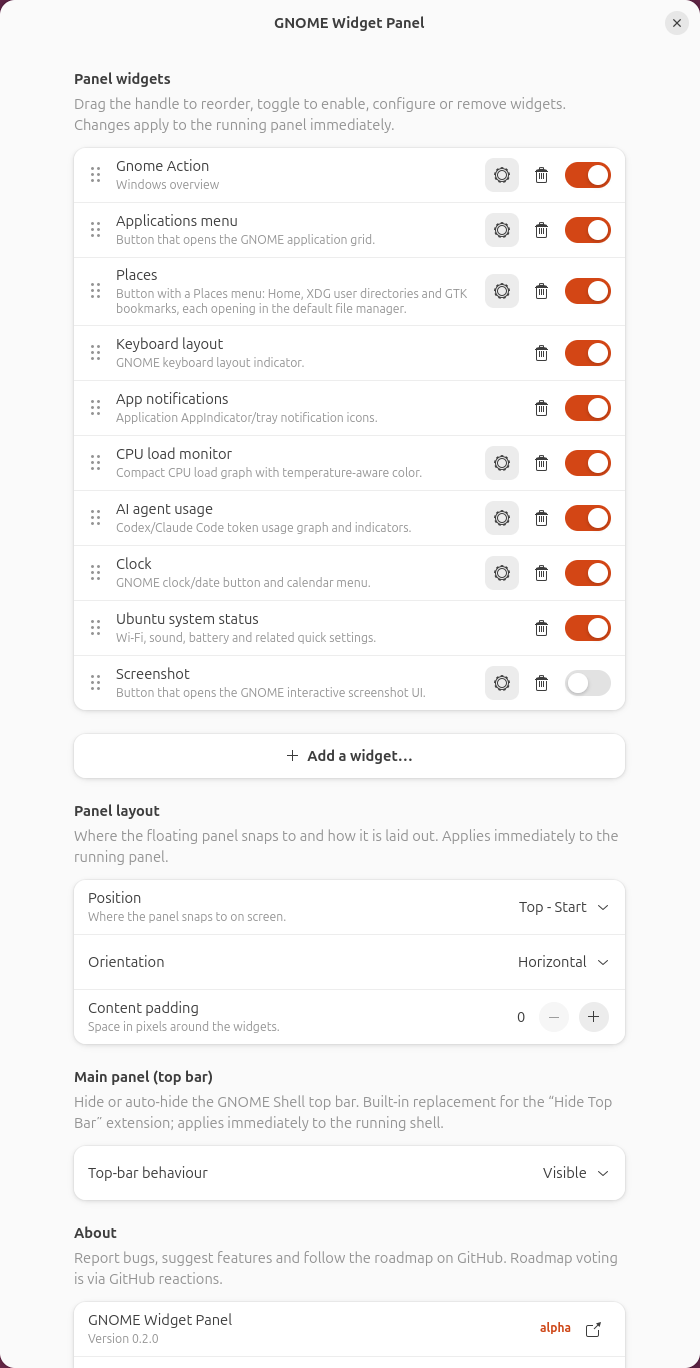
The default panel includes a GNOME action button, applications menu, Places menu, keyboard layout, app notifications, CPU load, AI-agent usage, clock and system status. Optional widgets include command launchers, screenshots, Claude Code status, caffeine and break timers.
- Getting Started — install, enable and set up your panel
- Using the AI widgets
- Widgets
- Download a release
- Extension page on extensions.gnome.org
- Releases and GNOME compatibility
- Report a problem