Repository navigation
Remote File Manager
Türkçe: Remote-File-Manager-TR
Two panels side by side: Local on one side, the remote directory on the other. Transfers between them are covered in File Transfers; this page is about browsing and manipulating files.
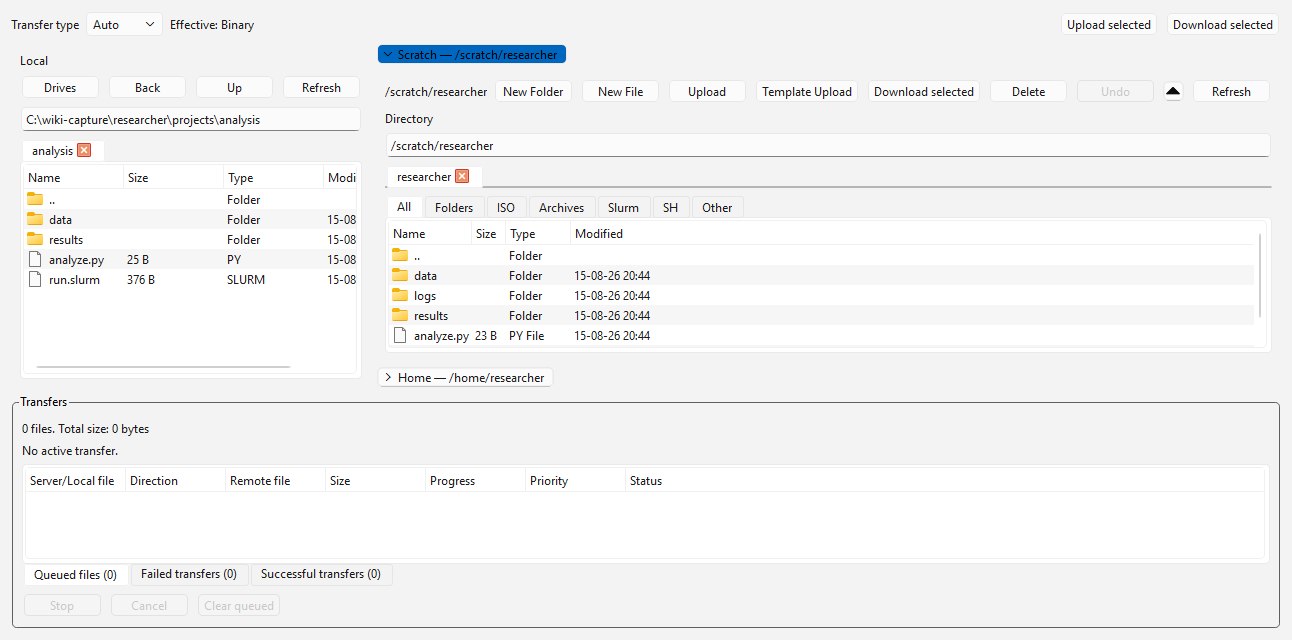
The local panel on the left, the remote directory on the right, and the transfer queue below.
Back, Up, and Refresh move through the tree, with Drives for local volumes and Home and Scratch shortcuts on the remote side. The current path is shown in the Directory field, and the current folder can be saved as your default with Set current folder as default Home or Set current folder as default Scratch.
Listings are shown with Name, Size, Type, and Modified columns, and filter tabs narrow them: All, Folders, ISO, Archives, Slurm, SH, and Other.
If a remote directory cannot be read, the panel reports the failure rather than showing a silently empty folder.
New creates a New Folder or a New File, prompting for the name. A
name that is empty or contains / or \ is rejected, and an existing name is
reported instead of being overwritten.
The clipboard works across the two panels:
| Action | Effect |
|---|---|
| Copy / Move | Put the selection on the clipboard |
| Paste | Paste into the current folder |
| Paste into folder | Paste into the highlighted folder |
| Paste from local / Paste from local into folder | Upload the local clipboard contents |
| Paste to local (download) | Download the remote clipboard contents |
| Copy path with file name | Copy the full path as text |
| Undo | Reverse the last move |
Drag and drop works between the panels as well.
Long operations run through an Operation queue showing what is running (Now) and what is waiting (Next), with a progress dialog you can Cancel. Cancellation is reported rather than silently abandoned.
When a name already exists you are asked what to do: Overwrite, Skip, Rename, or Cancel. Transfers have a richer set of choices — see File Transfers.
Rename requires exactly one selected item and prompts for the new name. Delete asks for confirmation before removing the selection.
Change file attributes edits POSIX permissions on remote items. You can
type an octal mode (755, 0644) or use the read/write/execute grid for
Owner, Group, and Others, plus Set-user-ID, Set group-ID,
and the Sticky bit. Changes can recurse into subdirectories, applied to
everything, to files only, or to directories only. An invalid mode is rejected
with an explanation, and a failed update is reported.
| Action | Effect |
|---|---|
| Edit / Edit in new window | Open the file in the script editor |
| Download / Download selected | Fetch to the local side |
| Upload | Send local files to the current remote folder |
| Save as | Download to a chosen location |
| Open with… | Open the file in a local program; you can save the choice for that extension |
| Template Upload | Upload a bundled template |
Folders cannot be edited; the application says so rather than opening an empty editor.
Script files get their own actions:
- Create/Edit Slurm starts from the Core, CPU, GPU, or MPI template, prompting for the file name and asking before overwriting an existing file. See Job Script Templates.
- Submit with sbatch, and Submit all with sbatch for a multi-selection. A batch submission reports how many scripts were submitted and how many failed.
- Run in terminal and Run all in terminal for shell scripts. See Terminal and Remote Commands.
A successful submission reports the job ID, which the jobs view then tracks — see Slurm Jobs.
Visited remote folders can be kept in memory to make navigation faster; create, delete, and refresh operations update the affected entry. The cache can be turned off or cleared in Settings — see Settings Reference.
hpc-client-gui --profile mycluster files ls /scratch/$USER
hpc-client-gui --profile mycluster files mkdir /scratch/$USER/run1
hpc-client-gui --profile mycluster files rm /scratch/$USER/old --recursive --yes
See CLI Guide.