Repository navigation
Script Editor
Türkçe: Script-Editor-TR
Edit remote scripts in place: open, edit, save back, and submit — without a manual download and upload cycle.
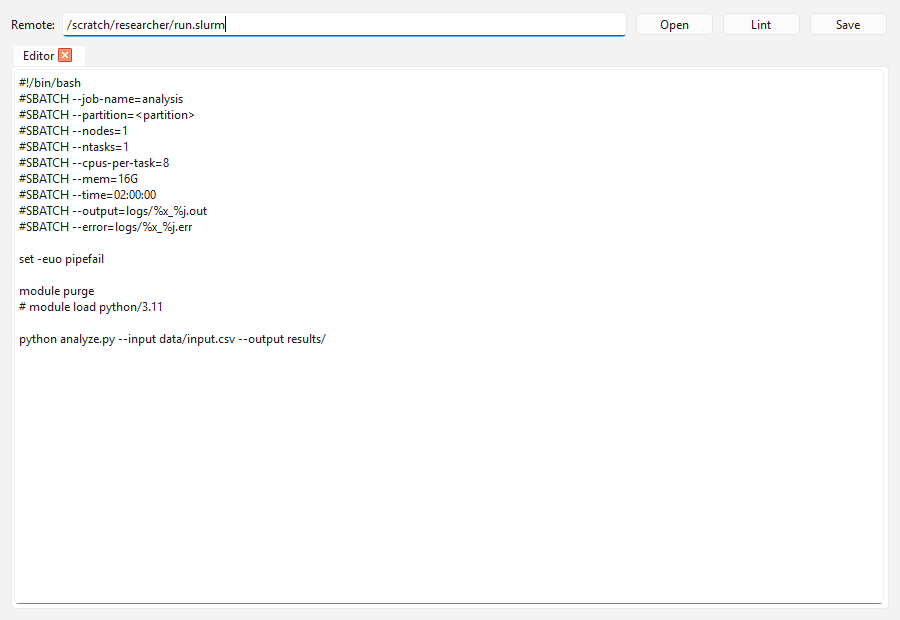
A Slurm script open in the editor, with the remote path, Open, Lint, and Save.
Open loads the file at the Remote: path; the file manager's Edit and Edit in new window actions do the same. Several documents can be open at once in tabs. Save writes the file back, and reports the failure if the write does not succeed.
| Action | Effect |
|---|---|
| Submit (sbatch) | Submit the current file |
| Save + Submit | Save first, then submit |
| Save + Run | Save, then run the script in the terminal |
After a plain save the editor can offer to submit right away. A successful submission reports the Job ID; a failure suggests checking the account, partition, time, memory, and the script's directives, and calls out an invalid QOS for your account specifically.
Saving a Slurm script checks it first and warns about:
- a missing shebang (for example
#!/bin/bash) - no
#SBATCHdirectives - leftover template placeholders (
USERNAME,<partition>) - no time limit (
#SBATCH --timeor-t) - no output file (
#SBATCH --outputor-o)
These are warnings, not refusals — you are asked whether to save anyway. They catch the mistakes that otherwise surface as a job that fails minutes later, or one that runs to the partition's maximum wall time because no limit was set.
Lint runs the same check on demand and reports either that nothing obvious was found or what it found. It needs a target path first.
Find with Find next, and Replace with Replace and Replace all.
Shortcuts apply to the active document tab.
| Shortcut | Action |
|---|---|
Ctrl+S |
Save the active file |
Ctrl+Shift+S |
Save and submit the active Slurm file |
Ctrl+Z |
Undo |
Ctrl+Y |
Redo |
Ctrl+X |
Cut |
Ctrl+C |
Copy |
Ctrl+V |
Paste |
Ctrl+A |
Select all text |
Ctrl+F |
Find text in the active file |
F3 |
Find the next match |
Ctrl+O |
Focus the remote path field; press Enter to open the file |
Ctrl+W |
Close the active document tab |
Ctrl+Tab |
Switch to the next document tab |
Ctrl+Shift+Tab |
Switch to the previous document tab |
Page Up / Page Down
|
Move one screen up/down |
End |
Move to the end of the file |
The file manager can create a new Slurm script from the Core, CPU, GPU, or MPI template and open it here. See Job Script Templates.
hpc-client-gui --profile mycluster edit /scratch/$USER/job.shThis downloads the file, opens it in your local editor (--editor, defaulting
to TRUBA_EDITOR and then EDITOR), and uploads it back when you are done.
--verify checks the SHA-256 after the upload.