Your screen, read aloud. Entirely local. No cloud. No keys. Just your GPU and your voice.
sttts watches any region of your screen, understands what's on it using state-of-the-art OCR, and speaks it through your speakers in real time — powered by local AI models running on your own hardware.
🖥️  screen region  →  🔍 pixel diff  →  🧠 OCR  →  ✨ clean text  →  🗣️ TTS  →  🔊 speaker
                         (skip if                      (HTML/tables
                          idle)                         stripped)
- 🖱️ Draw a rectangle on any part of your screen
- 📸 Capture a snapshot every N seconds
- 🔍 Detect whether anything actually changed (pixel diff)
- 🧠 Read the text with LightOnOCR-2-1B running on your GPU
- 🧹 Clean the output — tables, HTML, symbols all converted to natural language
- 🗣️ Speak it with Kokoro-82M, a high-quality local TTS model
Point it at Kindle, an epub reader, or any paginated app. Draw a second rectangle over the "next page" button. After TTS finishes speaking a page and the screen stays idle, sttts automatically clicks the button and reads the next page — completely hands-free.
Pixel-level diff comparison means OCR and TTS only fire when something actually changed on screen. Static content is silently skipped, keeping CPU/GPU usage low between updates.
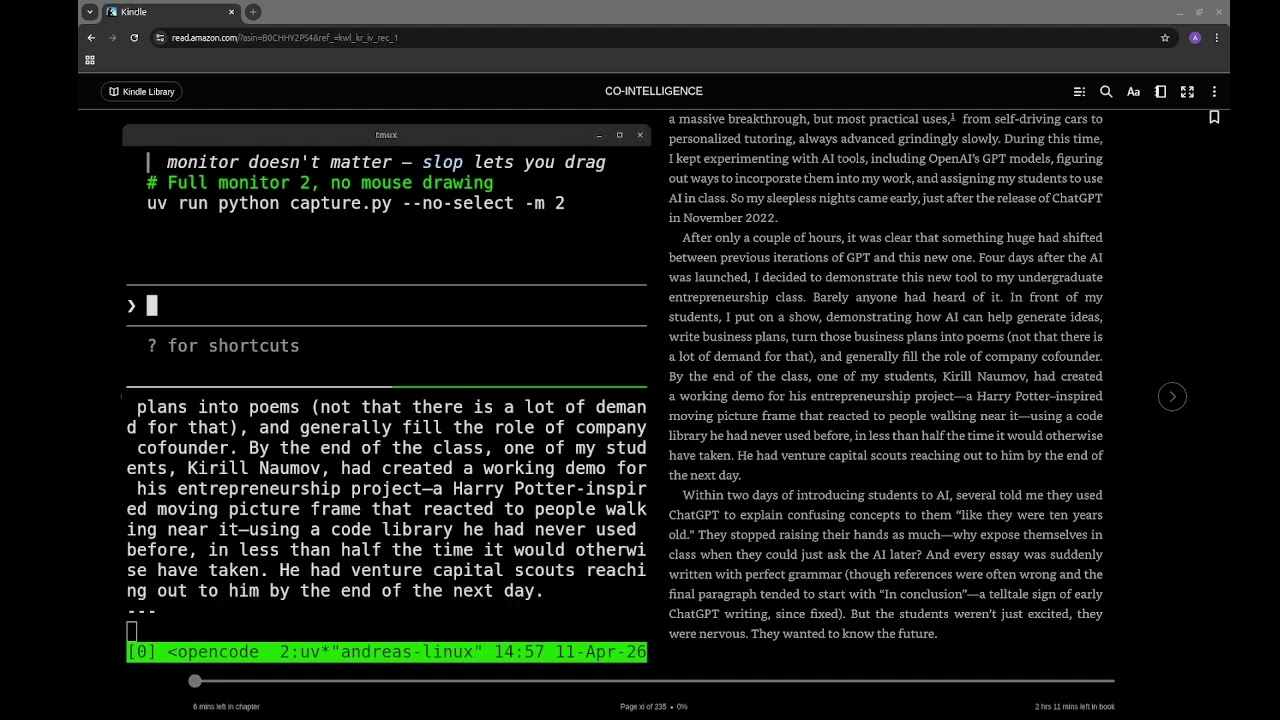
Open Kindle for PC (or any ebook reader) on your screen. Run:
uv run python capture.py --next-btn -i 2Step 1 — 🖱️ Draw the text area
When prompted, drag a rectangle over the page text — the main reading area, excluding the toolbar and margins.
┌─────────────────────────────────┐
│         Kindle window           │
│  ┌───────────────────────────┐  │
│  │                           │  │
│  │   ← select this area →    │  │
│  │                           │  │
│  │   Chapter 1               │  │
│  │   It was a bright cold    │  │
│  │   day in April...         │  │
│  │                           │  │
│  └───────────────────────────┘  │
│              [>]                │
└─────────────────────────────────┘
Step 2 — 🖱️ Draw the next-page button
When prompted a second time, drag a small rectangle over the next-page arrow [>].
Step 3 — 🛋️ Sit back
sttts will:
- 🧠 OCR the current page
- 🗣️ Speak it aloud with Kokoro
- ⏳ Wait silently while speech plays
- 🖱️ Click the next-page button automatically
- 🔄 Wait for the new page to render
- 🔁 Repeat indefinitely —
Ctrl+Cto stop
💡 Tips for Kindle
- Set Kindle to a large font and high contrast (white background, black text) for best OCR accuracy
- Use
--diff-threshold 2if Kindle's page-turn animation causes false triggers - Use
--voice af_heart --tts-speed 1.1for a natural listening pace - Draw a slightly larger rectangle around the next-page button if clicks miss
| Component | Model | Runs on |
|---|---|---|
| 🔍 OCR | LightOnOCR-2-1B | AMD GPU (ROCm) / CPU |
| 🗣️ TTS | Kokoro-82M | CPU |
Both models download automatically on first run via HuggingFace. No API keys required.
sudo add-apt-repository ppa:deadsnakes/ppa
sudo apt-get update
sudo apt-get install -y python3.13 python3.13-dev python3.13-venvcurl -LsSf https://astral.sh/uv/install.sh | shsudo apt-get install -y \
slop \
xdotool \
libportaudio2 \
libsndfile1 \
libasound2t64| Package | Purpose |
|---|---|
slop |
🖱️ Mouse region selection — draw the capture rectangle |
xdotool |
🤖 Simulate mouse clicks for auto page-turn |
libportaudio2 |
🔊 Audio backend for TTS playback |
libsndfile1 |
🎵 Audio file I/O |
libasound2t64 |
🔈 ALSA sound library |
Tested on RX 7900 XTX. Without ROCm, the OCR model runs on CPU (slower). Follow the official ROCm install guide, then verify with rocm-smi.
git clone <repo>
cd sttts
uv sync
uv sync installs all Python dependencies:
| Package | Version | Purpose |
|---|---|---|
torch |
2.8.0+rocm6.3 | 🔥 Deep learning runtime (ROCm) |
transformers |
latest | 🤗 LightOn OCR model loader |
kokoro |
latest | 🗣️ Kokoro-82M TTS |
mss |
latest | 📸 Fast screen capture |
sounddevice |
latest | 🔊 Audio playback |
numpy / pillow |
latest | 🖼️ Image processing |
# 🟢 Basic: draw a region, capture + OCR + speak every 3s
uv run python capture.py

# 📖 Auto page-turn: draw OCR region, then draw the next-page button
uv run python capture.py --next-btn

# ⚡ Faster interval, different voice
uv run python capture.py -i 1.5 --voice am_adam

# 🔇 OCR only, no speech
uv run python capture.py --no-tts

# 📷 Capture only, no OCR
uv run python capture.py --no-ocr

# 📐 Skip mouse selection, use fixed coordinates
uv run python capture.py --region 100,200,800,600| Flag | Default | Description |
|---|---|---|
-i, --interval |
3.0 |
⏱️ Seconds between captures |
-o, --output-dir |
snapshots/ |
📁 Directory for the current snapshot |
-m, --monitor |
1 |
🖥️ Monitor index (ignored when region is drawn) |
--select / --no-select |
on | 🖱️ Draw region with mouse / use full monitor |
--region X,Y,W,H |
— | 📐 Fixed capture region, skips mouse selection |
--no-ocr |
off | 🚫 Disable OCR, capture images only |
--model |
lightonai/LightOnOCR-2-1B |
🧠 HuggingFace OCR model ID |
--prompt TEXT |
— | 💬 Optional prompt passed to the OCR model |
--max-tokens |
1024 |
🔢 Max tokens for OCR generation |
--diff-threshold |
1.0 |
🔍 Min % of changed pixels to trigger OCR |
--no-tts |
off | 🔇 Disable text-to-speech |
--voice |
af_heart |
🎙️ Kokoro voice (af_heart, am_adam, bf_emma …) |
--tts-speed |
1.0 |
🐇 TTS speech speed multiplier |
--next-btn |
off | 📖 Draw a next-page button; auto-clicked when idle after TTS |
--next-btn-region X,Y,W,H |
— | 📐 Fixed next-page button region |
--list-monitors |
— | 🖥️ Print available monitors and exit |
┌─────────────────────────────────────────────────────────────────┐
│                        🔄 capture loop                          │
│                                                                 │
│  📸 screenshot ──► 🔍 pixel diff ──► changed?                   │
│                                          │                      │
│                               yes ◄──────┤──────► no            │
│                                ▼                   ▼            │
│                           🧠 OCR run         📖 next-btn set?   │
│                                ▼              yes ▼             │
│                          ✨ clean text      🖱️ click & reset    │
│                                ▼                                │
│                          🗣️ Kokoro TTS ──► 🔊 speaker           │
│                                ▼                                │
│                    set ⏳ waiting_for_next_page                  │
└─────────────────────────────────────────────────────────────────┘
- 🔒 Only one instance runs at a time — a new launch kills the previous automatically
- 🗑️ Only the latest snapshot is kept on disk
- 🔊 Audio is released cleanly on exit — no device lock left behind