PDF viewer library with precise text highlighting and smart search.
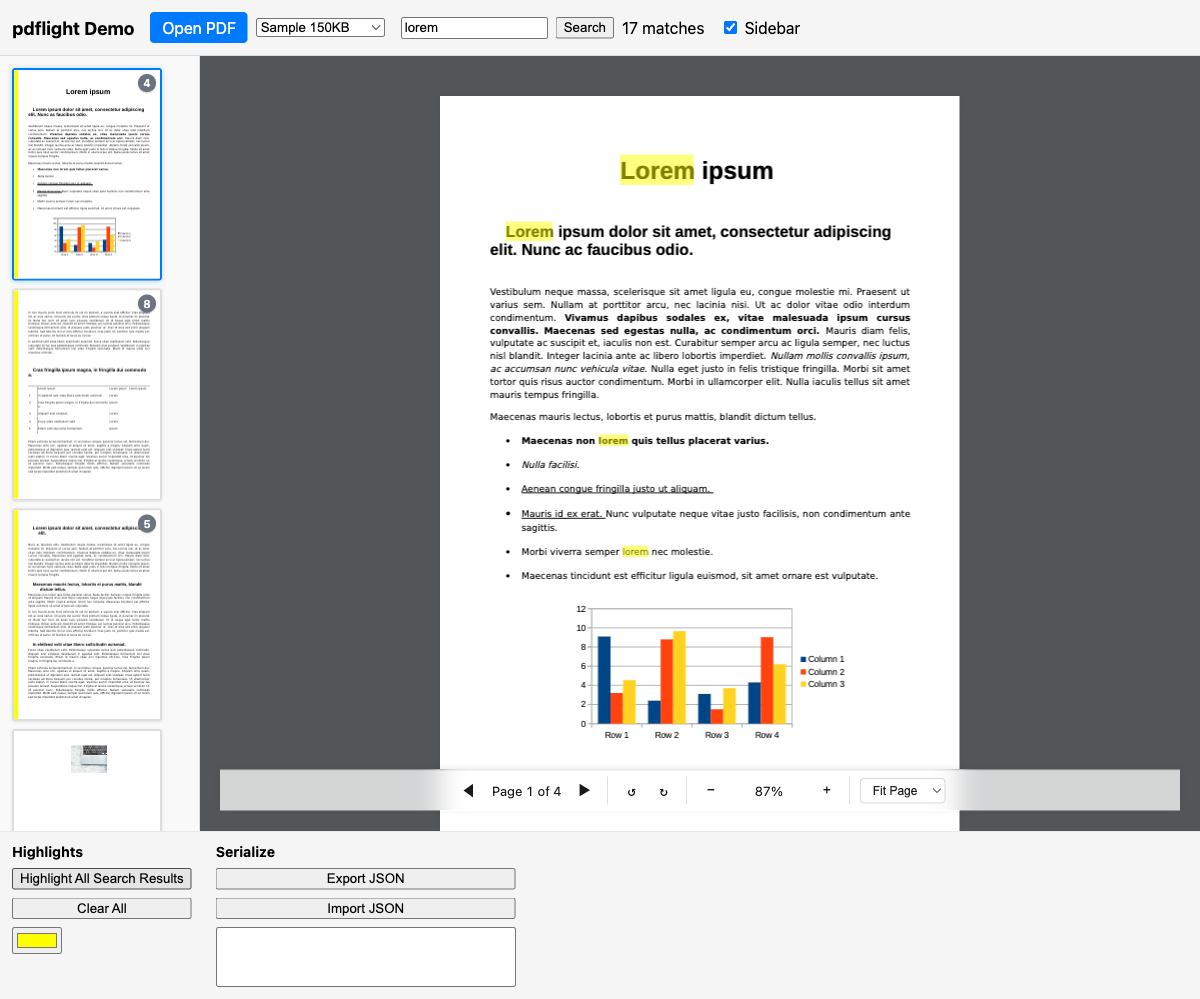
- Precise text highlighting — overlays that accurately cover rendered text using font-metrics-based character positioning
- Smart search — handles subscripts, superscripts, hyphenated words, cross-column text, and fragmented text spans
- Framework-agnostic — vanilla TypeScript, works with any framework (examples)
- Bundled pdf.js — includes pdf.js as a direct dependency, no peer deps
npm install @pilotso11/pdflightimport { PdfViewer } from '@pilotso11/pdflight';
const viewer = new PdfViewer(containerElement);
await viewer.load('/path/to/document.pdf');
// Search
const matches = await viewer.search('search term');
// Highlight
viewer.addHighlights(matches.map((m, i) => ({
id: `h-${i}`,
page: m.page,
startChar: m.startChar,
endChar: m.endChar,
color: 'rgba(255, 255, 0, 0.5)',
})));Use pdflight directly in HTML without any build tools. The URLs below always point to the latest release:
<script src="https://pilotso11.github.io/pdflight/pdflight.iife.js"></script>
<script>
  const viewer = new pdflight.PdfViewer(document.getElementById('viewer'), {
    toolbar: true,
    sidebar: true,
  });
  viewer.load('document.pdf');
</script><script type="module">
import { PdfViewer } from 'https://pilotso11.github.io/pdflight/pdflight.js';
const viewer = new PdfViewer(document.getElementById('viewer'), {
toolbar: true,
sidebar: true,
});
viewer.load('document.pdf');
</script>Versioned URLs are also available (e.g. pdflight-0.1.0.iife.js). See the releases page for version history and CDN URLs.
See the live demo.
Run bun run dev and open http://localhost:5173 to see the demo app exercising all features.
bun install          # Install dependencies
bun run build        # Build the library
bun run dev          # Start dev server with demo app
bun run test         # Run unit tests
bun run test:coverage # Run tests with coverage
bun run lint         # ESLint check
bun run typecheck    # TypeScript type checking
bun run build:cdn    # Build self-contained CDN bundles (IIFE + ESM)
bun run test:e2e # Run Playwright browser testspdflight is framework-agnostic. Every integration follows the same pattern:
- Mount — pass a container DOM element to
new PdfViewer(element, options) - Use — call
viewer.load(),viewer.search(),viewer.addHighlights()etc. - Cleanup — call
viewer.destroy()when the component unmounts
<div id="viewer"></div>
<input id="search" type="text" placeholder="Search…" />
<button id="go">Search</button>
<button id="clear">Clear</button>

<script type="module">
  import { PdfViewer } from 'https://pilotso11.github.io/pdflight/pdflight.js';

  const viewerEl = document.getElementById('viewer');
  const searchInput = document.getElementById('search');
  const goButton = document.getElementById('go');
  const clearButton = document.getElementById('clear');

  if (!viewerEl || !searchInput || !goButton || !clearButton) {
    throw new Error('One or more required DOM elements are missing.');
  }

  const viewer = new PdfViewer(viewerEl, {
    toolbar: true,
    sidebar: true,
  });

  await viewer.load('/sample.pdf');

  goButton.addEventListener('click', async () => {
    const query = searchInput.value.trim();
    if (!query) return;

    viewer.removeAllHighlights();
    const matches = await viewer.search(query);
    viewer.addHighlights(matches.map((m, i) => ({
      id: `h-${i}`,
      page: m.page,
      startChar: m.startChar,
      endChar: m.endChar,
      color: 'rgba(255, 255, 0, 0.4)',
    })));
  });

  clearButton.addEventListener('click', () => {
    viewer.removeAllHighlights();
    searchInput.value = '';
  });
</script>import { useRef, useEffect, useState, useCallback } from 'react';
import { PdfViewer } from '@pilotso11/pdflight';
export default function PdfViewerApp({ url }: { url: string }) {
const containerRef = useRef<HTMLDivElement>(null);
const viewerRef = useRef<PdfViewer | null>(null);
const [query, setQuery] = useState('');
useEffect(() => {
if (!containerRef.current) return;
const viewer = new PdfViewer(containerRef.current, { toolbar: true });
viewerRef.current = viewer;
viewer.load(url);
return () => viewer.destroy();
}, [url]);
const handleSearch = useCallback(async () => {
const viewer = viewerRef.current;
if (!viewer || !query.trim()) return;
viewer.removeAllHighlights();
const matches = await viewer.search(query);
viewer.addHighlights(matches.map((m, i) => ({
id: `h-${i}`, page: m.page,
startChar: m.startChar, endChar: m.endChar,
color: 'rgba(255, 255, 0, 0.4)',
})));
}, [query]);
return (
<div>
<input value={query} onChange={(e) => setQuery(e.target.value)}
onKeyDown={(e) => e.key === 'Enter' && handleSearch()} placeholder="Search..." />
<button onClick={handleSearch}>Search</button>
<div ref={containerRef} style={{ width: '100%', height: 'calc(100vh - 48px)' }} />
</div>
);
}<script setup lang="ts">
import { ref, onMounted, onUnmounted } from 'vue';
import { PdfViewer } from '@pilotso11/pdflight';
const props = defineProps<{ url: string }>();
const containerRef = ref<HTMLDivElement>();
const query = ref('');
let viewer: PdfViewer | null = null;
onMounted(() => {
if (!containerRef.value) return;
viewer = new PdfViewer(containerRef.value, { toolbar: true });
viewer.load(props.url);
});
onUnmounted(() => {
viewer?.destroy();
viewer = null;
});
async function handleSearch() {
if (!viewer || !query.value.trim()) return;
viewer.removeAllHighlights();
const matches = await viewer.search(query.value);
viewer.addHighlights(matches.map((m, i) => ({
id: `h-${i}`, page: m.page,
startChar: m.startChar, endChar: m.endChar,
color: 'rgba(255, 255, 0, 0.4)',
})));
}
</script>
<template>
<div>
<input v-model="query" @keydown.enter="handleSearch" placeholder="Search..." />
<button @click="handleSearch">Search</button>
<div ref="containerRef" style="width: 100%; height: calc(100vh - 48px)" />
</div>
</template><script lang="ts">
import { onMount, onDestroy } from 'svelte';
import { PdfViewer } from '@pilotso11/pdflight';
export let url: string;
let container: HTMLDivElement;
let viewer: PdfViewer | null = null;
let query = '';
onMount(() => {
viewer = new PdfViewer(container, { toolbar: true });
viewer.load(url);
});
onDestroy(() => {
viewer?.destroy();
viewer = null;
});
async function handleSearch() {
if (!viewer || !query.trim()) return;
viewer.removeAllHighlights();
const matches = await viewer.search(query);
viewer.addHighlights(matches.map((m, i) => ({
id: `h-${i}`, page: m.page,
startChar: m.startChar, endChar: m.endChar,
color: 'rgba(255, 255, 0, 0.4)',
})));
}
</script>
<div>
<input bind:value={query} on:keydown={(e) => e.key === 'Enter' && handleSearch()}
placeholder="Search..." />
<button on:click={handleSearch}>Search</button>
<div bind:this={container} style="width: 100%; height: calc(100vh - 48px);" />
</div>pdflight injects default styles for the toolbar and sidebar at runtime by appending a <style> tag to <head>. Because injection happens when the viewer is constructed, the library's styles may appear after your app's CSS in source order. To reliably override them, use a more specific selector (e.g. .my-app .pdflight-thumbnail) or load your overrides after the viewer is initialized.
The sidebar accepts a config object for dimensional properties:
const viewer = new PdfViewer(container, {
  sidebar: {
    thumbnailWidth: 180,  // Default: 150 (px) — drives canvas resolution + CSS width
    gap: 12,              // Default: 8 (px) — margin between thumbnails
    padding: 12,          // Default: 8 (px) — container padding
  },
});
Pass sidebar: true for defaults, or sidebar: false / omit to disable.
All library-created DOM elements use .pdflight-* classes:
| Class | Description |
|---|---|
.pdflight-page-container |
Wrapper around each rendered PDF page |
.pdflight-toolbar |
Built-in toolbar bar |
.pdflight-toolbar-top |
Added when toolbar position is 'top' |
.pdflight-toolbar-btn |
Toolbar buttons |
.pdflight-toolbar-group |
Toolbar button group (with separator) |
.pdflight-toolbar-select |
Toolbar dropdown selects |
.pdflight-sidebar-container |
Added to the sidebar container element |
.pdflight-thumbnail |
Individual thumbnail wrapper |
.pdflight-thumbnail-active |
Active page thumbnail |
.pdflight-thumbnail-label |
Page number label below thumbnail |
.pdflight-thumbnail-edge-bar |
Colored left edge bar (highlight indicator) |
.pdflight-thumbnail-badge |
Count badge (match/highlight counts) |
.pdflight-highlight |
Highlight overlay div |
.pdflight-tooltip |
Tooltip shown on highlight hover |
The library injects its styles via a <style> element in <head>. Your CSS loads after and wins by specificity:
/* Make active thumbnail border green instead of blue */
.pdflight-thumbnail-active {
  border-color: #28a745;
  box-shadow: 0 1px 6px rgba(40, 167, 69, 0.3);
}

/* Larger page labels */
.pdflight-thumbnail-label {
  font-size: 13px;
  padding: 4px 0;
}

/* Dark theme toolbar */
.pdflight-toolbar {
  background: rgba(30, 30, 30, 0.9);
  color: #f0f0f0;
}pdflight builds a normalized text index from pdf.js's getTextContent() data:
- Concatenates all text items into a single searchable string
- Maps each character back to its source text item and position
- Normalizes whitespace, rejoins hyphens, handles unicode
Unlike solutions that use DOM measurement, pdflight computes highlights from pdf.js's glyph-level position data:
- Computes bounding rectangles from each text item's
transformmatrix, with descender adjustment for characters like p, g, y - Uses per-character widths from pdf.js font objects for precise partial-word highlighting
- Handles page rotation by transforming PDF-space rects to match the rotated viewport
- Merges adjacent rectangles on the same line for efficient DOM rendering
- Survives zoom/pan/resize/rotation by recomputing from source data — no DOM measurement needed
Most PDF highlighting libraries position overlays by measuring DOM elements. This breaks when the text layer drifts from the canvas — a well-documented pdf.js problem. pdflight computes geometry directly from glyph-level font metrics, bypassing the DOM entirely.
See docs/WHY.md for a detailed comparison with react-pdf-highlighter, ngx-extended-pdf-viewer, PSPDFKit, and others.
MIT