hands on2
A note about Math fonts: If you're viewing this material on the course wiki, the mathematics in this document is rendered using MathJax. You'll need an up-to-date web browser (IE 8+, Firefox 3.0+, Chrome) to properly render the math. If the math looks funny in your browser, you should install the STIX Fonts. The STIX fonts are high-quality, royalty free fonts for scientific and engineering documents. After downloading the STIX fonts, unzip the file. On OS X use the Font Book program to install the fonts (choose
File > Add Fontsand then choose the Fonts subdirectory) and then restart Firefox. Here's a Microsoft help page on installing fonts in Windows. My experience is that of the three major browsers Chrome does the best job of rendering MathJax math.
As you saw last week R vectors support basic arithmetic operations that correspond to the same operations on geometric vectors. For example:
> x <- 1:15
> y <- 10:24
> x + y             # vector addition
 [1] 11 13 15 17 19 21 23 25 27 29 31 33 35 37 39
> x - y             # vector subtraction
 [1] -9 -9 -9 -9 -9 -9 -9 -9 -9 -9 -9 -9 -9 -9 -9
> x * 3             # multiplication by a scalar
 [1]  3  6  9 12 15 18 21 24 27 30 33 36 39 42 45
R also has an operator for the dot product, denoted %*%. This operator
also designates matrix multiplication, which we will discuss next week.
By default this operator returns an object of the R matrix class. If you
want a scalar (or the R equivalent of a scalar, i.e. a vector of length
-
you need to use the
drop()function.z <- x %*% x class(z) # note use of class() function [1] "matrix" z [,1] [1,] 1240 drop(z) [1] 1240
Assignment 1: In R, use the dot product operator and the
acos()function to calculate the angle (in radians) between the vectorsx = [-3, -3, -1, -1, 0, 0, 1, 2, 2, 3]andy = [-8, -5, -3, 0, -1, 0, 5, 1, 6, 5].
The Python equivalent of the R code above is:
>>> import numpy
>>> x = numpy.arange(start=1, stop=16, step=1)
>>> y = numpy.arange(10,25) # default step = 1
>>> x
array([ 1,  2,  3,  4,  5,  6,  7,  8,  9, 10, 11, 12, 13, 14, 15])
>>> y
array([10, 11, 12, 13, 14, 15, 16, 17, 18, 19, 20, 21, 22, 23, 24])
>>> x+y
array([11, 13, 15, 17, 19, 21, 23, 25, 27, 29, 31, 33, 35, 37, 39])
>>> x-y
array([-9, -9, -9, -9, -9, -9, -9, -9, -9, -9, -9, -9, -9, -9, -9])
>>> 3*x
array([ 3,  6,  9, 12, 15, 18, 21, 24, 27, 30, 33, 36, 39, 42, 45])
>>> z = numpy.dot(x,x) # no built-in dot operator, but a dot fxn in numpy
>>> z
1240
Note the use of the numpy.arange() function. numpy.arange() works
like R’s sequence() function and it returns a Numpy array. However,
notice that the values go up to but don’t include the specified stop
value. Use help() to lookup the documentation for numpy.arange().
Python also includes a range() function that generates a regular
sequence as a Python list object. The range() function has start,
stop, and step arguments but these can only be integers. Here are
some additional examples of the use of arange() and range():
>>> z = numpy.arange(1,5,0.5)
>>> z
array([ 1. ,  1.5,  2. ,  2.5,  3. ,  3.5,  4. ,  4.5])
>>> range(1,20,2)
[1, 3, 5, 7, 9, 11, 13, 15, 17, 19]
>>> range(1,5,0.5)
Traceback (most recent call last):
  File "<stdin>", line 1, in <module>
TypeError: range() integer step argument expected, got float.
So far we’ve been using R’s built in functions. However the power of a true programming language is the ability to write your own functions.
The general form of an R function is as follows:
funcname <- function(arg1, arg2) {
 # one or more expressions
 # last expression is the object returned
}
To make this concrete, here’s an example where we define a function in the interpreter and then put it to use:
> myfunc <- function(x,y){
+   x^2 + y^2     # don't type the '+' symbols, these show continuation lines
+ }

> a <- 1:5
> b <- 6:10
> a
[1] 1 2 3 4 5
> b
[1]  6  7  8  9 10
> myfunc(a,b)
[1]  37  53  73  97 125
> myfunc
function(x,y){
  x^2 + y^2
}
If you type a function name without parentheses R shows you the function’s definition. This works for built-in functions as well (thought sometimes these functions are defined in C code in which case R will tell you that the function is a ‘.Primitive’).
When you define a function at the interactive prompt and then close the interpreter your function definition will be lost. The simple way around this is to define your R functions in a script that you can than access at any time.
Choose File > New Script (or New Document in OS X) in the R GUI (File > New > R Script in RStudio).
This will bring up a blank editor window. Enter your function into the
editor and save the source file in your R working directory with a name
like vecgeom.R.
# functions defined in vecgeom.R

veclength <- function(x) {
  # Given a numeric vector, returns length of that vector
  sqrt(drop(x %*% x))
}

unitvector <- function(x) {
  # Given a numeric vector, returns a unit vector in the same direction
  x/veclength(x)
}
There are two functions defined above, one of which calls the other. Both take single vector arguments. At this point there is no error checking to insure that the argument is reasonable but R’s built in error handling will do just fine for now.
Once your functions are in a script file you can make them accesible by
using the source() function (See also the File > Source R code...
menu item (R GUI); Edit > Source File.. in RStudio):
> source("vecgeom.R")
> x <- c(-3,-3,-1,-1,0,0,1,2,2,3)
> veclength(x)
[1] 6.164414
> ux <- unitvector(x)
> ux
 [1] -0.4866643 -0.4866643 -0.1622214 -0.1622214  0.0000000  0.0000000
 [7]  0.1622214  0.3244428  0.3244428  0.4866643
> veclength(ux)
 [1] 1
Assignment 2: Write a function in R that takes two vectors, (\vec{x}) and (\vec{y}), and returns a list containing the projection of (\vec{y}) on (\vec{x}) and the component of (\vec{y}) in (\vec{x}):
[P_{\vec{x}}(\vec{y}) = \left(\frac{\vec{x} \cdot \vec{y}}{|\vec{x}|}\right) \frac{\vec{x}}{|\vec{x}|}] and [C_{\vec{x}}(\vec{y}) = \frac{\vec{x} \cdot \vec{y}}{|\vec{x}|}]
The general form of a Python function is as follows:
def funcname(arg1,arg2):
    # one or more expressions
    return someresult # arbitrary python object (could even be another function)
An important thing to remember when writing functions is that Python is white space sensitive. In Python code indentation indicates scoping rather than braces. Therefore you need to maintain consistent indendation. This may surprise those of you who have extensive programming experience in another language. However, white space sensitivity contributes signficantly to the readability of Python code. Use a Python aware programmer’s editor and it will become second nature to you after a short while. I recommend you set your editor to substitute spaces for tabs (4 spaces per tab), as this is the default convention within the python community.
Here’s an example of defining and using a function in the Python interpreter:
>>> def mypyfunc(x,y):
...     return x**2 + y**2 + 3*x*y
...
>>> mypyfunc(10,12)
604
>>> a = numpy.arange(1,5,0.5)
>>> b = numpy.arange(2,6,0.5)
>>> mypyfunc(a,b)
array([  11.  ,   19.75,   31.  ,   44.75,   61.  ,   79.75,  101.  ,
        124.75])
>>> a = range(1,5)
>>> b = range(1,5)
>>> mypyfunc(a,b)

Traceback (most recent call last):
  File "<pyshell#52>", line 1, in -toplevel-
    mypyfunc(a,b)
  File "<pyshell#45>", line 2, in mypyfunc
    return x**2 + y**2 + 3*x*y
TypeError: unsupported operand type(s) for ** or pow(): 'list' and 'int'
>>>
Note that this function works for numeric types (ints and floats) as
well as numpy.arrays but not for simple Python lists. If you wanted to
make this function work for lists as well you could define the function
as follows:
>>> def mypyfunc(x,y):
...     x = numpy.array(x)
...     y = numpy.array(y)
...     return x**2 + y**2 + 3*x*y
...
>>> a
[1, 2, 3, 4]
>>> b
[1, 2, 3, 4]
>>> mypyfunc(a,b)
array([ 5, 20, 45, 80])
As with R, you can define your own Python modules that contain user
defined functions. Using a programmer's text editor, write your function(s) and save it to a file with a .py extension in a directory in your PYTHONPATH (see Setting Paths).
# functions defined in vecgeom.py
import numpy

def veclength(x):
    """Given a numeric vector, returns length of that vector"""
    x = numpy.array(x)
    return numpy.sqrt(numpy.dot(x,x))


def unitvector(x):
    """Given a numeric vector, returns a unit vector in the same direction"""
    x = numpy.array(x)
    return x/veclength(x)
To access your function use an import statement:
>>> import vecgeom
>>> x = [-3,-3,-1,-1,0,0,1,2,2,3]
>>> help(vecgeom.veclength)
Help on function veclength in module vecgeom:

veclength(x)
    Given a numeric vector, returns length of that vector

>>> vecgeom.veclength(x)
6.164414002968976
>>> from vecgeom import * # import all functions from the vecgeom module
>>> print vecgeom.unitvector(x)
[-0.48666426 -0.48666426 -0.16222142 -0.16222142  0.          0.
     0.16222142  0.32444284  0.32444284  0.48666426]
Assignment 3: Write Python code for the vector projection and component functions as described in Assignment 2. In your Pweave document illustrate the use of these functions with several examples. Remember that your module will need to have access to the
numpymodule so include an appropriateimportstatement.
Manipulating or analyzing subsets of data is one of the most common
tasks in R. The subset() function comes in handy for such operations.
Consider the data set turtles.txt:
> turtles <- read.table('turtles.txt', header=T)
> turtles
   sex length width height
1    f     98    81     38
2    f    103    84     38
3    f    103    86     42
  # output truncated
> names(turtles)
[1] "sex"    "length" "width"  "height"
>
> # Now we'll apply the subset() function
>
> turt.sub <- subset(turtles, select = -sex)
> names(turt.sub)
[1] "length" "width"  "height"
> turt.sub
   length width height
1      98    81     38
2     103    84     38
3     103    86     42
  # output truncated
In the example above we create a subset of the original data set by
excluding the variable indicating the sex of each individual using the
argument select = -sex. We can also explicit include only certain
variables, like this:
> turt.sub2 <- subset(turtles, select=c(height,width))
> turt.sub2
   height width
1      38    81
2      38    84
3      42    86
  # output truncated
subset() allows you to do more than just select variables to include.
You can use the second positional argument to specify matching criteria.
For example:
# gives only female turtles, all variables except sex
> female.turts <- subset(turtles, sex == "f", select = -sex)
> dim(female.turts)
[1] 24  3

# same for male turtles
> male.turts <- subset(turtles, sex == "m", select = -sex)
> dim(male.turts)
[1] 24  3

# gives only females with length > 125, all variables
> big.females <- subset(turtles, sex == "f" & length > 125)
The subset function is especially useful when combined with the
function sapply() which allows you to apply a function of interest to
each variable. For example:
> min(turtles)
Error in Summary.data.frame(..., na.rm = na.rm) :
        only defined on a data frame with all numeric or complex variables
> min(turt.sub)  # unexpected result
[1] 35
> sapply(turt.sub, min) # here's what we were shooting for
length  width height
    93     74     35
> sapply(female.turts, min) # for females
length  width height
    98     81     38
> sapply(male.turts, min) # for males
length  width height
    93     74     35
Notice how the min() function chokes on the complete data set because
the function is not defined for factor variables. In the second
example min(turt.sub) returns a valid result, but also not exactly
what we wanted. In this case it looked for the minimum value across all
the objects passed to it. In the third case we use the sapply()
function and get the minimum on a variable-by-variable basis. Please
take a moment to look at the documentation for the sapply() function
and cook up some examples of your own.
Anderson's (or Fisher's) iris data set consists of four morphometric measurements for specimens from three different iris species. Use the R help to read about the iris data set (?iris). We'll be using this data set repeatedly in future weeks so familiarize yourself with it.
Assignment 4: Calculate a summary table as well as correlation and covariance matrices for each of the species in the iris data set. Use
help.search()andapropos()to lookup any necessary function names.
One of the most common ways to examine a the distribution of
observations for a single variable is to use a histogram. The hist()
function creates simple histograms in R.
> hist(turtles$length) # create histogram with fxn defaults
> ?hist # check out the documentation on hist
Note that by default the hist() function plots the frequencies in each
bin. If you want the probability densities instead set the argument
freq=FALSE.
> hist(turtles$length,freq=F) # y-axis gives probability density
Here’s some other ways to fine tune a histogram in R.
> hist(turtles$length, breaks=12) # use 12 bins
> mybreaks = seq(85,185,8)
> hist(turtles$length, breaks=mybreaks) # specify bin boundaries
> hist(turtles$length, breaks=mybreaks, col='red') # fill the bins with red
One of the problems with histograms is that they can be very sensitive to the size of the bins and the break points used. This is due to the discretization inherent in a histogram. A ‘density plot’ or ‘density trace’ is a continuous estimate of a probability distribution from a set of observations. Because it is continuous it doesn’t suffer from the same sensitivity to bin sizes and break points. One way to think about a density plot is as the histogram you’d get if you averaged many individual histograms each with slightly different breakpoints.
> d <- density(turtles$length)
> plot(d)
A density plot isn’t entirely parameter free – the parameter you should be most aware of is the ‘smoothing bandwidth’.
> d <- density(turtles$length) # let R pick the bandwidth
> plot(d,ylim=c(0,0.020)) # gives ourselves some extra headroom on y-axis
> d2 <- density(turtles$length, bw=5) # specify bandwidth
> lines(d2, col='red') # use lines to draw over previous plot
The bandwidth determines the standard deviation of the ‘kernel’ that is used to calculate the density plot. There are a number of different types of kernels you can use; a Gaussian kernel is the R default and is the most common choice. See the documentation for more info.
The lattice package is an R library that makes it easier to create
graphics that show conditional distributions. Here’s how to create a
simple density plot using the lattice package.
> library(lattice)
> densityplot(turtles$length) # densityplot defined in lattice
Notice how by default the lattice package also drew points
representing the observations along the x-axis. These points have been
‘jittered’ meaning they’ve been randomly shifted by a small amount so
that overlapping points don’t completely hide each other. We could have
produced a similar plot, without the lattice package, as so:
> d <- density(turtles$length)
> plot(d)
> nobs <- length(turtles$length)
> points(jitter(turtles$length), rep(0,nobs))
Notice that in our version we only jittered the points along the x-axis. You can also combine a histogram and density trace, like so:
> hist(turtles$length, 10, xlab='Carapace Length (mm)',freq=F)
> d <- density(turtles$length)
> lines(d, col='red', lwd=2) # red lines, with pixel width 2
Notice the use of the freq=F argument to scale the histogram bars in terms of probability density.
Finally, let’s some of the features of lattice to produce density
plots for the ‘length’ variable of the turtle data set, conditional on
sex of the specimen.
> densityplot(~length | sex, data = turtles)
There are a number of new concepts here. The first is that we used what
is called a ‘formula’ to specify what to plot. In this case the formula
can be read as ‘length conditional on sex’. We’ll be using formulas in
several other contexts and we discuss them at greater length below. The
data argument allows us to specify a data frame or list so that we
don’t always have to write arguments like turtles$length or
turtles$sex which can get a bit tedious.
Another common tool for depicting a univariate distribution is a ‘box plot’ (sometimes called a box-and-whisker plot). A standard box plot depicts five useful features of a set of observations: the median (center most line), the upper and lower quartiles (top and bottom of the box), and the minimum and maximum observations (ends of the whiskers).
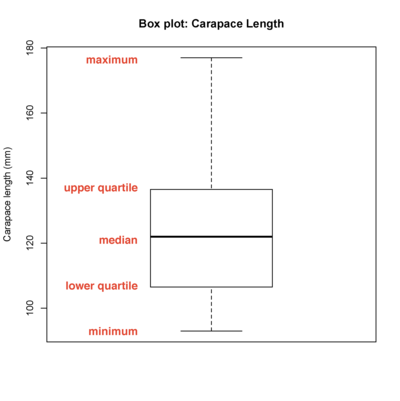
There are many variants on box plots, particularly with respect to the ‘whiskers’. It’s always a good idea to be explicit about what a box plot you’ve created depicts.
Here’s how to create box plots using the standard R functions as well as the lattice package:
> boxplot(turtles$length)
> boxplot(turtles$length, col='darkred', horizontal=T) # horizontal version
> title(main = 'Box plot: Carapace Length', ylab = 'Carapace length (mm)')
> bwplot(~length,data=turtles) # using the bwplot function from lattice
Note how we used the title() function to change the axis labels and
add a plot title.
– The box plot is one of many inventions of the statistician John W. Tukey. Tukey made many contributions to the field of statistics and computer science, particularly in the areas of graphical representations of data and exploratory data analysis.
My personal favorite way to depict univariate distributions is called a ‘beanplot’. Beanplots combine features of density plots and boxplots and provide information rich graphical summaries of single variables. The standard features in a beanplot include the individual observations (depicted as lines), the density trace estimated from the observations, the mean of the observations, and in the case of multiple beanplots an overall mean.
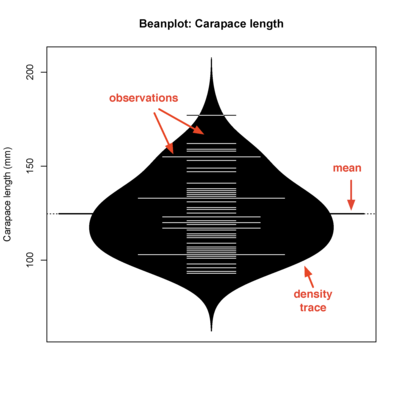
The beanplot package is not installed by default. To download it and
install it use the R package installer under the Packages & Data menu (standard R GUI) or in Tools > Install Packages... in RStudio (see also the Packages tab in the lower-right window in RStudio).
If this is the first time you use the package installer you’ll have to
choose a CRAN repository from which to download package info (I
recommend you pick one in the US). Once you’ve done so you can search
for ‘beanplot’ from the Package Installer window. You should also check
the ’install dependencies’ check box.
Once the beanplot package has been installed check out the examples to see some of the capabilities:
> library(beanplot)
> example(beanplot)
If you ran the examples in RStudio, use the Clear All option in the Plots tab after running the examples in order to reset parameters that the examples changed.
Note the use of the library() function to make the functions in the
beanplot library available for use. Here’s some examples of using the
beanplot function with the turtle data set:
> beanplot(turtles$length) # note the message about log='y'
> beanplot(turtles$length, log='') # DON'T do the automatic log transform
> beanplot(turtles$length, log='', col=c('white','blue','blue','red'))
In the final version we specified colors for the parts of the beanplot.
See the explanation of the col argument int he beanplot function for
details.
We can also compare the carapace length variable for male and female turtles.
> beanplot(length ~ sex, data = turtles, col=list(c('red'),c('black')),
names = c('females','males'),xlab='Sex', ylab='Caparace length (mm)')
Note the use of the formula notation to compare the carapace length
variable for males and females. There is also a asymmetrical version of
the beanplot which can be used to more directly compare distributions
between two groups. We explore this below. Note too the use of the list
argument to col, and the use of vectors within the list to specify the
colors for female and male beanplots.
We can also create a beanplot with multiple variables in the same plot if the variables are measured on the same scale.
> beanplot(turtles$length, turtles$width, turtles$height, log='',
names=c('length','width','height'), ylab='carapace dimensions (mm)')
Student’s t-tests can be carried out in R using the function t.test().
The t.test() function can perform one and two-sample t-tests (i.e.
comparing a sample of interest against a hypothesized mean, or comparing
the means of two samples). The t.test() function also supports a
‘formula’ interface for two-sample t-tests similar to the lm()
function.
> t.test(width ~ sex, data=turtles)

        Welch Two Sample t-test

data:  width by sex
t = 4.7015, df = 35.355, p-value = 3.862e-05
alternative hypothesis: true difference in means is not equal to 0
95 percent confidence interval:
  8.122699 20.460634
sample estimates:
mean in group f mean in group m
      102.58333        88.29167
The asymmetric version of the boxplot is very useful for comparing
distributions of the same variable between two groups. To generate such
plots use the argument side='both' as an argument to beanplot.
> beanplot(width ~ sex, data = turtles, side='both', col=list(c('red'),c('black')))
As you can see this splits the beanplot in half for each group and puts them back to back to facilitate comparison. The difference in the mean of the two groups is visually obvious from the beanplot.
Assignment 5:
Prepare beanplots showing samples grouped by
Speciesfor each of the quantitative variables in the iris data set. Label the x- and y-axes of your boxplots and give each plot a title.
- Tip: since there are three species, you can't use the
side='both'argument, and you'll need to extend thecol=listargument to add a third color.Carry out two-sample t-tests contrasting
versicolorandvirginicafor each of the four morphometric variables in the iris data set.
- Tip: use the
subset()function to create a subset of the iris data containing just these two species.Write a brief paragraph interpreting the results of the t-tests you conducted.
When dealing with pairs of continuous variables a scatter plot is the
obvious choice. The standard plot function can be used:
> plot(turtles$length, turtles$width)
> plot(turtles$length ~ turtles$width)
Did you notice what is different between the two versions above? You can
also use the data argument with plot, like so:
> plot(length ~ width, data=turtles)
The xyplot() function from the lattice package does pretty much the
same thing:
> xyplot(length ~ width, data = turtles)
R has very flexible built in functions for fitting linear models. Bivariate regression is the simplest case of a linear model.
> turtles <- read.table('turtles.txt',header=T)
> names(turtles)
[1] "sex"    "length" "width"  "height"
> regr <- lm(turtles$width ~ turtles$length)
> class(regr)
[1] "lm"
> names(regr)
 [1] "coefficients"  "residuals"     "effects"       "rank"          "fitted.values"
 [6] "assign"        "qr"            "df.residual"   "xlevels"       "call"
[11] "terms"         "model"
> summary(regr)

Call:
lm(formula = turtles$width ~ turtles$length)

Residuals:
     Min       1Q   Median       3Q      Max
-5.57976 -1.66578 -0.04471  1.73752  5.97104

Coefficients:
               Estimate Std. Error t value Pr(>|t|)
(Intercept)     19.9434     2.3877   8.353 8.99e-11 ***
turtles$length   0.6055     0.0189  32.033  < 2e-16 ***
---
Signif. codes:  0 '***' 0.001 '**' 0.01 '*' 0.05 '.' 0.1 ' ' 1

Residual standard error: 2.654 on 46 degrees of freedom
Multiple R-Squared: 0.9571,     Adjusted R-squared: 0.9562
F-statistic:  1026 on 1 and 46 DF,  p-value: < 2.2e-16

> plot(turtles$width ~ turtles$length)  # scatter plot with turtles$length on x axis
> abline(regr)  # plot the regression line
Note the use of the function abline() to plot the regression line.
Calling plot() with an object of class lm shows a series of
diagnostic plots. Try this.
Assignment 6: Write your own regression function (i.e. your code shouldn’t refer to the built in regression functions) for mean centered vectors in R. The function will take as it’s input two vectors, (\vec{x}) and (\vec{y}). The function should return:
a list containing the mean-centered versions of these vectors
the regression coefficient (b) in the mean centered regression equation (\vec{\widehat{y}} = b\vec{x})
the coefficient of determination, (R^2)
Demonstrate your regression function by using it to carry out regressions of Sepal.Length on Sepal.Width separately for the 'setosa' and 'virginica' specimens from the iris data set (again,
subset()is your friend). Include plots in which you use theplot()andabline()functions to illustrate your calculated regression line.