Android
This guide explains step by step how to program your M5Stack with the Android M5Stack Loader app (Computer not required).
You will need a smartphone with and Android version at least 10, an USB-C to USB-C cable to program the device, recent smartphones are USB-C but check the right type of connector on the phone side. Older phones will not support the app below: try to install it before buying the cable.
Plug your M5Stack device to an USB charger so that it will charge, do it now whilst you prepare the rest. It will boot up with the diagnostics firmware, or the previous version of the NightscoutMon firmware, leave it like that.
Download and install M5Stack Loader from the releases page, while it awaits availability in the Google Play Store.
Plug your M5Stack into your phone with the USB cable.
When asked to choose an app for the USB device, select M5Stack Loader.
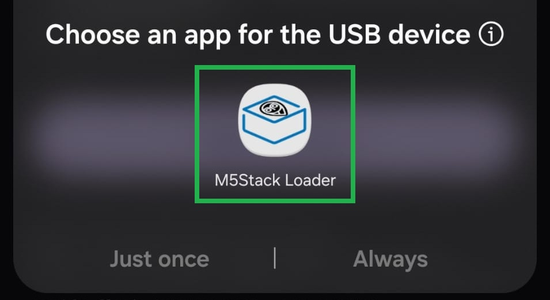
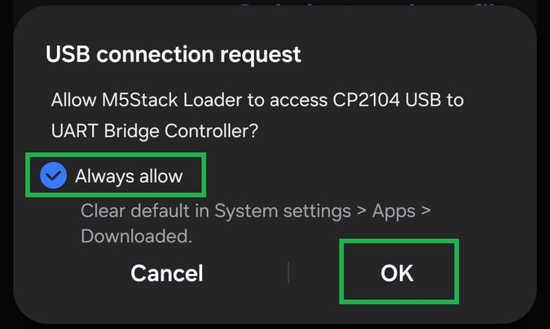
Allow the app to access the USB device: tick Always allow if you don't usually connect other ESP32 devices to your smartphone, or else Just once, and tap OK.
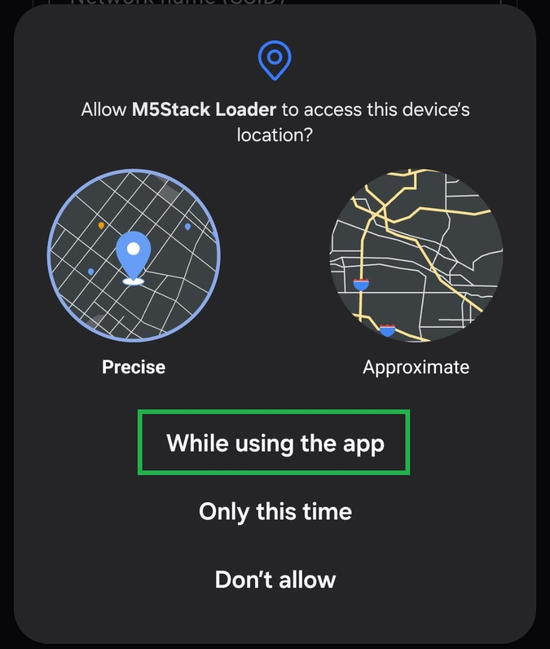
The app will open and ask to access your device's location: this is required by Android so the app can list available Wi-Fi networks. Select While using the app.
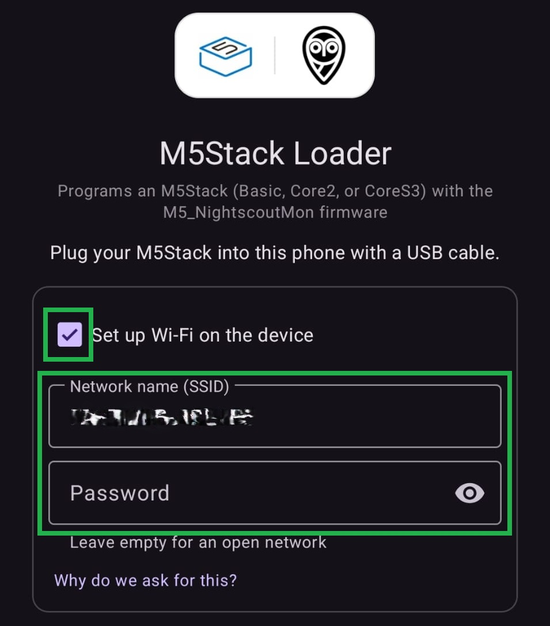
Tick Set up Wi-Fi on the device and enter your Password: the app will then write your Wi-Fi credentials to the device at the same time it flashes the firmware, so it joins your Wi-Fi automatically. Your credentials will not be saved or uploaded anywhere outside of your control.
If you don't want to enter your Wi-Fi credentials into the app, leave this box unchecked: you'll use SoftAP to configure it
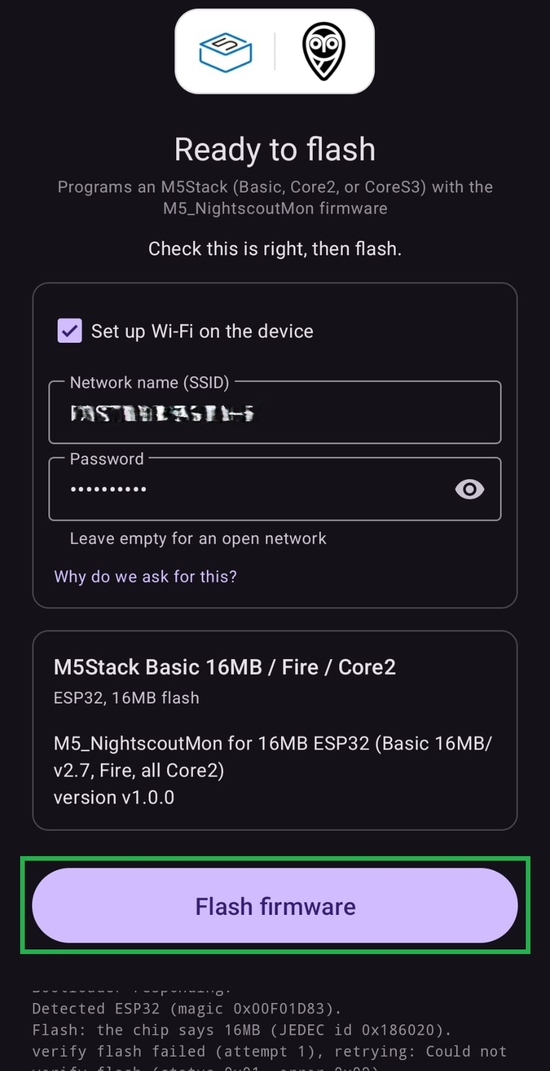
The app detects your M5Stack model automatically and selects the matching firmware. Check the summary is correct, then tap Flash firmware.
Wait until programming finishes, don't unplug the device.
The first files will load slowly, it might seem stuck on 1% for 30 seconds or more.
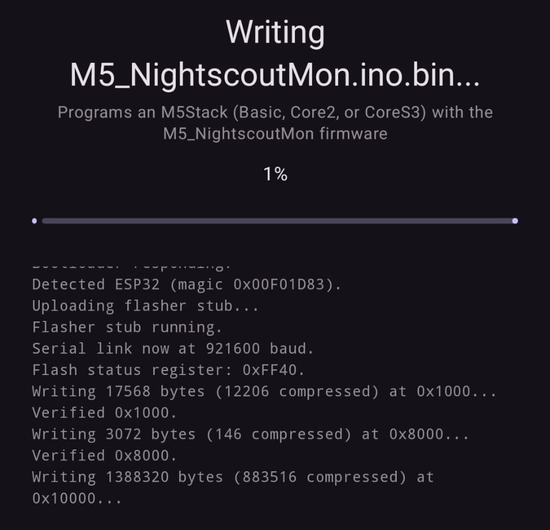
But when it starts downloading it's a matter of 10 seconds.
[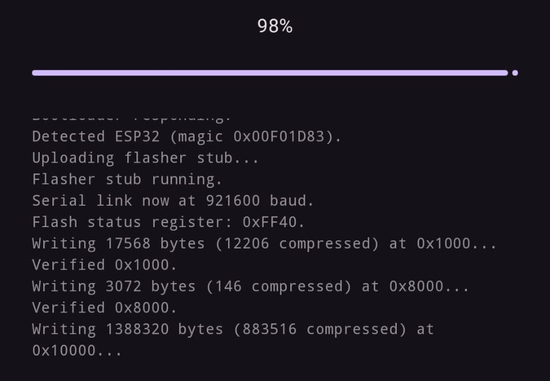
Once done, the device restarts. You can unplug it: it will join your Wi-Fi network automatically if you provided credentials.
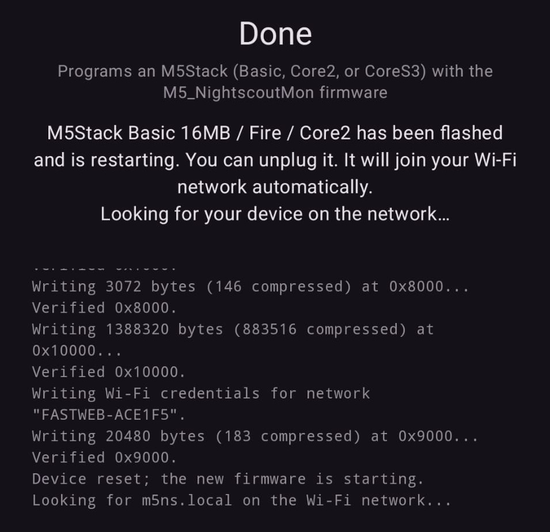
Congratulations, you programmed your M5Stack.
Tap Open device configuration to jump straight to your device's web page. The app finds it automatically on your Wi-Fi network by its unique name (m5ns-xxxx.local, derived from the device's MAC address so it never gets mixed up with another M5Stack on the same network).
Or continue with the setup guide here to finish configuring your device.
Try another cable? The app self adjusts the data flow speed, this should not happen...
Yes, it can happen. No worries: try a second time.
It's very hard to damage an ESP32 device, most of the time reprogramming it will allow you to fully recover.
Use the device's built-in SoftAP access point to set it up.
If Open device configuration or http://m5ns-xxxx.local doesn't work, first check whether the device actually joined your Wi-Fi:
- If the device is still showing a Wi-Fi pairing / QR code screen, it never joined your network — your SSID or password was likely wrong. Re-flash with the correct credentials, or leave Set up Wi-Fi on the device unchecked and configure Wi-Fi manually through SoftAP.
- If the device did join your Wi-Fi, press the device's right button repeatedly until you reach its configuration QR code page, then scan it with your phone (or read the IP address shown) to open the configuration page directly. This page is also shown in the Setup guide.
Continue with the setup here.