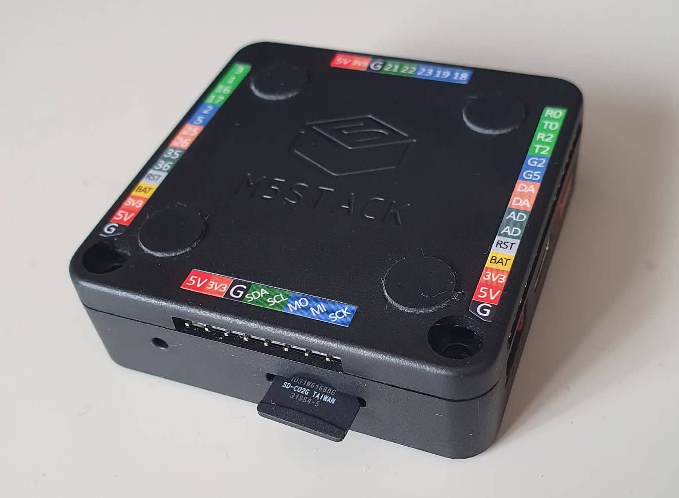
MicroSD
See how to setup your micro SD directly with SoftAP.
Plug your memory to the PC either directly or through an adapter and verify it’s formatted FAT32.
Copy these two files from the project folder SD: C:\Users\...\Downloads\M5_NightscoutMon-master\M5_NightscoutMon\SD to the SD memory.
Note: Don’t copy the folder: just these two files
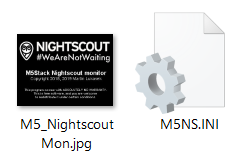
Open the M5SN.ini file with a text editor, like Notepad.
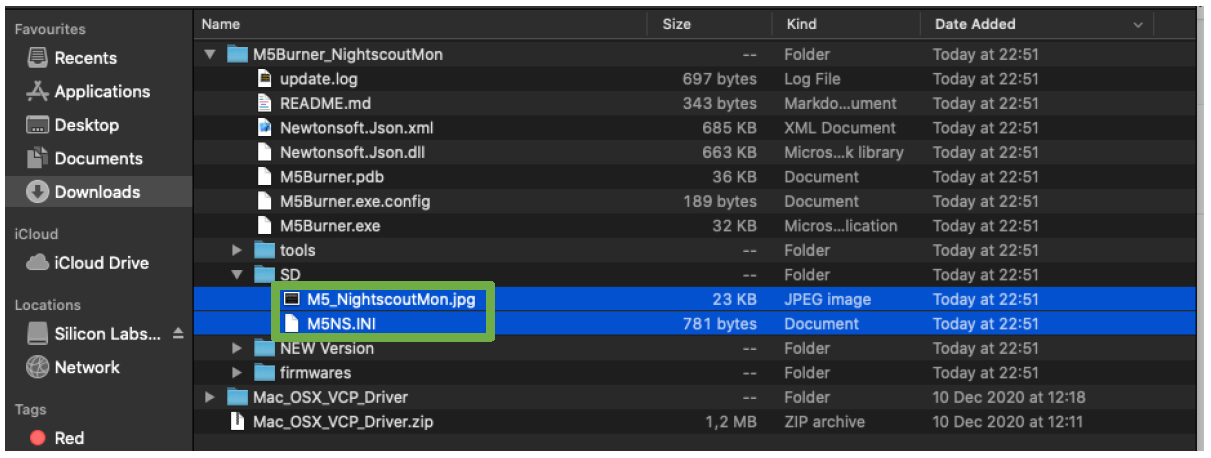
Plug your memory to the Mac either directly or through an adapter and verify it’s formatted FAT32. Copy the two files below to the SD memory.
Note: Don’t copy the folder: just these two files
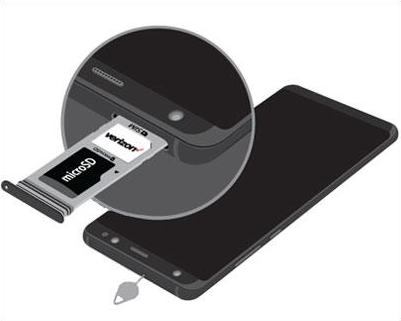
If you don't have a way to read it on your PC and you have an Android phone, insert it in your phone.
Install https://play.google.com/store/apps/details?id=com.rhmsoft.edit on your phone to edit the M5NS.ini file.
Once you've opened the M5NS.ini with a text editor, add your Nightscout site or Sugarmate json address here.
If your Nightscout site uses https (default) enter the name directly like in the example.
[config]
nightscout = yoursite.herokuapp.com
If your Nightscout site uses http include it:
nightscout = http://yoursite.herokuapp.com
Only if your Nightscout site is secured add the following line:
token = your_security_token
If you're using a Sugarmate json (see here how to do this) add it like this:
nightscout = sugarmate.io/api/v1/XXXXXX/latest.json
Make sure the local web server is enabled, like this you'll continue the configuration with a browser later.
disable_web_server = 0
You can leave device_name out of the file entirely: the device will pick its own name unique to it, M5NS-XXXX (XXXX derived from its MAC address), so several devices on the same network never collide on the same .local address. If you set device_name = M5NS explicitly it is treated the same as leaving it out - that legacy fixed name is replaced by the unique one too. Only set device_name to something else if you want to pick your own name.
Browse down the file to [wlan1]:
[wlan1]
ssid = ssid1
pass = pass1
Replace ssid1 with your Wi-Fi network name.
Replace pass1 with your Wi-Fi network password.
Save the file and exit the text editor.
Place the SD card in your M5Stack device. Don't miss the slot else it might fall inside the device and you'll have to open it to recover the memory...