Setup
The device can be used with and without micro SD memory. The decision will be taken at reset time by M5NightscoutMon.
- If you reset and insert a micro SD it will use and save the configuration of the SD memory file M5NS.ini.
- If you reset and don't have an SD memory in the device it will use the information saved in its own memory.
This allows you to quickly jump from one configuration to another.
You still can configure manually your SD memory as explained here, but we recommend using the SoftAP feature.
Once programmed (with a recent version), your device will boot-up like this

With your mobile phone (example below Android) or a computer set your Wi-Fi to M5NS.

Use the password provided on the M5Stack (SSID passphrase) screen to connect.

Open a browser to setup the device. Go to the following page: http://192.168.0.1
Note: If you also have a computer it is recommended to setup only your Wi-Fi, save and continue with the web server.
You can also complete the setup now with your phone if you want.
Continue here.
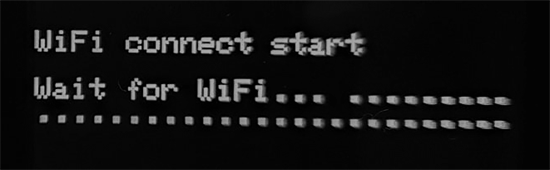
Plug your device or reset it (red button on the side), it should boot-up like this
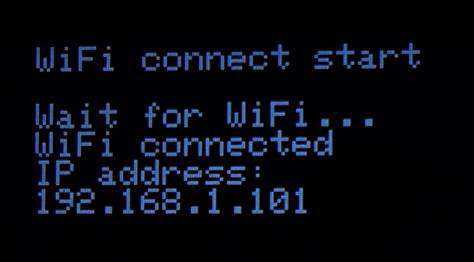
If it remains like this you need to fix your Wi-Fi information that's probably wrong.
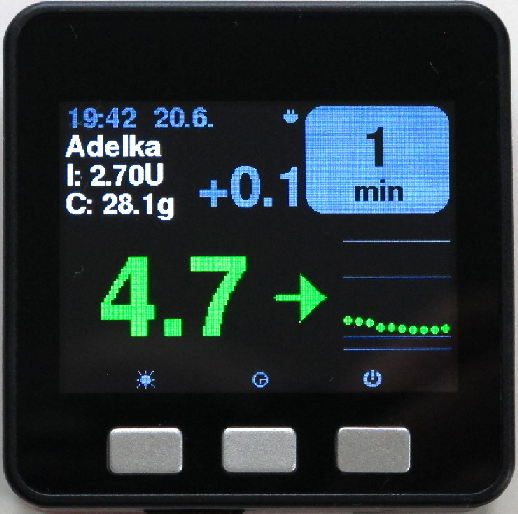
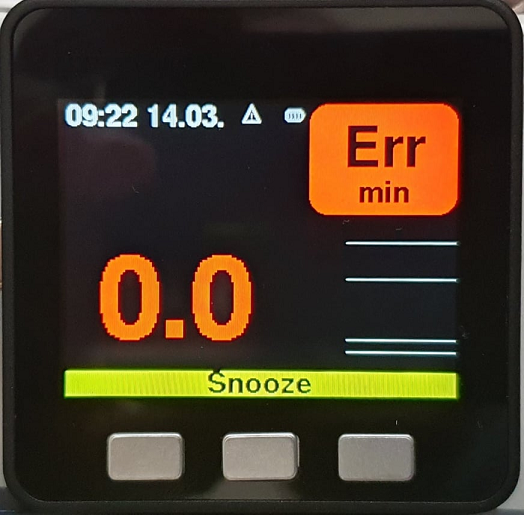
and display the graphic screen (left fully configured, right only Wi-Fi configured)
You can now access it through its web server browsing to http://m5ns.local if you're on the same network (i.e. the device you use to browse the M5Stack is on the same Wi-Fi you defined in M5NS.ini) and you didn't customize device_name in M5NS.ini.
If you can't connect with M5NS.local, click the right button until reaching the debug screen and note the IP address.
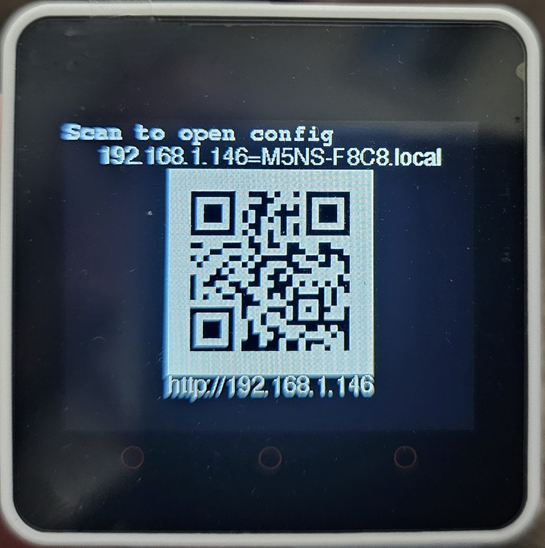
Browse the address to access the web server (it will look like https://192.168.1.199 but not these numbers).
Your M5Stack_NightscoutMon will display its web page.
Selecting the Edit and Change links allows you to change the values. If you started your M5Stack with an SD memory inside, changes will be saved in the SD memory card. If you started without an SD memory, they will be saved in the device internal memory.

Once set, scroll down and Save your configuration.

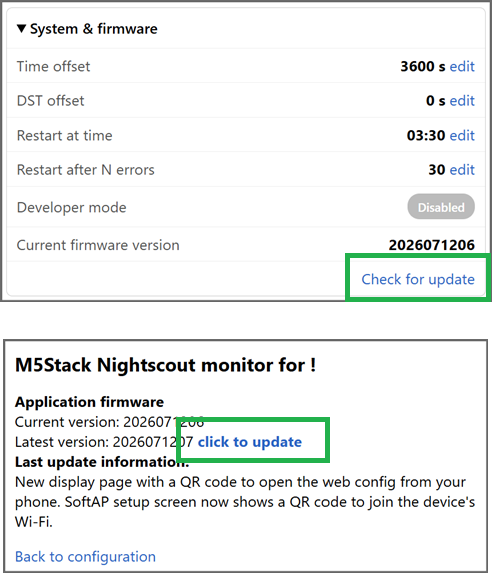
Browse down to Application firmware and select click to update.
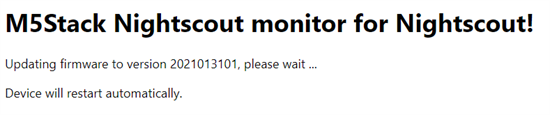
Wait for completion.
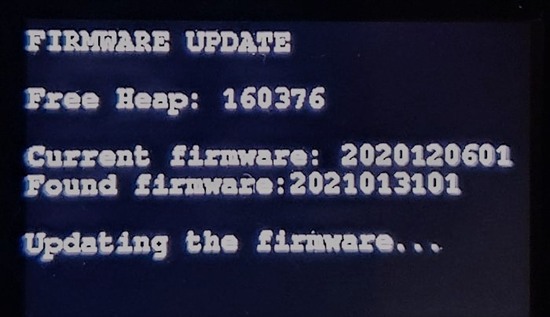
Your device will reboot with the latest version.
