Repository navigation
How to use ThoughtKnot
A short guide for everyone, with no technical knowledge needed. The pictures are taken from the latest version each time it changes, so they show what you will see.
You write a few lines in a note that say what things there are and how they are linked. ThoughtKnot turns them into a drawing right inside the note. You can move around the drawing, change how it is laid out, and edit it, either by typing or by working with the drawing itself.
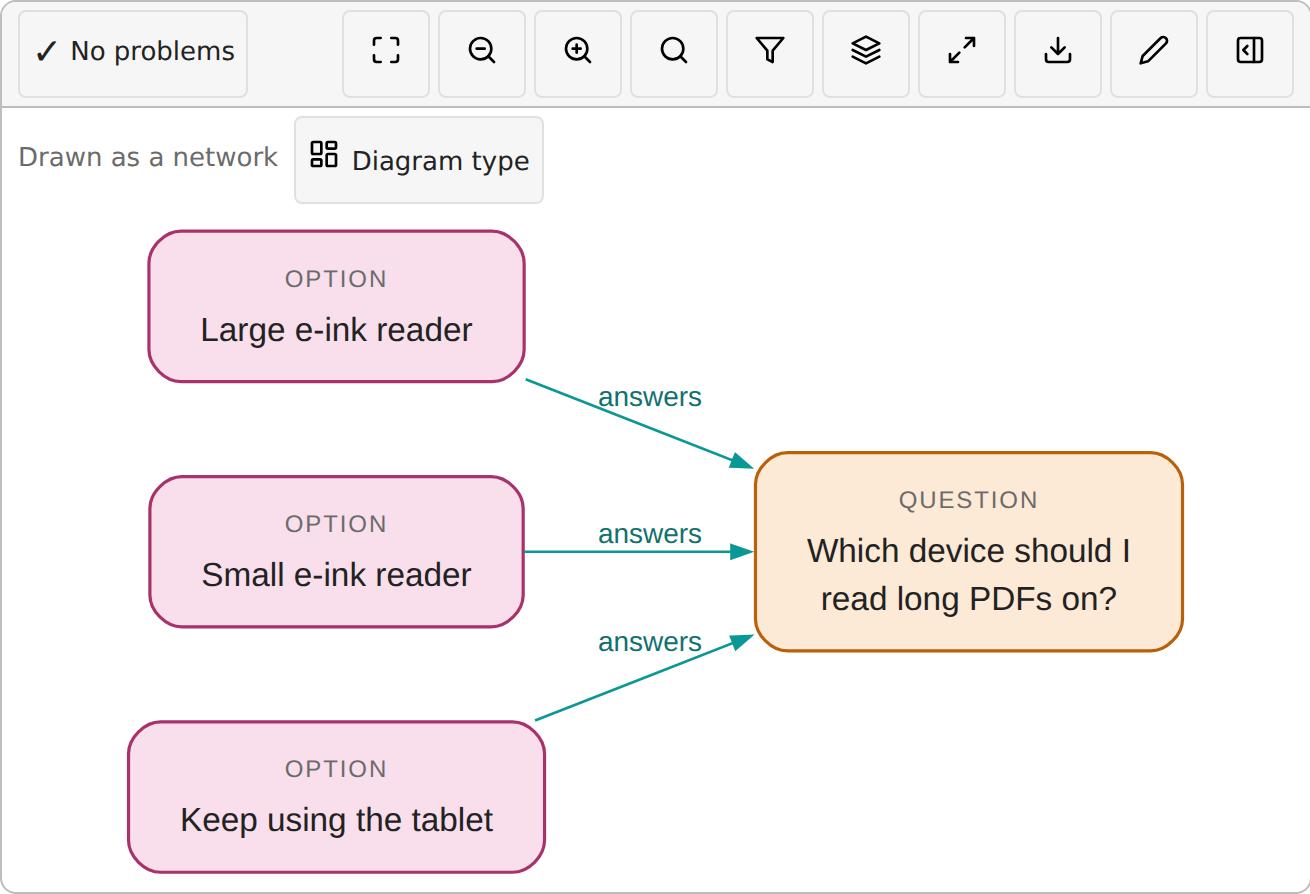
In any note, start a block with three backticks and the word gql, then list your things and their links:
```gql
// graph: my-first-graph
(question:Question {title: 'Which laptop should I buy?'}),
(light:Option {name: 'The light one'}),
(fast:Option {name: 'The fast one'}),
(light)-[:ANSWERS]->(question),
(fast)-[:ANSWERS]->(question)
```
- A thing is written in round brackets: a short name, a colon, its kind, and what it says in curly brackets.
- A link joins two things with an arrow, and its kind goes in square brackets.
- Switch to reading view, or move your cursor out of the block, and the drawing appears.
You do not need to get it perfect. If something is wrong, ThoughtKnot says what, where, and how to fix it (see step 5).
The buttons along the top of each drawing:
| Button | What it does |
|---|---|
| Fit | Shows the whole drawing at once |
| Zoom out and Zoom in | Make the drawing smaller or bigger. You can also pinch, or use the scroll wheel |
| Find a thing | Type part of a name to jump to it |
| Filter by kind or link | Show only some kinds of thing or link |
| View | Turn helpers on or off, such as labels that appear only when you zoom in |
| Full screen | Gives the drawing the whole window |
Tap any thing to see its details and the things linked to it.
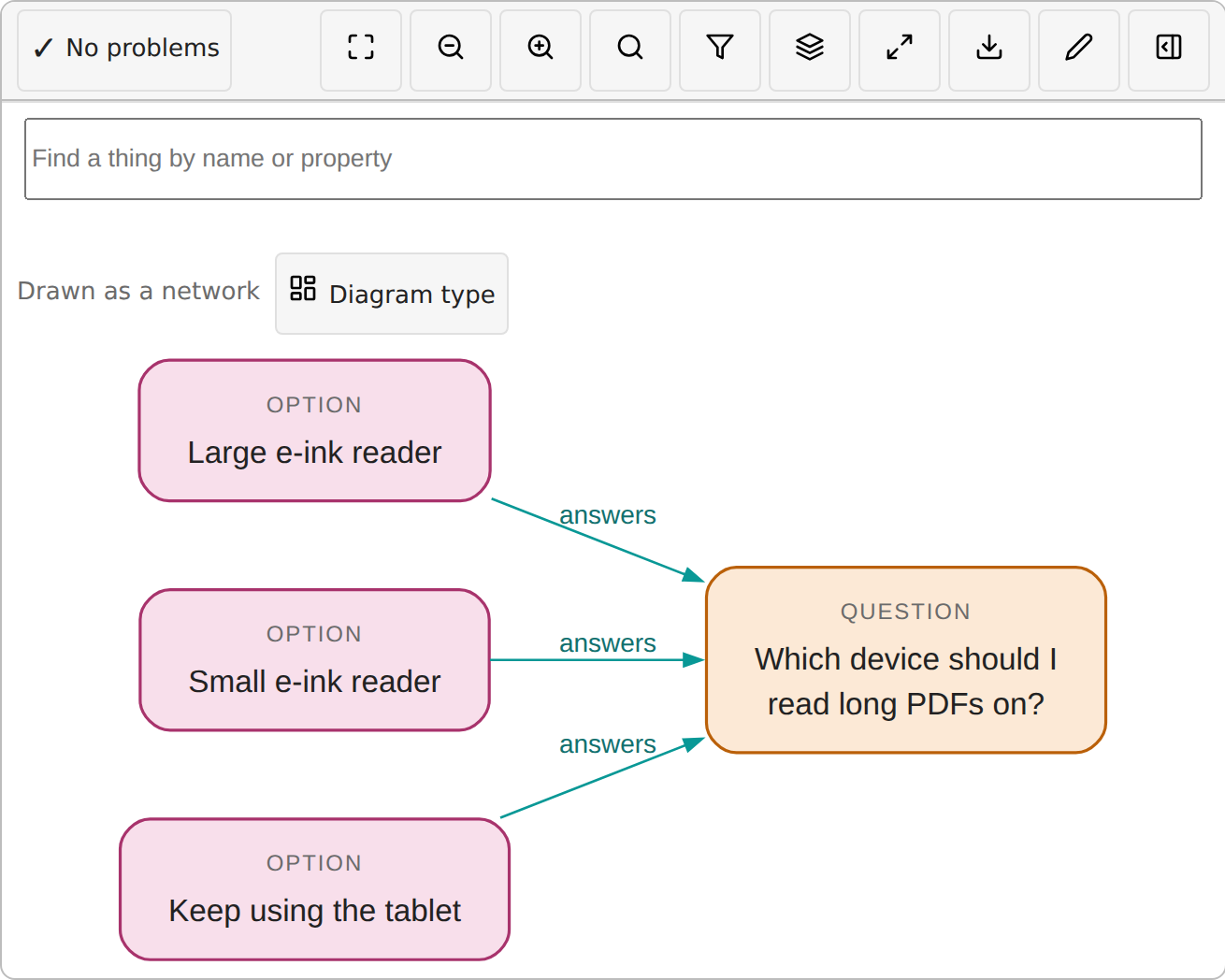
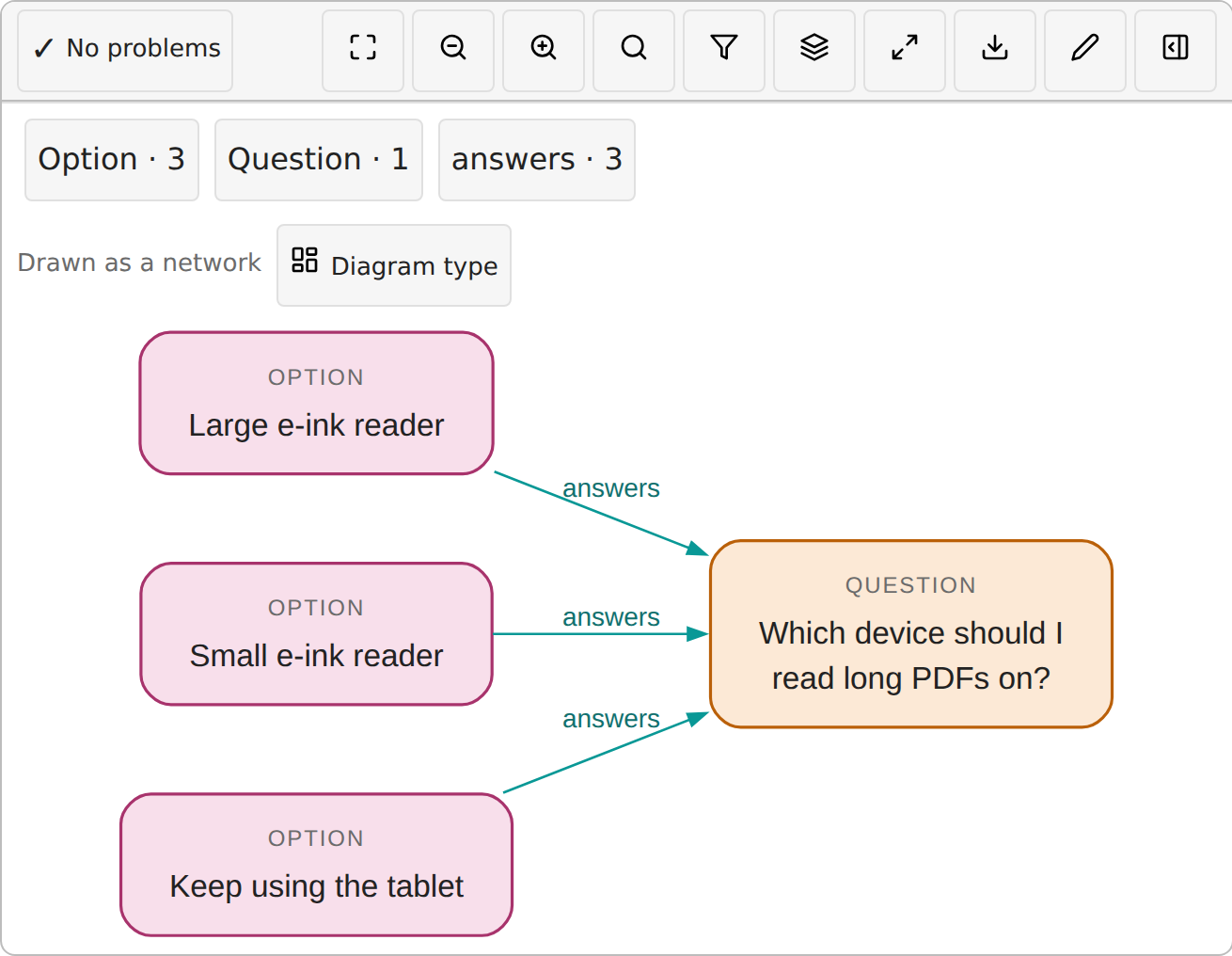
Press Diagram type (just above the drawing) to choose how it is laid out. It can be a network, a tree, a flow, a circle around one thing, lanes, a timeline, or a table. ThoughtKnot suggests the type that suits your graph best, and explains why a type cannot be used when it does not fit.

There are two ways to edit:
- Edit here opens the text right under the drawing. Type, and the drawing updates as you go. Press Done when you are finished. Lock the graph stops anyone changing it by accident.
- Edit in pane opens the graph beside your note, so you can see both at once.
You can also add things with Add a thing, and every change can be undone.
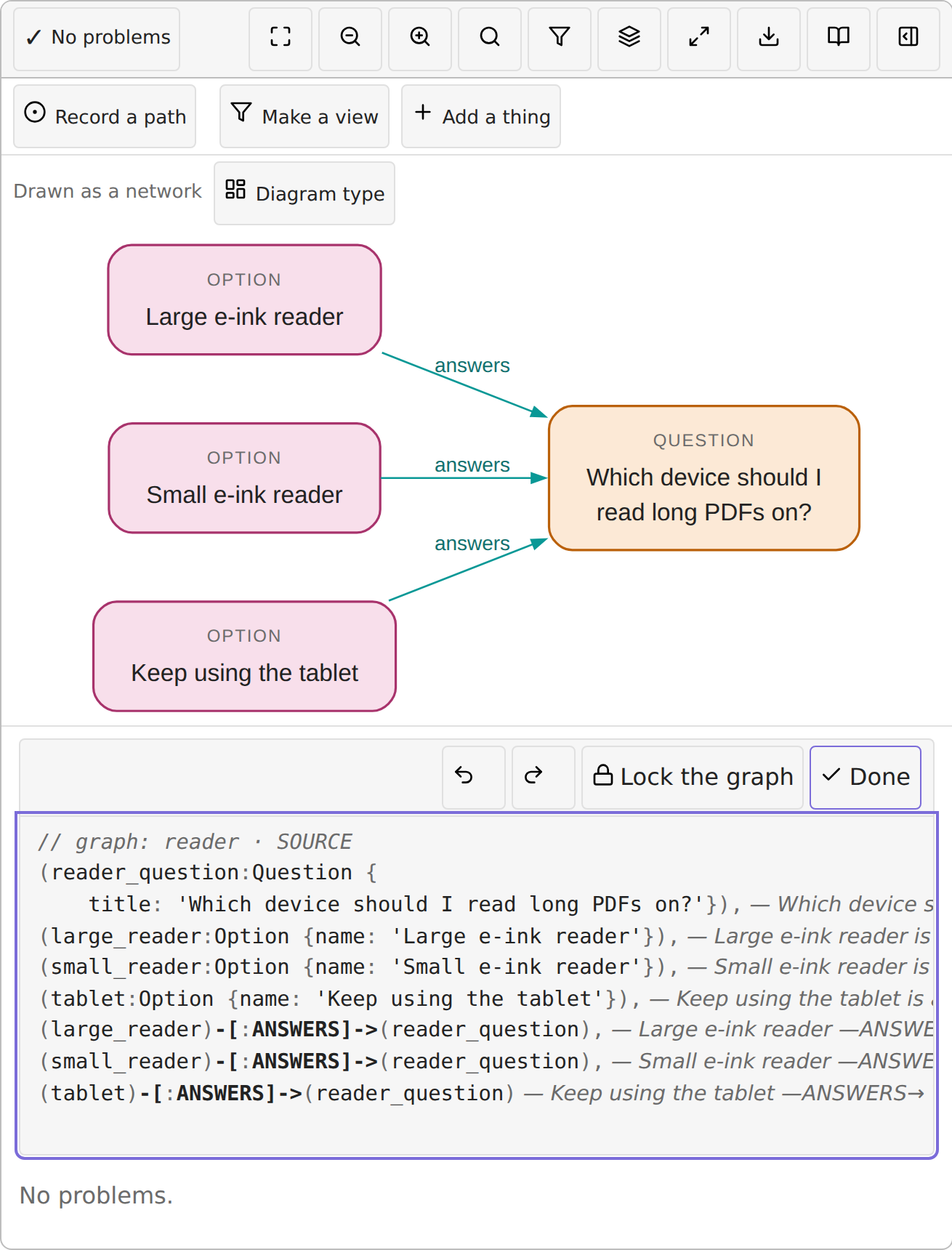
Sometimes something in a graph is not right, such as a link to a thing that does not exist. Then the button at the top left of the drawing shows how many problems there are, instead of "No problems". Press it to see each one, with the line it is on and the fix. The drawing still shows your best guess, marked with a warning sign and a dashed line, so you never lose your work.

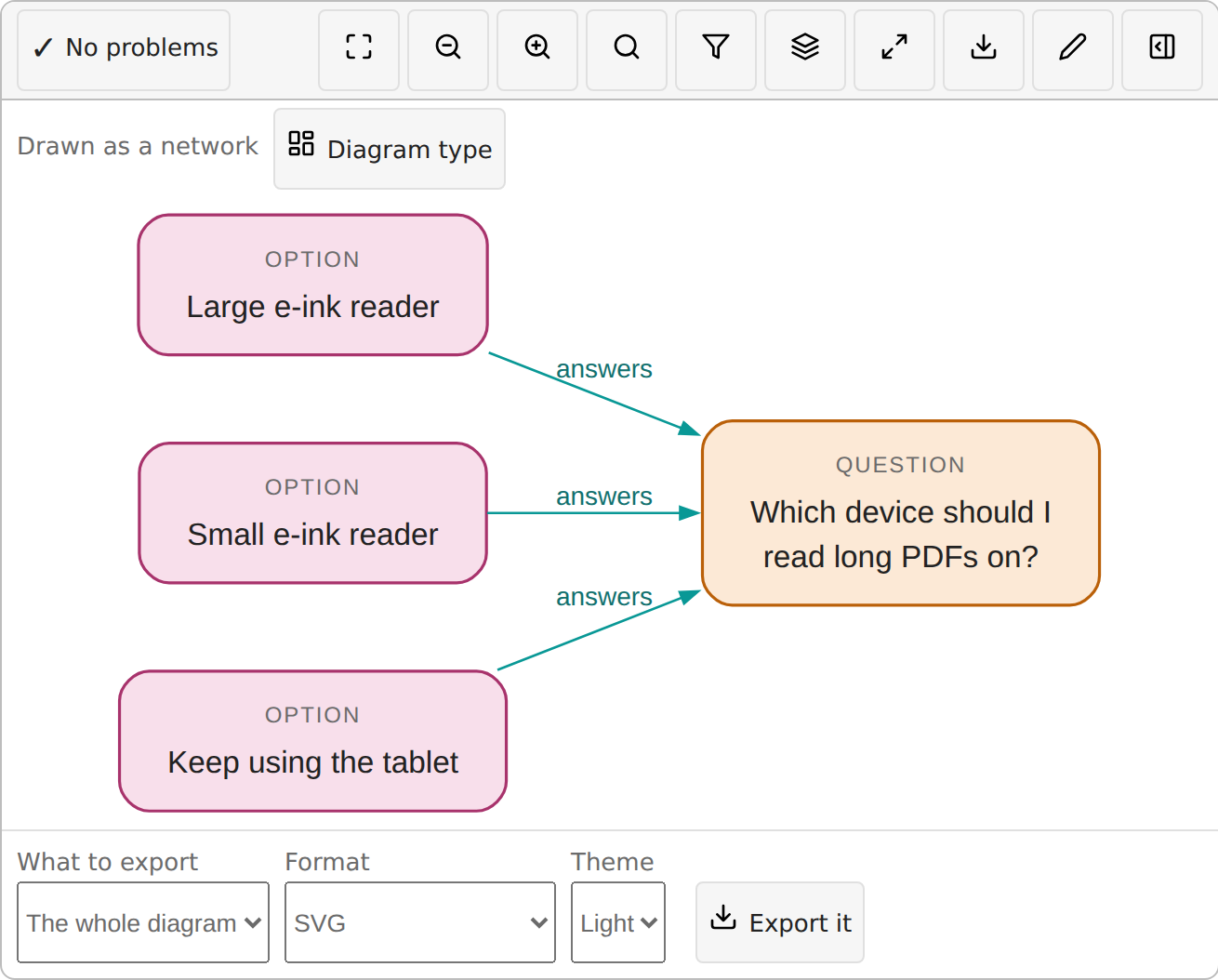
Press Export to save the drawing as an image. Choose what to export (for example the whole drawing), the format and a light or dark theme, then press Export it.
A block that starts with MATCH asks a question of a graph instead of drawing one. For example: "which option has the
most reasons in its favour". It is shown as text. Press Copy to copy it, or Edit to change it.
ThoughtKnot can ask an AI model to suggest changes to a graph. It is off until you turn it on, and even then:
- nothing is sent until you press Send, and you see exactly what will be sent first;
- you choose which AI models it may use, and how sensitive a note each one may see;
- the AI only ever suggests: you accept or reject each change yourself.
To start, turn on Use AI models in the settings, add a model, then run the command Ask an AI model to propose changes. The full details are in the privacy section of the README.
- Lost some typing? Run the command Recover kept drafts into a new note. ThoughtKnot keeps a draft of every edit until it is saved into the note.
- Sharing a note with other tools? The command Convert this note to standard GQL rewrites the shortcuts Graph Note allows into the standard form other tools read.
- On a phone, tap where you would click, and pinch to zoom. Everything works offline.
- Using only a keyboard? Every button can be reached with Tab, and Escape closes whatever is open.
Find these in Obsidian under Settings, then Community plugins, then ThoughtKnot. This list is made from the plugin itself, so it is always complete.
| Setting | What it does | Choices |
|---|---|---|
| Strictness | How strictly a graph is read against standard GQL. | Standard, Forgiving, Simplified |
| Allowed in Simplified | The ways Simplified lets a graph leave standard GQL as written. An engine or an export still gets standard GQL. | A missing comma, A comma with nothing after it, A link type without its colon |
| Setting | What it does | Choices |
|---|---|---|
| Use AI models | Whether the editor may send anything to an AI model. Even when on, nothing is sent until you send it. It goes only to a model set up below, once you have seen exactly what it will send. | Off: nothing is ever sent, On: send only when I say |
| Classifications | The classifications a note may carry, lowest first, one per line. | — |
| Unlabelled notes count as | The classification a note with no classification counts as when it would be sent to an AI model. The most sensitive until you choose: nothing at it is ever sent, so an unlabelled note goes to no model. | — |
| AI models | Each AI model the editor may ask, and its purpose. Each has a ceiling: the highest classification of note it may be sent, or a row of the destination matrix. | — |
| Destination matrix note | The note that holds the vault’s destination matrix, by its path. A model can then take a row of it in place of a ceiling. | — |
| Matrix classes | Classes of the matrix that go by another name than a classification, one per line as matrix name: classification. A class matched by neither is flagged and never sent. | — |
| Setting | What it does | Choices |
|---|---|---|
| Indent | How the editor indents the later lines of a thing it writes. | Two spaces, Four spaces, A tab |
| Setting | What it does | Choices |
|---|---|---|
| Direction | Which way a drawing runs: the best fit, or always one of the directions the locked style allows. | Best fit, Left to right, Top to bottom |
| Focus reaches | How far focus reaches from a selected thing: its own links, or those of the things at their other ends too. | One step, Two steps |
| Labels by zoom | Whether a link’s label shows only when zoomed in far enough to read it; a graph’s View menu can change it. | On, Off |
| Busy hubs folded | Whether a thing with many links draws them folded into one stub marked with their count; a graph’s View menu can change it. | On, Off |
| Groups folded | Whether each group draws as one box showing how many things it holds; a graph’s View menu can change it. | On, Off |
| Parallel links merged | Whether links running between the same two groups share one trunk; a graph’s View menu can change it. | On, Off |
| Draw notes as callouts | Whether each note written above a thing or link is drawn on the drawing as a callout, joined to its thing by a dashed line. Off unless you turn it on; a note always shows in its thing’s details. | On, Off |
| Mini-map | A small copy of the whole drawing with the part in view outlined; tap or drag it to move the view. Shown never, only when the drawing is bigger than its view, or always. | Off, When the drawing does not fit, Always |
| Keep the details open | Whether the details panel stays open beside the drawing, or below it where the card is narrow. While nothing is chosen, it shows a summary of the graph. Off unless you turn it on. | On, Off |
| Tallest drawing in a note | How much of the window a drawing in a note may take. A taller one is fitted inside, so the rest of the note stays in reach. | Half the window, Three quarters of the window, No limit |
| Setting | What it does | Choices |
|---|---|---|
| Export theme | The colours an exported image is drawn in, fixed so it reads the same outside Obsidian. | Light, Dark |
| Companion note | Whether an export saved into the vault also gets a short note linking the image to its source. | No companion note, Write a companion note |
| Export folder | The vault folder exports are saved in; left empty, an export is saved next to its note. | — |
| Ask before exporting above | Exports of a note above this classification ask you first. Choose one of the classifications set above. | — |
| Setting | What it does | Choices |
|---|---|---|
| Your name on decisions | The name recorded when you accept or reject a change in a proposal. It is kept exactly as you type it. Left empty, it is recorded as “you”. | — |