Telegram: Getting Group IDs
When communicating with NxBot via group you'll need to do two things. 1) Add your NxBot Telegram Bot to your group and 2) Get the group's ID to add to the appropriate NxBot configuration variables.
Screenshots in this guide are taken from the Telegram Desktop app, but the process should be the same on the mobile app.
Unfortunately there isn't a straightforward way to obtain group IDs from the Telegram app, but there is a bot that can make it really easy!
-
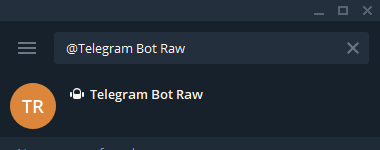
Search for "@Telegram Bot Raw" (note the spaces)
-
Click "Start"
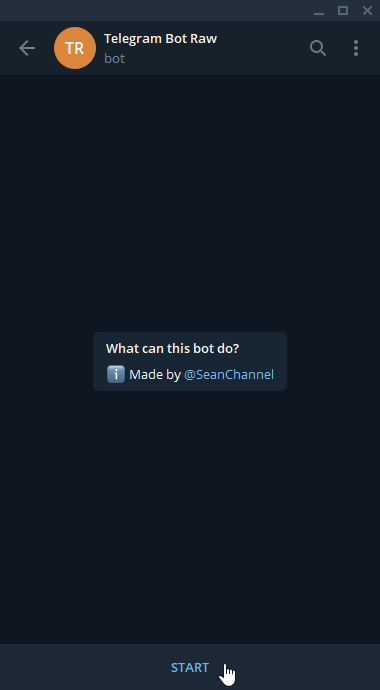
Immediately, the bot will send you detailed information. This is useful for obtaining your user ID, but we're going to get a group ID.
-
Add the bot to your group
Click the "..." button in the top right of the bot chat screen. Choose "Add to Group", shown below:
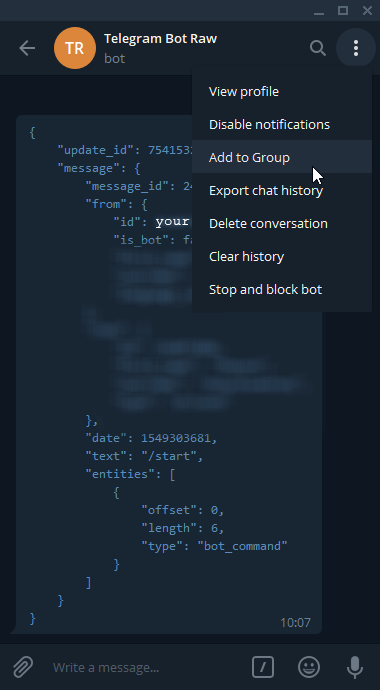
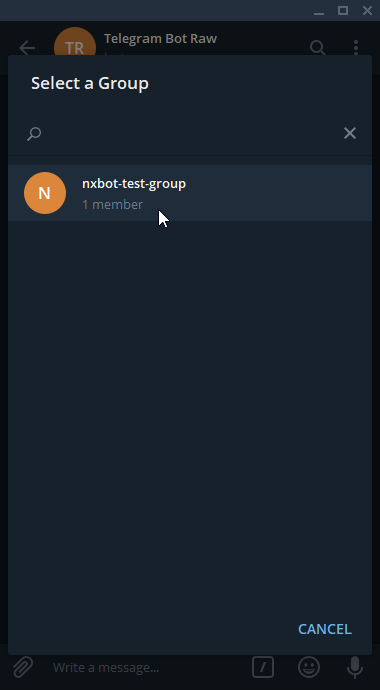
Choose the group we're looking to get the ID of. Click OK to confirm.
-
Locate the group ID
After clicking OK the bot will be added to your group and after a second you should see a dump of information.
What we're after is the group's id. It's referred to, in this dump, under
"chat"and it's the"id"value. You may need to scroll up to see the value.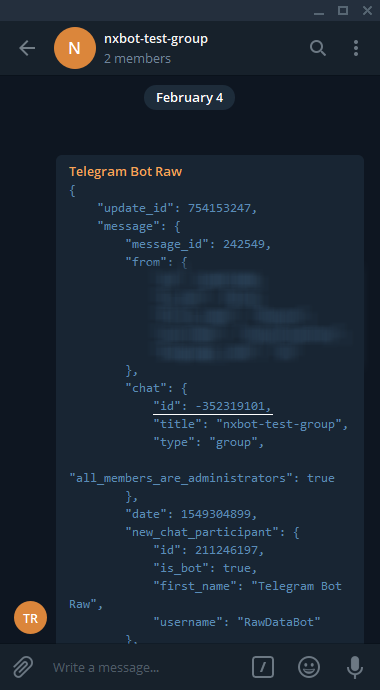
Group ID value underlined. For privacy reasons, I've blurred and omitted my personal values. -
Copy the group ID
Telegram group IDs are, generally, negative (- prefixed) 9-digit numbers: e.g.
-123456789. Copy the ID shown.This can be used in the
TG_GROUP_WHITELIST(env) /tg_group_whitelist(yaml) configuration for NxBot. It can also be used in theTG_MOTION_RECIPIENT(env) /tg_motion_recipient(yaml) value, to receive motion-event action camera snapshots. -
Remove "@Telegram Bot Raw" from your group.
Now that we have the information we were after, you'll want to remove the bot from your group. Otherwise, you'll receive endless replies with data dumps for every message. Useful for certain situations, but probably not what you want.
To remove the bot:
- Click the "..." in the top right of the group chat screen
- Choose "Manage Group"
- Choose "Members"
- Choose "Remove" next to "Telegram Bot Raw"
- Confirm by clicking "Remove"