English
🏠 Wiki home — 🇩🇪 Deutsche Version
This page walks through every core CobbleCompanion feature step by step, even if you've never used it before. For a quick reference (commands, interactions) see the README — this page goes into more depth.
Looking for the technical API documentation for building your own extensions? See Extension API for Modders.
- Opening the companion window
- The tabs at a glance
- The PC sorting helper in detail
- Setting up admin access (Professor tab)
- All chat commands
There's no dedicated button or item for CobbleCompanion. Instead, it automatically replaces
Cobblemon's own Pokédex: just open the Pokédex the way you normally would (default key P, may
be rebound in your Minecraft keybinds, or via Cobblemon's Pokédex item) — CobbleCompanion then
steps in automatically and shows its own window with all tabs.
If that doesn't work: if you're in spectator mode, Cobblemon's Pokédex can't be opened at all
— that's a Cobblemon limitation, not a CobbleCompanion bug. In that case, use the command
/companion gamemode survival to switch back to survival (only works while purchased creative
time is/was active).
Along the left or top edge of the window you'll see a row of icons — each one is a tab. Just click one to switch.
- Pokédex: Cobblemon's full Pokédex, embedded right inside the window — works exactly as usual.
- Living Dex: shows whether you have at least one caught specimen of each species in a PC box (independent of the Pokédex's catch status). The optional "Living Dex+" extension additionally tracks shinies and regional/cosmetic forms as their own, separate categories.
- ToDo: shows every Pokémon in your party and PC that's ready to evolve RIGHT NOW, with a button to evolve it instantly from the list. Plus a completion helper that lists exactly what you're still missing for the Pokédex (catch vs. evolve) — including the exact item, level, friendship value, or trade condition each evolution needs.
- Who Needs?: a search field where you type in a species name. The result shows you two things: first, whether YOU have spare copies of that species (to gift away), and second, which of your friends still need that species for their own Pokédex/Living Dex. Handy for quickly figuring out "who actually wants my duplicate Pokémon?".
- Types: a type chart that's also cross-referenced against your own team/PC — you can see at a glance which of your Pokémon already covers a given type matchup.
- Team Builder: suggests up to 6 of your own Pokémon for a battle team. You can choose between "best overall type coverage," "best counters against one type," or "best counters against an opposing team you type in yourself" — each suggestion comes with a short reason why exactly that Pokémon was picked.
- Search: a quick search across Pokémon, types, and friends at once — just start typing, click a result, and you jump straight to the right tab.
- Home: the dashboard with progress bars (Seen/Caught/Living Dex) and small notification icons whenever something's waiting for you (a pending evolution, an open friend request, a misplaced PC Pokémon, an incoming gift).
- Friends: see its own section below, but in short: type a name into the search field, click "Add," done. Requests from others show up with a checkmark and an X icon to accept/decline directly.
- Professor (only visible with admin rights): see Setting up admin access below.
- Settings: all your personal preferences (e.g. whether an evolution needs confirmation first, whether strangers can message/teleport to you) plus the PC sorting helper. Server operators (admins) additionally find economy and gamemode rules here.
This feature helps you keep your real Cobblemon PC tidy (e.g. sorted by Pokédex number) without having to work out yourself which Pokémon belongs in which box.
Enabling it: open the companion window → Settings tab → PC category → toggle "Sorting help" on. There you can also choose whether to sort by Pokédex or Living Dex order, and which box numbering to start from.
Nothing happens in the companion window itself after that — the help only appears once you open your real Cobblemon PC (the normal PC menu, not CobbleCompanion):
Case 1 – you're holding a Pokémon (e.g. just pulled from your party): an info box appears above the PC window telling you exactly which box and slot (row + slot) this Pokémon belongs in.
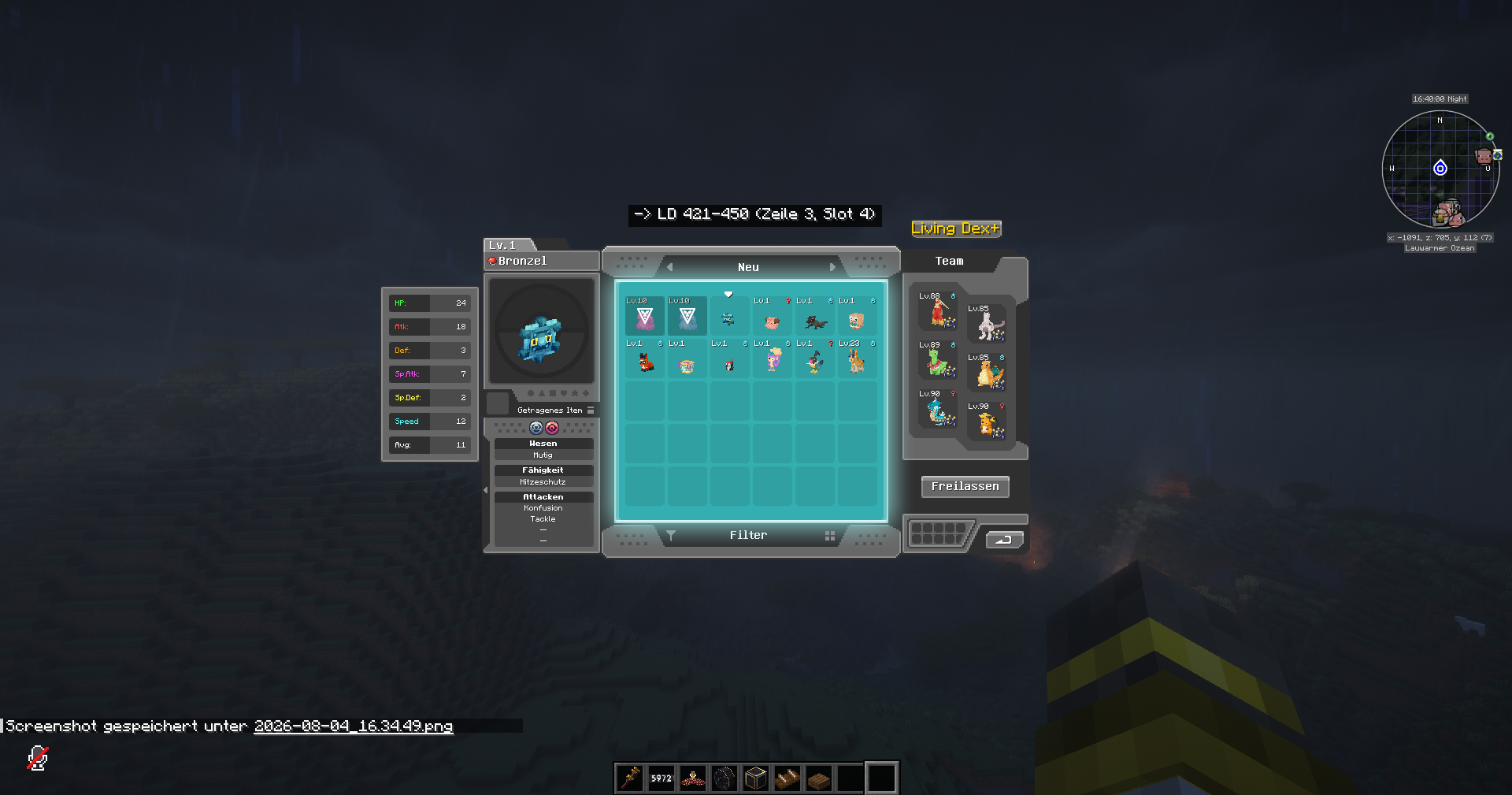
If the box you currently have open happens to already be the right one, the target slot also gets a green border:

Case 2 – you're holding nothing: every misplaced Pokémon in the currently open box gets automatically color-coded:
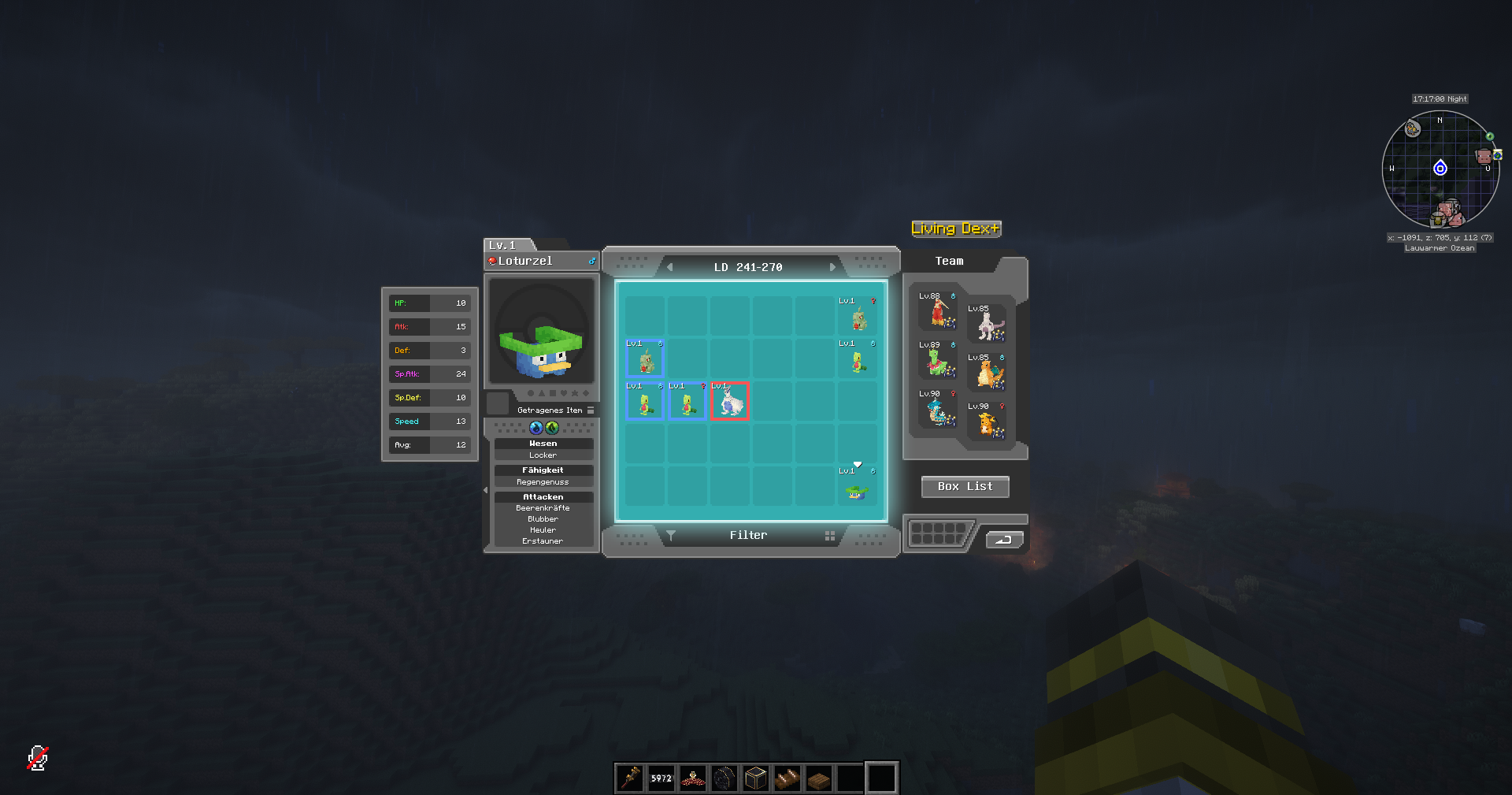
- No border = correctly sorted, all good.
- Blue = this Pokémon needs to evolve first before it can get a final spot.
- Red = clearly the wrong spot, should be moved.
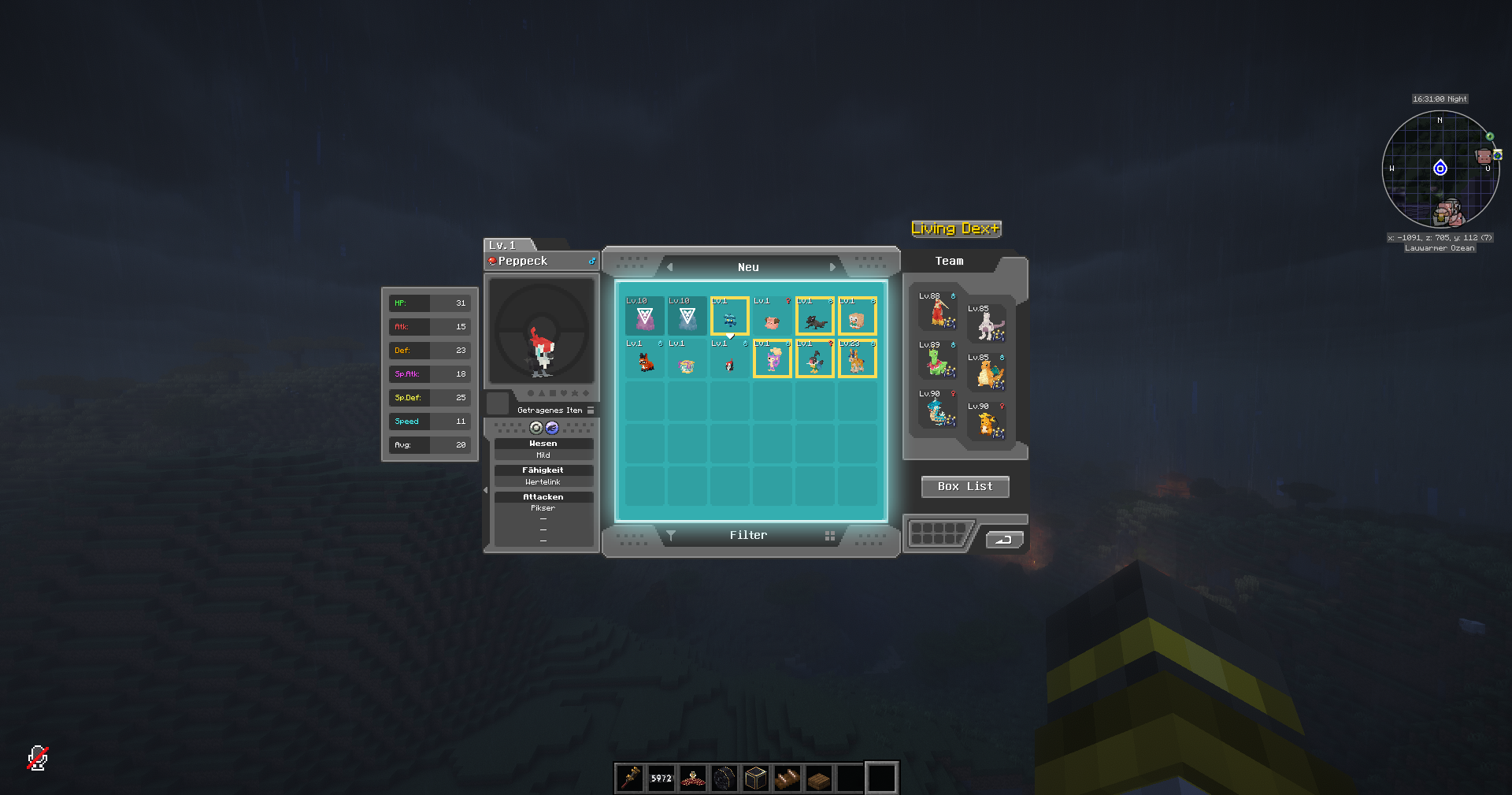
- Yellow = currently sitting in a non-sorted box (e.g. one named "New"), but already has a free target slot in the correct box.
- Orange (not pictured) = the actual target team slot is already taken by a different species.
Extra button in the Settings tab: "Auto-name boxes" — renames your PC boxes automatically to match the chosen sorting order (Box 1 = New, Box 2 = first 30 Pokédex numbers, and so on).
The Professor tab lets an admin view — and even edit — another player's Pokédex, Living Dex, and PC/team. This is completely independent of whether someone is a regular Minecraft server operator ("OP") — a vanilla OP has NO access by default, you have to grant that separately.
Step 1 – the very first admin on a fresh server: open the server console (on most hosting
providers a text field/terminal in the control panel, or on a self-hosted server the window where
run.bat/run.sh is running) and type this once:
companion adminop YourPlayerName
(Note: in the console WITHOUT a leading slash / — that's only needed in in-game chat.)
Step 2 – granting further admins/viewers: once you're AdminOp yourself, you can also do this directly in in-game chat for other players:
-
/companion op <name>— grants read-only access (view the Professor tab, change nothing). -
/companion adminop <name>— grants full access (view + edit + can grant access to others). -
/companion deop <name>— revokes access entirely. -
/companion deadminop <name>— downgrades from AdminOp back to read-only access (Op).
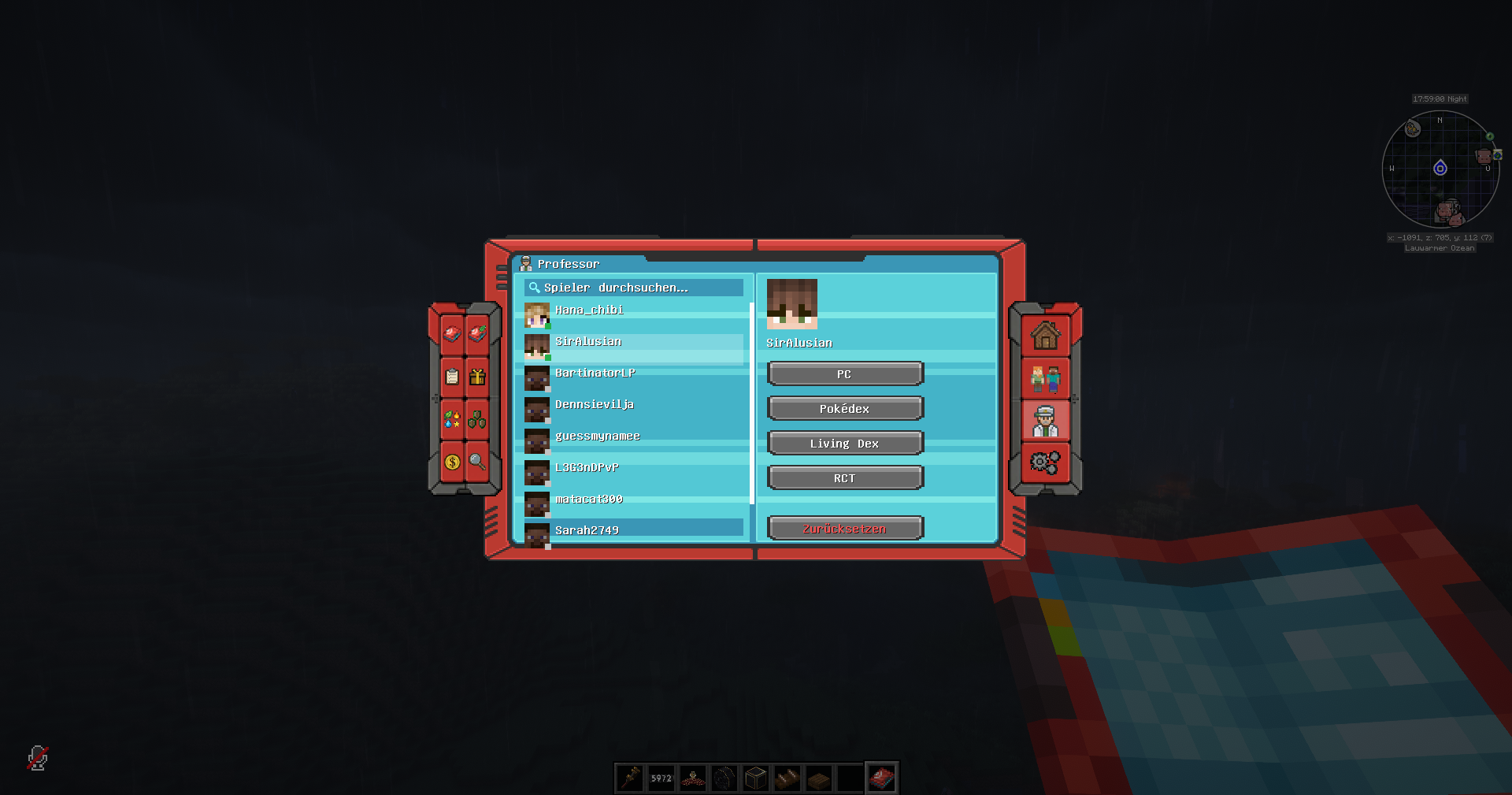
Here's what the Professor tab looks like — a searchable player list on the left, and after picking a player, four buttons on the right (PC, Pokédex, Living Dex, and RCT if "Radical Cobblemon Trainers" is installed) plus a "Reset" button for a complete progress reset:
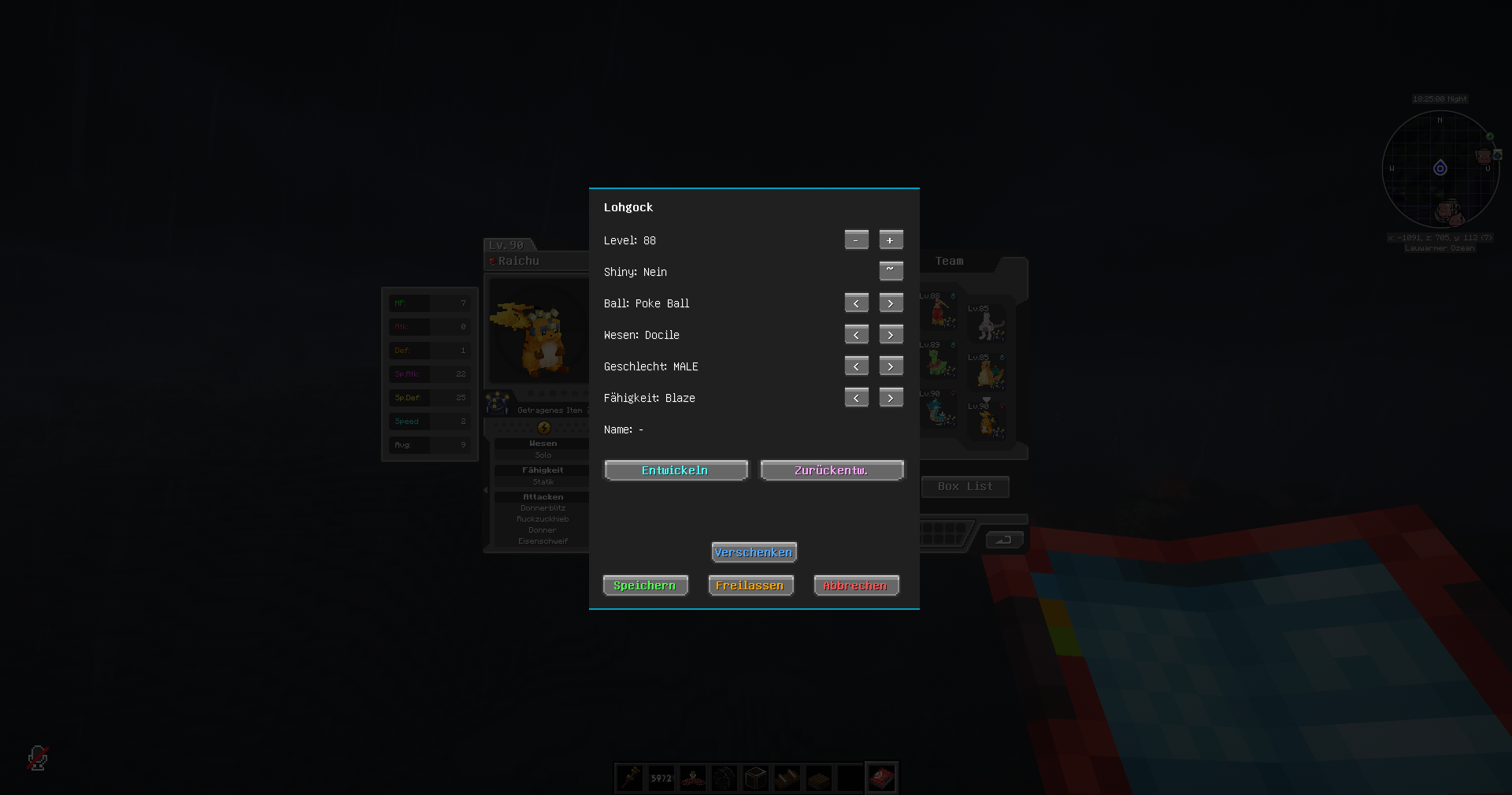
With full AdminOp access, you can also right-click a Pokémon in the PC/team view to open an edit dialog (level, shiny status, Poké Ball, nature, gender, ability, nickname, evolve/de-evolve, gift, release):
| Command | What it does |
|---|---|
/companion or /companion help
|
Shows a short help text in chat |
/companion party |
Shows your own team |
/companion dex <pokemon> |
Pokédex info for a species |
/companion todo |
"What can I do right now?" overview |
/companion whoneeds <pokemon> |
Who still needs this species |
/companion type <query> |
Type report for a type or a species |
/companion accept friendrequest <name> |
Accept a pending friend request (if you don't have the client mod installed) |
/companion accept gift <name> |
Accept a pending Pokémon gift (chat alternative to the GUI) |
/companion gamemode <survival|creative|spectator> |
Switch mode while purchased creative time is active |
/companion op <name> |
Grant read-only Professor access |
/companion adminop <name> |
Grant full Professor access |
/companion deop <name> |
Revoke Professor access entirely |
/companion deadminop <name> |
Downgrade AdminOp to read-only access |
/companion admin gamemode set/remove/list <dimension> [<mode>] |
Force a gamemode per dimension (AdminOp only) |
/companion admin creativedimensions whitelist|blacklist add|remove|list <player> |
Who's allowed to buy creative time (AdminOp only) |
/companion admin commandwhitelist add|remove|list <pattern> |
Commands allowed even under restricted creative (AdminOp only) |
/companion admin onlinebonus set|remove|list <player> [amount] |
Fixed CobbleDollars bonus per online interval for a player (AdminOp only) |
/companion admin gamemodeinventory enable|disable|status|migrate |
Toggle per-gamemode inventory separation globally (AdminOp only) |
/companion admin gamemodeinventory reset <player> |
Move a player's stored gamemode inventories into their pickup queue (AdminOp only) |