using eepview
Status: the interface exists on main with sample data. Browsing real eepsites is coming in v0.1.
Type an address and press Enter. (Coming in v0.1.)
-
foo.i2popenshttp://foo.i2p/. - A full
http://orhttps://address that ends in.i2por.b32.i2popens as typed. - A
.b32.i2paddress is a long name made of letters and digits. It always works, even if the name is not in your address book. -
eepview://homeand the othereepview://addresses open eepview pages. - A word with no dot, like
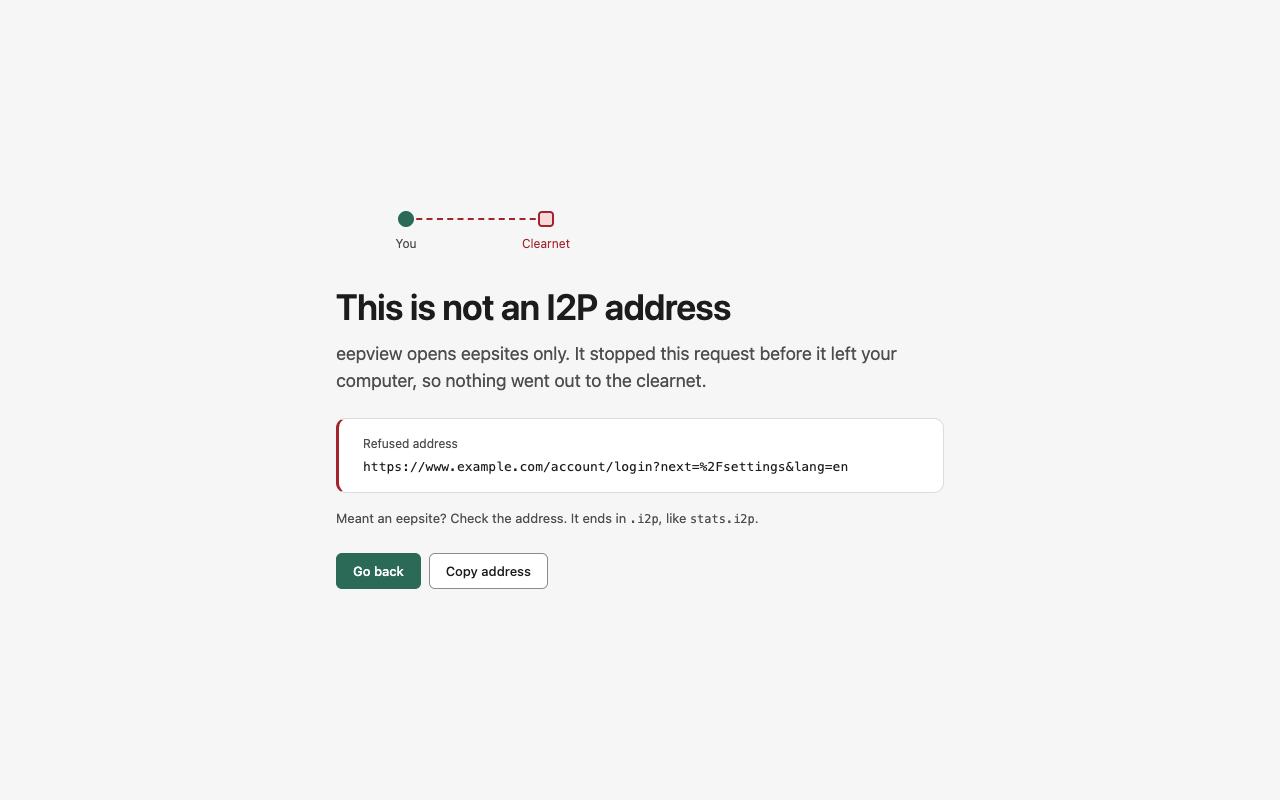
wiki, searches your history and bookmarks. - Any other address is a clearnet address. eepview refuses it and shows a blocked page.
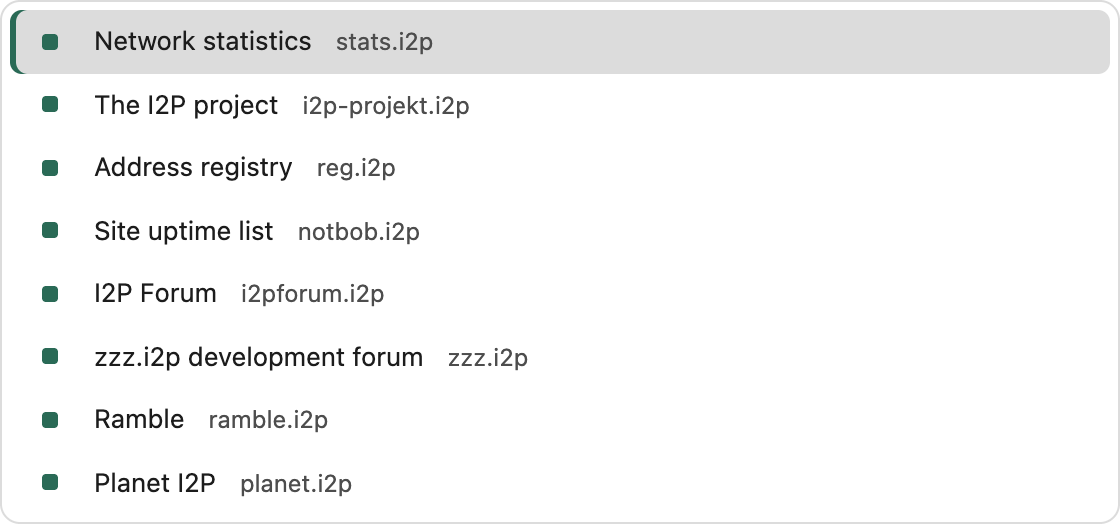
As you type, eepview suggests bookmarks and history entries.
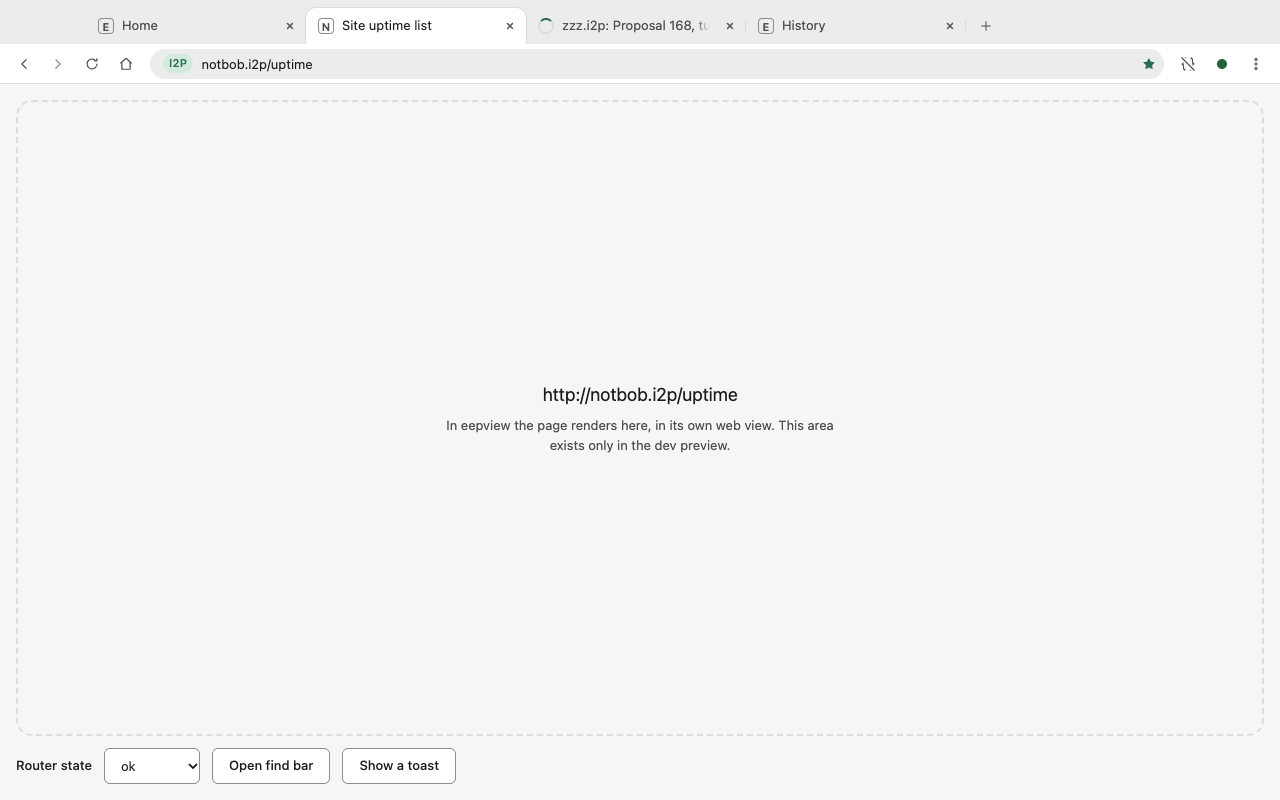
Each tab holds one page. Open a tab with the plus button. Close it with the x. Drag a tab to move it. A link that wants a new window opens as a new tab. Closing the last tab opens a new home tab.
Use the arrow buttons for back and forward. The reload button turns into a stop button while a page loads. These work even when JavaScript is off.
Click the star in the address bar to bookmark a page. Open the bookmarks page from the menu.
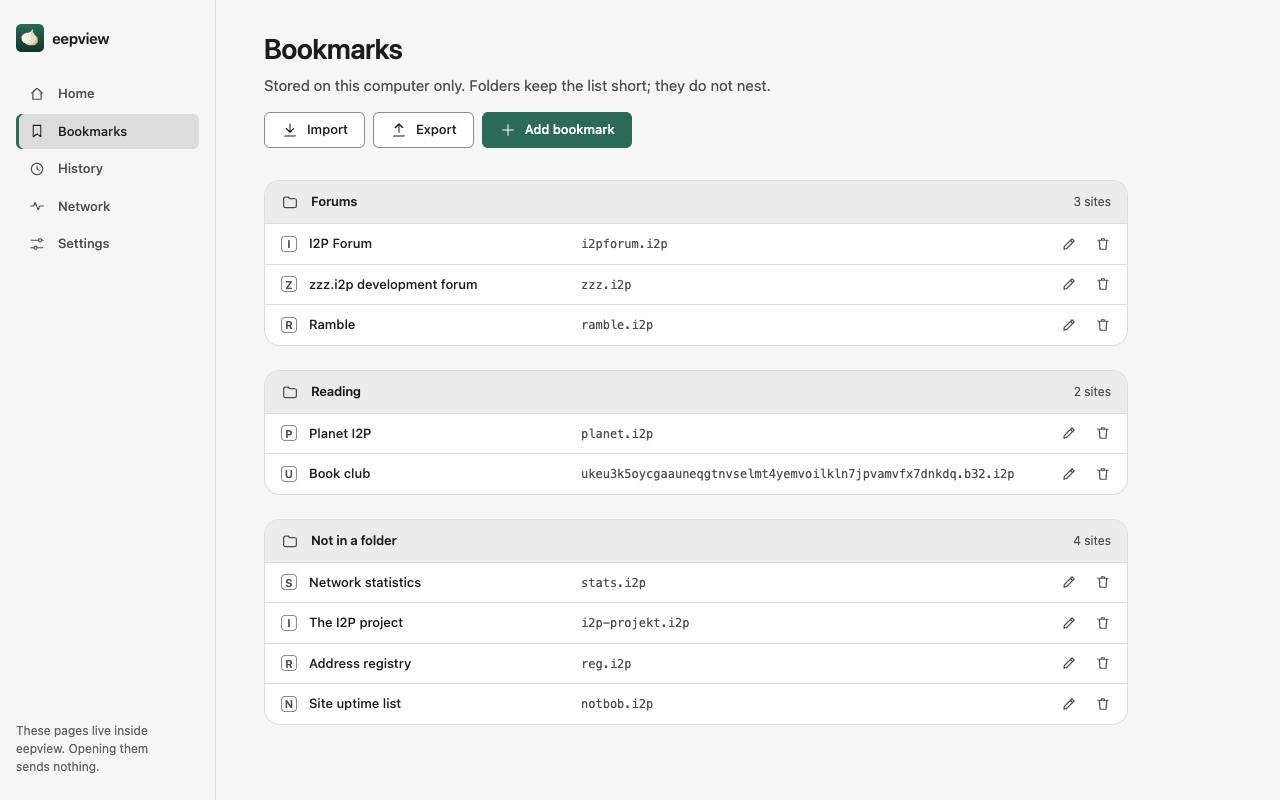
You can add, edit and delete bookmarks, and put them in folders. You can import and export them as a JSON file. A new install has four bookmarks: stats.i2p, i2p-projekt.i2p, reg.i2p and notbob.i2p.
eepview keeps up to 10 000 visits. The history page lets you search, remove one entry, or clear the last hour, day, week or everything.
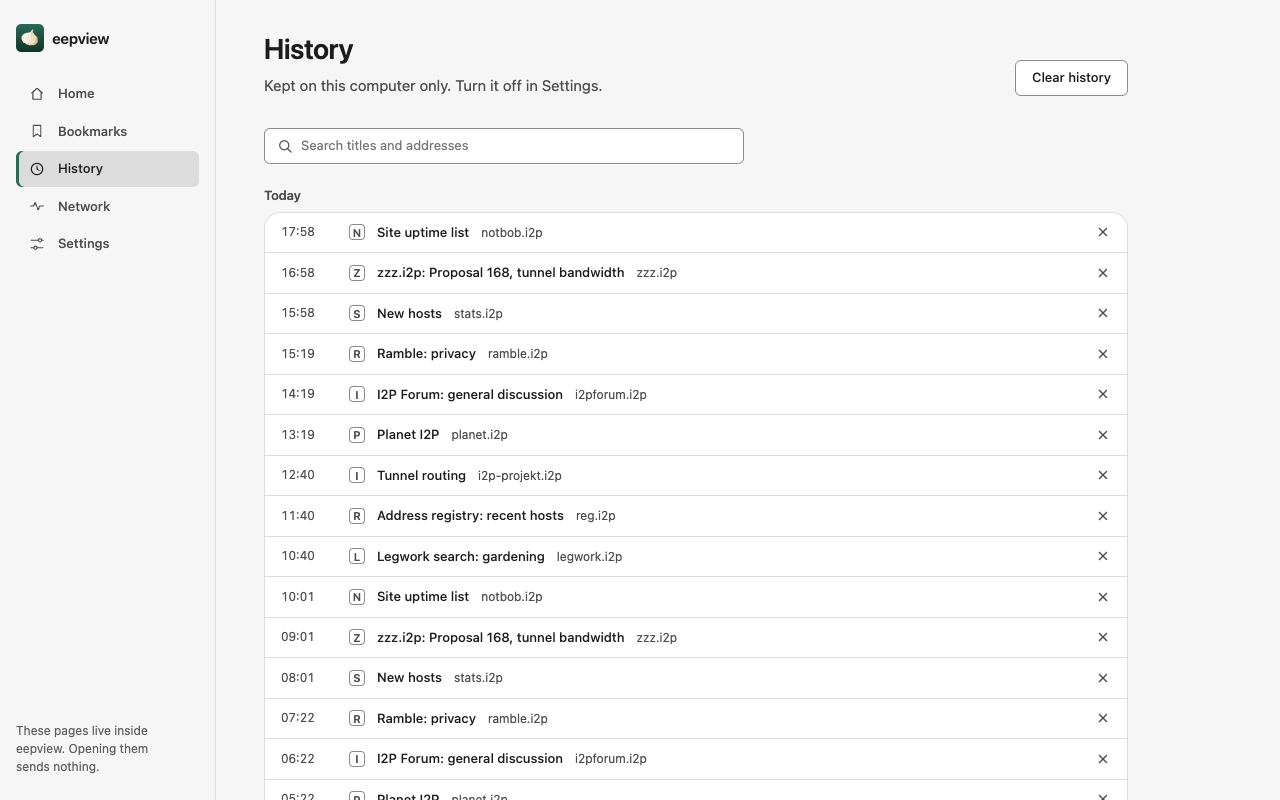
You can turn history off in Settings. Then eepview records nothing.
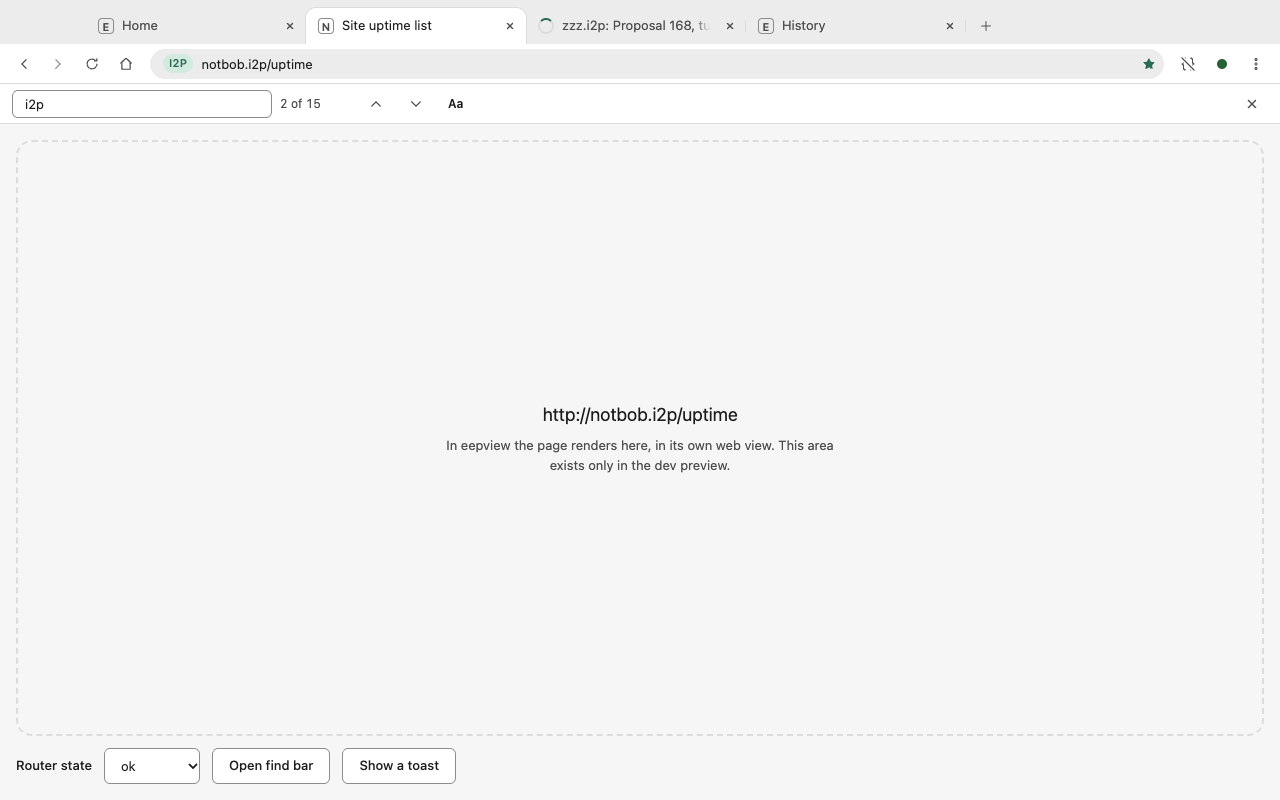
Press the find shortcut. A bar opens under the toolbar. Type to search. Use the arrows or Enter for the next match. Turn on Match case if you need it.
Use the menu or the zoom shortcuts. eepview remembers the zoom for each site. Settings holds the default zoom.
JavaScript is off by default. The JS button in the address bar turns it on for the site you are viewing. The page reloads when you switch. Other sites stay off.
When you hover over a link, a small bubble at the bottom shows where it goes. Read it before you click. A link to a clearnet address will be blocked.
The dot near the menu shows the router state. Hover or click it to open the panel.

- Checking: eepview is verifying the router.
- Building tunnels: the router works, but no tunnel is ready yet.
- Ready: pages can load.
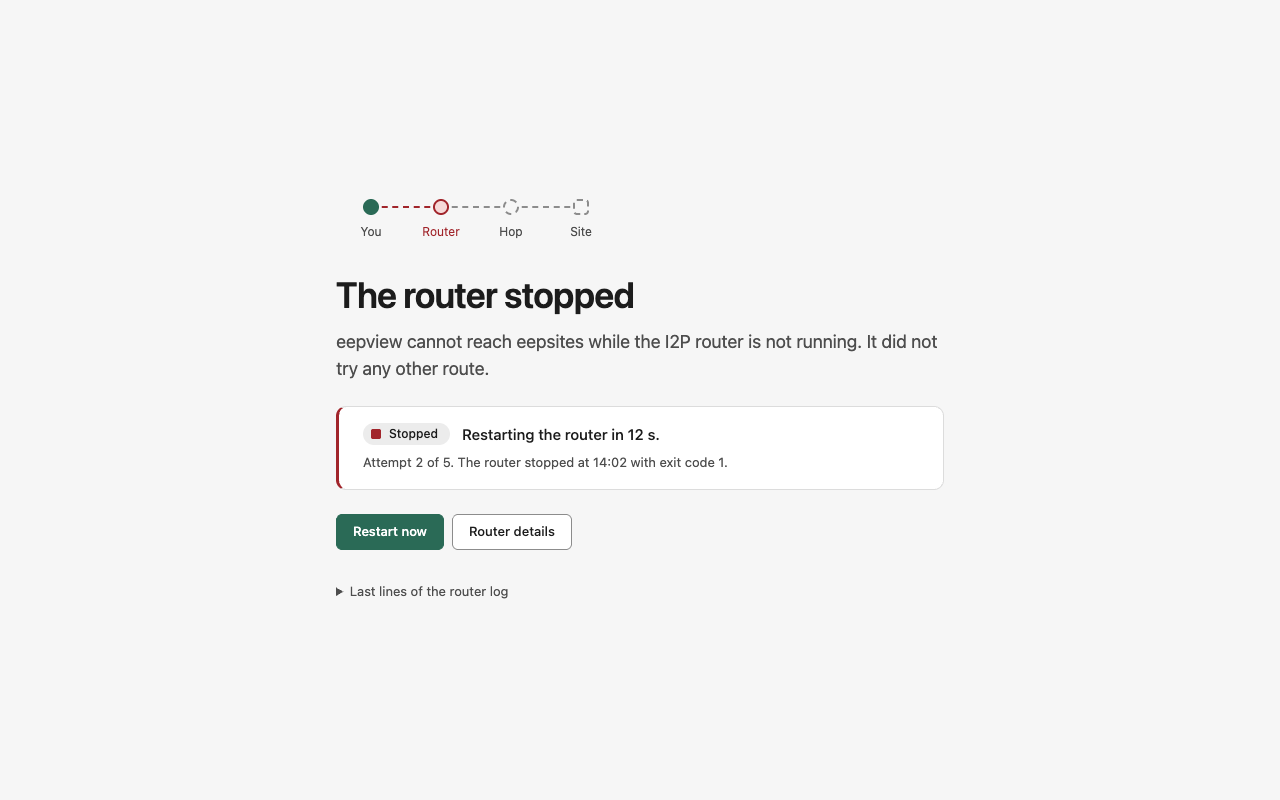
- Down: the router stopped. eepview closes all pages and shows the "router stopped" page. It retries on its own.
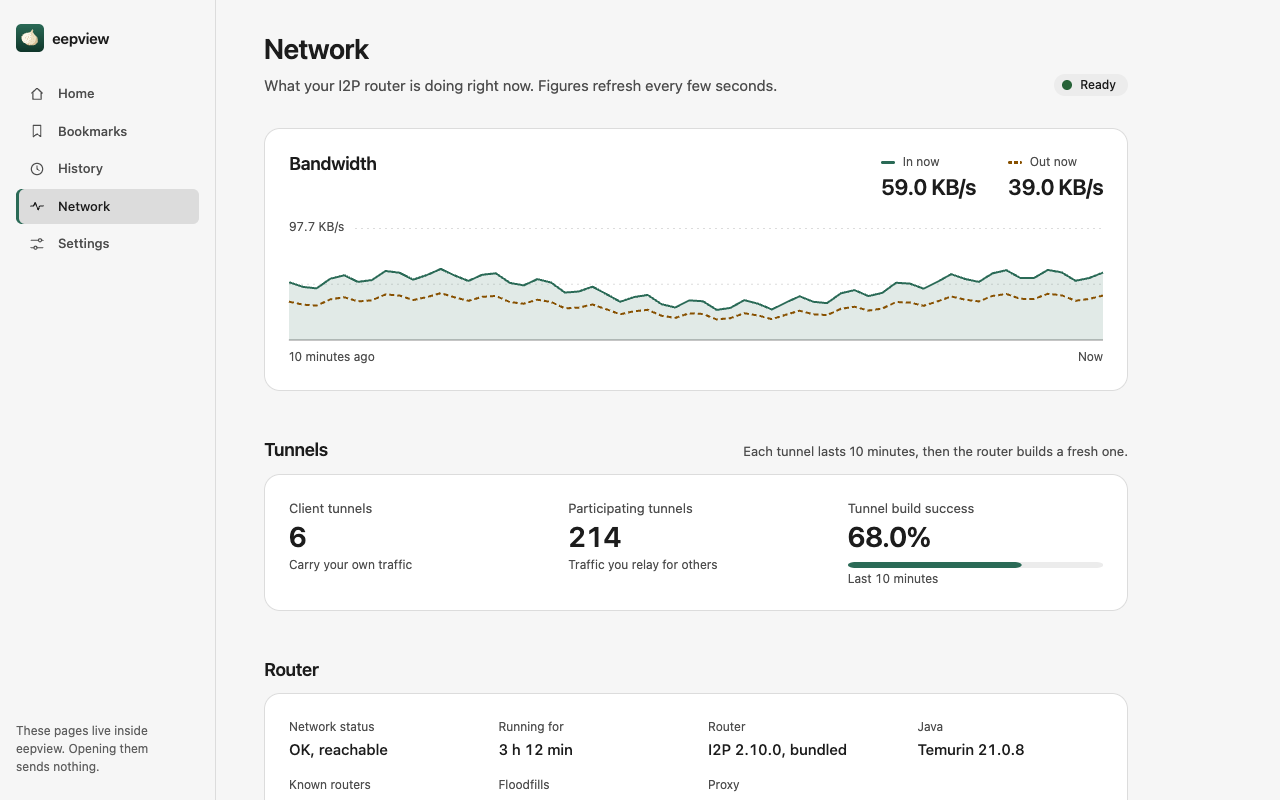
The Network page shows more: bandwidth, tunnels, known routers and the Java version.
Open Settings from the menu.
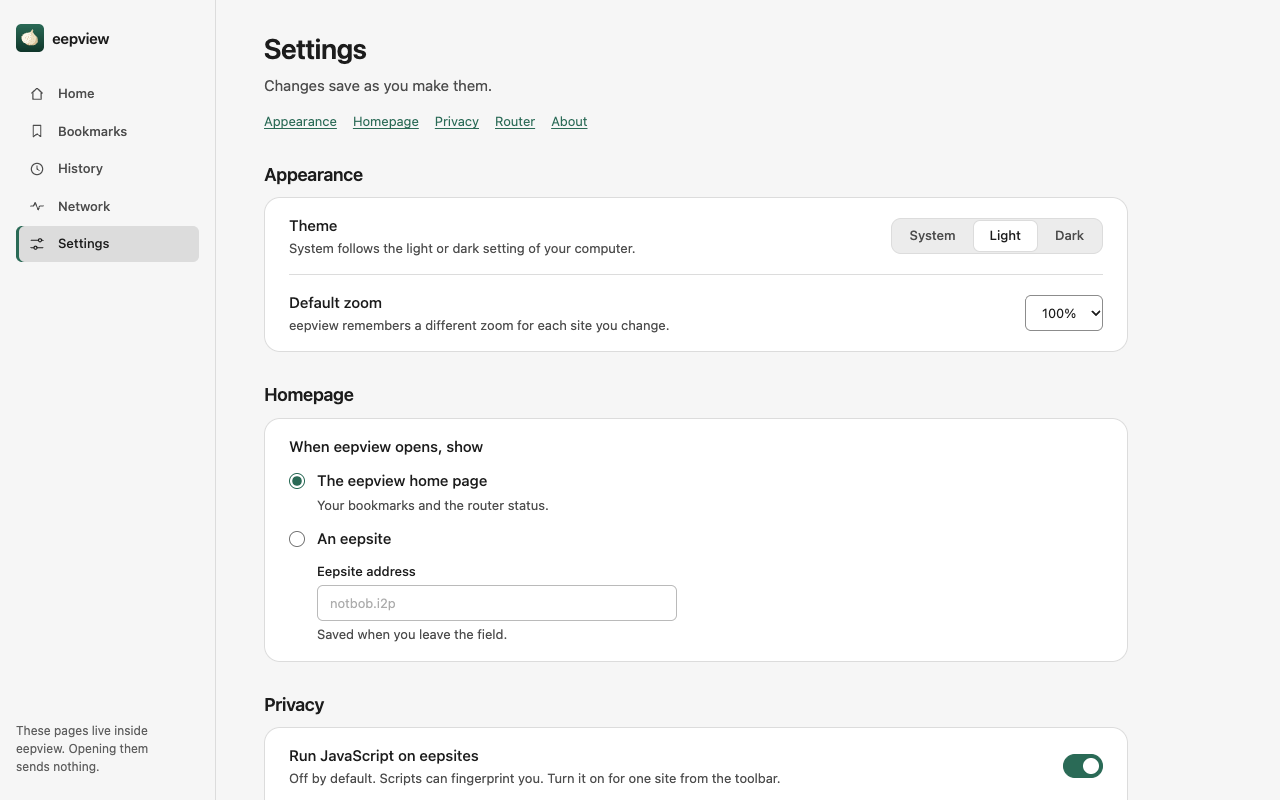
- Appearance: theme (system, light or dark) and default zoom.
- Homepage: the eepview home page, or an eepsite of your choice.
- Privacy: JavaScript default, keep cookies after you quit (off by default), keep history, clear history.
- Router: update policy, bandwidth, share percentage and relaying. This section is a preview. It does not control the router yet. (Coming in v0.1.)
- About: versions, the full list of places eepview connects to, and the permissions you gave at setup. You can revoke each one.
Use Cmd on macOS and Ctrl on Windows and Linux. (Coming in v0.1.)
| Action | Shortcut |
|---|---|
| New tab | Cmd/Ctrl+T |
| Close tab | Cmd/Ctrl+W |
| Reopen closed tab | Cmd/Ctrl+Shift+T |
| Next tab | Ctrl+Tab |
| Previous tab | Ctrl+Shift+Tab |
| Tab 1 to 8 | Cmd/Ctrl+1 to 8 |
| Last tab | Cmd/Ctrl+9 |
| Address bar | Cmd/Ctrl+L |
| Find | Cmd/Ctrl+F |
| Find next | Cmd/Ctrl+G or Enter |
| Find previous | Cmd/Ctrl+Shift+G or Shift+Enter |
| Reload | Cmd/Ctrl+R |
| Hard reload | Cmd/Ctrl+Shift+R |
| Back | Cmd/Ctrl+[ or Alt+Left |
| Forward | Cmd/Ctrl+] or Alt+Right |
| Home | Cmd/Ctrl+Shift+H |
| Bookmark this page | Cmd/Ctrl+D |
| Bookmarks | Cmd/Ctrl+Shift+B |
| History | Cmd+Y on macOS, Ctrl+H elsewhere |
| Zoom in, out, reset | Cmd/Ctrl+Plus, Minus, 0 |
| Stop loading | Esc |
| Settings | Cmd/Ctrl+, |
- 2026-10-03 — Write the page — #28