Repository navigation
Timekeeper 2.0 User Guide
These instructions describe the 2.0 candidate. See installation and publication status before choosing a build. Jira-specific candidate changes are identified in the repository connector guide.
After installation and restart, open Window > Show View > Other... > Timekeeper > Workweek. Workweek shows projects, tasks, their activities and time totals for the selected week. The navigation buttons move one week back or forward; week numbering follows the current locale.
Use Expand all and Collapse all in the toolbar or view menu to open or close the project and task hierarchy. Database updates and refresh retain the expansion state you chose.
Show all tasks is enabled by default, including tasks with no time in the displayed week. Turn it off to show tasks with activities that week and the parents needed to reach them. The choice is retained when you reopen Workweek and applies as you navigate weeks. It changes which tasks are displayed; recorded activities, time totals and exported reports are unaffected.
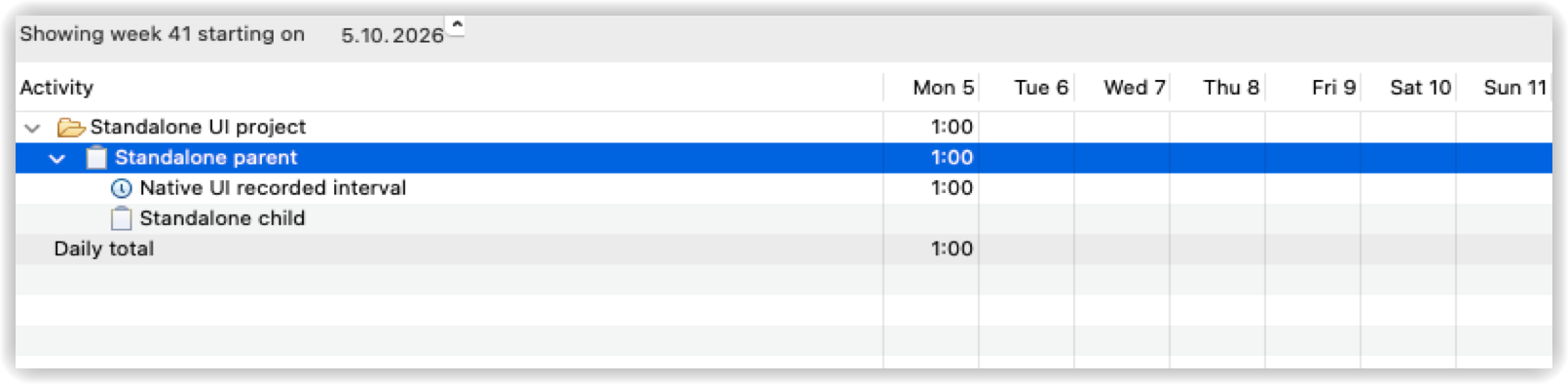
- Use the Workweek toolbar's New project... to create a project.
- Choose New task... and enter a summary. A task can also have a URL, a project and, within that project, a parent task.
- Right-click a task and choose New subtask... to extend its hierarchy. A root task can instead use No project.
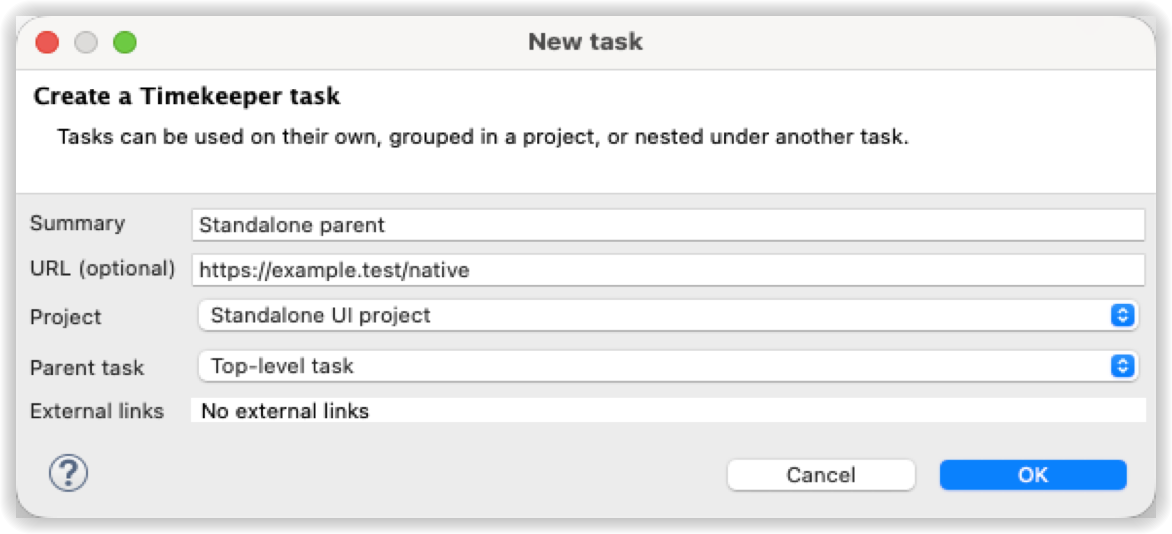
Projects and tasks appear before they have recorded time. Right-click to edit or delete them. Editing a task lets you rename it, change its URL, move it to a project or choose No project. Move or delete a parent's subtasks before moving that parent to another project.
Delete activities and subtasks before deleting a task; delete a project's tasks before deleting the project. A refused deletion preserves recorded history. Native records belong to Timekeeper and do not require Mylyn or a repository account.
Right-click a task and choose Start activity. An activity stores the interval and its summary and labels. Stop the interval with Stop activity. Each task can have many completed activities. Timekeeper reports a conflict if another interval is already open for the current owner.
With optional Mylyn integration, activating a task starts tracking and makes its label bold in Workweek. Deactivating or switching tasks closes its interval. You can also start and stop activities directly in Workweek.
An open Timekeeper activity remains open across Eclipse restart, including when its linked Mylyn task is absent or inactive. Check Workweek and stop or edit it when necessary; restarting is not a way to end tracking.
Right-click a task and choose New activity to add a completed interval.
Enter start and end using yyyy-MM-dd HH:mm, such as 2026-10-09 09:00
and 2026-10-09 10:30. Dates and times use the Eclipse computer's time zone.
They are stored as UTC instants; Workweek totals use the host zone.
Use Edit activity... to change dates, times, summary and labels. Completed activities can be deleted. The editor validates the interval and reports a conflict if the record changed while you were editing. This editing remains available when a linked Mylyn issue is offline or no longer in Task List.
For inline editing, click once to select an activity. Click the selected activity's summary or time cell again, or press Enter in the focused cell, to edit it. Both regular and keypad Enter are supported. Press Enter to save or Escape to cancel. Clicking another activity selects it before editing.
Configure labels in Preferences > Timekeeper > Labels and assign them to activities through the activity editor or label menu. Use summaries and labels to describe the work you want to include in reports.
The Workweek Export menu offers Copy as and Save as using the configured report templates. Browse to the desired week first. Copy places the report on the clipboard; Save writes it to a file. Customize or add FreeMarker templates in Preferences > Timekeeper > Report Templates.
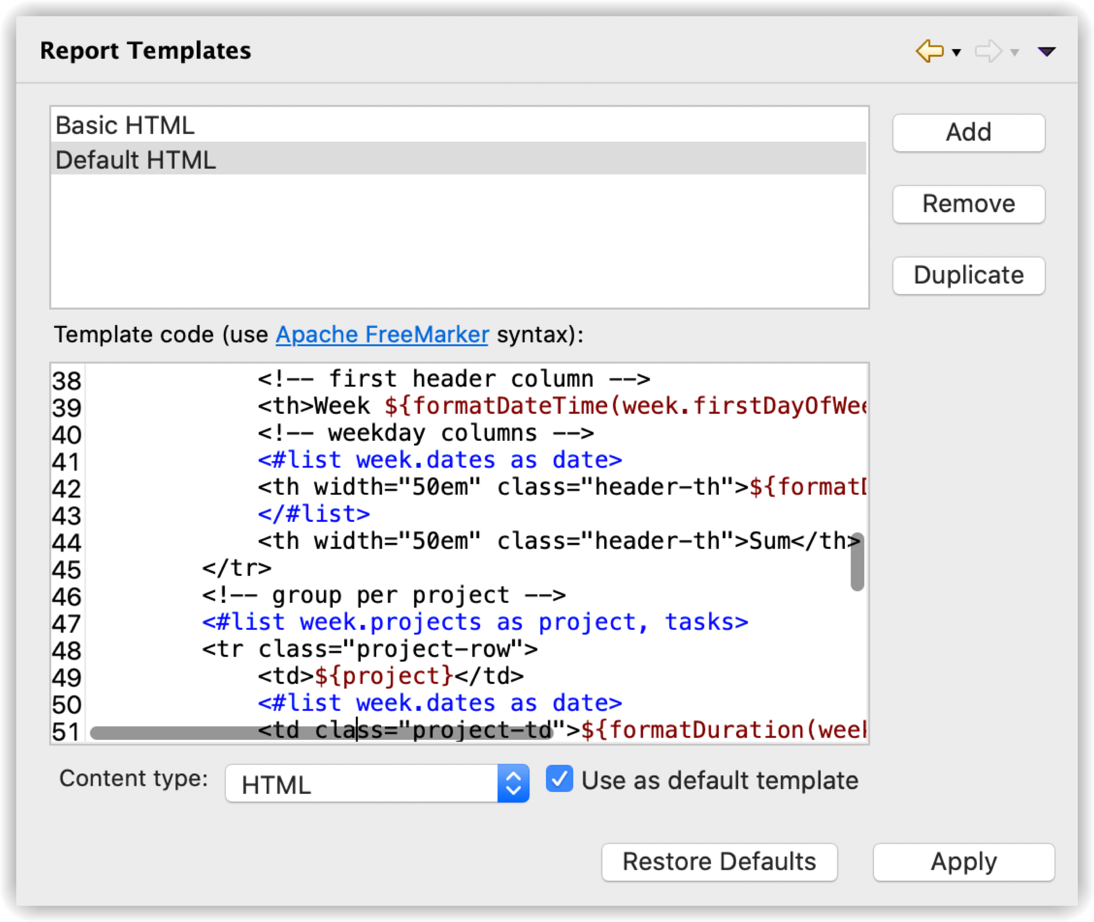
Report export presents recorded time. Database CSV import/export is a separate convenience interchange for current-schema records and relationships; neither is a replacement for a closed-database backup or a historical migration tool. See storage and upgrades.
Install Timekeeper Mylyn integration to synchronize Mylyn categories and local tasks. Categories correspond to native projects, local tasks to root tasks, and nested local tasks to subtasks. Mylyn editing and activation work through the same Timekeeper records.

Creating a native record in Workweek does not automatically create a Mylyn category or task unless Show new Timekeeper projects and tasks in Mylyn Task List is enabled in Preferences > Timekeeper. Existing projections keep synchronizing when this preference is disabled. A native task keeps its Timekeeper identity independently of optional external-provider links.
For Jira and other connectors, use the repository connector guide. For automatic idle-time correction, see tracking inactive time.