Casper-v0.1.4

Casper v0.1.4
Personal firmware for Xteink X3 / X4. One binary for both devices.
Based on CrossPoint Reader 1.5.0 & CrossInk. Huge thanks to everyone for all their hard working!
Install
CrossPoint web flasher (recommended)
- Download Casper-v0.1.4.bin from this release.
- Connect your X3 or X4 via USB-C and wake/unlock it.
- Open https://crosspointreader.com/#flash-tools (Chrome / Edge / Firefox on desktop).
- Select Xteink X3 or Xteink X4.
- Click Custom .bin and choose
Casper-v0.1.4.bin. - Flash, then reset/wake the device if prompted.
SD card contents are left alone.
SD card (optional)
Copy Casper-v0.1.4.bin to the root of the SD card → Settings → System → SD Firmware Update
Themes
Home skins under Settings → Display → Theme.
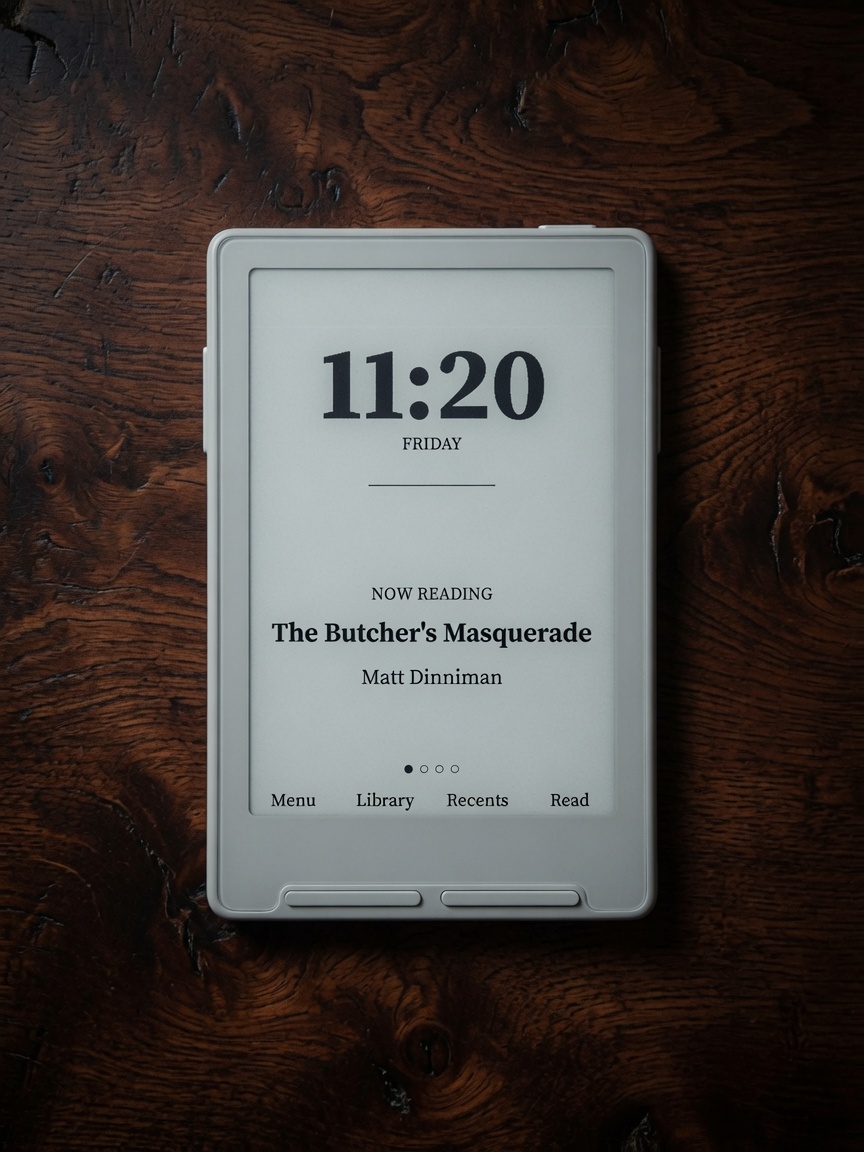
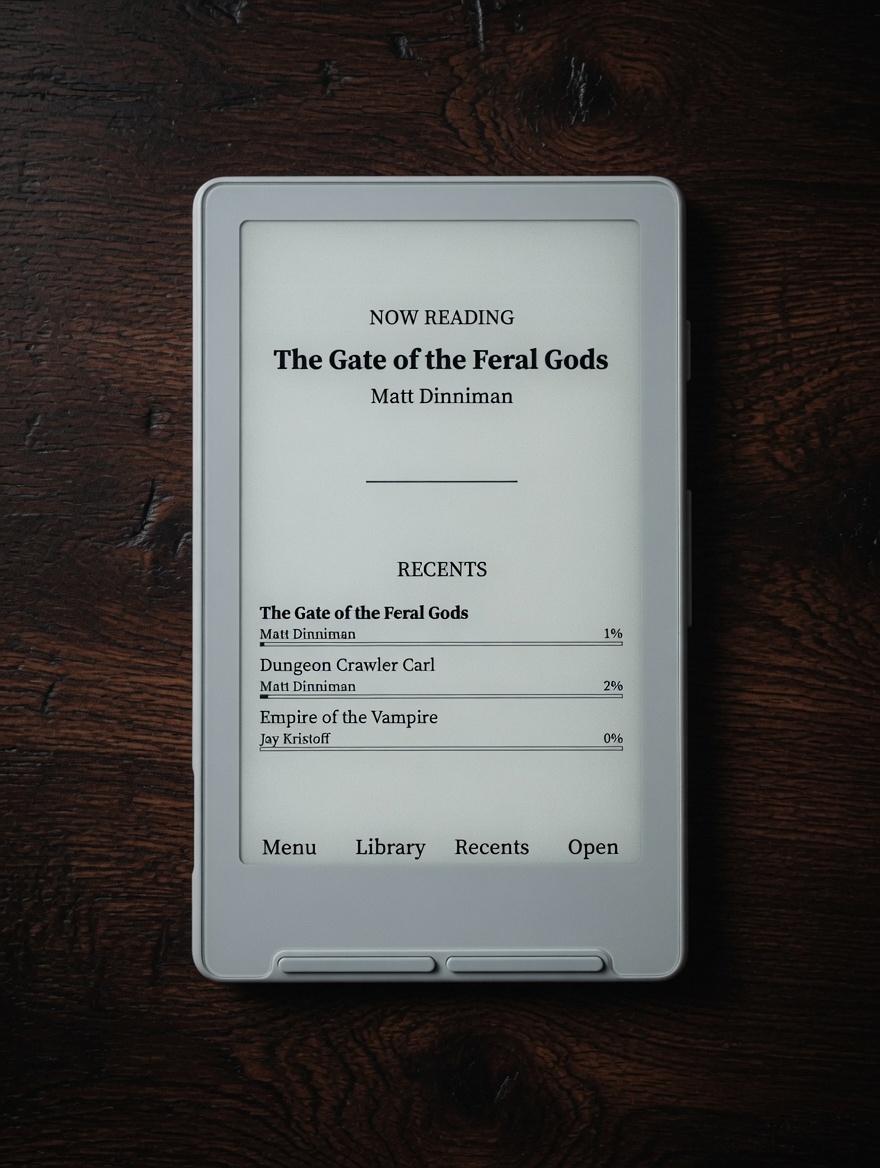
| Penumbra (X3) | Penumbra (X4) | Bare |
|---|---|---|
 |
 |
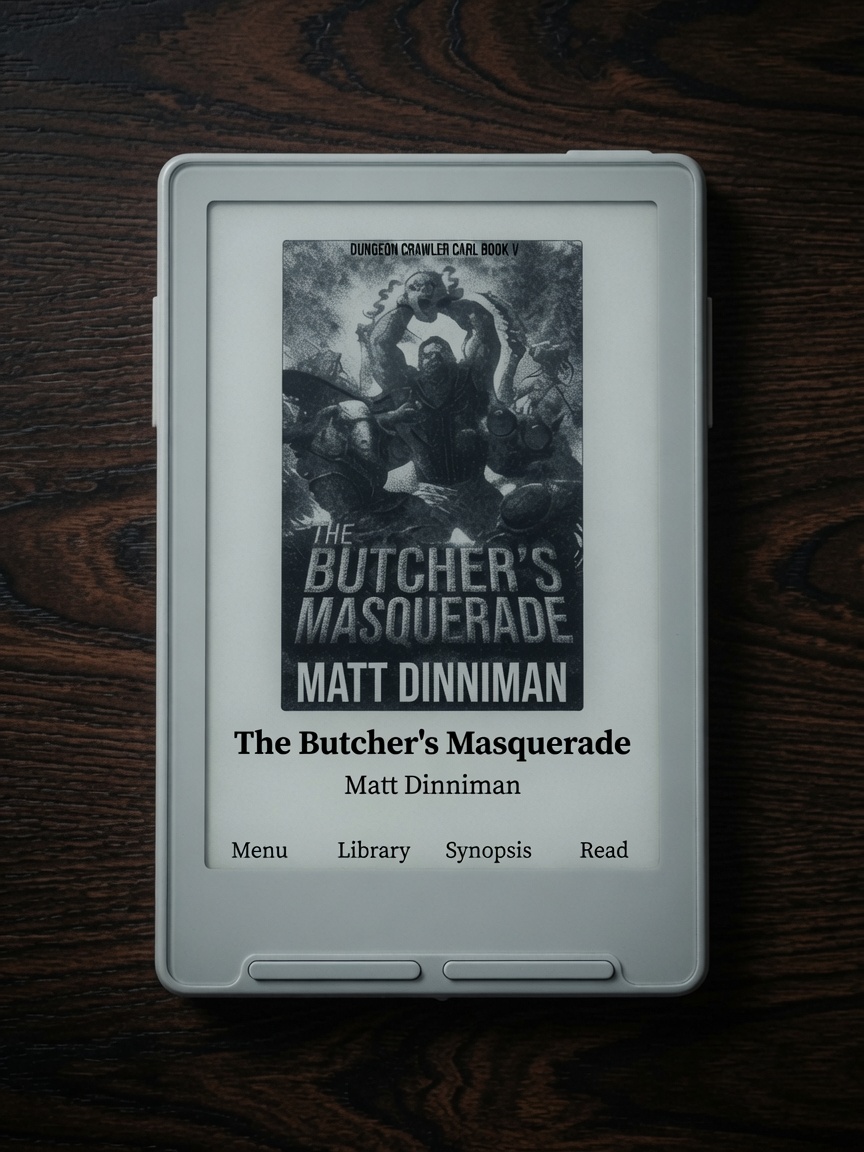 |
Note: Clock, weekday, and other date/time home features need the X3 RTC. The X4 has no real-time clock. Bare looks the same on both devices.
Penumbra
Penumbra was written from the ground up with design and performance in mind — not a reskin of an old home, but a purpose-built reading hub for e-ink.
| X3 | Large clock + weekday, then cycle Title · Recents · Book Stats · Lifetime (side Left / Right). |
| X4 | Last-read title/author on top, Recents list below (side Up / Down scrolls the list). |
Menu · Library · Recents · Read
- Long-press Menu → Settings
- Long-press Read → book quick menu (mark finished, remove from recents, clear cache, synopsis, etc.)
Bare
Designed for readers who simply want to feel as if it is them and their book — a minimal cover theme, same layout on X3 and X4.
Menu · Library · Recents · Read
- Long-press Menu → Settings
- Long-press Read → book quick menu
Gallery
Full photo tour: docs/casper.md
New Features
System + Reader Status Bars
Fully customizable status bars with slot-based placement and live previews.
Choose exactly what appears in the top status bar and position items in any of the 6 available slots (Top/Bottom × Left/Middle/Right) independently for the system UI and the reader.
Battery Display Options
Independent control for system and reader:
- Hidden
- Icon only
- Percent only
- Icon + Percent
Manage Fonts
Completely redesigned with tabs, 50/50 live preview, a Download Fonts row, and improved organization.
Default fonts are now Source Serif 4 and Bitter.
This is where you set font, size, layout, and style for how books are displayed, with a clean preview of every change.
Tabbed Navigation + Button Remapping
Fully customizable button remapping.
Front buttons act as a list; side buttons can be set as tabs (or whatever you prefer).
A popular setup is using the side buttons as left/right controls to scroll through horizontal tabs.
Keyboard / Wi‑Fi password footer labels now follow your remap (Left stays Left, Up stays Up).
System → Stats Folder
New options under Settings → System → Stats:
- Enable / Disable Stat Tracking
- Auto Backup
- Backup Now
You can turn stats off completely if you prefer a distraction-free reading experience. When tracking is on, Penumbra’s Book Stats and Lifetime panels use that data.
Cover Thumbnail Pipeline
Improved cover generation for clearer, higher-quality thumbnails (home multipass greys on Bare).
UI Polish
Unified design language across the interface:
- Black chips instead of grey highlights
- Better title centering
- Cleaner version string
- Fixed long-press behavior in the Library
- Sleep screen options: Casper Dark / Casper Light (alphabetized)
- After flash / cold boot lands on Home (not auto-open last book)
Book Synopsis
Open a short description of the current book from the book quick menu (long-press Read on home, or long-press a book in the library). Requires synopsis metadata — easy to add with Calibre.
Useful for refreshing your memory or choosing your next book without leaving the device.
Reader Shortcuts
- Long-press Select → Dictionary
- Long-press Select again while in dictionary → Multi-word select mode
- Menu button → Reader options menu
Dictionary
To install dictionaries, extract the .dictionaries folder to the root of your SD card.
Snappier Home Screen
Returning to the home cover after reading should feel faster and less “busy.”
Faster return from reading
- When you open a book from Home, Home stays in the background instead of being torn down and rebuilt.
- Pressing Back restores that Home instance: progress/stats refresh and the cover greys redraw once, without redoing the full home setup path.
- If cover thumbnails are already on disk (the usual case after you’ve opened a book before), Home skips the intermediate black-and-white shell refresh and goes straight to the grayscale cover pass.
Fewer wasted full redraws
- Cancelling the book action menu (long-press Read → Back/cancel) repaints Home once and no longer forces a full cover re-scan/generation.
- Once the home cover greys have settled, stray repaint requests no longer re-flash the full multipass (Bare, Penumbra, and classic list themes).
- Back from the in-home Menu returns to the cover (no longer stuck until Settings).
Faster cover multipass (panel-aware)
- On X4 and similar panels, the grayscale base step uses a faster refresh mode where appropriate.
- X3 still uses the cleaner half refresh so the previous reader page is less likely to ghost through the cover.
Fixes (this release)
| Area | Change |
|---|---|
| Power button | Long-press Force Refresh no longer also sleeps on release (short = Sleep, long = Refresh). |
| Boot | After flash / cold boot → Home, not last book. |
| Bare menu | Back closes the menu and restores the cover. |
| Wi‑Fi keyboard | Footer labels match button remapping (front + side). |
| Penumbra | Weekday more reliable after clock sync. |
Notes
- One bin for X3 and X4 (runtime hardware detect).
- Wi‑Fi passwords are stored on the SD card (
/.crosspoint/wifi.json, device-tied). Swapping cards without copying/.crosspointmeans re-entering passwords. - Sync clock on X3 (Settings → System → Clock) if weekday/time look wrong after install.
Full source & docs: https://github.com/tweakerinc/casper
Previous: v0.1.3