Releases: tweakerinc/casper
Release list
Casper v0.1.9

Casper v0.1.9
Product: Casper
Based on: CrossPoint Reader 1.5 & CrossInk
Devices: Xteink X3 & X4 (one binary for both)
Highlights
v0.1.8 shipped Rivulet. v0.1.9 is the reading-feel release on top of it: pages look the way the book intended.
What’s new at a glance:
- Literata replaces Lexend Deca as the built-in reader face (Sourcerer stays the UI / alternate serif) This is the closest to Bookerly I could get.
- Mild ink weight when Text Anti-Aliasing is off — closer to print, without fake-bold capitals
- More of the page is reading: tighter reader chrome (~1–2 extra lines)
- Reader Controls in one place: per-side long-press, Menu long/double-press, Flip Orientation
- Dark Mode (whole UI or reader-only)
- CJK line breaking, real tables, super/sub/underline/strike, scene breaks as rules (not
~) - Page Back across chapters, Quick Resume that keeps your place, Manage Fonts that no longer dumps you at page 1
- Snappier Home: first paint is FAST, clock greys wait until you sit still, light menus no longer pay a full scrub
- Faster warm book open (no leftover folder-migration probe)
What’s New
Fonts
- Literata — default reader face (replaces Lexend / Bitter)
- Sourcerer — UI chrome and the alternate reader serif (the same Source Serif 4 family; the on-device name is now Sourcerer)
- Mild BW glyph weight when Text Anti-Aliasing is Off — slightly heavier body ink so AA-off pages do not look spindly. Capitals are not forced bold.
- Manage Fonts preview uses that same Mild raster for built-in faces. SD fonts stay Normal. Bold / Italic are not shown as a fake “style preview.”
- Text Anti-Aliasing remains a simple on/off in Manage Fonts → Style. There is still no Font Darkness slider.
Existing size settings migrate as before. Changing family or size still invalidates section.bin — expect one rebuild per spine after a font swap.
More text on the page
- Adaptive reader bottom reserve and a tighter hint / chrome clearance — typically ~1.7 extra lines of body vs v0.1.8, depending on orientation and chrome slots.
- Sleep moon gives immediate feedback when you power-sleep, so the page does not sit there looking dead while the device goes down.
Reader Controls
Shortcuts that used to live under Controls / Long-Press Power now sit together under Settings → Reader → Reader Controls
| Control | What it does |
|---|---|
| Long-Press Left / Right (X3) or Up / Down (X4) | Own shortcut each — Dictionary, Bookmark, Clipping Tool, Chapter Skip, Change / Flip Orientation, Dark Mode, Sleep, … |
| Side Button Layout | Prev/Next, Next/Prev, or Disabled. Does not remap the front page-turn keys. |
| Long-Press Menu | Confirm hold. Fires on hold, not on release. |
| Double-Press Menu | Two quick Confirm taps. |
| Flip Orientation | Opt-in long-press action (not a default). Pairs with a “flip with” orientation picker. |
Dark Mode
- Settings → Display → Dark Mode — inverts the whole UI by default.
- Nested Reader Only (shown when Dark Mode is On) Dark Mode when reading books but leaves Home / menus light.
- Also available as a Reader Controls long-press action.
Page turns & place
v0.1.8 could lose the chapter, reset to the start after Manage Fonts, or wake from Quick Resume on chapter page 1. v0.1.9:
- Page Back at the start of a chapter lands on the previous chapter’s last page (and keeps working on a partially laid-out chapter).
- In-chapter paging no longer hops spines by accident.
- TOC / chapter skip moves one chapter, not an extra step.
- If Anti-Aliasing cannot allocate, the turn still goes through (BW). The page is not swallowed.
- RAM ahead-warm for nearby pages is back; idle page-map is throttled (at most ~1 page/sec) and never runs before first ink.
Typography (Rivulet)
Rivulet is the only EPUB reader in this tree.
- CJK books wrap properly (they were effectively unreadable).
- Tables render as cells, not run-on prose.
- Superscript, subscript, underline, strikethrough work again.
- Scene / thematic breaks draw as rules, not a permanent
~. - Wrap spaces no longer create mid-line indents or last-line justify gaps.
- Bold / italic survive deep nesting and SD fonts.
- Publisher CSS is still optional (Book’s Style vs a forced alignment).
Images
Settings → Reader → Images (unchanged options, now honored reliably on the Rivulet path):
| Mode | Result |
|---|---|
| Display | Draw the image |
| Placeholder | Keep the hole / alt, skip decode |
| Suppress | Omit the image entirely |
Anti-Aliasing is text-only — it does not re-decode images under the BW snapshot.
Opening a book
- Corner Opening status while the book comes up.
- Warm opens no longer probe an abandoned
book_<id>/packagetree. Cache stays the CrossPoint / CrossInk layout:/.crosspoint/epub_<hash>/. On a cache hit, directory creates are skipped. - First-ink work (page-map, next-chapter prefix) waits until the page is on glass, so open no longer freezes behind a silent indexer.
- Measured waste on v0.1.8-era warm opens (
import≈2.5 s+openBook≈0.4 sof mkdir) is gone. Panel time still dominates after that.
Home (especially Penumbra / X3)
- Cold / first Home: FAST so the shell appears over splash (~1 s), then an idle HALF. Previous frame is splash, not a book page — that is the one case FAST-then-HALF is safe.
- Back from a book: still a HALF first. FAST-then-HALF after a dense page ghosts; that path was not brought back.
- Back from a light UI child (book action sheet, settings, menus): FAST only — no 3 s HALF + clock AA.
- Back from the long-press book menu no longer re-stats every recent from SD.
- Clock AA (X3 hero clock) is a full-frame grey pass. It now waits ~400 ms of idle so Read can cancel it. Minute ticks are a small BW update; digits that did not change keep the last AA raster.
- Opening a book no longer races that clock pass (that race could hang the panel ~30 s and leave the first page ghosted black).
- Penumbra stats pages sit clear of the page dots on X3.
Stability
- Book-open and image-decode allocations fail soft (
nothrow) instead ofabort(). - A corrupt cache file no longer reboots the device.
- The serial command reader no longer stalls the input loop.
- Progress / stats files are not rewritten when nothing changed.
Performance / UX Summary
| Action | v0.1.8 (typical) | v0.1.9 | Notes |
|---|---|---|---|
| Warm book open | ~1.5–1.7 s, plus ~3 s of leftover folder probe on some units | Probe gone; mkdir skipped on cache hit | First ink still limited by the X3 panel |
| Warm forward turn | ~580 ms | Same order | ~430 ms is the X3 FAST floor |
| Cold / first Home | 3–4 s HALF while splash sat on glass | FAST first (~1 s), HALF after you sit | Clock AA only if you stay idle |
| Back from a book | ~1–4 s HALF | HALF still first (intentional) | Needed to lift a dense page |
| Back from Settings / book menu | Full HALF + clock AA (~3–6 s) | FAST shell; clock AA deferred | SD recents not reloaded |
| Minute on Penumbra clock | Full-frame grey (~0.9–1.4 s) | BW window | Unchanged digits stay AA’d |
The panel may still be settling after the image looks finished (Wait complete: X3_DRF).
How to Install
- Flash
Casper-v0.1.9.bin(or the matching OTA asset for tagv0.1.9). - X4: after flashing, use Reset → Power so the new image actually boots (unplug/replug alone is often not enough).
- First boot may migrate font family (Lexend → Literata) and slim built-in font settings.
- After changing fonts or sizes, existing section caches are invalidated — expect a one-time rebuild the first time you open each section.
CrossPoint web flasher (recommended)
- Download Casper-v0.1.9.bin from the release.
- Connect your X3 or X4 via USB-C and wake/unlock it.
- Open https://crosspointreader.com/#flash-tools (Chrome / Edge / Firefox on desktop).
- Select Xteink X3 or Xteink X4.
- Click Custom .bin and choose
Casper-v0.1.9.bin. - Flash, then reset/wake the device if prompted.
SD card contents are left alone. Book cache stays under /.crosspoint/epub_<hash>/ — there is no migration to a book_<id> layout.
SD firmware update
Copy Casper-v0.1.9.bin to the root of the SD card → Settings → System → SD Firmware Update.
Casper v0.1.8
Casper v0.1.8
Product: Casper
Based on: CrossPoint Reader 1.5 & CrossInk
Devices: Xteink X3 & X4 (one binary for both)
Highlights
v0.1.8 introduces Rivulet, Casper’s new EPUB layout engine, along with major stability and UX improvements.
What’s new at a glance:
- Brand-new layout engine (Rivulet) that better respects book styling
- Chapter titles, line spacing, and text that wraps around images the way the book intended
- Drop caps and cleaner tables
- New default fonts + more size options (10–18 pt)
- Faster book opening and cleaner return to Home
- PNG wallpaper support (previously BMP only)
- Better clipping limits and less SD card thrashing
What’s New
New Layout Engine: Rivulet
Casper now uses a completely new layout engine called Rivulet.
It was built from the ground up for e-ink devices and real-world books. Instead of trying to load an entire chapter into memory, it streams the book page by page. This keeps the device responsive while still following the important styling in the book.
What this means for you while reading:
- Chapter titles and headings appear larger than body text (when the book requests it)
- Line spacing follows the book’s design more closely
- Images can sit to the side with text wrapping around them
- Fancy drop-cap letters at the start of chapters are supported
- Simple tables are much more readable (no more ugly “Tab Row / Cell” labels)
- Your chosen font size remains the base — book styles scale relative to your preference
- Right-to-left languages (Hebrew, Arabic, etc.) continue to work correctly
- You can still turn book CSS styling off if you prefer a uniform look
Rivulet is designed to stay lightweight and reliable on the X3 and X4 while delivering noticeably better-looking pages.
Fonts & Manage Fonts
- Built-in fonts are now:
- Source Serif 4 (default for both the interface and reading)
- Lexend Deca (clean sans-serif option that replaces Bitter)
- Body text sizes expanded to 10 / 12 / 14 / 16 / 18 pt (previously started at 12 pt). Older settings are automatically migrated.
- You can now upload custom fonts in the full 10–18 pt range.
- Text Anti-Aliasing remains a separate toggle in Manage Fonts → Style, with an improved live preview.
- The experimental “Font Darkness” option was removed.
Opening a Book (Home → Reader)
- Faster open when the Home screen is settled and the book is ready — no Loading popup in most cases.
- Loading only appears when the device still needs to prepare pages.
- Partially prepared sections show available pages immediately while the rest finishes in the background.
Page Turns & Background Work
- Smarter look-ahead so the reader doesn’t waste time scanning far ahead in the book. Buttons stay more responsive.
- Background preparation and deferred Anti-Aliasing behavior remain the same (black-and-white first, greys fill in when safe).
Clippings
- Selectable word limit raised from 240 → 768 (much better with smaller fonts).
- Saved clip text limit raised to 2048 characters so full-page selections are less likely to get cut off.
Returning to Home (Back → Home)
- Home screen now does a proper clean refresh when you leave the reader, settings, library, or menus.
- Progress updates are more efficient (only the book you just left is refreshed).
- “Saving…” feedback appears before the book closes so the screen doesn’t freeze with no indication.
- Stats are written more cleanly.
Wallpaper / Sleep Screen
- PNG wallpaper support has been added. You can now use PNG files in addition to the previous BMP-only support.
Stats & Progress
- Resume position and Home progress bars continue to work as before.
- Tracking and progress files remain compatible with CrossInk.
Other Improvements Included in This Build
- Better handling of partial page caches
- Fixes for full-page images
- Scene divider and drop-cap false-positive fixes
- Sleep screen / wallpaper path improvements
- Dictionary line-loss fixes
- Bitter font removed from the built-in set (saves flash space)
Performance / UX Summary
| Action | Approximate Time | Notes |
|---|---|---|
| Warm book open (fast path) | ~1.5–1.7 s | First ink appears quickly |
| Warm forward page turn | ~580 ms | Panel refresh is the main limit on X3 |
| Back → Home | ~1–4 s | Includes saving + clean Home refresh |
| Menu / Settings → Home | Noticeably faster | No full book teardown |
Note: The panel may still be settling after the image looks finished on screen.
How to Install
- Flash
Casper-v0.1.8.bin(or the matching OTA file for tagv0.1.8). - First boot may automatically migrate your font size setting and clean up built-in font preferences.
- After changing fonts or sizes, existing section caches are invalidated — expect a one-time rebuild the first time you open each section of a book.
Casper-v0.1.7
Casper v0.1.7
Stability fixes for field crash reports and a set of reader, home, and settings UX updates.
X4 install note: after flashing, use Reset → Power so the new image actually boots (unplug/replug alone is often not enough on X4).
Stability (field crashes)
- Safer book open under low memory: refuse word-vector growth when the largest free heap block is too small, so CSS-heavy chapters fail soft instead of
abort()/ reboot - Font decompress under pressure: better FDC failure logging; less fatal behavior when glyph groups cannot decompress
- Lower peak heap on open / home: defer non-critical SD work (covers, recents side-loads, open-path extras)
Reader and controls
- Short Back always goes Home (removed “Short Back to File Browser”)
- No long-press Back in the reader (no hold-for-Library); open Library from Home / menus
- Orient Front Buttons lives under Reader → Reading Orientation
- When On and the page is rotated, Up/Down and Left/Right page-turn and list nav follow reading orientation
- Button labels stay readable in Portrait 180°
- Long-Press Side Buttons sits under Long-Press Power
- Options: Off, Chapter Skip, Change Orientation
- Enable Logging is one-tap On/Off (no Off/On popup)
Finished books and library
- Finished books use
/read(no forced rename to “Finished Books”) read/Finished Booksare hidden in the Library browser- Recents → Show Read Books (top row) lists finished books; Back returns to normal Recents
- Recents list excludes books already under the finished folder
- Move Finished Books to Read Folder defaults Off
- Nested Clear Read Books from Recents only when Move is On
Settings labels and layout
- Manage Reader UI (was Customize Reader UI)
- Manage Reader Fonts
- Clear Read Books from Recents (shorter label)
- Display → Menu Font Size:
10pt/12pt/14pt/16pt- Existing installs keep previous size via one-time shift; default remains 12pt
- System list order: Move Finished → (Clear Recents) → Language → Show Hidden → Enable Logging → …
Home progress (especially X4)
- Penumbra Recents micro progress bars always track saved book progress
- Independent of Manage Reader UI → Progress Bar (that setting is reader chrome only: Hide / Book / Chapter)
- X4: progress-only stats files are no longer discarded as “empty” (X4 has no session tracking, so % was often the only field)
- Progress % is always written on leave (and after jump-to-percent) for home
- Recents % cache refreshes when returning to Home
Other
- Product version v0.1.7
- Settings migrations stay one-shot and non-destructive (no force-overwrite of user power/theme choices)
Flash tips
- X3: unplug/replug is often enough
- X4: flash, then Reset → Power
For Full Notes please see v0.1.5
Install
CrossPoint web flasher (recommended)
- Download Casper-v0.1.7.bin from this release.
- Connect your X3 or X4 via USB-C and wake/unlock it.
- Open https://crosspointreader.com/#flash-tools (Chrome / Edge / Firefox on desktop).
- Select Xteink X3 or Xteink X4.
- Click Custom .bin and choose
Casper-v0.1.7.bin. - Flash, then reset/wake the device if prompted.
SD card contents are left alone.
SD card (optional)
Copy Casper-v0.1.6.bin to the root of the SD card → Settings → System → SD Firmware Update
Dictionary
To install dictionaries, extract the .dictionaries folder to the root of your SD card.
Full source & docs: https://github.com/tweakerinc/casper
Previous: v0.1.6
Casper-v0.1.6
Casper v0.1.6
Bug Fixes, UI Changes, Ghosting Fixes.
For Full Notes please see v0.1.5
Install
CrossPoint web flasher (recommended)
- Download Casper-v0.1.6.bin from this release.
- Connect your X3 or X4 via USB-C and wake/unlock it.
- Open https://crosspointreader.com/#flash-tools (Chrome / Edge / Firefox on desktop).
- Select Xteink X3 or Xteink X4.
- Click Custom .bin and choose
Casper-v0.1.6.bin. - Flash, then reset/wake the device if prompted.
SD card contents are left alone.
SD card (optional)
Copy Casper-v0.1.6.bin to the root of the SD card → Settings → System → SD Firmware Update
Dictionary
To install dictionaries, extract the .dictionaries folder to the root of your SD card.
Full source & docs: https://github.com/tweakerinc/casper
Previous: v0.1.5
Casper-v0.1.5
Casper v0.1.5
Personal firmware for Xteink X3 / X4. One binary for both devices.
Based on CrossPoint Reader 1.5.0 & CrossInk. Huge thanks to everyone for all their hard work!
Bug-fix release: Flash Casper-v0.1.5.bin (one binary for X3 and X4).
Bug Fixes in v0.1.5
Button Remap
- Home no longer double-fires remapped keys (e.g. Bottom 1 = Left no longer opens Menu and scrolls Left / exits the popup).
- Long-press Menu → Settings no longer walks tabs sideways while the key is still held (wait-for-release before Settings input).
- Leaving Remap with Back no longer also moves Settings tabs (e.g. Controls → Reader) after a remap apply.
- Remap Buttons screen is fully locked: footer Back · Select · Up · Down matches physical keys; your live remap cannot desync labels and presses while editing.
- Smarter assign: each function only once; assigning a function that already exists swaps the two slots (no more “two Backs” puzzle).
- X4 remap labels: side slots show Side Up / Side Down (X3 stays Side Left / Right).
Wi‑Fi (shared with CrossPoint / CrossInk)
- Same
/.crosspoint/wifi.jsonformat as CrossInk/CrossPoint: passwords use the sharedCPV1+ salt envelope (MAC-XOR + base64). - Casper reads and writes that style, so you can flash between CrossInk/CrossPoint and Casper on the same device without re-entering Wi‑Fi.
- Still device-MAC-tied (password only works on the chip that saved it). Older bare-password Casper files still load if present.
X3 freezes (RTC / battery)
- RTC I2C timeout so a stuck PCF8563 bus cannot hang the UI forever (especially unplugged / low-power idle).
getDateTimecaching so SD file timestamps don’t hammer the RTC on every write.- Soft-fail: bad I2C poll keeps last good clock instead of blanking.
- Battery gauge I2C also gets a short timeout (same class of hang).
Themes
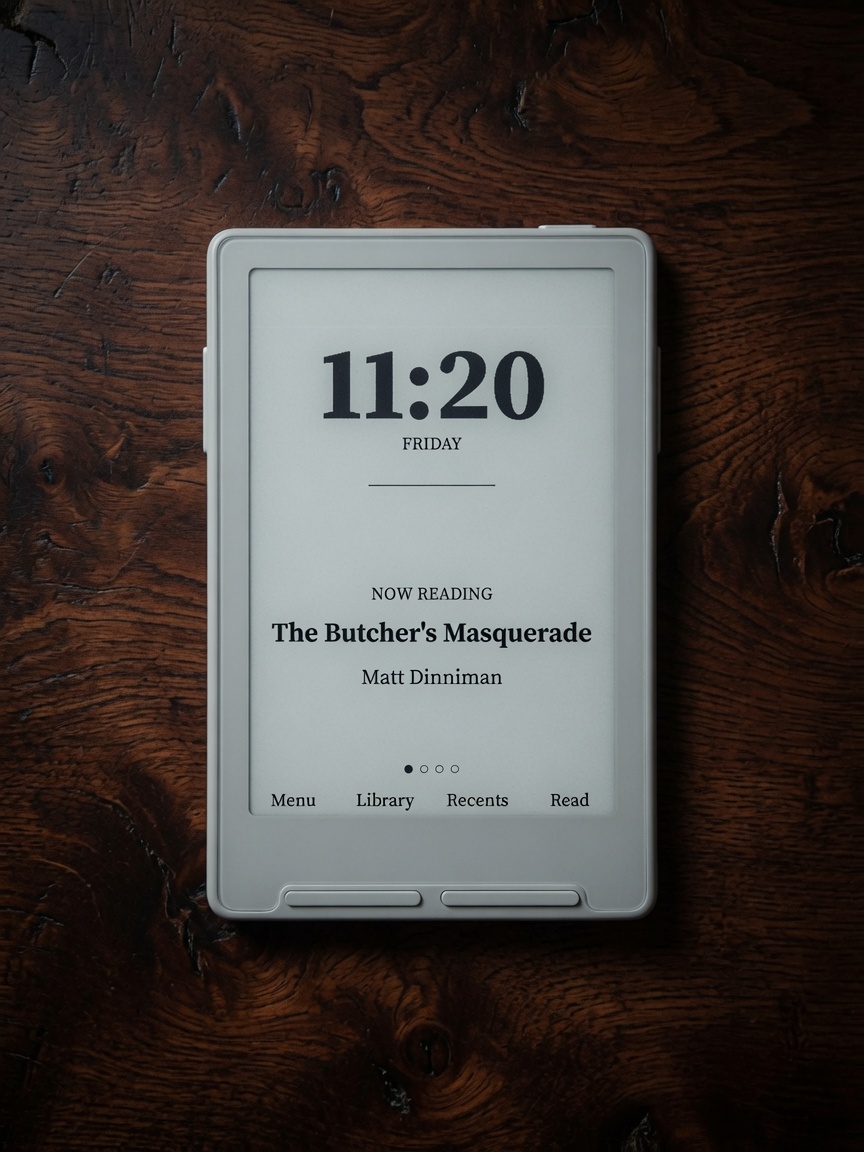
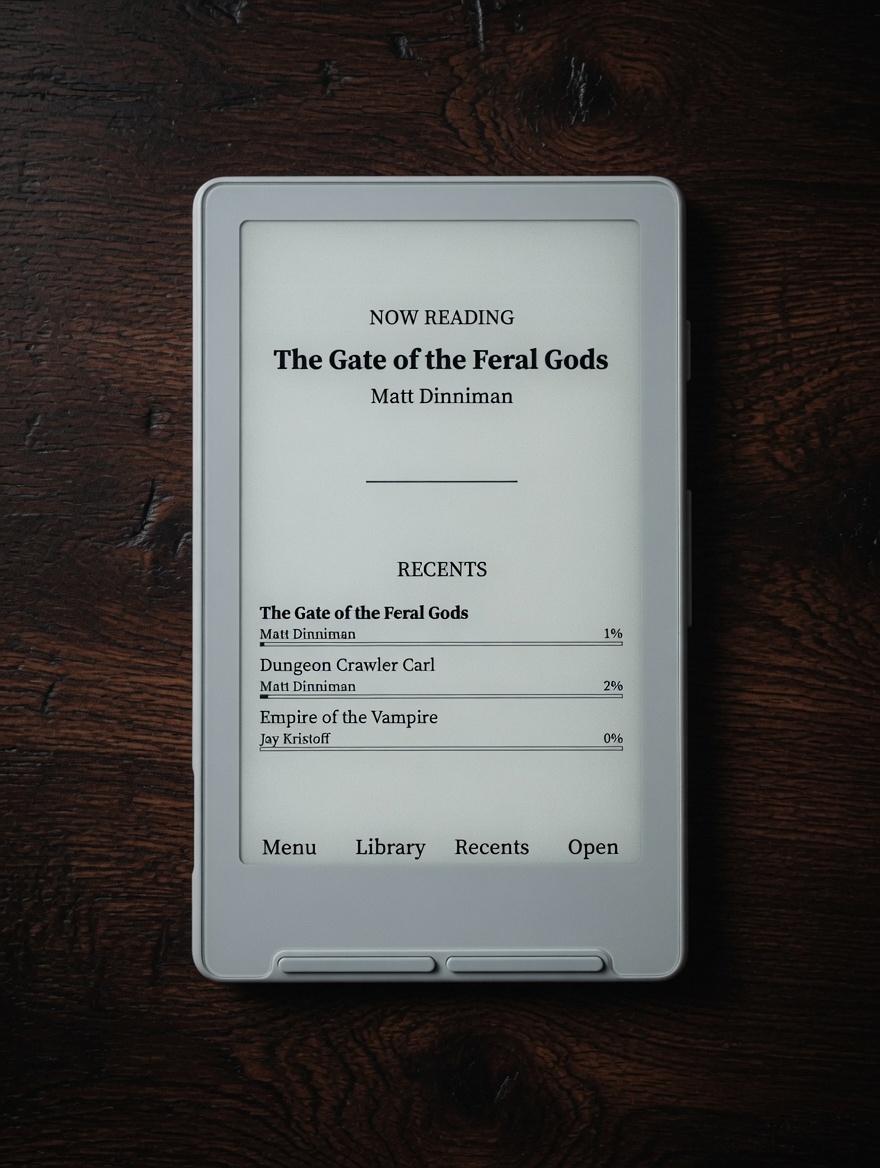
Home skins under Settings → Display → Theme.
| Penumbra (X3) | Penumbra (X4) | Bare |
|---|---|---|
 |
 |
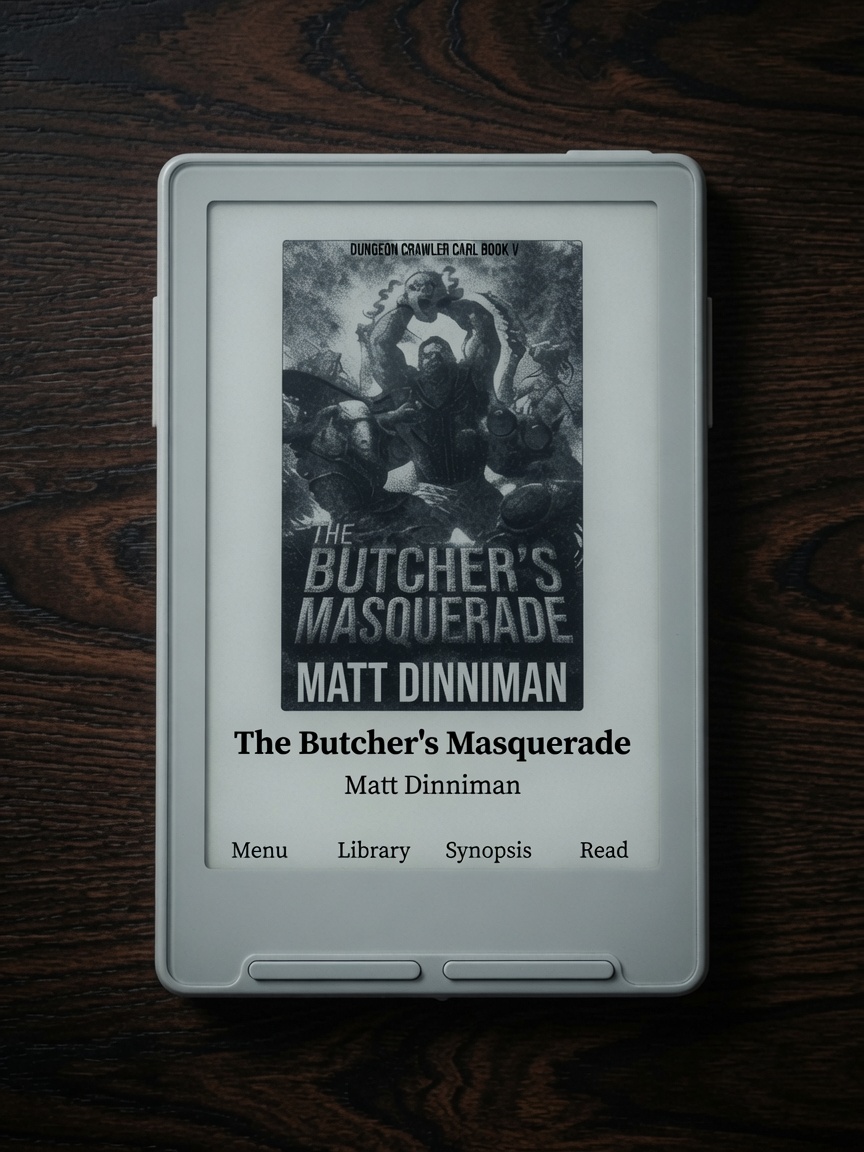 |
Note: Clock, weekday, and other date/time home features need the X3 RTC. The X4 has no real-time clock. Bare looks the same on both devices.
Penumbra
Penumbra was written from the ground up with design and performance in mind — not a reskin of an old home, but a purpose-built reading hub for e-ink.
| X3 | Large clock + weekday, then cycle Title · Recents · Book Stats · Lifetime (side Left / Right). |
| X4 | Last-read title/author on top, Recents list below (side Up / Down scrolls the list). |
Menu · Library · Recents · Read
- Long-press Menu → Settings
- Long-press Read → book quick menu (mark finished, remove from recents, clear cache, synopsis, etc.)
Bare
Designed for readers who simply want to feel as if it is them and their book — a minimal cover theme, same layout on X3 and X4.
Menu · Library · Recents · Read
- Long-press Menu → Settings
- Long-press Read → book quick menu
Gallery
Full photo tour: docs/casper.md
New Features
System + Reader Status Bars
Fully customizable status bars with slot-based placement and live previews.
Choose exactly what appears in the top status bar and position items in any of the 6 available slots (Top/Bottom × Left/Middle/Right) independently for the system UI and the reader.
Battery Display Options
Independent control for system and reader:
- Hidden
- Icon only
- Percent only
- Icon + Percent
Manage Fonts
Completely redesigned with tabs, 50/50 live preview, a Download Fonts row, and improved organization.
Default fonts are now Source Serif 4 and Bitter.
This is where you set font, size, layout, and style for how books are displayed, with a clean preview of every change.
Tabbed Navigation + Button Remapping
Fully customizable button remapping.
Front buttons act as a list; side buttons can be set as tabs (or whatever you prefer).
A popular setup is using the side buttons as left/right controls to scroll through horizontal tabs.
Keyboard / Wi‑Fi password footer labels now follow your remap (Left stays Left, Up stays Up).
System → Stats Folder
New options under Settings → System → Stats:
- Enable / Disable Stat Tracking
- Auto Backup
- Backup Now
You can turn stats off completely if you prefer a distraction-free reading experience. When tracking is on, Penumbra’s Book Stats and Lifetime panels use that data.
Cover Thumbnail Pipeline
Improved cover generation for clearer, higher-quality thumbnails (home multipass greys on Bare).
UI Polish
Unified design language across the interface:
- Black chips instead of grey highlights
- Better title centering
- Cleaner version string
- Fixed long-press behavior in the Library
- Sleep screen options: Casper Dark / Casper Light (alphabetized)
- After flash / cold boot lands on Home (not auto-open last book)
Book Synopsis
Open a short description of the current book from the book quick menu (long-press Read on home, or long-press a book in the library). Requires synopsis metadata — easy to add with Calibre.
Useful for refreshing your memory or choosing your next book without leaving the device.
Reader Shortcuts
- Long-press Select → Dictionary
- Long-press Select again while in dictionary → Multi-word select mode
- Menu button → Reader options menu
Smarter first open (cover-only skip)
- First open no longer always sticks on a heavy title/cover image when it can avoid it.
- Uses the publisher’s OPF text/start when the book provides one.
- Otherwise skips only cover/title-like front spines (name + small size), at most 3, then lands on the first real text section (epigraph, prologue, or chapter 1 as the book defines it).
- Never skips large content spines or deep body chapters.
- Resume is unchanged — if you’ve already read past the start, you go back where you left off.
- Cover stays in the book; page back or use the TOC anytime.
Snappier Home Screen
Returning to the home cover after reading should feel faster and less “busy.”
Faster return from reading
- When you open a book from Home, Home stays in the background instead of being torn down and rebuilt.
- Pressing Back restores that Home instance: progress/stats refresh and the cover greys redraw once, without redoing the full home setup path.
- If cover thumbnails are already on disk (the usual case after you’ve opened a book before), Home skips the intermediate black-and-white shell refresh and goes straight to the grayscale cover pass.
Fewer wasted full redraws
- Cancelling the book action menu (long-press Read → Back/cancel) repaints Home once and no longer forces a full cover re-scan/generation.
- Once the home cover greys have settled, stray repaint requests no longer re-flash the full multipass (Bare, Penumbra, and classic list themes).
- Back from the in-home Menu returns to the cover (no longer stuck until Settings).
Faster cover multipass (panel-aware)
- On X4 and similar panels, the grayscale base step uses a faster refresh mode where appropriate.
- X3 still uses the cleaner half refresh so the previous reader page is less likely to ghost through the cover.
Install
CrossPoint web flasher (recommended)
- Download Casper-v0.1.5.bin from this release.
- Connect your X3 or X4 via USB-C and wake/unlock it.
- Open https://crosspointreader.com/#flash-tools (Chrome / Edge / Firefox on desktop).
- Select Xteink X3 or Xteink X4.
- Click Custom .bin and choose
Casper-v0.1.5.bin. - Flash, then reset/wake the device if prompted.
SD card contents are left alone.
SD card (optional)
Copy Casper-v0.1.5.bin to the root of the SD card → Settings → System → SD Firmware Update
Dictionary
To install dictionaries, extract the .dictionaries folder to the root of your SD card.
Full source & docs: https://github.com/tweakerinc/casper
Previous: v0.1.4
Casper-v0.1.4
Casper v0.1.4
Personal firmware for Xteink X3 / X4. One binary for both devices.
Based on CrossPoint Reader 1.5.0 & CrossInk. Huge thanks to everyone for all their hard working!
Install
CrossPoint web flasher (recommended)
- Download Casper-v0.1.4.bin from this release.
- Connect your X3 or X4 via USB-C and wake/unlock it.
- Open https://crosspointreader.com/#flash-tools (Chrome / Edge / Firefox on desktop).
- Select Xteink X3 or Xteink X4.
- Click Custom .bin and choose
Casper-v0.1.4.bin. - Flash, then reset/wake the device if prompted.
SD card contents are left alone.
SD card (optional)
Copy Casper-v0.1.4.bin to the root of the SD card → Settings → System → SD Firmware Update
Themes
Home skins under Settings → Display → Theme.
| Penumbra (X3) | Penumbra (X4) | Bare |
|---|---|---|
|
|
|
Note: Clock, weekday, and other date/time home features need the X3 RTC. The X4 has no real-time clock. Bare looks the same on both devices.
Penumbra
Penumbra was written from the ground up with design and performance in mind — not a reskin of an old home, but a purpose-built reading hub for e-ink.
| X3 | Large clock + weekday, then cycle Title · Recents · Book Stats · Lifetime (side Left / Right). |
| X4 | Last-read title/author on top, Recents list below (side Up / Down scrolls the list). |
Menu · Library · Recents · Read
- Long-press Menu → Settings
- Long-press Read → book quick menu (mark finished, remove from recents, clear cache, synopsis, etc.)
Bare
Designed for readers who simply want to feel as if it is them and their book — a minimal cover theme, same layout on X3 and X4.
Menu · Library · Recents · Read
- Long-press Menu → Settings
- Long-press Read → book quick menu
Gallery
Full photo tour: docs/casper.md
New Features
System + Reader Status Bars
Fully customizable status bars with slot-based placement and live previews.
Choose exactly what appears in the top status bar and position items in any of the 6 available slots (Top/Bottom × Left/Middle/Right) independently for the system UI and the reader.
Battery Display Options
Independent control for system and reader:
- Hidden
- Icon only
- Percent only
- Icon + Percent
Manage Fonts
Completely redesigned with tabs, 50/50 live preview, a Download Fonts row, and improved organization.
Default fonts are now Source Serif 4 and Bitter.
This is where you set font, size, layout, and style for how books are displayed, with a clean preview of every change.
Tabbed Navigation + Button Remapping
Fully customizable button remapping.
Front buttons act as a list; side buttons can be set as tabs (or whatever you prefer).
A popular setup is using the side buttons as left/right controls to scroll through horizontal tabs.
Keyboard / Wi‑Fi password footer labels now follow your remap (Left stays Left, Up stays Up).
System → Stats Folder
New options under Settings → System → Stats:
- Enable / Disable Stat Tracking
- Auto Backup
- Backup Now
You can turn stats off completely if you prefer a distraction-free reading experience. When tracking is on, Penumbra’s Book Stats and Lifetime panels use that data.
Cover Thumbnail Pipeline
Improved cover generation for clearer, higher-quality thumbnails (home multipass greys on Bare).
UI Polish
Unified design language across the interface:
- Black chips instead of grey highlights
- Better title centering
- Cleaner version string
- Fixed long-press behavior in the Library
- Sleep screen options: Casper Dark / Casper Light (alphabetized)
- After flash / cold boot lands on Home (not auto-open last book)
Book Synopsis
Open a short description of the current book from the book quick menu (long-press Read on home, or long-press a book in the library). Requires synopsis metadata — easy to add with Calibre.
Useful for refreshing your memory or choosing your next book without leaving the device.
Reader Shortcuts
- Long-press Select → Dictionary
- Long-press Select again while in dictionary → Multi-word select mode
- Menu button → Reader options menu
Dictionary
To install dictionaries, extract the .dictionaries folder to the root of your SD card.
Snappier Home Screen
Returning to the home cover after reading should feel faster and less “busy.”
Faster return from reading
- When you open a book from Home, Home stays in the background instead of being torn down and rebuilt.
- Pressing Back restores that Home instance: progress/stats refresh and the cover greys redraw once, without redoing the full home setup path.
- If cover thumbnails are already on disk (the usual case after you’ve opened a book before), Home skips the intermediate black-and-white shell refresh and goes straight to the grayscale cover pass.
Fewer wasted full redraws
- Cancelling the book action menu (long-press Read → Back/cancel) repaints Home once and no longer forces a full cover re-scan/generation.
- Once the home cover greys have settled, stray repaint requests no longer re-flash the full multipass (Bare, Penumbra, and classic list themes).
- Back from the in-home Menu returns to the cover (no longer stuck until Settings).
Faster cover multipass (panel-aware)
- On X4 and similar panels, the grayscale base step uses a faster refresh mode where appropriate.
- X3 still uses the cleaner half refresh so the previous reader page is less likely to ghost through the cover.
Fixes (this release)
| Area | Change |
|---|---|
| Power button | Long-press Force Refresh no longer also sleeps on release (short = Sleep, long = Refresh). |
| Boot | After flash / cold boot → Home, not last book. |
| Bare menu | Back closes the menu and restores the cover. |
| Wi‑Fi keyboard | Footer labels match button remapping (front + side). |
| Penumbra | Weekday more reliable after clock sync. |
Notes
- One bin for X3 and X4 (runtime hardware detect).
- Wi‑Fi passwords are stored on the SD card (
/.crosspoint/wifi.json, device-tied). Swapping cards without copying/.crosspointmeans re-entering passwords. - Sync clock on X3 (Settings → System → Clock) if weekday/time look wrong after install.
Full source & docs: https://github.com/tweakerinc/casper
Previous: v0.1.3
Casper-v0.1.3
New Features
New Themes:
Stats & Stats-Life Themes
Built for people who want detailed reading data. Stats is a theme that tracks Reading Time, Time Left in Book/Chapter, Progress, Daily Average, Pages per Minute, book start date, and estimated finish date. Stats-Life includes everything and adds Lifetime Device Stats to your Home Screen.
Menu · Library · Settings · Read
(+ long-press Read → quick book menu: mark finished, remove from recents, delete stats/cache, view synopsis, etc.)
Bare Theme
Designed for readers who simply want to feel as if it is them and their book. I have designed a minimal theme loaded with functionality.
Menu · Library · Synopsis · Read
- Long-press Menu → Settings
- Long-press Library → Recents
- Long-press Read → book quick menu
Note: Certain date/time features only work on the X3 (the X4 does not have a real-time clock).
System + Reader Status Bars
Fully customizable status bars with slot-based placement and live previews.
Choose exactly what appears in the top status bar and position items in any of the 6 available slots (Top/Bottom × Left/Middle/Right) independently for the system UI and the reader.
Battery Display Options
Independent control for system and reader:
- Hidden
- Icon only
- Percent only
- Icon + Percent
Manage Fonts
Completely redesigned with tabs, 50/50 live preview, a Download Fonts row, and improved organization.
Default fonts are now Source Serif 4 and Bitter.
This is where you set font, size, layout, and style for how books are displayed, with a clean preview of every change.
Tabbed Navigation + Button Remapping
Fully customizable button remapping.
Front buttons act as a list; side buttons can be set as tabs (or whatever you prefer).
A popular setup is using the side buttons as left/right controls to scroll through horizontal tabs.
System → Stats Folder
New options under Settings → System → Stats:
- Enable / Disable Stat Tracking
- Auto Backup
- Backup Now
You can now turn stats off completely if you prefer a distraction-free reading experience.
Cover Thumbnail Pipeline
Improved cover generation for clearer, higher-quality thumbnails.
UI Polish
Unified design language across the interface:
- Black chips instead of grey highlights
- Better title centering
- Cleaner version string
- Fixed long-press behavior in the Library
Book Synopsis
In the Bare theme, a Synopsis button is available on the home screen (requires synopsis metadata — easy to add with Calibre).
You can also long-press Select/Open on any book in the library to open a quick menu that includes the synopsis. Useful for refreshing your memory or choosing your next book without leaving the device.
Reader Shortcuts
- Long-press Select → Dictionary
- Long-press Select again while in dictionary → Multi-word select mode
- Menu button → Reader options menu
Dictionary
(To Install Dictionaries simply extract the '.dictionaries' folder to the root of your SD Card)
Casper-v0.1.2
New features
• Stats / Bare Home Themes
• System + reader status bars (slots, exclusivity, live previews)
• Battery Display: Icon / Percent / Icon + Percent (independent system vs reader)
• Manage Fonts (tabs, 50/50 preview, Download Fonts row, Source Serif + Bitter)
• Tabbed nav (front = list, side = tabs always)
• System → Stats folder (Enable Stat Tracking, Auto Backup, Backup Now)
• Full privacy mode when tracking is off
• Cover thumb pipeline (c5)
• UI polish (black chips, title centering, version string, long-press Library fix)
- Book Synopsis on Long-Press Read
Shortcuts tables
• Stats home: Menu / Browse / Settings / Read (+ long-press Read)
• Bare home: Menu / Library / Synopsis / Read (+ long-press Menu → Settings, Library → Recents, Read → book menu)
• Book long-press actions
• Reader power / long-press Confirm / dictionary / hamburger tabs
Casper v0.1.1
This is an incremental update to my firmware. Updated and refined some UI and Menu items. You can now long press "Read" from the dashboard to open up a quick menu for the current book you are reading. Side buttons on X3 will now allow you to go left and right in horizontal menus like Settings. Previously you needed to cycle through the entire menu.
Based on Crossink and Crosspoint. It uses Crosspoint 1.5 as the base and many UI elements such as reading stats from CrossInk. It refines the dictionary tool and UI elements to my personal tastes. I also added options to for auto upload to KoReader Sync.
Install dictionary files
Extract the Dictionaries folder to the root of the SD card if you want a full English + Spanish setup.
You can also use your own dictionaries. On the SD card:
- Create a top-level folder named ".dictionaries".
- Inside it, create one subfolder per dictionary.
- Put that dictionary’s StarDict files (e.g. .idx, .dict or .dict.dz, optional .ifo) inside that subfolder — not loose in dictionaries/.
Example:
dictionaries/
English/
English-Spanish/
Spanish-English/
Then on the device: Settings → Reader → Dictionary and enable the packs you want (multi-select).
For format details and supported file types, see CrossPoint 1.5 Dictionary (https://github.com/crosspoint-reader/crosspoint-reader/blob/release/1.5.0/docs/dictionary.md).
Casper v0.1.0
This is the first release of my personal firmware project based on Crossink and Crosspoint. It uses Crosspoint 1.5 as the base and many UI elements such as reading stats from CrossInk. It refines the dictionary tool and UI elements to my personal tastes. I also added options to for auto upload to KoReader Sync.
Install dictionary files
Extract the Dictionaries folder to the root of the SD card if you want a full English + Spanish setup.
You can also use your own dictionaries. On the SD card:
- Create a top-level folder named ".dictionaries".
- Inside it, create one subfolder per dictionary.
- Put that dictionary’s StarDict files (e.g. .idx, .dict or .dict.dz, optional .ifo) inside that subfolder — not loose in dictionaries/.
Example:
dictionaries/
English/
English-Spanish/
Spanish-English/
Then on the device: Settings → Reader → Dictionary and enable the packs you want (multi-select).
For format details and supported file types, see CrossPoint 1.5 Dictionary (https://github.com/crosspoint-reader/crosspoint-reader/blob/release/1.5.0/docs/dictionary.md).