Repository navigation
03_Workflow
Imza organizes development around three modes; the intended loop is:
Plan → Build → Review → Plan → Build → …
Tab cycles the workflow tabs; Ctrl+C exits.
Plan is for understanding and designing: the agent can inspect the project, read files, search, fetch web pages, run read-only shell commands, ask questions, and delegate research, but it never edits or writes files. New sessions start in Plan mode, and depending on the complexity of the task, the agent may create a plan document. Research and explanation turns end in an answer; ask for a plan when you want one ("draft the plan for this").
Build exposes the full mutation workflow: editing and writing files, running shell commands, guided by the approved plan when one exists. Mutations are subject to the permission system (see Permissions): inside the trusted workspace, reads are always automatic and edits/writes are automatic in Build mode; anything outside asks for approval.
Moving between Plan and Build changes which tools the next turn receives.
A plan document is Imza's record of what the work should do. The agent writes it as Markdown against a formal structure and keeps it short.
The document belongs to the session, not the transcript, and nothing about it is destructive: every revision is kept. You can read any of them, along with the build notes and handoff reports described below, from the sidebar's Documents widget.
On the Plan tab, the document pane sits beside the chat: side by side on
wide terminals (chat left, roughly half each), alternating full-pane
views on narrow ones. Ctrl+E or clicking a pane moves focus between
them.
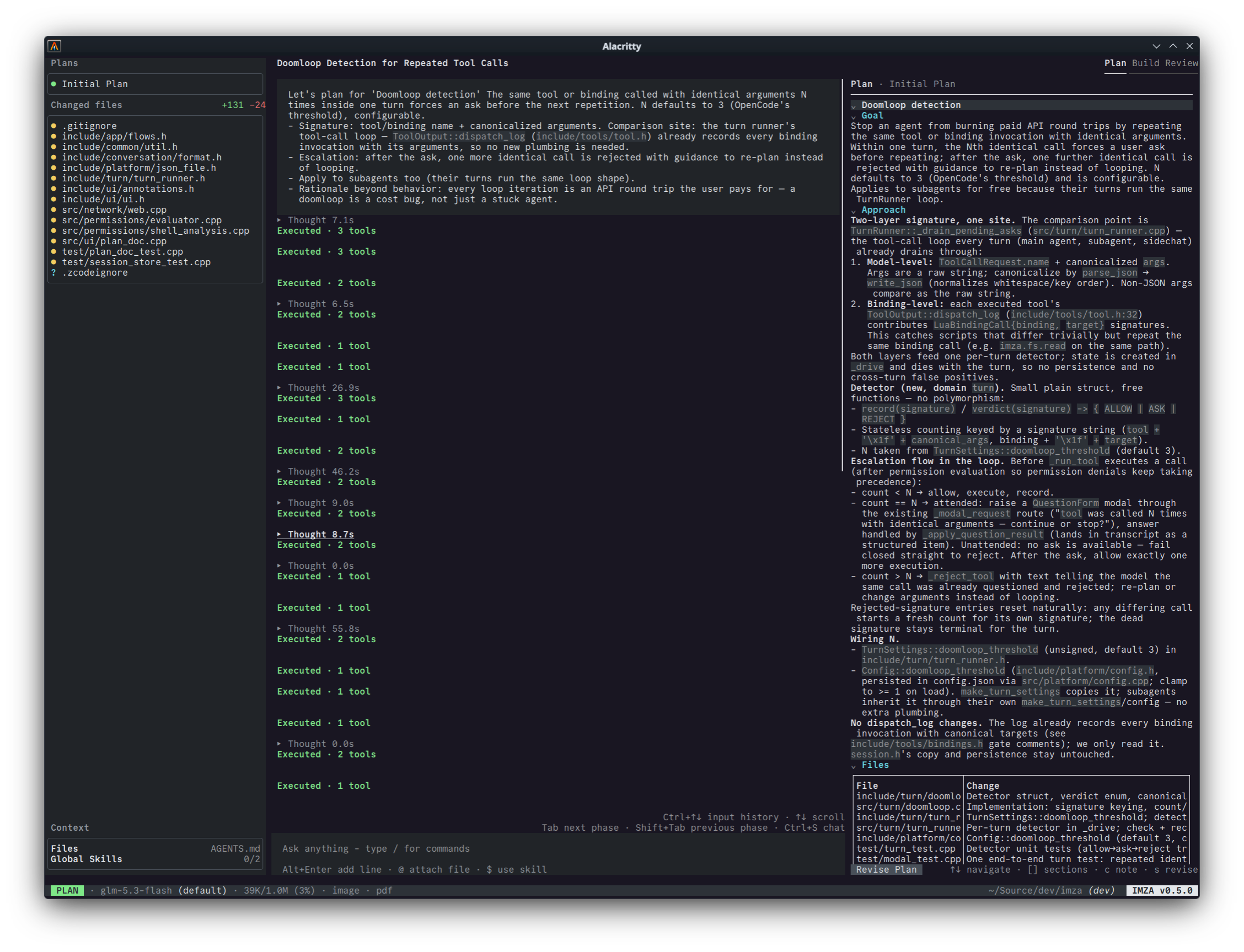
With the document pane focused you can pin notes to it; the document itself is only ever changed by the agent.
Revise Plan submits the notes as a single Plan-mode turn (queued if a turn is already running); the agent applies them to the document, producing a new revision. Notes anchored to moved content are delivered marked (stale).
Switching to Build submits the current plan to the agent once as a context message; from then on the plan is the contract the build work follows, and the agent re-reads it whenever it needs to. The plan is frozen in Build mode, the agent cannot revise it there, and if you change it back in Plan mode, the next Build turn is told the plan changed. Switching modes itself is always free and instant.
As it works, the agent keeps a build log: a short record of the calls it made for you, such as why it chose one library over another or added a dependency. Each stretch of building gets its own log.
Each document kind is numbered on its own: the first plan is Initial Plan, later ones Plan Revision - 1, Plan Revision - 2, and so on; build logs (Build Notes - 1, Build Notes - 2) and handoff reports (Handoff Report - 1) count the same way. A session that moves back and forth between planning and building reads in order: Initial Plan, Build Notes - 1, Plan Revision - 1, Build Notes - 2.
The chat pane is shared by Plan and Build. On Plan the chat shares the tab with the plan document once one exists (see above).

- Enter submits. Esc backs out of whatever is happening: it closes autocomplete first, then cancels the newest queued message, then interrupts the running turn.
- Multi-line pastes stay one prompt (bracketed paste);
Alt+Enter(Alt+Shift+Enterin Windows Terminal) inserts a manual line break. - While the agent works, new prompts are queued and sent when the turn finishes.
-
Ctrl+Up/Ctrl+Downrecall the last 100 submitted prompts (persisted across runs). With a single-line input, plainUp/Downscroll the conversation.
Three trigger characters open inline autocomplete (↑/↓ select, Enter
accepts, Esc closes):
Slash commands: type / as the first character to open the command
list. The list is generated by the app, so it always matches the build you
are running; /connect and /model are where most people start.
$skill mentions: type $ to complete skill names (see
Skills). A mentioned skill is activated
before your turn starts: its instructions are appended to the system
prompt for the session. With ask policy an approval modal appears first.
Project skills beat global ones on name clash.
@file attachments: type @ to complete file and directory paths
relative to the working directory. Accepting a file attaches its text
content to the prompt; binary, oversized, and duplicate attachments are
refused. Only attachments your final prompt text still references are
retained on submit.
/undo reverts the last file change the agent made. One press undoes one
file change, newest first, so a turn that touched three files takes three
presses to undo all of them. While changes remain, the input line shows
/undo (N changes) with the count.
- A modified file gets its previous content back; a file the agent created is deleted; a file the agent deleted is recreated.
- The revert is an ordinary write, so it obeys the same permission rules as the agent's own edits: inside the workspace it just happens, outside it asks, and in Plan mode it is refused.
- If the file changed after the agent wrote it,
/undorefuses rather than overwriting your work. The step stays available if the file comes back to what the agent left. - Shell commands are not reverted. When the turn also ran one, the notice says so.
- Edits made by build subagents are included, since they run inside the turn that called them.
- The history is per conversation:
/new, loading another session, or restarting Imza starts it empty. It is never written to disk, and a saved session does not restore it.
Replies stream as Markdown with syntax highlighting.
- Reasoning gets its own collapsible row.
- Tool calls render as compact per-tool views. Click one to open its full output in a viewer; nothing opens automatically.
- Editing tools include a structured diff view. A file the run created, deleted, or moved shows up as such instead of as an unlabeled empty side, so a deletion reads as a deletion and a new file as a new file.
- Rate-limit retry countdowns appear inline.
Background activity and errors surface in a small overlay in the bottom-right
corner: copying a selection, MCP reconnects and token renewals, background
compaction, session errors, and the notice that a new version is available.
Every notice clears itself after a short while (errors stay a little longer);
click a card or press Esc to dismiss one early. Esc only dismisses a notice
while the session is idle, so it still interrupts a running turn.
When the agent needs permission, an approval modal shows exactly what will run.

- Allow once: run only this request.
- Allow for this session: install the grants this request needs.
- Reject: optionally with a reason that is returned to the model.
Esc rejects. Structured questions (single-choice, multiple-choice, free
text) arrive as their own modal. Subagent approvals surface through the
same queue, labeled with the child agent. Modals are presented one at a
time.
Esc during a turn requests a cooperative interrupt; workers stop at safe
boundaries. When the session goes idle (or a modal needs attention) Imza
emits a terminal notification (OSC 9, falling back to BEL) so you notice
when you are looking at another window.
Ctrl+E switches between the panes of the active tab: chat and plan
document on Plan, chat and the Sidechat on Build and Review.
Long histories are summarized automatically before a request when prompt usage reaches ~80% of the model's context limit. Only the provider-side context is replaced. The limit comes from the model's own metadata; a model that reports none, such as a local server, is compacted against a conservative default window instead.
Review inspects the Git working tree; the pane appears only when Git and a project root are available.

Changed files are listed with structured hunks (binary, renamed, deleted,
and untracked files included; wide terminals get a side-by-side diff).
Navigate with the arrow keys, PageUp/PageDown, and [ / ] between
files; mouse wheel and click work too. The footer of the pane shows the keys
for whatever is selected.
Comments anchor to a file and line and can go stale when the diff moves. Open the editor on a line to add one, edit or delete existing ones, and send the whole set to Plan when you are done.
AI Review asks the model to review the diff as an invisible subagent. It runs on the Basic subagent model (see Subagents), reads a bounded portion of the diff, and always runs without reasoning. Findings arrive structured (severity + anchor on a changed line), are de-duplicated, and join the same list as manual comments. You can cancel it while it runs.
Handoff asks the model to write the handoff document: what the plan called for, how the build carried it out, and why the notable choices were made, area by area. Where the build departed from the plan, that is noted beside the work it affects. It runs on the same Basic subagent model as AI Review and, like it, without reasoning. Each run writes a new report instead of replacing the last, so a session with several build stints keeps one report each; the newest appears in the sidebar Documents list as Handoff Report - N.
Send to Plan hands all comments back and the agent writes a revision plan based on your comments. You can annotate and send to Build like any other. You need at least one comment and an active model first.
Review is a view over the repository; it never commits or changes files.
The Build and Review tabs have a second companion pane beside the chat:
the Sidechat, toggled with Ctrl+E. Use it for quick side questions
("what does this error mean?", "find where X is implemented") without
polluting the main conversation or spending its context. On the Plan tab
the companion pane is the plan document instead.

When you send the sidechat's first prompt, it imports a bounded
summary of the main conversation. The snapshot is then fixed: later
main-chat messages are not imported. Ctrl+R resets it: its own history and
the imported context are dropped, and the next prompt loads a fresh
snapshot of the current main conversation.
It is a full conversation: replies stream with reasoning and tool-call views, you can queue prompts while it works, recall input history, and click tool calls to inspect their output. Two restrictions:
-
Plan-pinned. The sidechat runs in Plan mode and never edits or
writes files.
Tabkeeps cycling the main pane's mode; nothing moves the sidechat out of Plan. - No delegation. The sidechat has no subagents and no todo list.
Sidechat messages are not saved to the session, and the sidechat header shows its own running usage, so you can track its cost. The sidechat shares the main session's permission grants; see Permissions.
The status line shows, left to right: the mode chip (PLAN/BUILD/REVIEW), the active model and reasoning effort, prompt tokens against
the context limit with percentage (or raw tokens when the model's context
window is unknown), total session cost, running subagents (or Caching…
during discovery), the working directory with Git branch, and the version.
The side panel collects the agent's todos, the session's documents (plan revisions, build logs, and handoff reports, in order; click one to open it in a viewer), changed files (linking into review), review comments, context (instruction file, attachments, loaded skills), permission grants, and an update notice. The narrow layout trims it to todos and review comments.