Repository navigation
Installing on Windows
The Unigrid installers are not yet signed with a Windows code-signing certificate, so Microsoft Defender SmartScreen stops the installer the first time and asks you to confirm. This page walks through that.
- Download
janus-<version>-windows-x64.msifrom the Releases page. - Optionally check it against
SHA256SUMS, which is on the same page. In PowerShell:Get-FileHash .\janus-<version>-windows-x64.msi - Your browser may warn that the file is not commonly downloaded. In Edge, open the ... menu next to the download, choose Keep, and then Show more and Keep anyway. In Chrome, choose Keep.
Double-click the .msi. Windows shows this and does not start the installer:
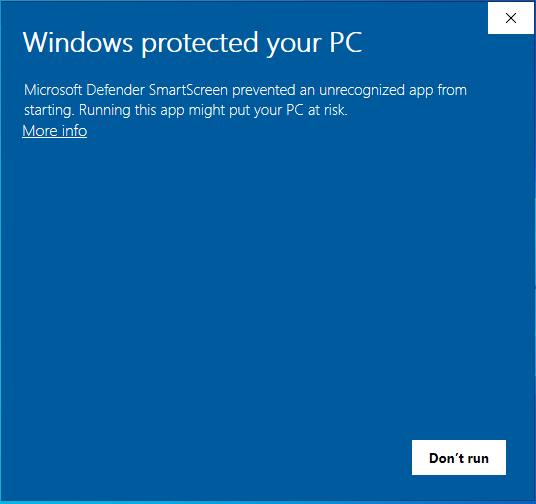
Click More info, not Don't run.
The dialog now shows the file name and Unknown publisher, and has a Run anyway button:
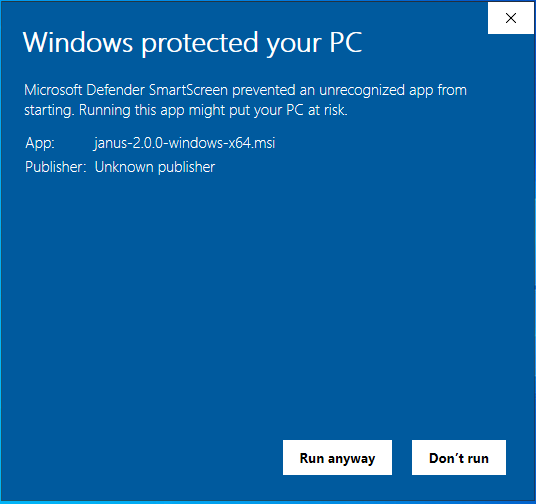
Click Run anyway.
The Unigrid Setup Wizard opens. Follow it with Next.
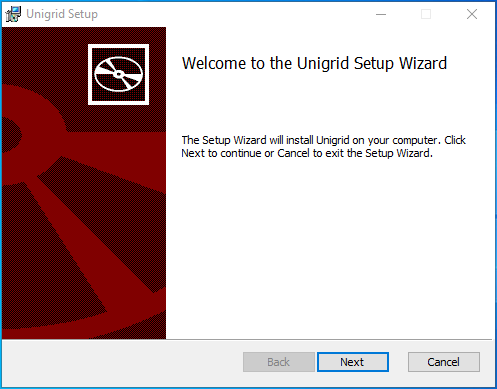
Unigrid installs for your own user, under %LOCALAPPDATA%\Unigrid, so it does not need administrator rights.
Afterwards it is in the Start menu under Unigrid.
Some setups block the file before SmartScreen can offer a choice. Unblock it first, then open it again:
- Right-click the
.msi, choose Properties, tick Unblock at the bottom of the General tab, and click OK. - Or in PowerShell:
Unblock-File .\janus-<version>-windows-x64.msi
Janus downloads Hedgehog the first time it runs and checks its signature before using it. That needs an
internet connection and takes a moment. Your wallets and backups are kept in a folder named .janus in your
user folder.
Open Settings, then Apps, find Unigrid and choose Uninstall. Delete the .janus folder in your
user folder only if you also want to remove your wallet backups, and make sure you have your recovery phrase
before you do.
The screenshots were taken on Windows Server 2022. The dialogs on Windows 10 and 11 use the same wording, and may look a little different.