├── /bin => User Command Binaries or essential User Commands
├── /boot => User's boot loader files
├── /dev => Device Files
├── /etc => System Configuration files
├── /home => User's home directory
├── /lib => User's Shared/System Libraries
├── /media => User's removable media
├── /mnt => The mounted File System Files or Mount Directory
├── /opt => Add-on Application Software Package or Optional Software applications
├── /proc => Process Information
├── /root => Super User's Home Directory(For 63526 its the 429 dir)
├── /sbin => System Binaries
├── /srv => User's service Data
├── /tmp => Temporary Files
├── /usr => User Programs
├── /var => Variable Files
-
Physical Layer[L1]: Data Unit Layer is in binary bits(1/0). Primary resp of this layer is to send&receive bitch
- layer specifications:
- electrical
- mechanical
- procedural
- functional
- End User Layer
- Uses: Coax, Fiber, Wireless, Hubs, Repeaters
- layer specifications:
-
Data Link Layer[Layer 2]: Data unit at this layer is the frame. It is attached to the src&dest address i.e. MAC address.
- Its size is 48bits/6bytes
- Represented in 12digits hexadec
- Frames
- Uses: Ethernet, PPP, Switch, Bridge
-
Network Layer[Layer 3]: Data unit at this layer are Packets. This is primarily responsible:
- for managing device addressing
- tracking location of devices on the netowrk
- determines the best way to move data around i.e. move traffic between devices which aren't locally attached
- Routers are precisely mentioned in this layer and provide us with routing services within the inner network
- Uses: IP, ICMP, IPSec, IGMP
-
Transport Layer(aka E2E Layer)[Layer 4]: Data unit at this layer is a Segment.
- Provides end to end delivery of every single individual packet
- Uses: TCP, UDP
-
Session Layer[Layer 5]: In charge of setting up, managing and tearing down session between the presentation layer objects.
- provides dialog control in between the devices or nodes. It syncs communication between sys and makes sure that the communication is organized by offering three unique modes: simplex, half duplex and full duplex
- Uses: API's, Sockets, WinSock
-
Presentation Layer[Layer 6]: In charge of presenting the data to the application layer and formats the code
- Layer is in other words, a translator and provides coding and conversation functionality
- A good data transfer technique is to be able to adapt the data into a standard format before transmission
- Uses: SSL, SSH, IMAP, FTP, MPEG, JPEG
-
Application Layer[Layer 7]: marks the location where users usually talk to the communication. Only in need when you need to access the netowrk soon, e.g. IE
-
Uses: HTTP, FTP, IRC, SSH, DNS
- 1xx
- 2xx
- 3xx
- 4xx
- 5xx
| Port | Service | Protocol |
|---|---|---|
| 20/21 | FTP | TCP |
| 22 | SSH | TCP |
| 23 | Telnet | TCP |
| 25 | SMTP | TCP |
| 53 | DNS | TCP/UDP |
| 69 | TFTP | UDP |
| 80 | HTTP | TCP |
| 110 | POP3 | TCP |
| 135 | RPC | TCP |
| 161/162 | SNMP | UDP |
| 1433/1434 | MSSQL | UDP |
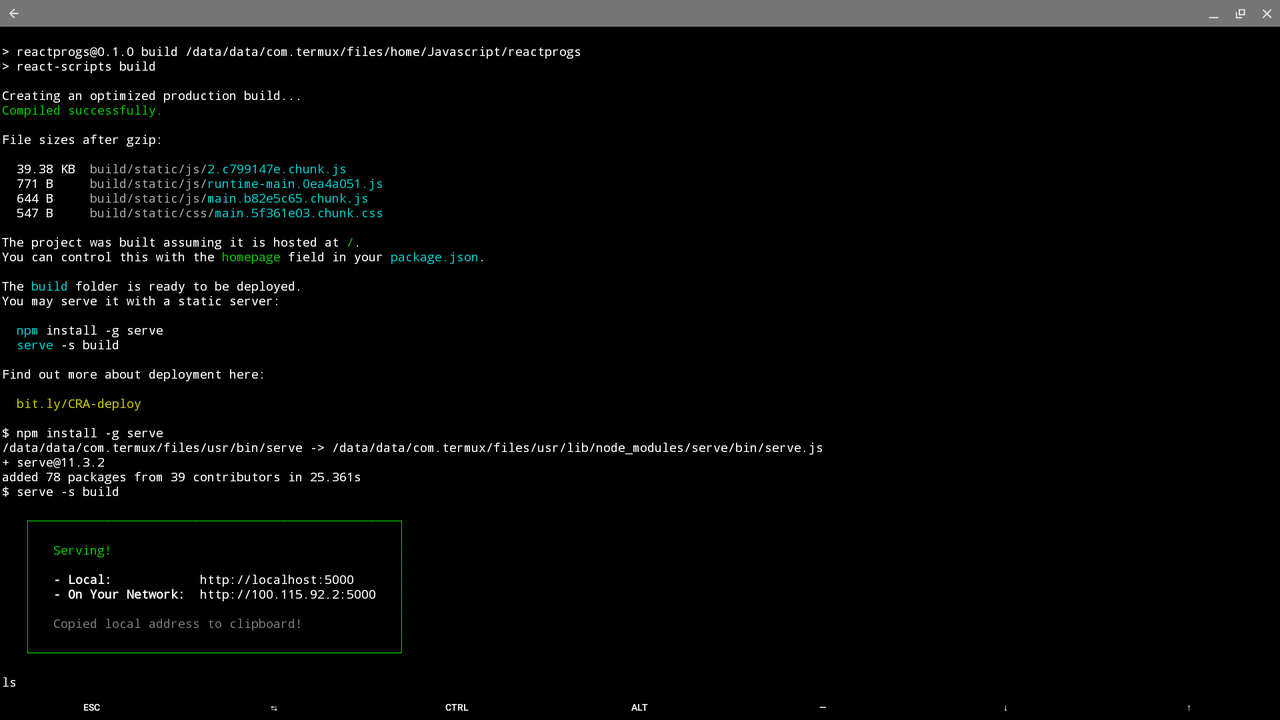
root@omarbelkady:~$ http-server ./NAMEOFDIR -p PORTNUMroot@omarbelkady:~$ lsof -i -llroot@omarbelkady:~$ ps -e|grep noderoot@omarbelkady:~$ kill -9 -PROCESSIDSTEP 3A: If multiple processes are running instead of manually doing it one by one you can kill the processes in one line
root@omarbelkady: ~$ kill -9 -PROCESSID1 -PROCESSID2 -PROCESSIDETC.root@omarbelkady: ~$ lsof ~/createthis.shlsof -u XYZlsof -i 429lsof -i tcp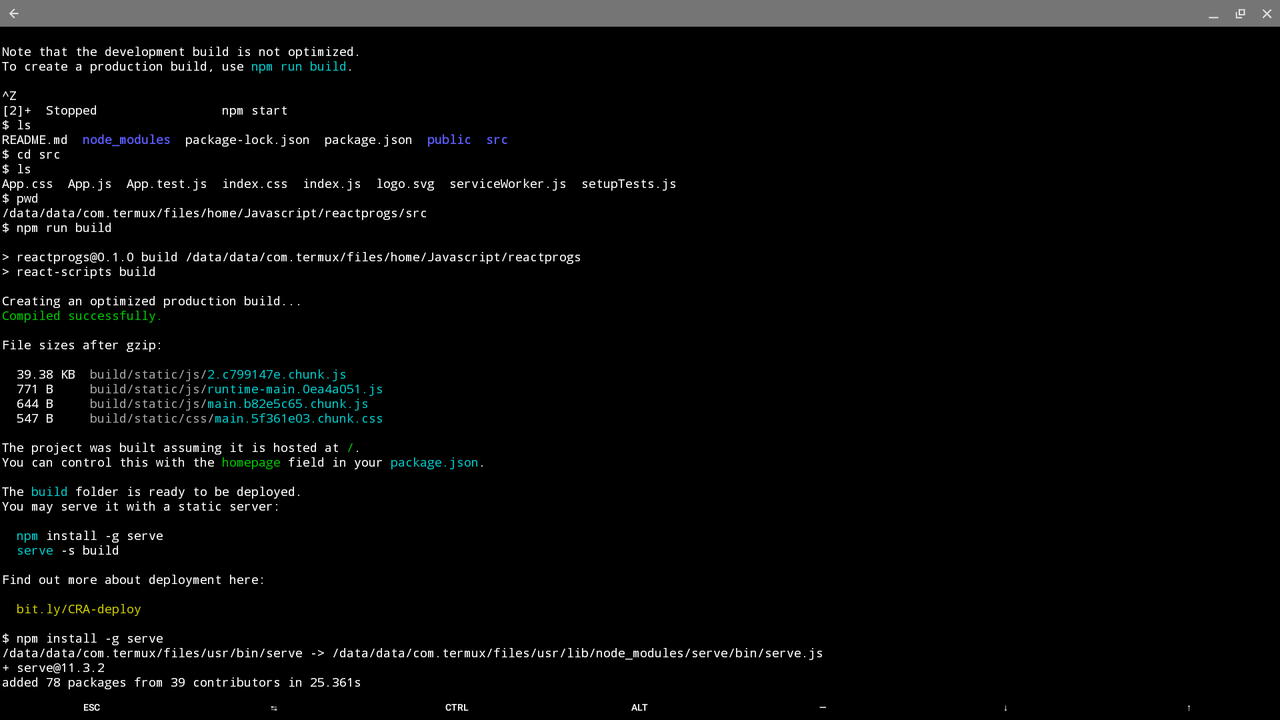
- v ==> Copy the character
- V ==> Copy the entire line
- Move the cursor to the end where you want to cut
- d ==> Cuts till that point
- y ==> Copy
- P ==> Paste before the cursor
- p ==> Paste after the cursor
- :set number ==> display line number
- :w ==> write to the file
- i ==> toggle insert/command mode
- /abc ==> Searching for the abc
- : ===> followed the by the first letter of the command and press tab to cycle through which command you want
root@omarbelkady:~$ lsShow all the files in the working directory including the hidden files
root@omarbelkady:~$ ls -laroot@omarbelkady:~$ ls -llroot@omarbelkady: ~$ ls -ll -troot@omarbelkady:~$ killroot@omarbelkady:~$ pkill -9 noderoot@omarbelkady:~$ killallroot@omarbelkady:~$ ps aux | grep -i apt
root@omarbelkady:~$ kill -9 processidroot@omarbelkady:~$ jobsroot@omarbelkady:~$ sleep [timeInSeconds]root@omarbelkady:~$ fcroot@omarbelkady:~$ mkdir <nameOfDir>root@omarbelkady:~$ rm -r <nameOfDir>root@omarbelkady:~$ rm -rf <nameOfDir>root@omarbelkady:~$ rm -rf node_modules &root@omarbelkady:~$ rmdir <dirname>root@omarbelkady:~$ du <nameOfDir/fileName>root@omarbelkady:~$ mv -v <ORIGINALPATH> <DESTINATIONPATH>root@omarbelkady: ~$ ssh 192.168.1.11root@omarbelkady: ~$ ssh omar@192.168.1.11unzip -l <fileToextract.zip>root@omarbelkady:~$ pwdroot@omarbelkady:~$ cd ~List all the packages installed navigate to usr and change your directory to the bin folder and list all the files
root@omarbelkady: ~$ cd ~
root@omarbelkady: ~$ cd ..
root@omarbelkady: ~$ cd bin/
root@omarbelkady: ~$ lsroot@omarbelkady: ~$ sudo chmod 777 /root@omarbelkady: ~$ sudo chmod 777 /root@omarbelkady:~$ su (yourusernamegoeshere)root@omarbelkady: ~$ cd /root@omarbelkady:~$ cd .. root@omarbelkady:~$ cd ../.. root@omarbelkady:~$ whoamiroot@omarbelkady:~$ exitroot@omarbelkady:~$ echo "Nelan 56837 6342"- Map a command to another command
root@omarbelkady:~$ alias home='cd ~'
root@omarbelkady:~$ alias ll='ls -al'
root@omarbelkady:~$ alias root='cd /'root@omarbelkady:~$ sed s/bernard/dj/g bestprof.txtroot@omarbelkady:~$ sed -n 32 proot@omarbelkady:~$ sed -n 37532,42932proot@omarbelkady:~$ sed '/765anco/a FB'root@omarbelkady:~$ sed 429droot@omarbelkady:~$ sed /brnrdfb/dalt+f
alt+b
ctrl+c
ctrl+d
cmd+shift+d
tab
root@omarbelkady:~$ dateroot@omarbelkady:~$ calroot@omarbelkady:~$ cal 2020root@omarbelkady:~$ manroot@omarbelkady:~$ whatis <commandname>root@omarbelkady:~$ ./root@omarbelkady:~$ find /full/path/here/ "PatternOrDIRNAME" root@omarbelkady:~$ find /dir/to/searchin -name "file-to-search"Find in this directory and all subdirectories any file whose name has a c extension(fav extension 63526) and list them
root@omarbelkady:~$ find . -name "*.c" -type f -lsroot@omarbelkady:~$ brew install tree root@omarbelkady:~$ touch [filename]root@omarbelkady:~$ nano [filename]root@omarbelkady:~$ code [filename]root@omarbelkady:~$ cp *.txt [pathtothedirectory]root@omarbelkady:~$ cp *.extension examplesExample: I am copying all the executable(.exe) files within my working directory into the examples directory
root@omarbelkady:~$ cp *.exe examplesroot@omarbelkady:~$ grep "63526 47 2 2-56837" ~/*.txtroot@omarbelkady:~$ egrep -w -R 'assembly|2-56837|Pascal|727225' root@omarbelkady:~$ egrep -w -R 'assembly|2-56837|Pascal|727225' ~/NodeJSroot@omarbelkady:~$ grep -r "END" examplesThe above command will run a recursive search in my examples directory for any file that has the word END in it
Display all the grep commands where I searched for the string of text grep in a file committed in history
root@omarbelkady:~$ history | grep "grep" root@omarbelkady:~$ diff fort72632.txt 7olan2632.txtroot@omarbelkady:~$ uniq polan2632.txtroot@omarbelkady:~$ ![historyNumber]- 0: No Permissions
- 1: Execute
- 2: Write
- 3: Execute And Write
- 4: Read
- 5: Read & Execute
- 6: Read & Write
- 7: Read & Write & Execute
root@omarbelkady:~$ chmod [permission] [fileName]root@omarbelkady:~$ useradd joeyroot@omarbelkady:~$ chmod [user][group][others] [fileName]- u: user/owner
- g: group
- o: other
- a: all
- +: add a permission
- -: remove a permission
- =: set the permission and override the ones set earlier
root@omarbelkady:~$ arp -aroot@omarbelkady:~$ ifconfigroot@omarbelkady:~$ ifdownroot@omarbelkady:~$ ifuproot@omarbelkady:~$ macchanger -s eth0root@omarbelkady:~$ macchanger -r eth0root@omarbelkady:~$ ifconfig | grep etherroot@omarbelkady:~$ ifconfig eth0 downroot@omarbelkady:~$ ifconfig eth0 promiscroot@omarbelkady:~$ ifconfig eth0 -promiscroot@omarbelkady:~$ cat [nameOfFile]root@omarbelkady:~$ gzip -d [nameOfFile]root@omarbelkady:~$ unzip [nameOfFile].ziproot@omarbelkady:~$ rebootroot@omarbelkady:~$ airmon-ng check killroot@omarbelkady: ~$ curl url/nameofimage.jpg > nameYouWishToCallYourImage.jpgroot@omarbelkady: ~$ npm initroot@omarbelkady: ~$ npm init -yroot@omarbelkady: ~$ npm installroot@omarbelkady: ~$ npm i packagename@versionroot@omarbelkady: ~$ npm install -g [the_package_name]root@omarbelkady: ~$ npm install [the_package_name] --saveroot@omarbelkady: ~$ npm install -d [the_package_name]How To save a dependency in devDependencies[e.g. when you are conducting unittests, minification,etc.]
root@omarbelkady: ~$ npm install [the_package_name] --save-devroot@omarbelkady: ~$ npm i -d [the_package_name]root@omarbelkady: ~$ npm view [the_package_name]root@omarbelkady: ~$ npm listUninstall a module from the project and -g flag for global modules --save for rm from attr dep and --save-dev for rm from attr dev_dep
root@omarbelkady: ~$ npm remove [package_name]root@omarbelkady: ~$ npm update [package_name]root@omarbelkady:~$ git clone <url> root@omarbelkady:~$ git logroot@omarbelkady:~$ git log --onelineroot@omarbelkady:~$ git log -Xroot@omarbelkady:~$ git whatchangedroot@omarbelkady:~$ git blame <filename>root@omarbelkady:~$ git pull origin <nameOfBranch>root@omarbelkady:~$ git checkout -b <nameOfNewBranch>Get your local branch meaning what you have in your machine to agree with your remote branch(branch on GitHub) usually master IF YOU ARE PM
root@omarbelkady:~$ git push origin <nameOfBranch>root@omarbelkady:~$ git checkout <nameofBranch>root@omarbelkady:~$ git checkout -root@omarbelkady:~$ git branch -d <nameOfBranch>root@omarbelkady:~$ git push origin :<nameOfBranch>root@omarbelkady:~$ git branch -contains<COMMIT_NUMBER>root@omarbelkady:~$ git merge branchpolfbroot@omarbelkady:~$ git reflogroot@omarbelkady:~$ git initroot@omarbelkady:~$ curl -u "usernameGOESHERE" https://api.github.com/user/repos -d '{"name":"NAMEYOUWANTTOGIVETOYOURREPO"}'root@omarbelkady:~$ git add .root@omarbelkady: ~$ git restore --staged pathOfFileroot@omarbelkady: ~$ git reset HEAD nameOffile3- Move the files from the staging area to a local repository use -m to give a specific description of your commit
root@omarbelkady:~$ git commit -m "A overall description of what you just modified"root@omarbelkady:~$ git commit --amendroot@omarbelkady:~$ git remote add origin <urlOfRepo>root@omarbelkady:~$ git push origin <NameOfBranch>root@omarbelkady:~$ git configroot@omarbelkady:~$ git statusroot@omarbelkady:~$ git branch -d <nameofBranch>root@omarbelkady:~$ git push origin :<nameofBranch>root@omarbelkady:~$ git branch -aroot@omarbelkady:~$ git branchroot@omarbelkady:~$ git branch -m <OLD> <NEW>root@omarbelkady:~$ git branch -avroot@omarbelkady:~$ git branchroot@omarbelkady(omar):~$ git branch -m ramoroot@omarbelkady:~$ git pull origin . LinuxIf you are working on a feature and your friend is working on another feature and your pm tells you we need both your work now in the features repository
root@omarbelkady:~$ git merge featuresroot@omarbelkady:~$ git reset --hard HEADroot@omarbelkady:~$ git reset <fileyouwishtounstage>root@omarbelkady:~$ git checkout HEAD <fileName>root@omarbelkady:~$ git rm --cached <nameOfFileYouAcccidentallyCommitted>root@omarbelkady:~$ git reset <commit>root@omarbelkady:~$ git reset HEAD@{INDEX_CODE}root@omarbelkady:~$ git reset --keep <commit>root@omarbelkady:~$ git rm --cached <file_to_del>root@omarbelkady:~$ git pull origin masterroot@omarbelkady:~$ git diff origin..masterroot@omarbelkady:~$ git diff clover pascalloverroot@omarbelkady:~$ git diff --stat HEADroot@omarbelkady:~$ git diff --stagedroot@omarbelkady:~$ git diff filealpha- Updates were rejected because the tip of your current branch is behind its remote counterpart a. To fix this run the command bellow
root@omarbelkady:~$ git pull origin master --rebase-
Developers push the code to the repository in a VCS(GitHub, CodeCommit,BitBucket,etc.)
-
A tester in the company runs unit tests and builds what has been just pushed using (Jenkins, CodeBuild)
-
The Developer hears back from the tester in regards to the tests that have passed/failed by the tester
-
This workflow enables the team to find the bugs early, fix them, then send this project to production
-
The result of this is that it enables us to deliver faster because the code is tested quite often
-
We are able to make quite often deployments
-
Developers are happy because they push their code to their branch, the tester then place their work in the build server, if it passes it it merged to the master branch if it is not it is sent back to the developer.
- SW Release is reliable and fits all the demands of the consumer
- Deployments happen often and quick
- Go from 1 Release/3 Months to 5 releases/day
- Number 3 happens when we have an automated deployment Tools That Enable Us To Do This are: I. CodeDeploy II. Jenkins CD III. Spinnaker IV. Etc.
- Developers are happy because code is often push to the repository. The code is then built and tested
- After, the build server will receive the code build it and test it
- After that, the deployment server will receive the build output and branch out their version to multiple servers
What is the difference between Continuous Delivery(may or may not have a manual step) and Continuous Deployment(fully automated)
- Continuous Delivery means I am deploying often using automation
- A manual step may be involved so that the deployment can be approved
- The Deployment is still automated even if there is a manual step in our process and we also repeat this.
- Continuous Deployment is entire Automation meaning any change I make in my repository is fully deployed to production
- Continuous Deployement has no manual intervention of approvals
Code ⮕ Build ⮕ Test ⮕ Deploy ⮕ Provision
a. For Code I would use either AWS Code Commit or GitHub or a third party code repository
b. For Building And Testing I use AWS CodeBuild or Jenkins CI or any third party CI servers
c. For Deployment and Provision I use Elastic Beanstalk or I provision infrasture with cloud formation I. for deployment I would use Code Deploy
d. To orchestrate everything I use AWS Code PipeLine