Repository navigation
22. Web Device Management
The Device page lets you maintain supported Trail Mate configuration through USB. The device is the identity holder; the webpage is an editor and does not require a registered website account.
The Device page is available with compatible USB-management firmware. The shared website header links to Device management, Tracks and Geocaching. The highlighted link marks your current page; links and the home logo preserve the selected language. Flash opens installation, while Resources contains GitHub and Wiki.
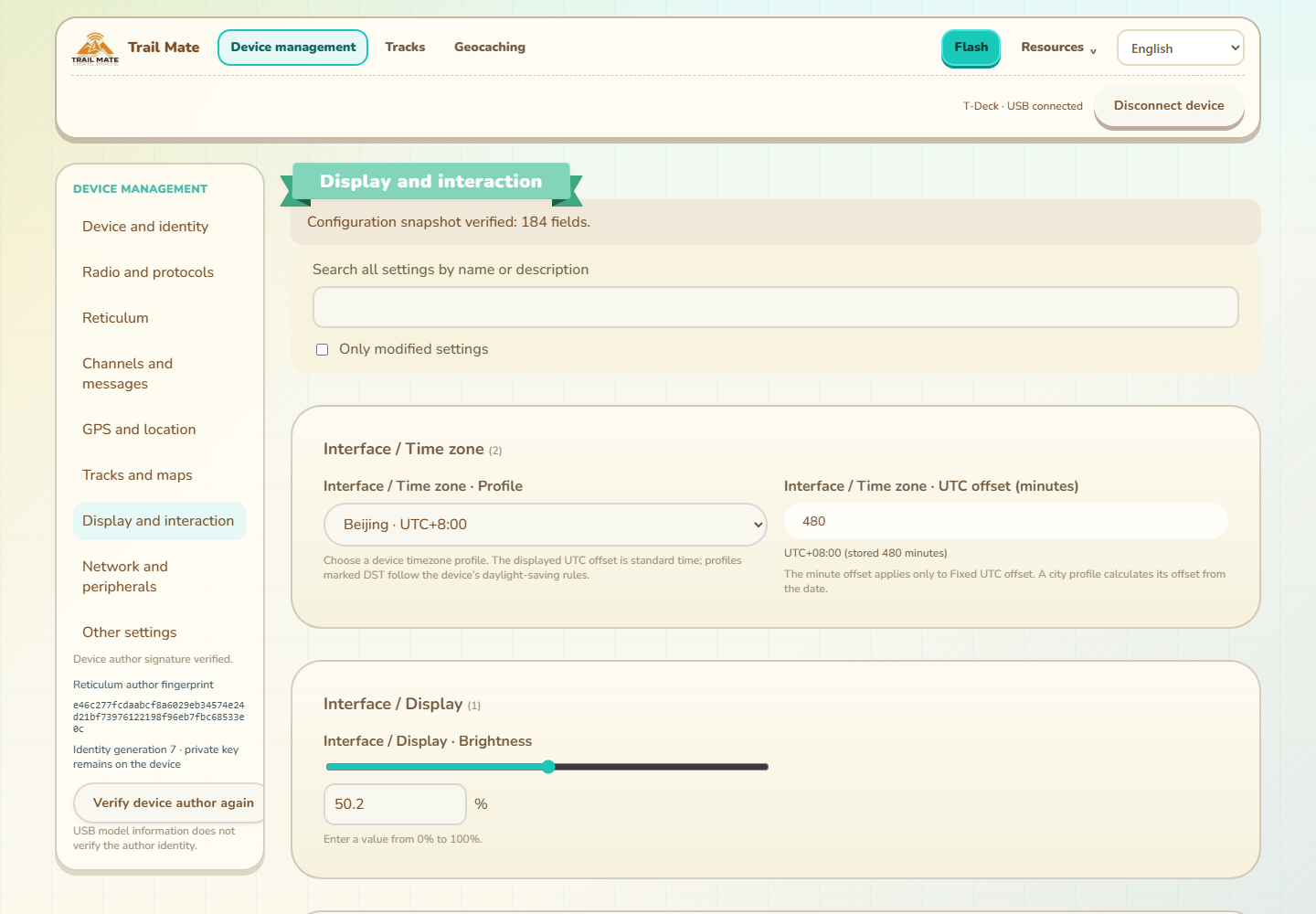
This current English browser capture uses simulated USB configuration and author proof. It illustrates the controls, rather than establishing hardware acceptance for every board. The firmware release record records board-specific evidence separately.
Use a browser that implements Web Serial on an HTTPS site or localhost. The page reports whether serial access is available. Connect the USB device, click Connect, and choose its application serial port in the browser's chooser. Browsers require this port-selection interaction; firmware download mode is not the configuration application.
Pager SX1262, Pager LR1121 and T-Deck/T-Deck Plus require 1.0.1 or later. Their 1.0.0 release images omitted the application USB management service; reloading the website cannot add it. Install the exact board/radio build and then choose its normal application port. The release keeps DFU disabled; BOOT + RESET still enters ROM firmware download mode when needed.
Configuration and stored-content operations need application ownership of the SD card. Leave USB SD-card mode before using management. Connection progress identifies serial opening, USB signal setup and the HostLink handshake, and a failure retains the original diagnostic for that stage.
The page reads capabilities, proves the author identity and verifies a complete configuration snapshot. Wait for that verification before editing. A USB connection authorizes device operations; it does not require selecting Reticulum as the device's active chat protocol. Browser Internet functions use the computer's network.
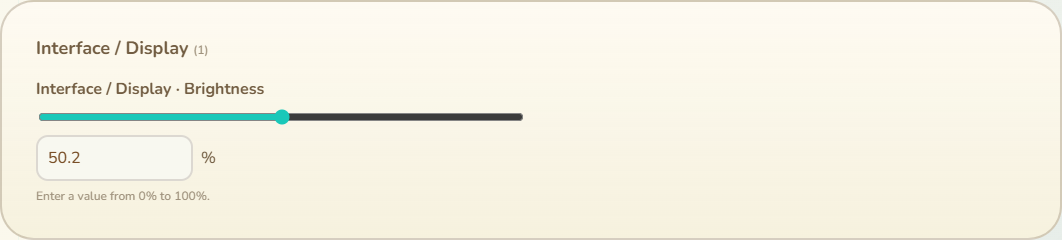
Use the configuration categories or search rather than scrolling an unlabelled list of raw fields. Enumerations are named choices; durations and frequencies show units; percentages have ranges; mask fields provide meaningful options; and repeated configurations use collection controls. Explanations identify dependencies or compatibility-only values where applicable.
The supported product workflow does not expose Meshtastic/MeshCore companion- app Bluetooth settings. Different boards and protocols may consume different configuration values; a value being stored does not prove unavailable hardware can use it.
Review validation errors before saving. Unknown or custom values need an explicit representation so they are not silently replaced by an unrelated default.
The review shows changed values with their meanings and units. Confirm the intended device, then save. Wait for the device result and readback; a sent request alone is not proof that configuration was applied.
After a disconnect, reconnect and verify the device identity and snapshot again. Retained work can be offered for continuation where supported, but edits must not be applied to another identity without review.
Configuration backup/restore and identity maintenance are distinct operations. A configuration backup preserves settings. An identity backup can contain the material needed to act as that author and must be protected accordingly.
Ordinary Geocaching and trail publishing uses device-side signatures; exporting private keys is not required. Identity export/restore uses its own explicit review and encrypted-file workflow. Check the target identity and confirm the result after the required restart. Restoring an identity is not the same as creating a new account on a website.
- If Web Serial is unavailable, use a browser that supports it or Center's supported USB workflow.
- Close another serial monitor that holds the application port.
- If the device is in firmware download mode, start its normal application before trying configuration management.
- If a save is unfinished, use the displayed continuation/readback state. Do not assume that reconnecting should repeat every previous write.
The Web interface has 11 languages, independently of firmware language packs. See the existing configuration and SD lifecycle guides for device storage and on-device settings.