Repository navigation
24. Offline Navigation and Map Controls
This guide covers the 1.0.0 firmware's offline foot-route workflow. Wio L2 route calculation/following, visual presentation and touch interaction were accepted on hardware on October 16, 2026. That acceptance does not establish identical peripherals or hardware validation on every other board.
Rendering a map and calculating a path require different data. An OSM, terrain
or satellite package may display normally while containing no routing graph.
Export compatible TMAP data with foot routing enabled in Trail Mate Center.
The current runtime searches /maps/tmap/osm, /maps/tmap/terrain,
/maps/tmap/satellite and /maps/tmap for compatible packages, as well as the
legacy /maps/navigation and /maps/tmap/navigation locations. A filename alone
does not supply routing capability: the package must contain its graph.
Keep the relevant map and POI packages installed for visual context and place
search. The terrain and satellite layers show only the zoom levels present in
their respective packages.
The current calculation runtime is available on supported PSRAM-capable ESP Arduino and ESP-IDF ports, including Wio L2. The Nav menu choice is hidden when the runtime is unavailable. This integration currently calculates foot routes within one installed routing package. It does not offer car/bicycle profiles, runtime conditional-rule evaluation, or route stitching across separate graphs. Prepare a connected regional graph in Center when a trip needs wider coverage.
- Open Tracker → Menu → Nav → New.
- Keep Current location as the origin, or choose another origin using the existing POI search. A current-location origin needs a valid GNSS fix when calculation starts.
- Select the destination through the same POI picker. Choose a search result; typing a name alone does not select its coordinates.
- Choose Calculate. The page reports progress and allows cancellation.
- When a route is ready, review the calculated distance, then choose Save and preview to inspect the path on the map.
Missing routing data, endpoints outside coverage, no available path, and storage or memory admission failures are separate outcomes. An unsuccessful calculation does not become a straight line labelled as a navigable path.
Saved plans are indexed .tmroute files in /routes/navigation. They retain
their endpoints and computed geometry. Reopening a plan reads the saved result
instead of recalculating its origin from your current position. Ordinary KML
routes remain a separate Tracker category. Saving a navigation plan is a local
operation and does not publish your trip.
Choose a saved Navigation card in Tracker, open Actions, and use its preview or load action. Alternatively, open Map → Menu → Navigation and choose Load in its management dialog. Loading activates the route overlay and the existing route-following displays for current position, route progress, remaining distance, deviation and arrival. Stopping navigation does not delete the saved plan. While Map is open, native plans also provide geometric turn hints and confirmed deviation/arrival states. Manual or automatic replanning keeps the old saved plan until a validated new candidate is activated. You can cancel or retry; a failed replan does not erase the original file. Stale GNSS, missing storage and exhausted budgets are shown as explicit states rather than a successful route.
Tracker's bottom Menu keeps Tracks, Routes and Nav separate. Tracks contains recordings, Routes contains ordinary route files, and Navigation contains saved calculated plans. Tracks and Nav offer View, New and Current in their submenus: browse saved items, start a recording/plan, or return to the current item. Each mode reuses a single card with previous/next controls. Route names come from KML when available; an internal revision filename is not used as the main title. Cards show approximate administrative area and distance to the first recorded position. That card distance is not total route length; use the calculated result or route preview for route length.
The bottom bar keeps the zoom controls at the left. Pos, Help, Team and Menu appear at the right, in that order. Team is visible only while the device has joined a team with a valid team ID.
Menu opens upward and contains Contours, Map Layer, Search, Navigation and Tracks. Map Layer opens a second level with direct OSM, Terrain and Satellite choices, marking the current source. Team opens its own upward menu for member selection and member-track actions, making team operations accessible without entering the general tool menu. Only one menu is open at a time. Tap its button again or tap the map outside it to dismiss it. Long menus scroll within the space above the taskbar.
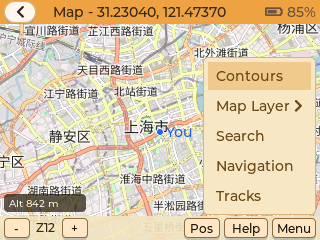
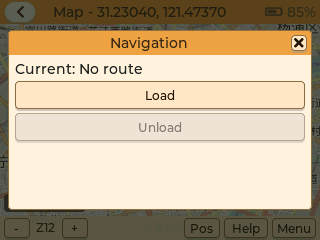
Navigation and Tracks open management dialogs showing the current loaded item and available Load/Unload actions. Unloading removes the overlay without deleting the saved file. Contours opens its own visibility controls. These stable menu entries keep detailed operations in a dialog rather than changing the root menu between load/unload or show/hide commands.
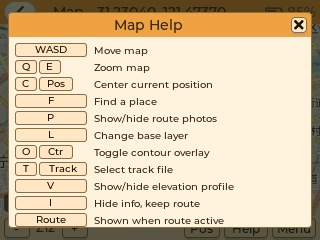
Help has a fixed title bar and a compact close button. Its help text scrolls separately, so Wio L2 users can dismiss the panel without a keyboard. X/x and existing Escape/Back dismissal are available on keyboard devices. The current Navigation, Tracks, Contours and Tracker dialogs reuse this frame.
These screenshots are production LVGL native renders at 320 × 240, from UI source
84a3ecf6 and successful Pages/native run 38714841112. They use sample map/GPS
data and are not physical-device captures. Nav is hidden in previews without a
calculation runtime; its availability on a device depends on target support.
POI label budgets are approximately 40 percent higher than the previous policy, while retaining the existing overlap checks and placement buffers. Actual visible counts depend on zoom, package contents and available screen space.
Calculation workspaces use PSRAM on supported ESP targets. The completed route
is written to an indexed .tmroute archive; preview and Map read bounded windows
from it rather than keeping all detailed geometry in memory. Planning buffers
and the calculation task are released after completion or cancellation. Tracker
does not retain a second road-graph cache while idle.
Navigation calculation and following do not require an Internet account or a Reticulum directory. Publishing a trail is a separate operation using the connected device's author identity and the computer's network.
See 21. Trails and Decentralized Sharing, 5. Offline Maps, and 6.2 TMAP Maps and Terrain for sharing and map preparation.