Getting Started
When you first launch QBZ, you'll see the login screen. Enter your Qobuz email and password to sign in.
QBZ authenticates directly with the Qobuz API. Your session token is stored locally in an encrypted store (your system keyring plus an AES-256-GCM file, written with
0600permissions) and is never sent anywhere else.
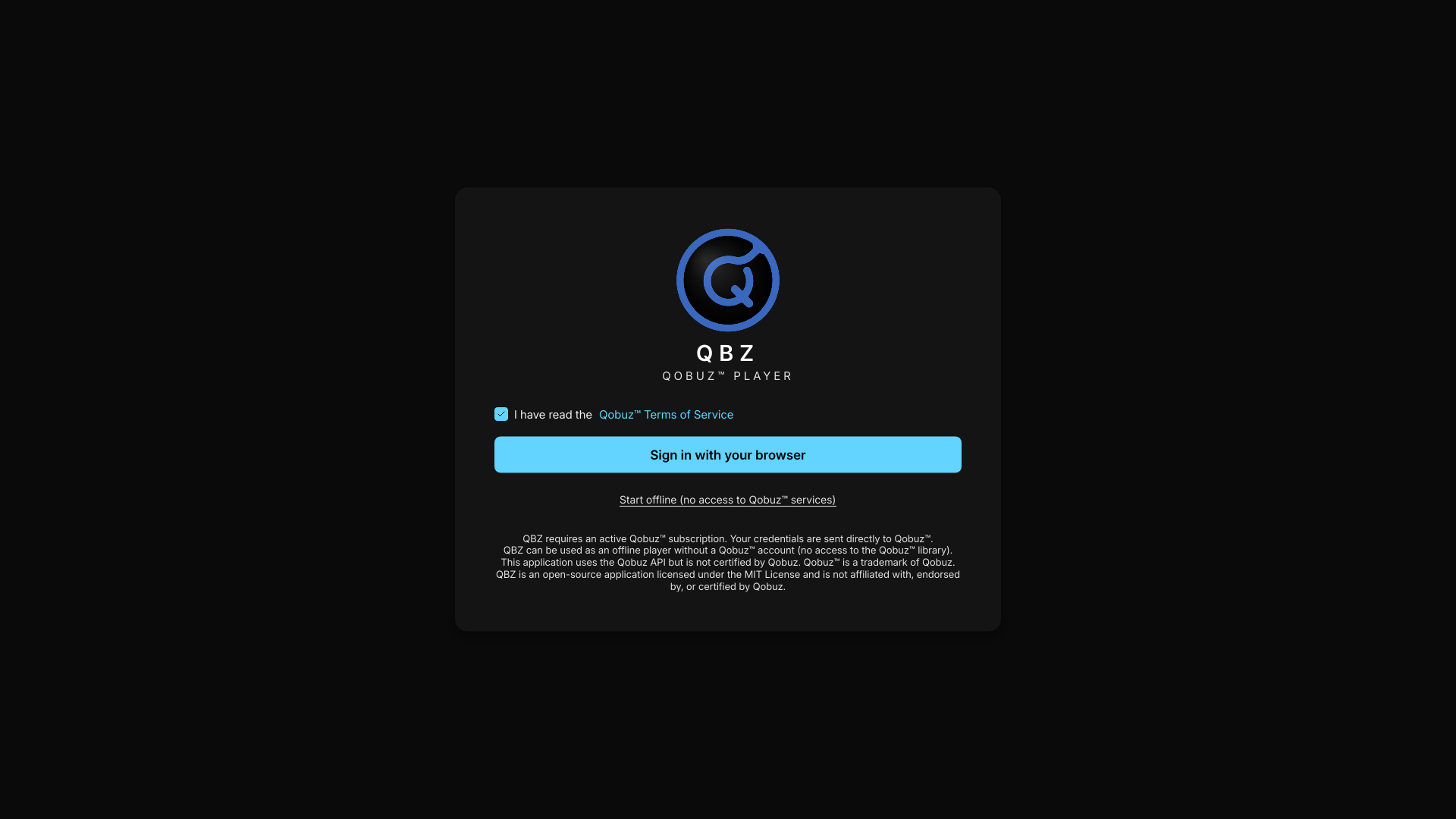
The left sidebar is your main navigation:
- Discover — Home, Editor's Picks, For You, and Recommendations
- Search — find albums, artists, tracks, and playlists
- Library — your Qobuz favorites, split into tabs: All, Tracks, Albums, Artists, Playlists, and Labels
- Local Library — your locally scanned music files (Albums, Artists, Folders, Tracks tabs)
- My QBZ — local-only Mixtapes and Collections
- Playlists — your Qobuz playlists (with a folder / sort view)
- Purchases — albums you've purchased on Qobuz
- Settings — app configuration
The new All tab under Library is a mixed feed — tracks, albums, playlists and artists together, across Qobuz and your local files — with genre and sort controls.
The Home view (under Discover) can show a Pinned section — pin the albums, artists or playlists you want to see first — and a Most Played Albums rail fed by your own play counts. Both are off by default and configurable.
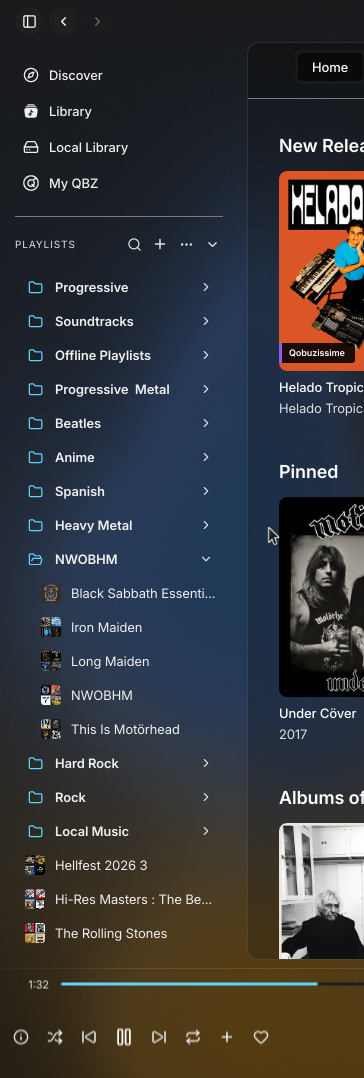
The bottom bar shows the currently playing track with playback controls, progress bar, volume, and queue access.
Click the album artwork or track title to open the Immersive Player — a full-screen player with visualizations and lyrics.
My QBZ is the local organization area for Mixtapes and Collections. These do not sync to Qobuz; they live in QBZ and can mix Qobuz, local library, and Plex-backed music.
Right-click the My QBZ heading in the sidebar to rename it or choose a custom icon. This customization is exposed from the sidebar context menu, not from Settings.
Click the queue icon in the Now Playing bar to open the queue panel. From here you can:
- See upcoming tracks
- Reorder by dragging
- Remove tracks
- Toggle shuffle and repeat modes
- Browse or search for an album or artist
- Click Play to start playing immediately, or Add to Queue to queue it
- Tracks start streaming in the quality determined by your plan and audio settings
- Go to Settings > Local Library and add your music folders
- QBZ scans and indexes your local files
- Browse your local library from the sidebar
- Play local files with the same player controls as Qobuz streams
See Local Library for more details.
By default, QBZ streams at the highest quality your Qobuz plan allows. You can adjust this in Settings > Audio:
| Quality | Format | Sample Rate |
|---|---|---|
| Hi-Res+ | FLAC 24-bit | Up to 192 kHz |
| Hi-Res | FLAC 24-bit | Up to 96 kHz |
| CD Quality (Lossless) | FLAC 16-bit | 44.1 kHz |
| MP3 320 | MP3 | 44.1 kHz |
The quality badge in the Now Playing bar reports the delivered quality, not the requested one — if something forced a downgrade (your DAC's cap, a cast device's tier, or the source), a small arrow appears and the tooltip names the cause.
For the best experience with an external DAC, see Audio Configuration.
Press ? at any time to see the full list of keyboard shortcuts.
Common shortcuts:
| Shortcut | Action |
|---|---|
Space |
Play / Pause |
→ |
Next track |
← |
Previous track |
↑ / ↓
|
Volume up / down |
F |
Toggle fullscreen immersive player |
L |
Toggle lyrics |
M |
Mute / unmute |
? |
Show shortcuts reference |
Shortcuts are fully customizable in Settings > Customize Shortcuts.
QBZ isn't only the desktop window:
-
Headless daemon (
qbzd) — run QBZ with no window on an always-on box wired to your DAC (a Raspberry Pi, NUC or server). It shows up as a Qobuz Connect device and is driven from the terminal, over SSH, or via MPRIS. See Headless Daemon. -
Kiosk mode — launch with
QBZ_PROFILE=kioskfor a touch-first interface built for touchscreens and small panels. It boots windowed by default; addQBZ_KIOSK_FULLSCREEN=1for fullscreen. You can also flip between Kiosk and Desktop live from the Now Playing layout menu.
- Audio Configuration — set up your DAC for bit-perfect playback
- Local Library — scan and manage your local music files
- Mixtapes and Collections — organize music across Qobuz, local files, and Plex
- Integrations — connect Last.fm, ListenBrainz, and more
- Themes and Visualization — customize the look and feel (30+ themes incl. Catppuccin, the dynamic background, and 8 UI languages)
- Headless Daemon — run QBZ without a window