Repository navigation
Debugging Tools
This section will give an overview of the gpu debugging tools available on Piz
Daint. Feel free to contact us on #cluster_support_pizdaint in Slack for more
information.
NVIDIA cuda-gdb
-
cuda-gdb is NVIDIA
gpu debugging tool. It is possible to debug a cuda executable running on the
compute node, provided that the right compiling environment is loaded and
that the executable is compiled with
nvcc -g -G:
module swap PrgEnv-cray PrgEnv-gnu
module load cdt-cuda/21.05
module load craype-accel-nvidia60
module swap cudatoolkit cudatoolkit/11.2.0_3.39-2.1__gf93aa1c

nvcc -g -G -gencode arch=compute_60,code=sm_60 my.cu -o mpi+cuda.exe

cuda-gdb --version
# NVIDIA (R) CUDA Debugger 11.2 release

which cuda-gdb
# /usr/local/cuda-11.2/bin/cuda-gdb
Launching the job with the --pty slurm flag is required for interactive use:
srun -Cgpu --pty -n1 -t10 cuda-gdb ./mpi+cuda.exe
By default, cuda-gdb does not pause execution when reaching the gpu:
(cuda-gdb) help set cuda break_on_launch application
Automatically set a breakpoint at the entrance of kernels.
When enabled, a breakpoint is hit on kernel launches:
  none        : no breakpoint is set (default)
  application : a breakpoint is set at the entrance of all the application kernels
  system      : a breakpoint is set at the entrance of all the system kernels
  all         : a breakpoint is set at the entrance of all kernels
set cuda break_on_launch application will pause the debugger inside the first
cuda kernel. A typical output will look like this:
(cuda-gdb) set cuda break_on_launch application
(cuda-gdb) run -s 10 -n 40

Starting program: ...
# domain::distribute: 0.0120922s
# mpi::synchronizeHalos: 6.5925e-05s
# domain::buildTree: 0.00993199s
# updateTasks: 7.0373e-05s
[New Thread 0x2aab24fbd700 (LWP 15699)]
[Switching focus to CUDA kernel 0, grid 1, block (0,0,0), thread (0,0,0),
device 0, sm 0, warp 0, lane 0]

sphexa::sph::cuda::kernels::findNeighbors<double><<<(4,1,1),(256,1,1)>>>
(o=..., clist=0x2aab549f4000, n=1000, x=0x2aab54800000, y=0x2aab5487d000,
z=0x2aab548fa000, h=0x2aab54977000, displx=1, disply=1, displz=1, max=2, may=2,
    maz=2, ngmax=150, neighbors=0x2aab54a00000, neighborsCount=0x2aab549f5000)
    at include/sph/cuda/cudaFindNeighbors.cu:167
167	    const int pi = blockDim.x * blockIdx.x + threadIdx.x;

(cuda-gdb) print blockDim.x
$1 = 256
Another way to pause execution is to insert breakpoint(s) inside the cuda kernel source file:
(cuda-gdb) break main
or
(cuda-gdb) break include/sph/cuda/cudaDensity.cu:23
or
wait for the program to halt (because of a segfault for instance)
A typical output will look like this:
(cuda-gdb) break include/sph/cuda/cudaDensity.cu:23
Breakpoint 2 at 0x4178a9: file include/sph/cuda/cudaDensity.cu, line 23.
(cuda-gdb) continue
Continuing.
# domain::distribute: 0.0121143s
# mpi::synchronizeHalos: 6.8191e-05s
# domain::buildTree: 0.00945133s
# updateTasks: 5.6015e-05s
[New Thread 0x2aab24dbc700 (LWP 14181)]
[New Thread 0x2aab24fbd700 (LWP 14182)]
# FindNeighbors: 1.61212s
[Switching focus to CUDA kernel 0, grid 65, block (0,0,0), thread (0,0,0),
device 0, sm 0, warp 0, lane 0]

Thread 1 "mpi+omp+cuda.se" hit Breakpoint 2,
sphexa::sph::cuda::kernels::density<double><<<(4,1,1),(256,1,1)>>> (n=1000, ...,
ro=0x2aab6547d000) at include/sph/cuda/cudaDensity.cu:23

23	    const int tid = blockDim.x * blockIdx.x + threadIdx.x;
(cuda-gdb) print blockDim.x
$1 = 256
This link points to the documentation of cuda-gdb.
NVIDIA cuda-memcheck
- cuda-memcheck is NVIDIA memory access error and leak detection tool. It is possible to inspect a cuda executable running on the compute node with the right compiling environment loaded:
module swap PrgEnv-cray PrgEnv-gnu
module load cdt-cuda/21.05
module load craype-accel-nvidia60
module swap cudatoolkit cudatoolkit/11.2.0_3.39-2.1__gf93aa1c

nvcc -g -G -gencode arch=compute_60,code=sm_60 my.cu -o mpi+cuda.exe

cuda-memcheck --version
# CUDA-MEMCHECK version 11.2.67 ID:(46)

which cuda-memcheck
# /usr/local/cuda-11.2/bin/cuda-memcheck
Running with cuda-memcheck will add extra runtime to your simulation. Launch the job with the tool as follows:
srun -Cgpu -n1 -t30 cuda-memcheck ./mpi+cuda.exe -s 1 -n 40
A typical output will look like this:
========= CUDA-MEMCHECK
...
# Total execution time of 1 iterations of Sedov: 152.725s
========= ERROR SUMMARY: 0 errors
This link points to the documentation of cuda-memcheck.
ARM Forge DDT
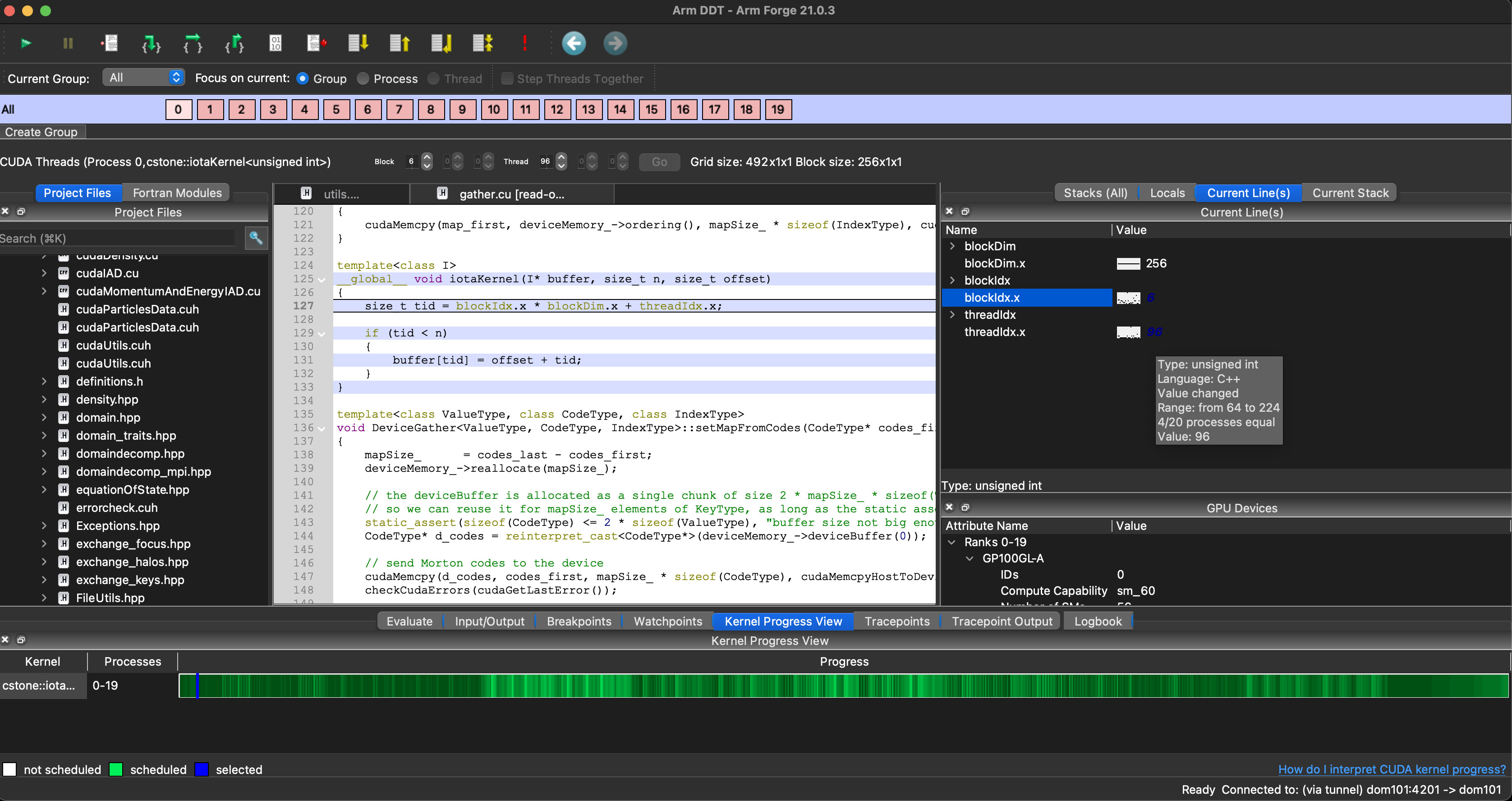
- ARM Forge DDT
provides source-level debugging of Fortran, C, and C++ codes. It can be
used for debugging serial, multi-threaded (OpenMP), multi-process (MPI) and
accelerated (Cuda, OpenACC) executables. It can be started either as a
graphical user interface (
ddt --connect) using the remote client or in script batch mode (ddt --offline).
To use ddt on Piz Daint, load the modulefiles:
module swap PrgEnv-cray PrgEnv-gnu
module load cdt-cuda/21.05
module load craype-accel-nvidia60
module swap cudatoolkit cudatoolkit/11.2.0_3.39-2.1__gf93aa1c

nvcc -g -G -gencode arch=compute_60,code=sm_60 my.cu -o mpi+cuda.exe

module use /apps/daint/UES/eurohack/modules/all
module load ddt/21.0.3-linux-x86_64

> ddt -v
    Arm DDT
    Version: 21.0.3
To improve your debugging experience, we recommend to download and install the DDT client on your laptop. Follow the instructions to setup the client. After connecting to Piz Daint with the DDT client, launch your debugging session with:
ddt --connect srun -Cgpu -n20 -N20 -t10 ./mpi+omp+cuda -s 1 -n 136