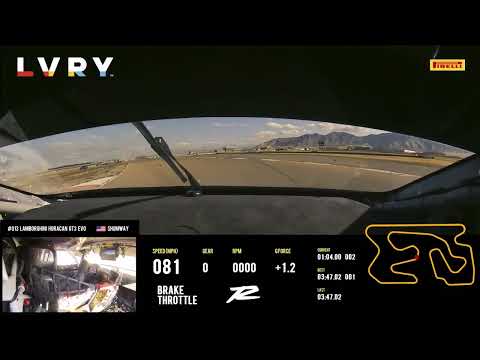
Telemetry overlay for iRacing with real-time input visualization and performance analysis.


- Steering Wheel Display - Visual representation of steering angle with smooth animations
- Input Bars - Live throttle and brake input monitoring, also displays ABS on the wherever it is activated.
- Reference Lap Loading - Load and compare against saved reference laps (Requires downloading csv lap files from Garage61)
- Precision Tracking - See exactly what inputs you're making in real-time
- Gear & RPM Display - Current gear and engine RPM with visual indicators
- Brake Bias Display - Real-time brake bias percentage
- TC & ABS Levels - Traction control and ABS settings display
- ABS Activation Indicator - Real-time visual feedback when ABS is actively engaged
- Telemetry Markers On Track - Mark points of interests, custom brake points etc while on track.
- OS: Windows 10 or Windows 11
- Game: iRacing (active subscription required)
- RAM: 4GB minimum, 8GB recommended
- Storage: ~100MB free space
- Download the latest
iracing_telemetry.exefrom the Releases page - Run the executable - no installation needed!
- Start iRacing and begin your session
- Enjoy real-time telemetry overlay
Note: The app automatically detects when iRacing is running and connects to the telemetry feed.
- Run
iracing_telemetry.exe - The overlay window will appear
- Start iRacing and join a session
- The overlay will automatically connect and display telemetry
- Move Windows: Drage from the top black bar to move window
- Resize: Use small yellow box on the bottom right to resize
- Toggle Widgets: Turn On/Off specific widgets from the settings icon
- Lap Comparison: Download a lap from Garage61 (export to csv) -> Settings -> Pick Reference CSV (Dashed lines are comparison lap inputs while solid lines are your real time inputs)
- ABS and Pitlimiter: Whenever
ABSis activated while braking , brake lines, brake bar and top bar will start pulsating on activation. Whenever pit limiter is turned on RPM Widget will start blinking.
Click the ⚙️ gear icon in the top-left corner of the overlay.
Toggle which widgets appear on your overlay:
- ✅ Driver Info - Your name, car number, and manufacturer logo
- ✅ Input Bars - Throttle and brake bars (changes color when ABS activates)
- ✅ Steering Wheel - Real-time steering visualization
- ✅ Lap Times - Current, last, and best lap times
- ✅ Gear/RPM - Current gear with RPM gauge and shift lights
- ✅ Driver Controls - Brake bias, TC level, ABS level
Tip: Uncheck widgets you don't need to make the overlay smaller!
- Click "Load Reference Lap" to select a CSV file from a previous lap
- The overlay will compare your current inputs to the reference lap
- Shows brake/throttle comparison graphs in real-time
- Use the "Show/Hide Comparison" button to toggle the comparison graphs
- Hotkey: Alt+C (customizable)
Track markers let you set audio alerts at specific points on the track. When you approach a marker, you'll hear a beep to remind you of important points (braking zones, turn-in points, etc.).
1. Set the "Mark Position" Hotkey:
- Click the green "Mark Position" button in settings
- Press a key (e.g.,
Alt+M) or a wheel button - The button will show your chosen hotkey
2. Mark a Position:
- Drive to the point you want to mark
- Press your hotkey
- You'll hear a beep confirming the marker was set
- If there's already a marker within 50 meters, it will be replaced
3. Clear Markers:
Clear Closest Marker:
- Click the orange "Clear Closest" button to set a hotkey
- Press the hotkey while driving to remove the nearest marker
- Great for removing one marker without clearing all
Clear All Markers:
- Click the red "Clear All" button to set a hotkey
- Press the hotkey to remove ALL markers at once
- Use this to start fresh
- Adjust the slider to set how far before a marker the beep plays
- Range: 1-100 meters
- Default: 50 meters
- Example: If set to 30m, the beep plays when you're 30 meters away from the marker
Alt+M- Mark positionAlt+C- Toggle comparisonCtrl+Shift+X- Clear all markersAlt+F7- Toggle visibility
joy0_btn12- Button 12 on your first joystick/wheeljoy0_btn13- Button 13 on your first joystick/wheel- The app will show you the button name when you press it during setup
Tip: You can mix keyboard and wheel buttons! For example:
- Mark position:
joy0_btn12(wheel button) - Clear closest:
joy0_btn13(wheel button) - Clear all:
Ctrl+Shift+X(keyboard)


Yes! The overlay works with all iRacing cars and tracks.
No! The overlay runs as a separate process with minimal CPU/RAM usage.
Absolutely! You can move the overlay to any monitor.
- Make sure iRacing is running and you're in a session (not in the UI)
- Try restarting both iRacing and the overlay
- Check that iRacing telemetry is enabled in settings
- Close other unnecessary applications
- Reduce the number of visible widgets
- Check your system meets the minimum requirements
- Check if the overlay is minimized to system tray
- Make sure it's not hidden behind iRacing window
- Try moving it to a different monitor
See Releases for version history and changes.
Found a bug or have a feature request? Please open an issue on the Issues page.
This project is licensed under the MIT License.