GOG Integration
GamesDownloader connects to GOG so your DRM-free GOG library becomes part of the server catalogue. Each user connects their own GOG account, the server syncs the owned games, downloads installers and bonus content on demand, verifies them, and (optionally) publishes them into the shared Games library where everyone with access can pull them. This page covers the full lifecycle: connecting, syncing, downloading, publishing, and how multiple users' GOG accounts coexist.
GamesDownloader only ever fetches games that the connecting account legitimately owns on GOG. It uses the account's own access token against GOG's API; it is not a store, a key generator, or a way to obtain games you do not own.
- How it works
- Connecting a GOG account
- Syncing your library
- Downloading games
- Publishing into the Games library
- Multi-user GOG accounts
- Metadata fallback
- Disconnecting
- Reference: job and checksum states
There are two layers to GOG in GamesDownloader:
| Layer | What it is | Where you see it |
|---|---|---|
| GOG library | The catalogue of games owned across all connected accounts, with scraped metadata and artwork. Downloads happen here. | GOG Library (admins), Game Requests → My GOG (every user) |
| Games library | The shared, published library. A downloaded GOG game can be published here so it sits alongside custom games and can be handed out to other users. | Library (see Library) |
A game starts in the GOG library, gets downloaded to the server, and can then be published into the Games library. The two are linked, so a published GOG game never duplicates its metadata (see Metadata fallback).
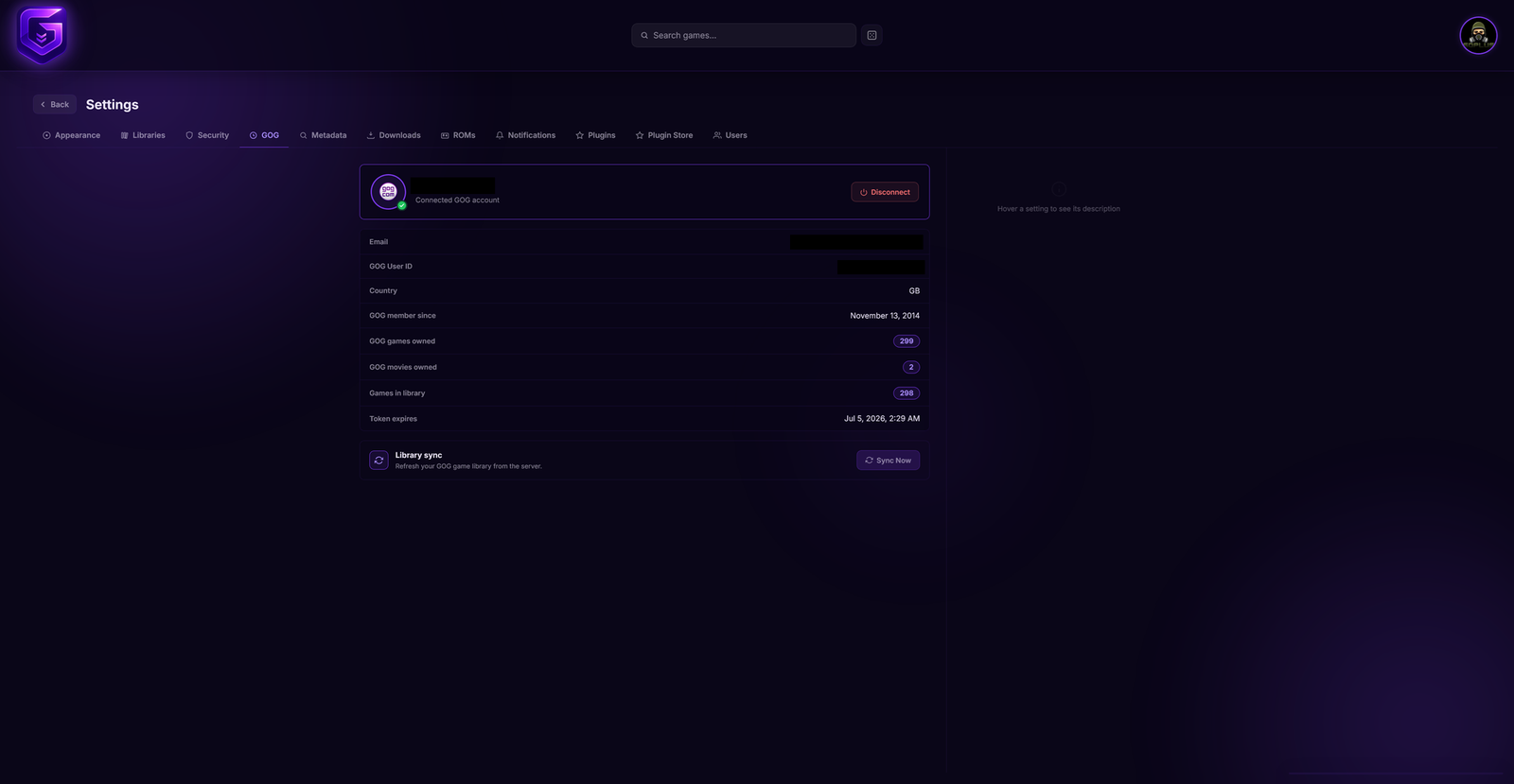
Connecting a GOG account under Settings → GOG
Every user connects their own GOG account from their Profile page. There is no shared or server-wide login required for individual users.
- Open your Profile and start the GOG connection.
- GamesDownloader gives you a GOG sign-in link. Open it, log in to GOG in your browser, and complete the sign-in.
- GOG redirects to a page whose URL contains an authorisation code. Copy that code back into GamesDownloader to finish the connection.
Behind the scenes the code is exchanged for an access token that is stored per user; the server refreshes it automatically when downloading, so you do not normally need to reconnect.
The connection status shows whether you are authenticated and how many games are currently in your synced library, so you can confirm the link worked before syncing.
An administrator can also connect an instance-level GOG account (the account whose games are owned by the server itself rather than by a specific user). This uses the same flow but is managed by an admin; its games appear with the admin owner badge. Connecting the instance account requires GOG write permission.
Once connected, sync pulls the list of games your GOG account owns into the GOG library.
- Users sync their own library from Profile; admins can sync from the GOG Library view.
- Sync runs in the background. A live status reports the current phase and how many games have been processed so far.
- After the game list is fetched, GamesDownloader can automatically scrape metadata and artwork for any not-yet-scraped titles (GOG data plus the other configured sources - see Scrapers & Metadata). This auto-scrape is on by default and can be forced to re-scrape everything.
- A final auto-adopt phase can publish games whose files are already on disk into the Games library (see Publishing into the Games library).
The sync status is held in memory and resets when the container restarts. If you restart mid-sync, just start the sync again; it is safe to re-run.
Downloads are managed as a queue of jobs. For any owned game you pick the installer (per operating system, language, and version) or a bonus item, and GamesDownloader queues a job that streams the file from GOG onto the server.
Queue management
- Multiple downloads run in parallel up to a configurable limit (1 to 10 concurrent jobs). The concurrency limit can be changed at runtime; anything over the limit waits in the pending queue.
- Each job tracks total size, downloaded size, live speed, and percent complete, streamed to the download tray.
Pause, resume, retry, cancel
| Action | Behaviour |
|---|---|
| Pause | Stops an active download and preserves progress on disk. |
| Resume | Continues a paused job from where it stopped using an HTTP range request, so nothing already fetched is re-downloaded. |
| Retry | Re-queue a failed job to try again. |
| Cancel | Stops the download and marks the record as cancelled (the record is kept). |
| Delete | Removes a finished job's record entirely. |
Checksum verification
You can enable checksum verification for a job. The MD5 is hashed incrementally while the file streams in (no extra pass over the data), so size is never a limit. After the download completes the server records the result as ok or failed when GOG supplied an MD5, or size_ok / size_fail for the size-based fallback when it did not, or skipped when no verification was possible. This lets you confirm a large installer arrived intact before publishing it.
Per-platform packaging
A downloaded GOG game often consists of many loose files. GamesDownloader can optionally bundle a game's files into a single archive per platform (Windows / Linux / macOS) so pulling it from the server is one download instead of dozens of simultaneous browser downloads. Packaging is a fast container copy (no compression) with live progress in the download tray, and is configured under Settings → Downloads → Packaging. See Downloads & Torrents for the full download and packaging behaviour.
Downloading a GOG game puts its files on the server under the GOG games folder, but it does not automatically appear in the shared Games library. Publishing creates a library entry that links to the files already on disk. No re-download happens; publishing only links what is already there.
There are three ways a GOG game becomes published:
- Manual publish - an administrator publishes a single game from the GOG view. This is an admin-only action (it requires library-admin permission; see Users & Permissions).
- Auto-adopt after sync - controlled by the Auto-adopt toggle under Settings > Downloads (on by default). After a sync, any GOG game whose files are found on disk but which is not yet in the library is published automatically. It only touches never-published games, so a game you deliberately unpublished stays hidden, and it never creates an empty entry for a game with no files on disk.
- Adopt now - the same adopt pass triggered on demand, to pick up games downloaded outside a sync.
When a game is published, GamesDownloader records who published it and links the on-disk files. If a previously linked file has vanished from disk it is marked unavailable rather than silently dropped. Re-publishing an existing entry re-activates it in place.
Published GOG games live in the same Games library as custom titles, so they can be organised, access-controlled, and downloaded exactly like any other library game. See Library.
Several people can each connect their own GOG account to the same server, and their libraries merge cleanly.
- Per-user connection. Any user connects their GOG account from their own Profile. Their owned games are synced under their ownership.
- My GOG tab. A user's own games appear under Game Requests → My GOG, where they can request downloads for the titles they own.
- Owner badges. In the admin GOG Library view, an administrator sees every user's games with owner badges: a golden crown marks admin (instance-account) games, and a username marks each user's games.
- Owner-token downloads. When a game is downloaded, GamesDownloader resolves the game's owner and uses that owner's GOG access token to fetch the files. This means a user's owned game downloads against their own account entitlement.
- Deduplication. When more than one user owns the same GOG game it still appears only once in the library. The admin (instance-account) copy takes priority; otherwise one owner's copy represents the title.
Publishing a GOG game does not copy its metadata. The published Games-library entry stores only its identity and a link back to the original GOG record; all metadata and artwork (cover, hero, description, developer, ratings, and so on) are served from the original GOG data directly through a fallback. This means:
- Zero duplication. There is exactly one copy of a GOG game's metadata, shared by both the GOG library and its published Games-library entry. Re-scrape it once and both views update.
- Custom games are independent. A custom (non-GOG) game stores its own metadata separately, so the fallback applies only to GOG-sourced entries.
The published entry also surfaces the original GOG owner, so the Games library can show who a GOG title came from.
A user can disconnect their GOG account at any time from their Profile. Disconnecting is a clean-up, not a purge of everything they ever touched:
- The account link and stored token are removed.
- The user's non-downloaded GOG games and their outstanding My GOG download requests are removed.
- Games that were downloaded or published stay in place, so anything already brought onto the server and shared in the Games library is not lost when the owner disconnects.
Download job status
| Status | Meaning |
|---|---|
queued |
Waiting in the pending queue for a free slot. |
downloading |
Actively transferring. |
paused |
Stopped, progress preserved for resume. |
completed |
Finished successfully. |
failed |
Errored; can be retried. |
cancelled |
Stopped and abandoned; record kept. |
Checksum status (only when verification is enabled)
| Status | Meaning |
|---|---|
ok |
Downloaded file matches the MD5 supplied by GOG. |
failed |
MD5 did not match; the file may be corrupt. |
size_ok |
GOG supplied no MD5, so the file size was checked instead and matched. |
size_fail |
Size-based fallback check did not match; the file may be incomplete. |
skipped |
GOG supplied neither an MD5 nor a size, or the size check errored. |
Next: Downloads & Torrents and Library.