Users and Permissions
GamesDownloader is multi-user from the ground up. One person owns the server as an administrator, and everyone else - family, housemates, friends on the local network - gets their own account with a role that controls what they can see and do. Access is enforced with JWT authentication, refined with per-user overrides and per-game restrictions, and can be delegated to an external identity provider through Single Sign-On.
This page covers the role model, permission overrides, per-game and per-library access control, session handling, self-service password reset, SSO, and registration modes.
- Roles
- Per-user permission overrides
- Per-game access control
- Authentication and sessions
- Your profile and account
- Forgot Password (self-service reset)
- Single Sign-On (SSO)
- Registration modes
- Library visibility and access (Settings → Libraries)
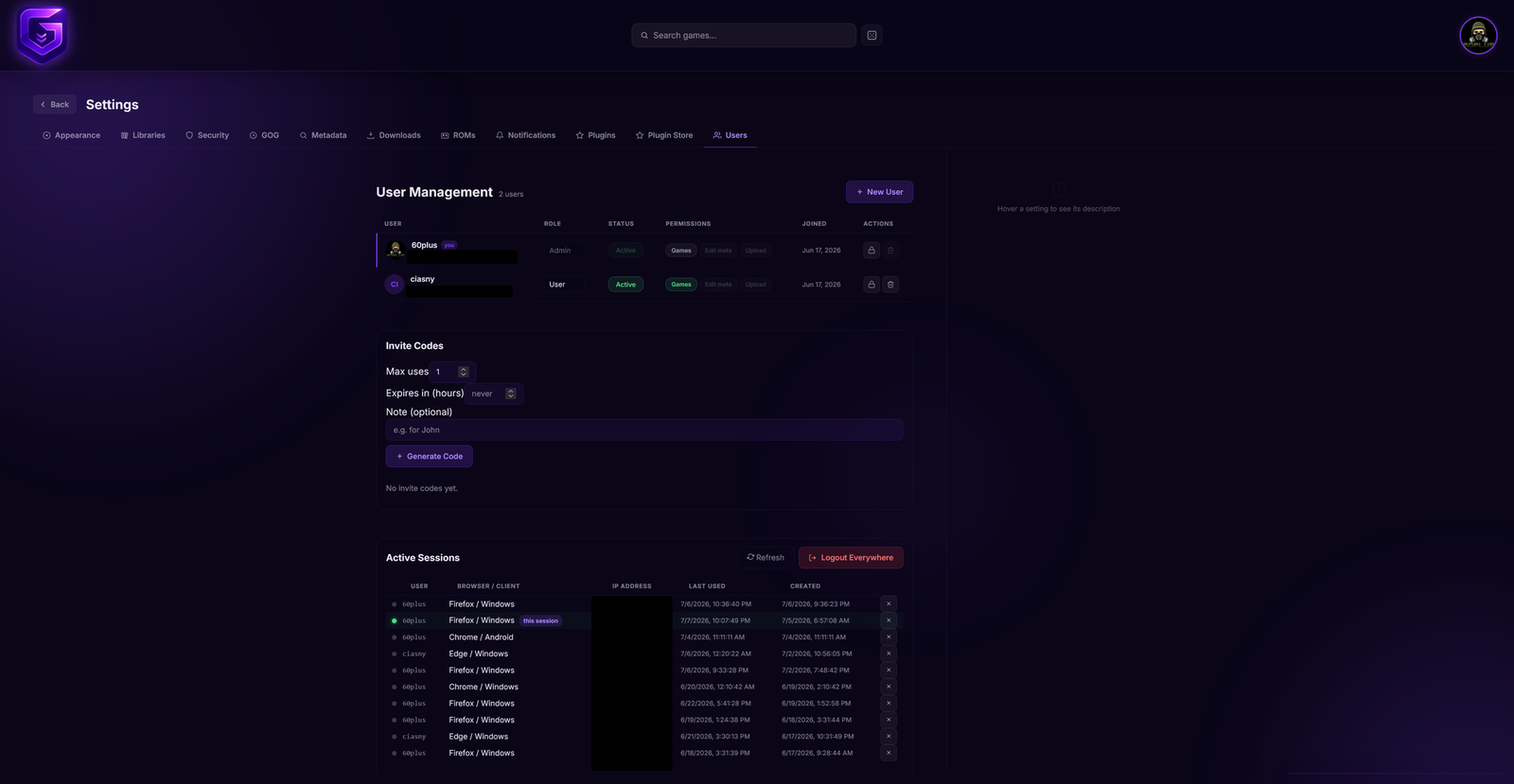
Settings → Users: user management, invite codes, and active sessions
Every account has one of four roles. Roles are a hierarchy of trust: each higher role is meant to add capabilities on top of the plain User baseline.
| Role | Intended capabilities |
|---|---|
| Admin | Full control of the server - users, roles, sessions, libraries, access rules, metadata scraping, security settings, and everything the lower roles can do. |
| Uploader | Everything a User can do, plus adding game files to the library (uploads). |
| Editor | Everything a User can do, plus editing game metadata and artwork. |
| User | Browse the library, download games, play ROMs in the browser, manage their own save states and battery saves, and file game requests. |
A capability view of the same model:
| Capability | User | Editor | Uploader | Admin |
|---|---|---|---|---|
| Browse library, download games, play ROMs | + | + | + | + |
| Manage own save states / battery saves | + | + | + | + |
| Submit game requests and vote | + | + | + | + |
| Connect a personal GOG account (in Profile) | + | + | + | + |
| Edit game metadata and artwork | + | + | ||
| Upload game files | + | + | ||
| Add games via torrent (magnet / .torrent) | + | |||
| Clear metadata (per-ROM or per-platform) | + | |||
| Manage users, roles, and sessions | + | |||
| Manage libraries and access rules | + | |||
| Server, network, and security settings | + |
Some actions are strictly admin-only regardless of any other setting, for example clearing metadata and adding games via torrent.
The exact set of actions each account can perform can be fine-tuned beyond its base role using per-user overrides (below), so the table above describes the default intent of each role rather than a fixed, immovable boundary.
On top of the base role, an administrator can apply per-user permission overrides to grant or restrict individual capabilities for a specific account. Use this when a single person needs something their role does not normally include, without promoting them to a broader role for everyone-else's-worth of extra power.
Related per-user knobs live elsewhere in Settings too - for example per-user download speed limits are configured alongside the global cap in Settings → Downloads.
Beyond roles, individual titles can be locked down: per-game access control lets an administrator remove a specific game from chosen users. This is useful for keeping certain titles out of a child's account. Set it from the game's Edit Metadata panel: the Access section lists your users, each ticked (has access) by default; un-ticking a user removes their access to that game. Administrators always keep access. A game with everyone still ticked stays visible to everyone whose role and library visibility allow it.
For restricting a whole library (for example a personal GOG library or a custom library) to specific users, see Library visibility and access below.
Authentication uses JSON Web Tokens (JWT) with a short-lived access token and a longer-lived refresh token, so users stay logged in without re-entering credentials on every request.
Sessions are fully revocable:
- All active sessions are visible in the admin Users panel.
- An administrator can revoke a single session, revoke all of their own sessions at once, or, from the Users panel, force-log-out any account by revoking every one of that user's active sessions in one click.
- Revocation is instant: it is backed by a Redis JTI (JWT ID) blocklist, with a database fallback if Redis is unavailable, so a revoked token stops working immediately rather than lingering until it expires.
Brute-force protection and the safe extraction of the real client IP behind a proxy are covered on the Network & Security page. The token secret (GD_AUTH_SECRET_KEY) is set in the environment, as described on the Configuration page.
Every account, whatever its role, has its own Profile page (reached from the user menu) where each user manages their own settings without an administrator. The Account tab is pure self-service:
- Interface language - pick your language from the selector; your choice is remembered and reapplied on every visit, so the interface stays in the language you set. GamesDownloader ships with several bundled languages.
- Avatar - upload a profile picture (PNG, JPG, GIF, or WEBP, up to 5 MB). It is stored on the server and served locally, then shown next to your account.
- Personal library stats - a quick summary of your own library: how many games you can see, how many you have downloaded, and your most-common genre.
The tab also shows read-only account details (username, email, role, and member-since date).
The rest of a user's self-service lives on the same Profile page and is documented elsewhere:
- Security tab - change your own password and set up two-factor authentication (2FA / TOTP), including one-time recovery codes.
- Game Saves tab - manage your emulator save states and battery saves against your personal storage quota (see ROMs & Emulation).
- GOG account - connect, sync, or disconnect your personal GOG account (see GOG Integration).
Users who cannot log in can reset their own password without an administrator. The Forgot Password flow emails a reset link containing a signed JWT token that:
- expires after 1 hour, and
- is rate limited to prevent abuse.
For the emailed links to point back at the correct address (rather than an internal container hostname), set the Public base URL so reset links resolve for users on your real domain or LAN IP. This is configured and explained on the Network & Security page. Email delivery itself depends on your SMTP configuration - see Email & Notifications.
GamesDownloader can delegate login to an external identity provider so people sign in with an account they already have.
Supported providers:
- Generic OIDC - any OpenID Connect provider, including Keycloak and Authentik.
- GitHub
- Microsoft
Login mode determines how SSO coexists with built-in accounts:
| Mode | Behaviour |
|---|---|
| alongside | Both local username/password login and SSO are offered on the login screen. |
| replace | SSO only. The local login form is hidden, but remains reachable through an emergency local link so an administrator can still get in if the identity provider is down. |
User matching. SSO does not create accounts on its own. When someone signs in through a provider, GamesDownloader matches them to an existing account by email first, then by username. The account must already exist in the database; if there is no match, the SSO login is rejected. This keeps role assignment and access control in your hands - create the account (and set its role) first, then let the user authenticate through the provider.
Because SSO users must exist beforehand, provisioning is a deliberate, admin-controlled step. Plan to create accounts (or invite them, see below) before pointing people at the SSO login.
How new local accounts come into existence is controlled by the registration mode:
| Mode | Behaviour |
|---|---|
| open | Anyone can register a new account. |
| disabled | Self-registration is turned off; only an administrator creates accounts. |
| invite-only | Registration requires a valid invite code. Codes can be time-limited and given a maximum number of uses. |
Registration mode and invite codes are part of the security surface documented on the Network & Security page.
The library registry is data-driven, so libraries can be created, reordered, hidden, and restricted from Settings → Libraries. This page has an admin-only management area at the top and per-user personalisation sections that everyone sees.
Administrators can:
- Enable or disable any library with the glass toggle.
- Reorder libraries with the up/down arrows (this sets the global default order).
- Edit a library's colour and icon (built-in icon picker or upload your own PNG / JPEG / WebP). Custom libraries can also be renamed.
- Create a new library. A plain library can optionally get its own scan folder for game files; alternatively you can create a collections container (which holds collections of games and has no scan folder). See Collections for how collections work.
- Delete custom libraries (built-in libraries cannot be deleted).
Changing which libraries exist and how they are organised affects everyone on the server, so the management area is restricted to administrators.
For eligible libraries an administrator can set an access rule in the inline editor:
- Everyone (public) - visible to all users (subject to their role and per-game restrictions).
- Restricted - visible only to the specific users you tick in the list.
Only certain library kinds can be restricted this way: GOG, custom games, and custom user libraries. Administrators always retain access to every library (their checkbox is forced on and cannot be unticked), so an admin can never lock themselves out.
The lower sections of Settings → Libraries are per-user preferences and are shown to every account:
- Library visibility - each user can toggle which enabled libraries appear in their own navigation, and reorder them for their personal layout.
- Recently added - on themes that have a home feed (that is, non-Classic layouts), choose which libraries contribute to the "recently added" row.
- Home sections - if the active theme registered extra home sections, toggle them on or off. A theme that arranges its pages in place takes this block over and gives you the controls on the page instead, so it does not appear under such a theme - see Themes.
These choices are personal and do not change what other users see; the administrator's enable/disable and access rules always take precedence over an individual's visibility toggles.
Next: Network & Security and Security