Repository navigation
Home
Generated from
README.mdin the repository. Edit it there; this wiki is rebuilt on every change.
Self-hosted fleet management for Raspberry Pi and edge devices.
Monitor, control, and deploy to your whole edge fleet over SSH and Ansible, from one secure web portal.





Features · Quick start · Sandbox · Any cloud · Production on EC2 · Architecture · Docs
Table of contents
- Why EdgeShell
- Screenshots
- The ecosystem
- Features
-
Quick start
- Docker · Docker Compose · Local · Sandbox
- Validate before you deploy: sandbox with Pi Fleet Emulator
- Run on any cloud (amd64 and arm64)
-
Production deployment (AWS EC2)
- What you get · Instance · Security group · Tailscale · Install · Operate
- Architecture
- Configuration
- Management CLI
- CI/CD and quality gates
- Project layout
- Development
- Documentation
- Roadmap
- Security
- Contributing
- License
Managing a handful of Raspberry Pis is easy. Managing dozens across factories, warehouses, and outdoor sites is not: every device needs SSH access, monitoring, software installs, and log collection, and handing every operator a VPN account does not scale.
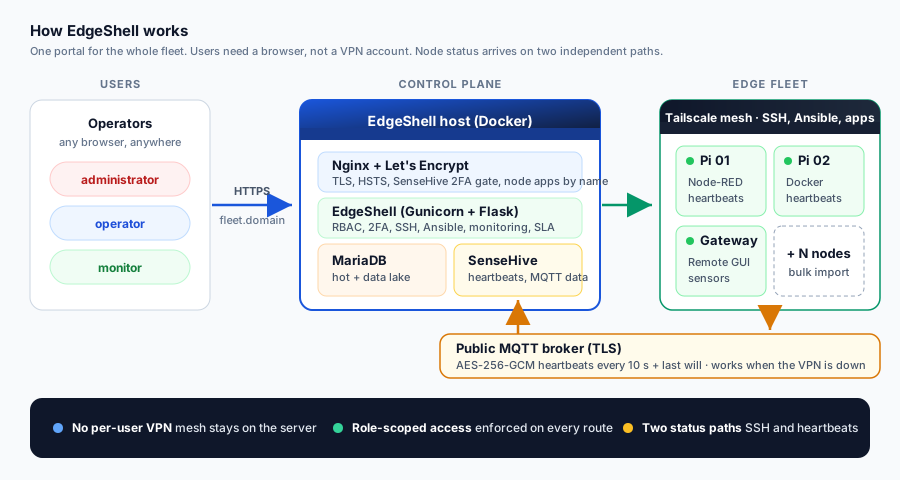
EdgeShell puts one control plane on a single host (for example an EC2 instance) that is already joined to your private mesh (Tailscale or WireGuard). People sign in to a normal HTTPS website, get access scoped to their role, and operate the fleet from the browser. The mesh stays on the server, not on every user's laptop.
Built for: IoT and industrial edge teams, labs and universities, makers running Pi clusters, and anyone who wants a self-hosted alternative to SaaS device-management tools.
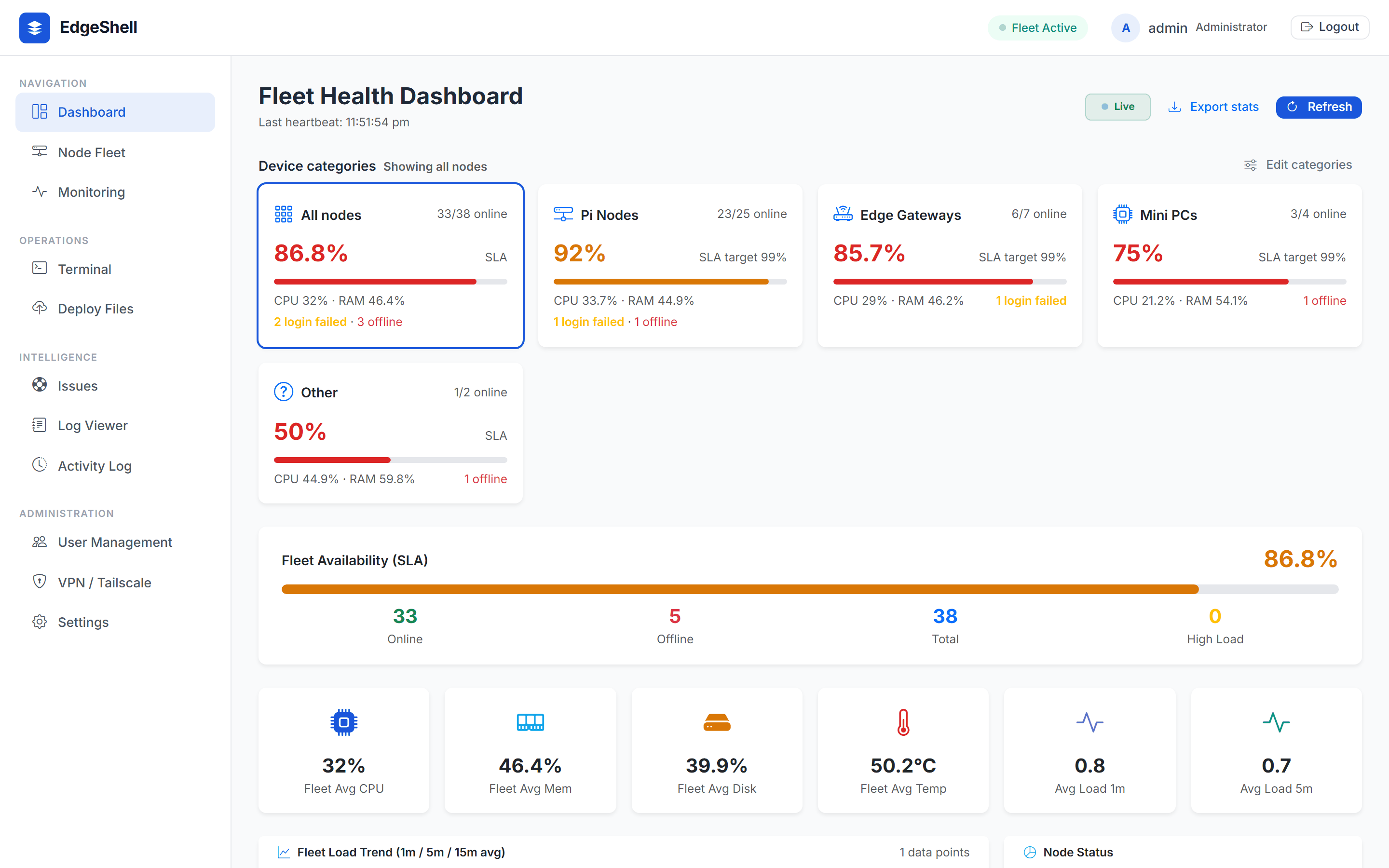 Fleet dashboard: device categories with their own SLA target, fleet availability and averages |
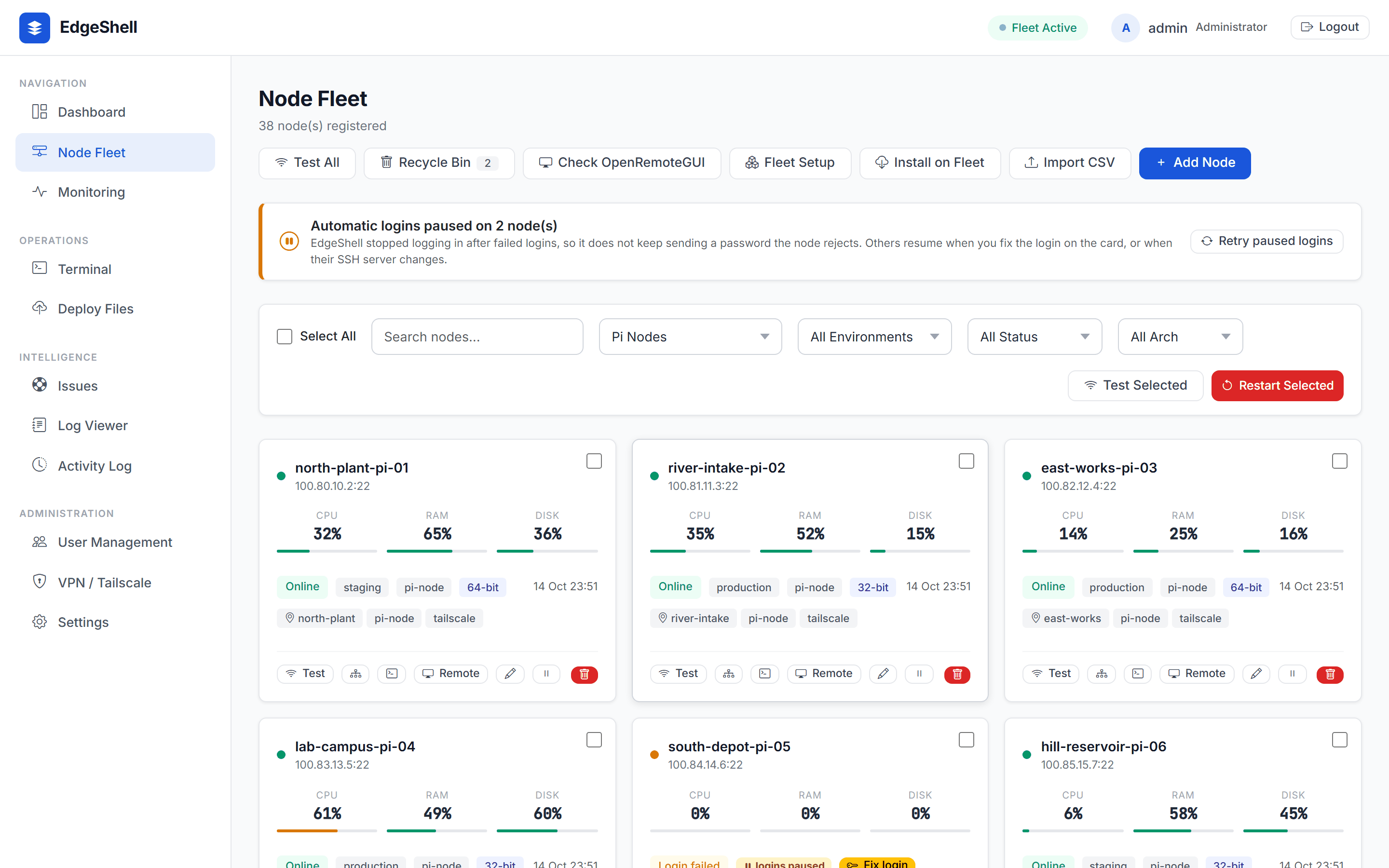 Node Fleet: live cards, filters by category, status and architecture; paused logins explained |
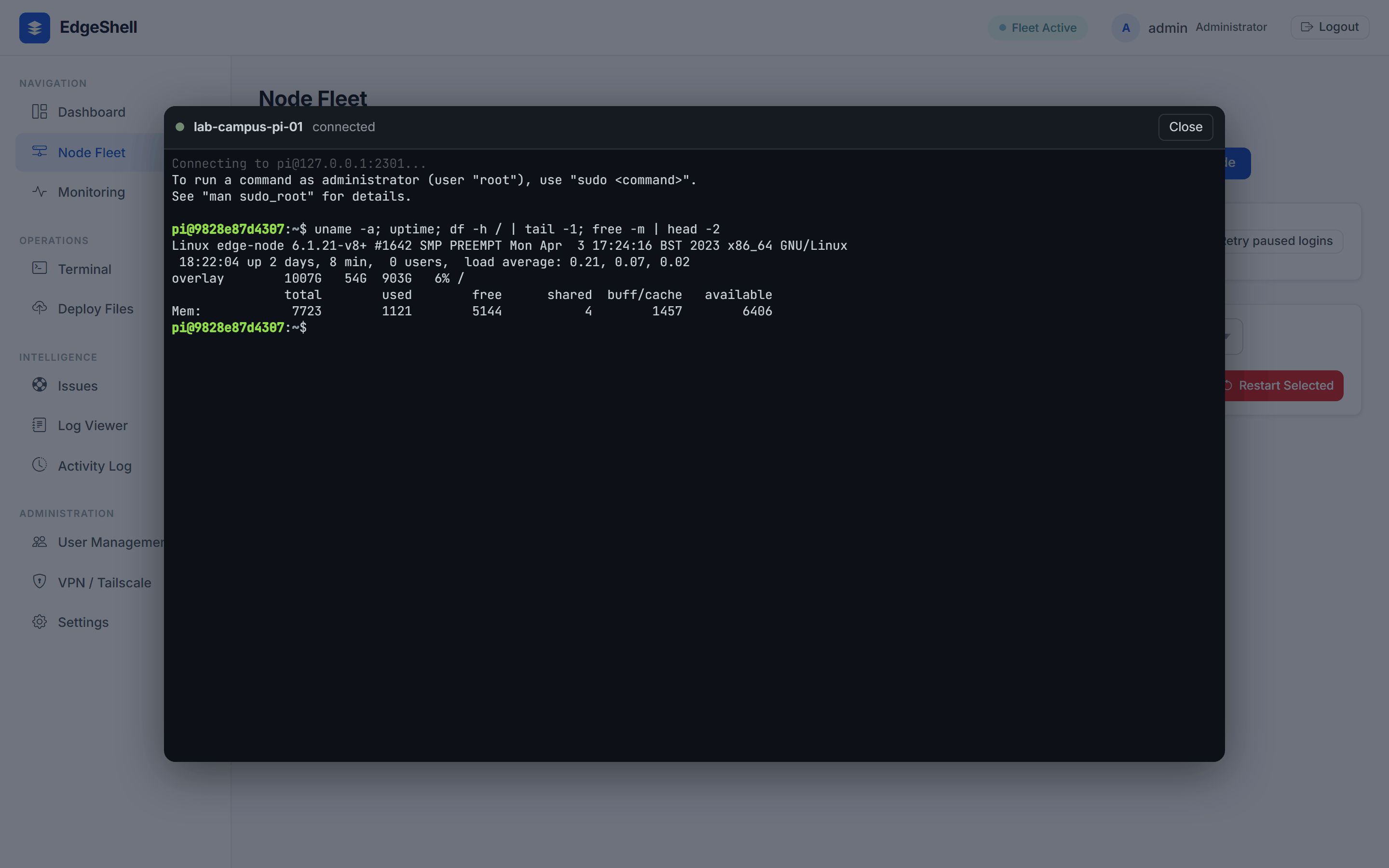 Node terminal: a real SSH shell on one node in the browser; closing the window ends the session |
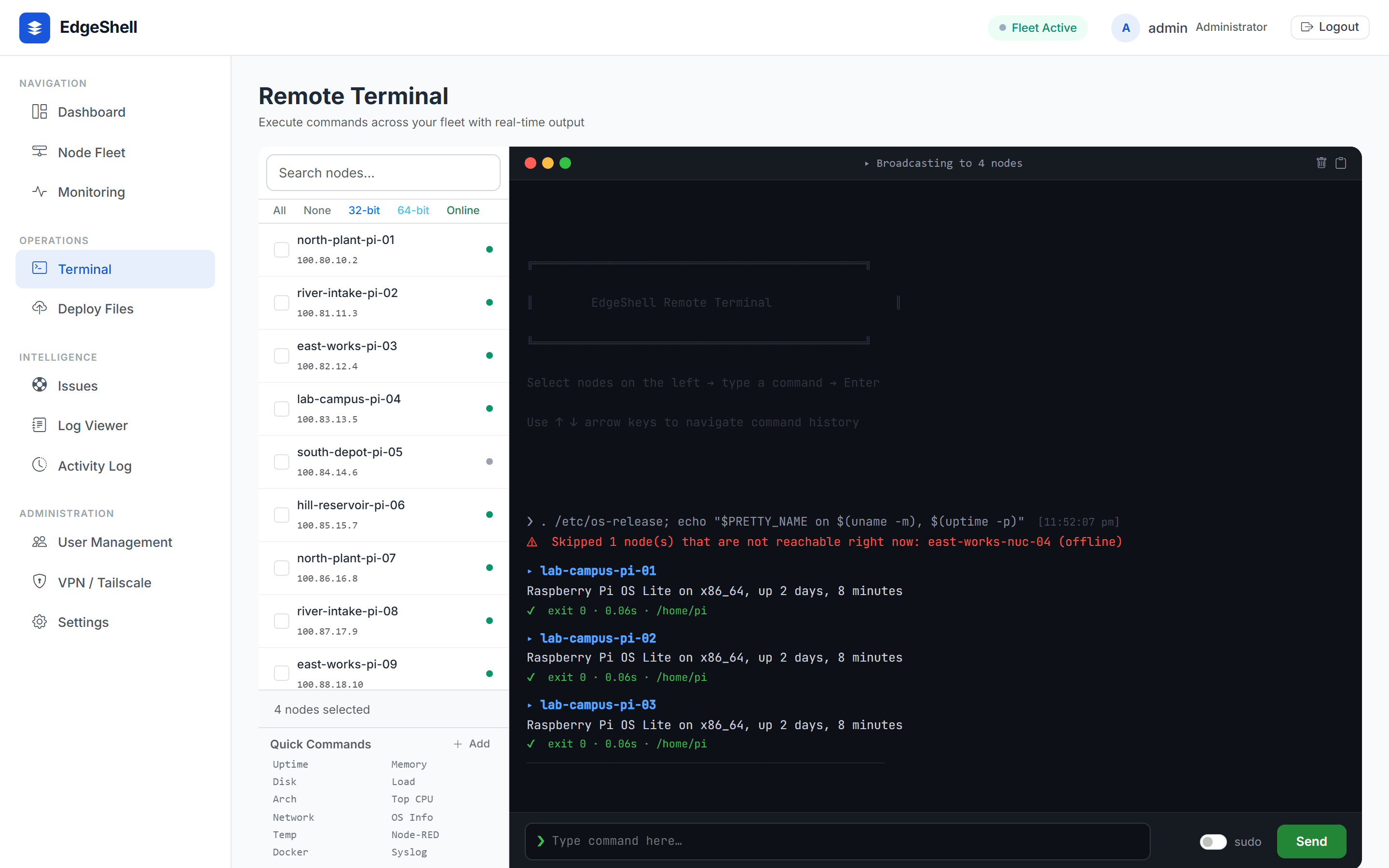 Fleet terminal: one command to many nodes, results stream in; unreachable nodes are skipped |
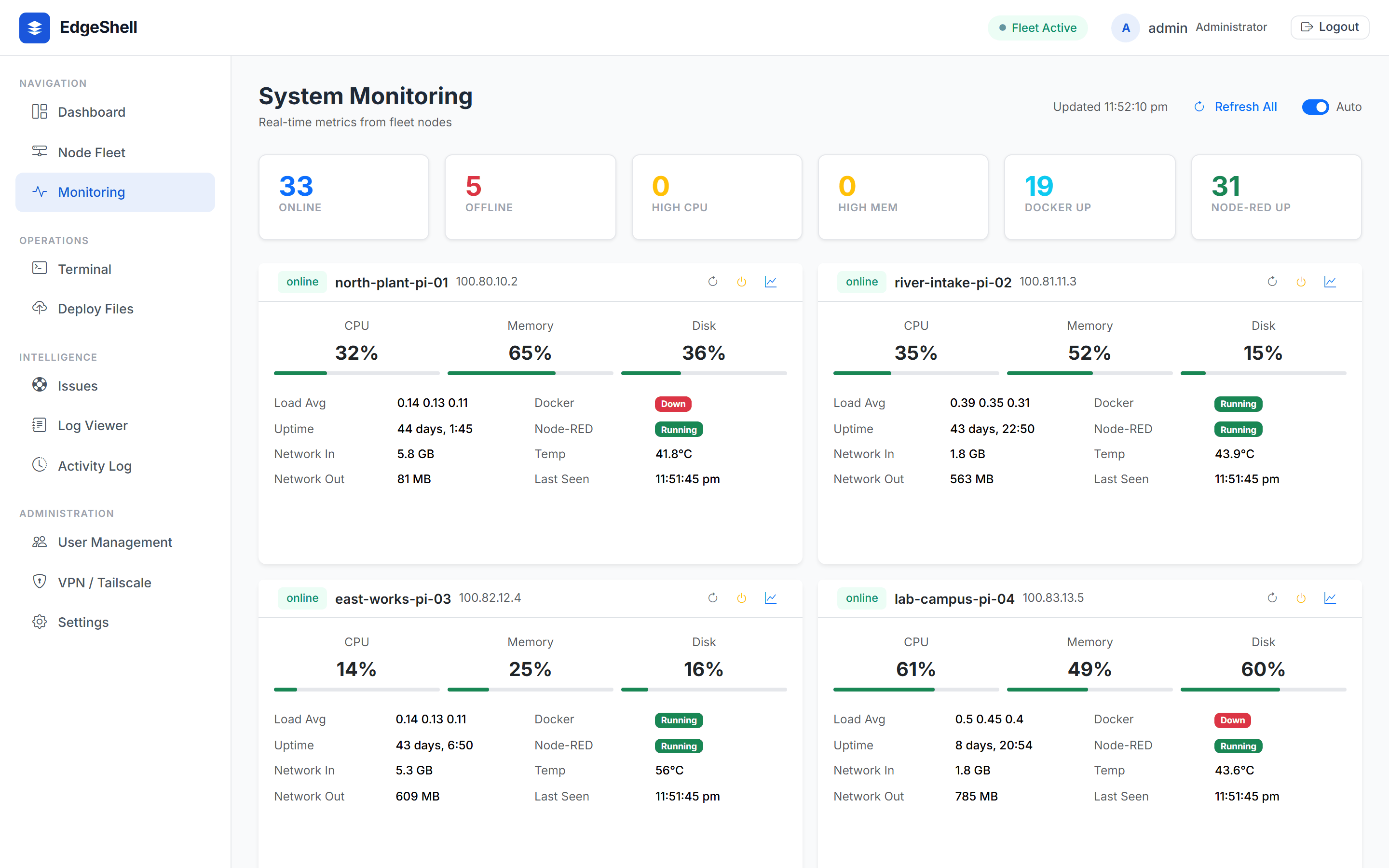 Monitoring: per-node metrics from the background collector; the Auto setting is remembered |
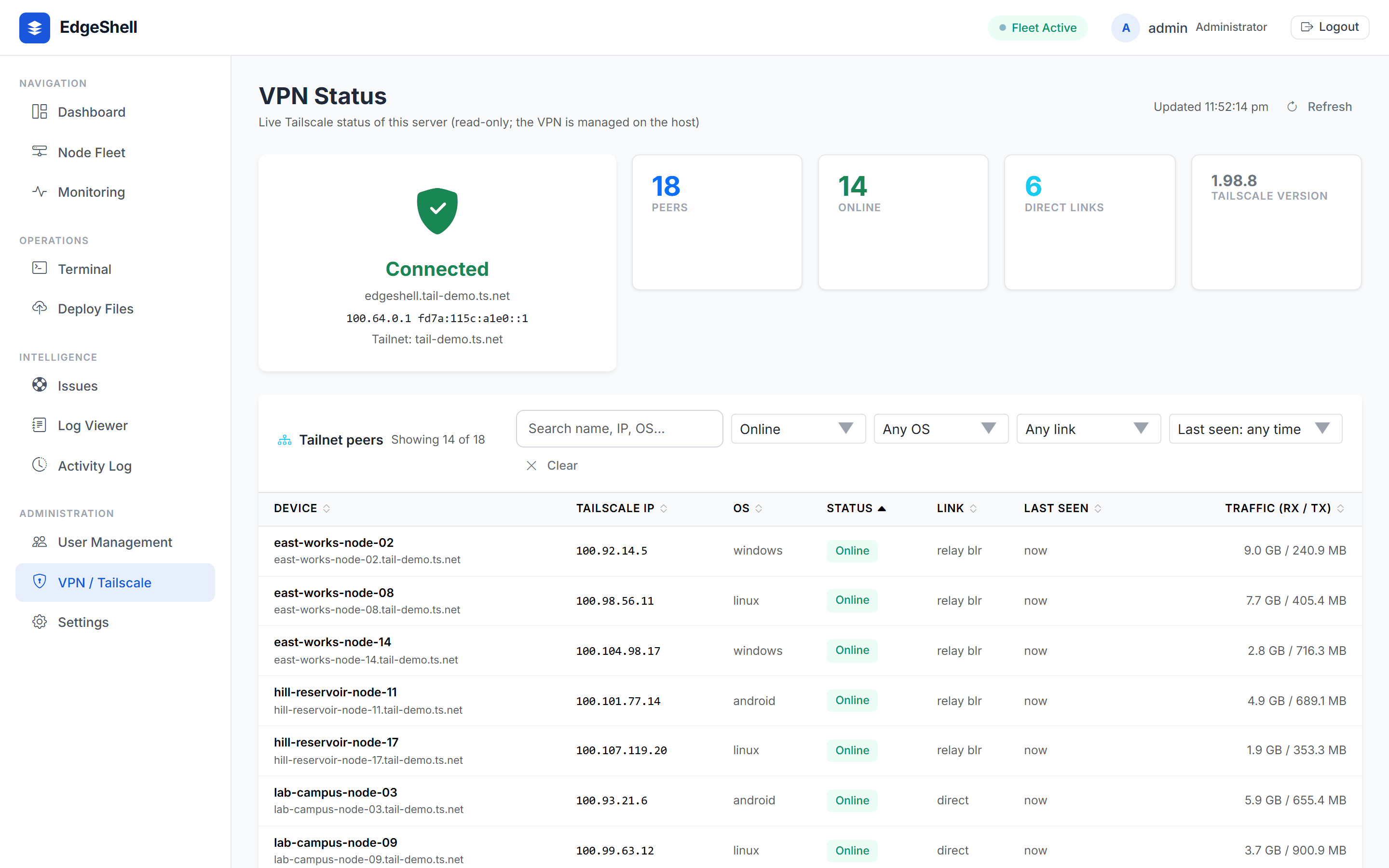 VPN status: live Tailscale peers with status, OS, link and last-seen filters and sorting |
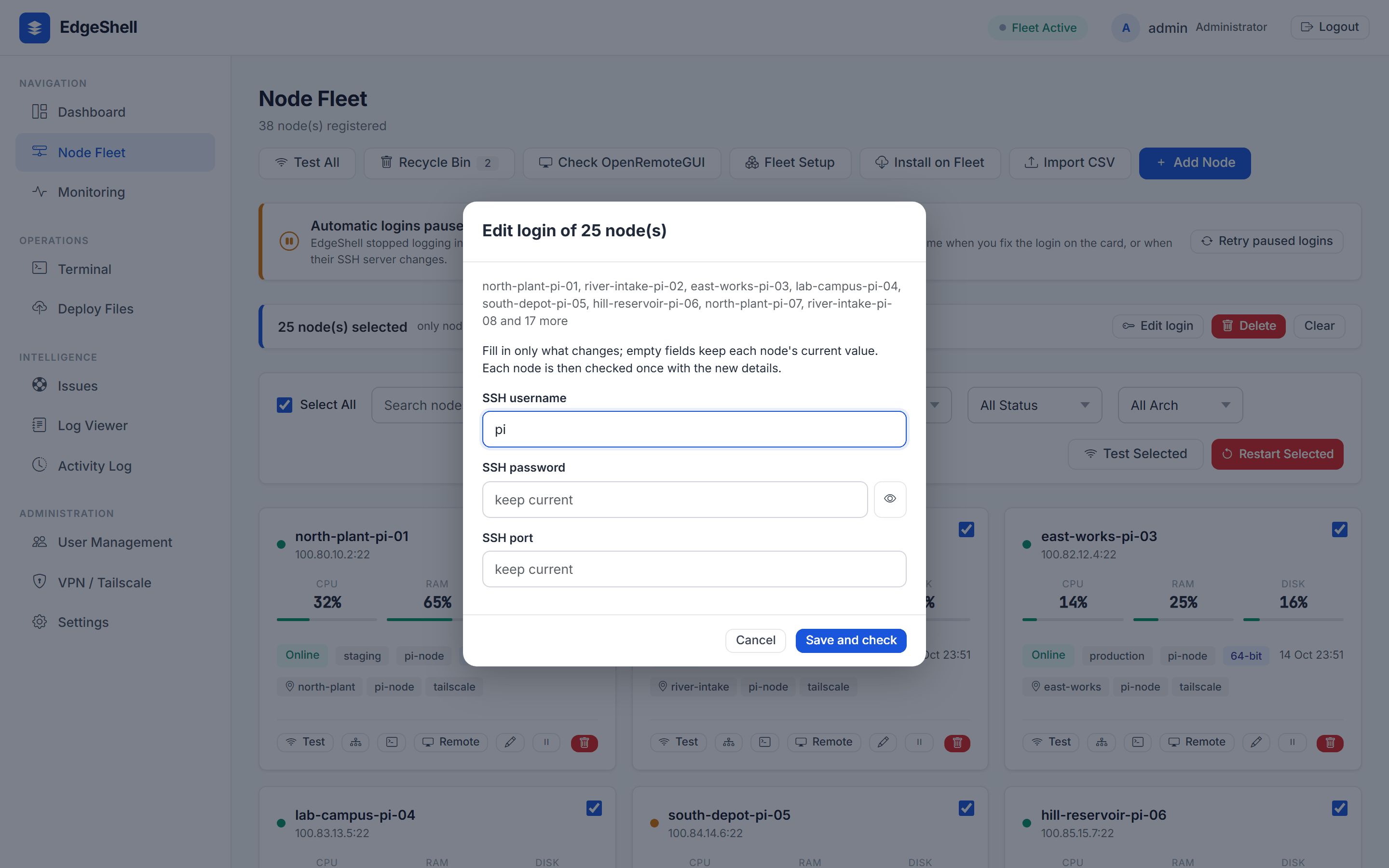 Bulk login update: new username, password or port for every selected node, checked once each |
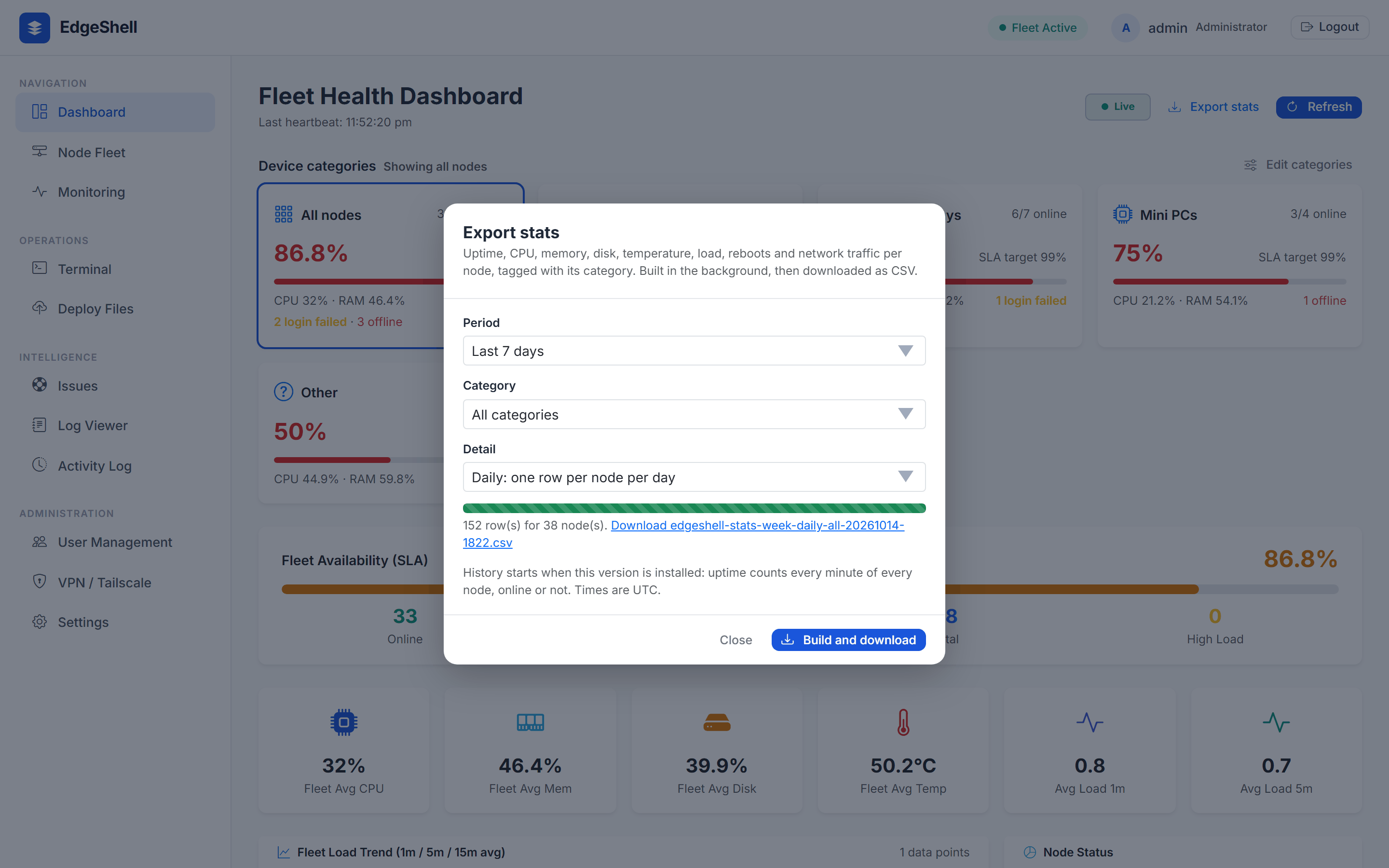 Stats export: uptime and resource history as CSV, built in the background with a progress bar |
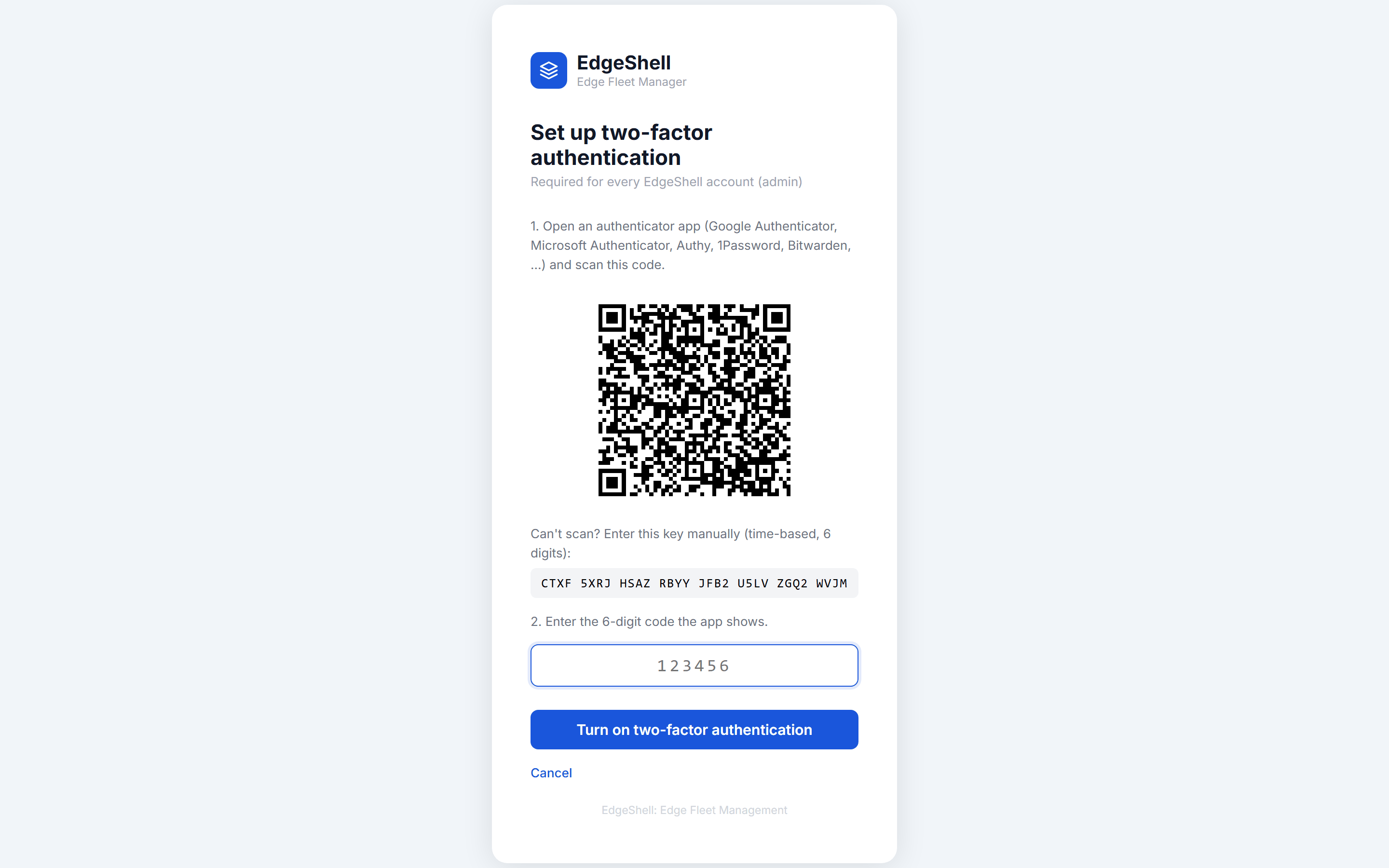 Two-factor setup: mandatory for every account: scan the QR code or type the key |
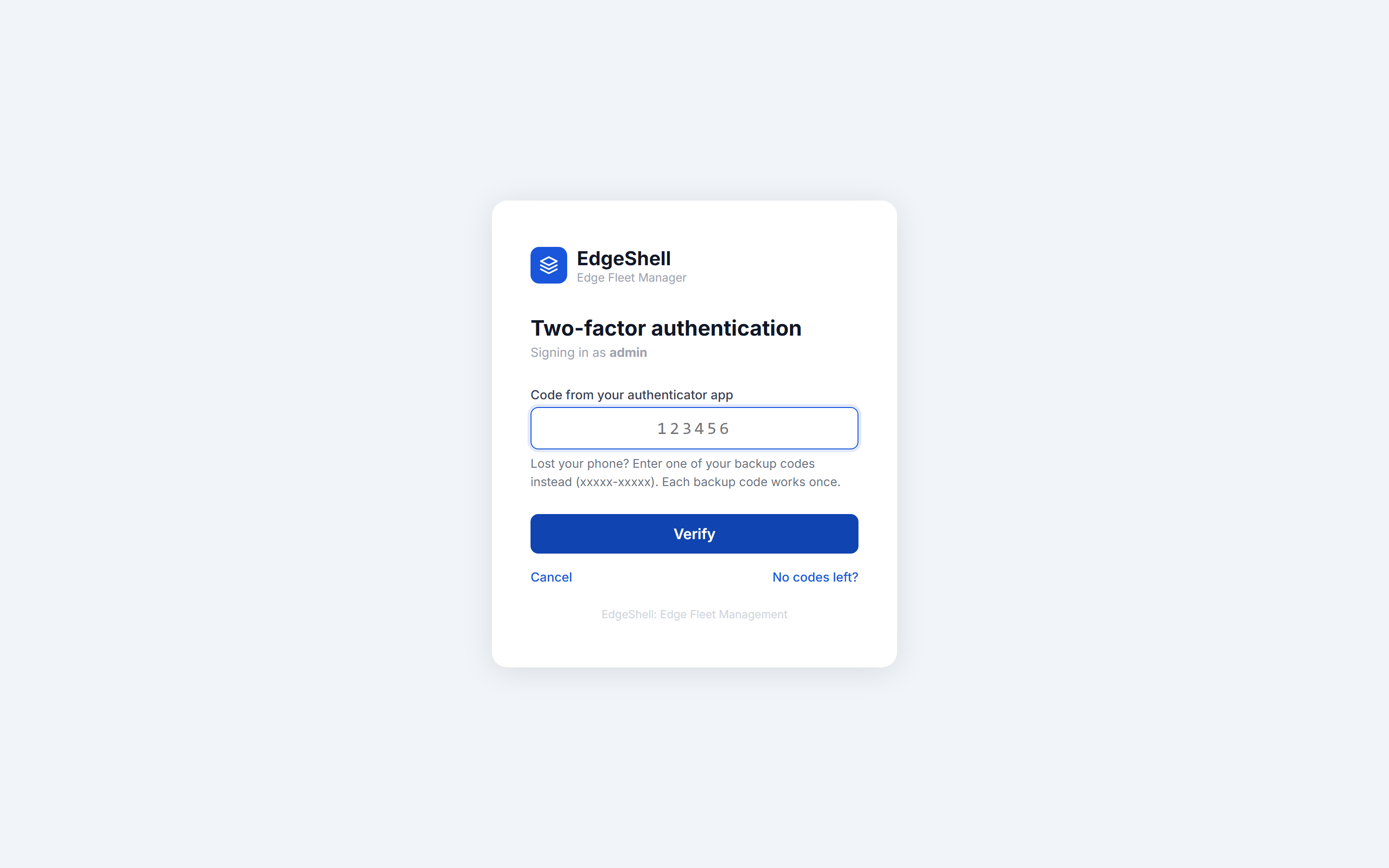 Two-factor sign-in: a 6-digit code (or a one-time backup code) after the password |
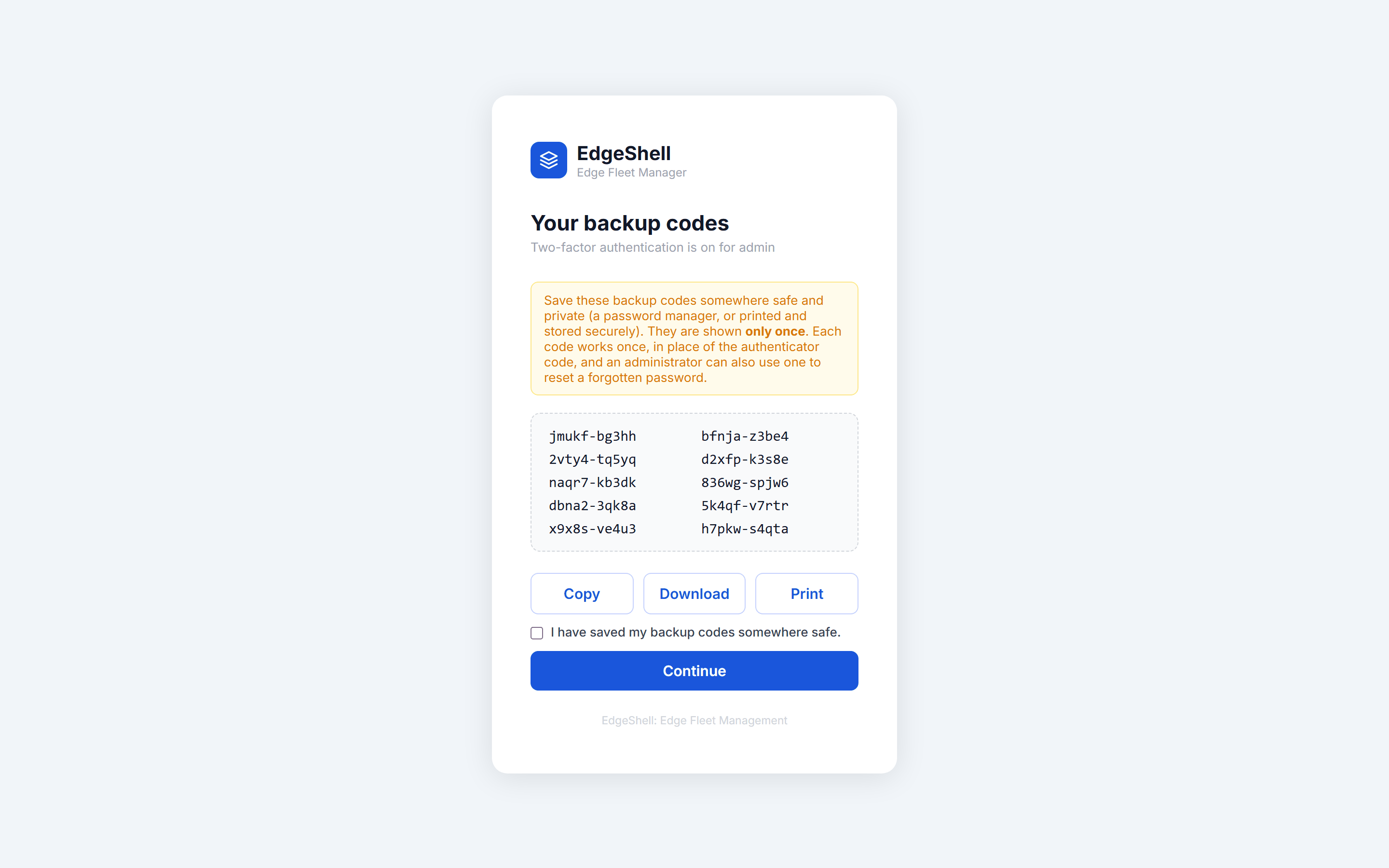 Backup codes: ten one-time codes, shown once, with copy, download and print |
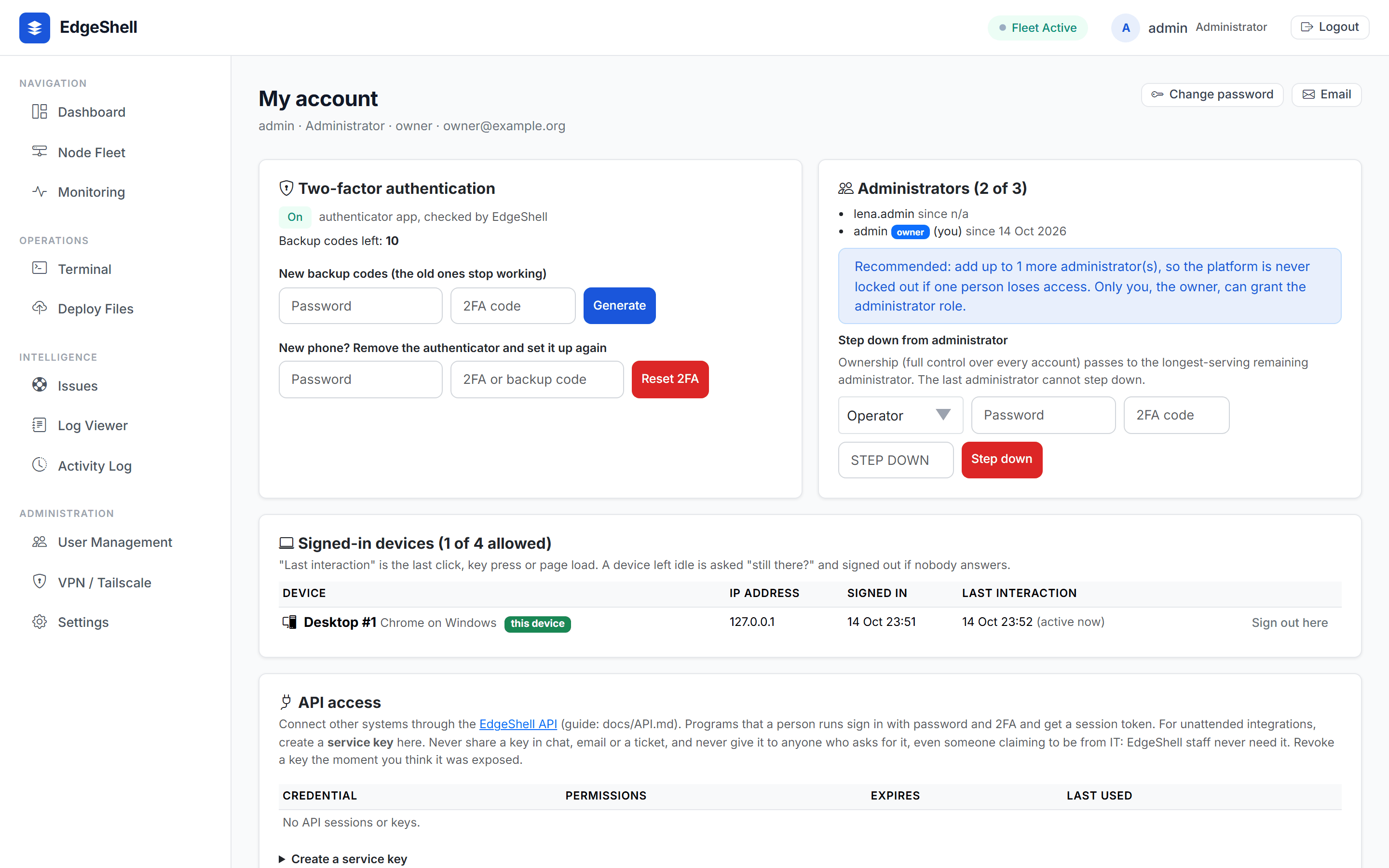 My account: 2FA status, new backup codes, administrators, signed-in devices |
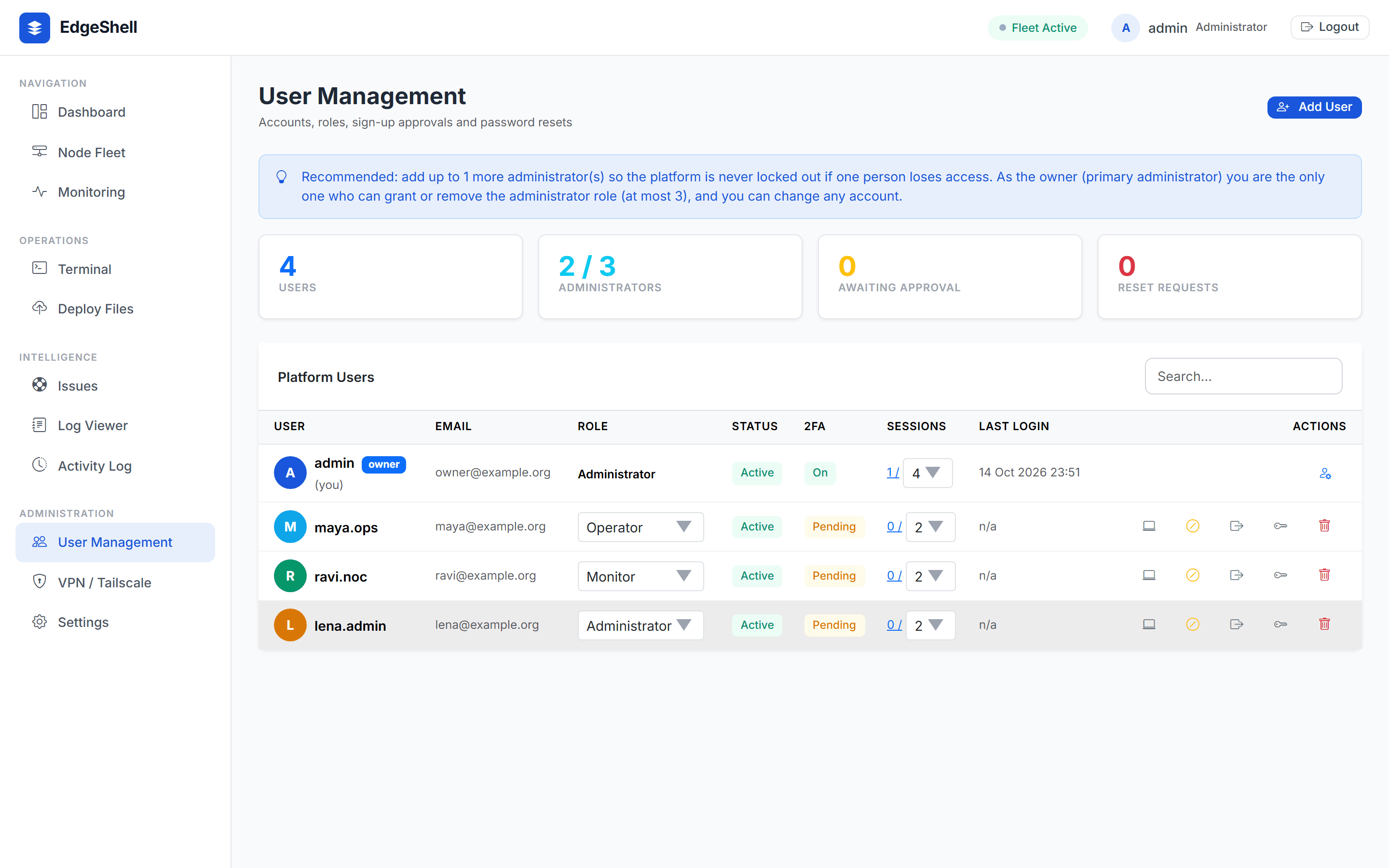 User management: roles, device limits, sign-up approvals and reset requests |
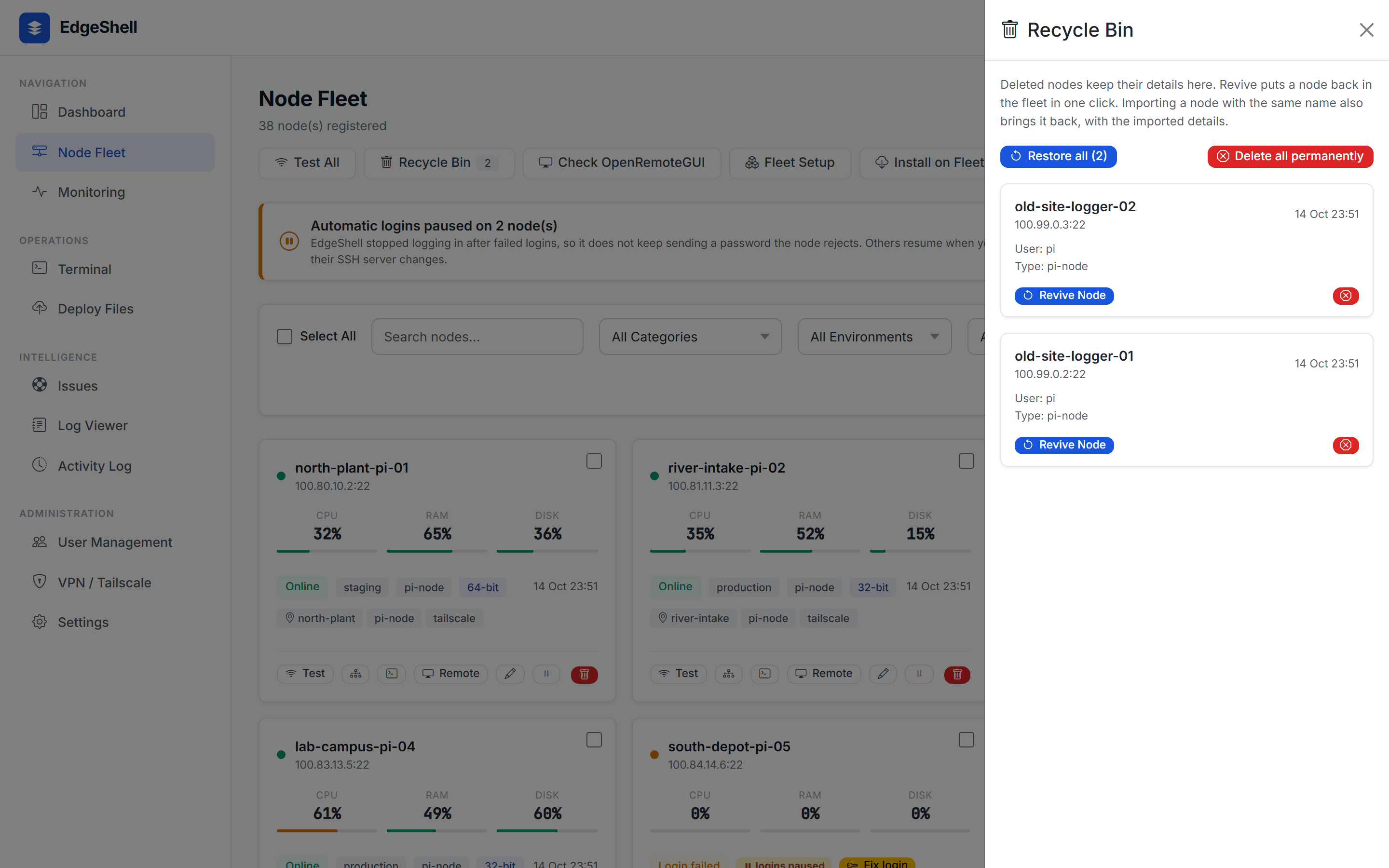 Recycle Bin: deleted nodes keep their details; restore all, or delete for good with a typed DELETE |
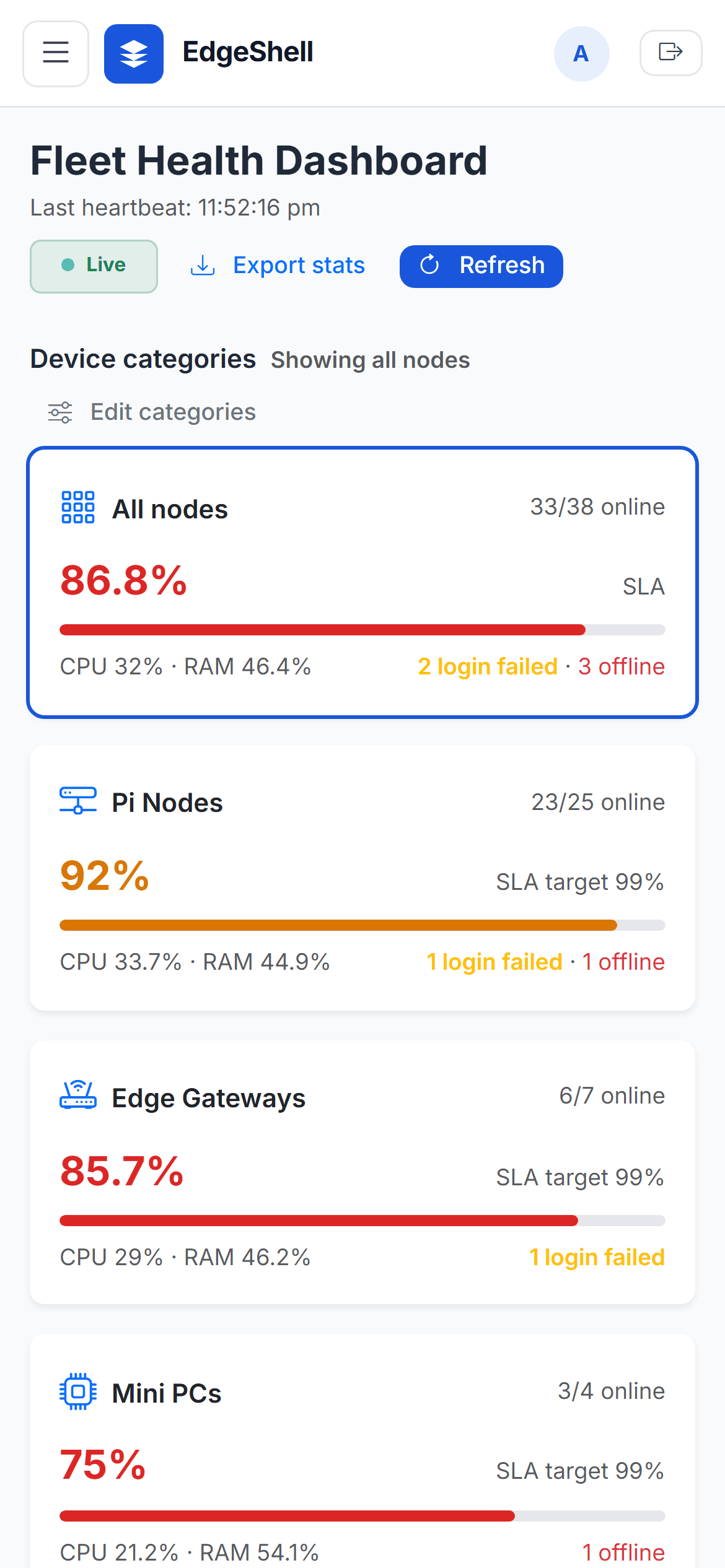
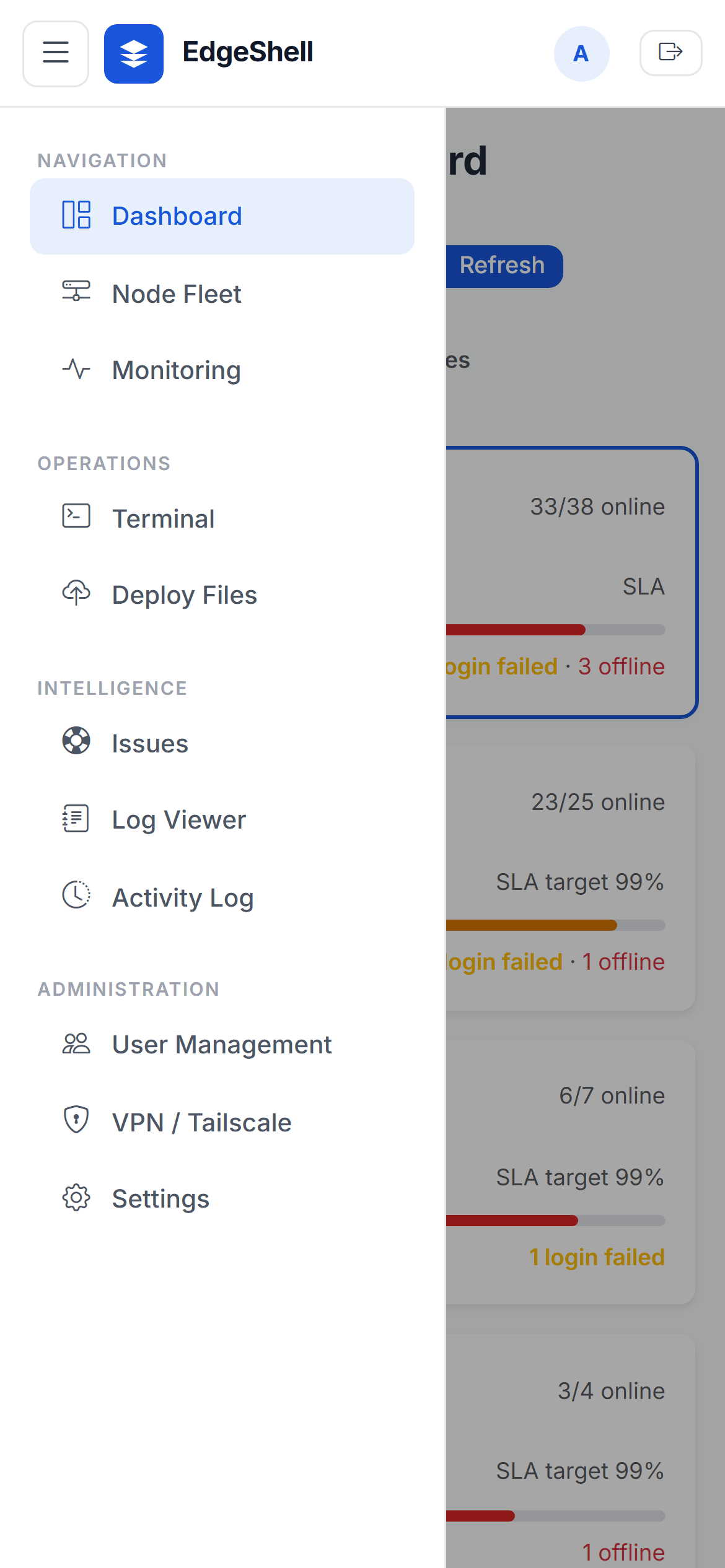
On a phone: every page adapts from phone to desktop and from 67 to 200 percent zoom (checked on every pull request)
Captured from a local demo instance with a simulated fleet (all names and
addresses are made up) and three Pi Fleet Emulator
nodes for the terminals. Regenerate them with
tools/screenshots.py.
EdgeShell is one of five open-source projects that work together as one system. Each has its own repository and releases.
| Project | Role | Images |
|---|---|---|
| EdgeShell (this repo) | The control plane: monitoring, commands, deployments, users and roles | devprincekumar/edgeshell |
| Pi Fleet Emulator | Spawns a realistic Raspberry Pi fleet in Docker (real SSH and Node-RED, 32/64-bit, Buster to Bookworm). EdgeShell's CI tests every change against it |
pi-fleet-spawner, pi-fleet-node
|
| OpenRemoteGUI | Browser-based remote desktop for Debian and Raspberry Pi. Powers the Remote button on every node | installed on nodes by EdgeShell |
| SenseHive | MQTT logging and dashboard. In the EdgeShell stack it is the heartbeat receiver: it verifies encrypted heartbeats from every node and serves their state to EdgeShell (badges, uptime, SLA). Administrators open it at /sensehive/ behind EdgeShell's sign-in and 2FA |
devprincekumar/sense-hive, runs next to EdgeShell |
| MQTT heartbeat agent | A small service on each node: an encrypted heartbeat every 10 s and an MQTT last will, over a public broker, so node status does not depend on the VPN | installed on nodes by EdgeShell (Fleet Setup) |
flowchart LR
    PFE[Pi Fleet Emulator<br/>sandbox fleet] -- "1. validate changes" --> ES[EdgeShell]
    ES -- "2. same commands and playbooks<br/>SSH over the mesh" --> REAL[Real fleet]
    ES -- "remote desktop" --> ORG[OpenRemoteGUI<br/>on each node]
    ES -- "3. Fleet Setup installs" --> HB[Heartbeat agent<br/>on each node]
    HB -- "encrypted heartbeats + last will<br/>public MQTT broker, TLS" --> SH[SenseHive<br/>heartbeat receiver]
    SH -- "read-only API:<br/>status, uptime, SLA" --> ES
- Prove changes on the emulator. Every EdgeShell release is tested in CI against a Pi Fleet Emulator fleet; do the same with your own playbooks.
-
Run EdgeShell and SenseHive together from the one Compose file
(
docker/compose.yaml): nginx, EdgeShell, MariaDB (hot and lake), privacyIDEA and SenseHive. Only nginx is public. - Join the host to your mesh (Tailscale) and import your nodes; EdgeShell manages them over SSH.
- Install the heartbeat agent from Fleet Setup (a test group first, then the fleet). Each node gets its own key; the fleet master key stays on the server.
-
Watch both paths: SSH metrics every 30 s through the mesh, and
heartbeats every 10 s through the broker. A node that is
onlineby heartbeat but unreachable over SSH points at the VPN, not the node.
- Start: Features, Quick Start, Getting Started, Sandbox
- Deploy: Deploy on AWS EC2, Run on Any Cloud, Configuration, Email, MQTT Heartbeat, VPN and Network, Database Migration
- Use: Roles and Access, API, Support Tickets, Management CLI, Troubleshooting
- How it is built: Architecture, Security, Decision Records, Testing and CI, Project Layout
- Project: Development, Contributing, Roadmap, Changelog