Repository navigation
Notes
Your Memos notes on the device.
The Notes tab (it took Favorites' place in the tab bar, V) shows your
Memos notes as sticky notes, pinned first (six to a
page in the usual layout: see Layouts below). Written against Memos v0.31 (/api/v1); newer servers that moved the
API to /api are found too.
-
Favorites is still in Settings → Home and tabs → Tab bar → Tabs, turned off; turn it on there (or on the setup guide's Navbar Tabs page, which also offers Notes) to have both.
-
Connect: the first time, the tab offers Connect with QR code (the setup page, at its Notes section: the Memos address and an access token) or Connect by typing. Create the token in Memos → Settings → My account → Access Tokens. The Kindle keeps the token (never your password) in GZreader's settings; it's never written to the log. An address without
https://falls back tohttp://for a Memos on your home network. -
Board: the letter on a note (Q, W, E…) opens it, ◀ ▶ (or the page keys) turn pages, the 5-way moves around the notes.
- Keyboard Kindles: N new note, J journal entry, K search, G tags, D only the notes with drawings (again: all), A all notes, F filter, L layout, S sort, M connection. H lists every key. (Z X C V B switch the bottom tabs; the Menu key opens the quick panel.)
- Touch Kindles have one row of buttons under the title: Note (a new note), Draw (a new note that opens on a page to draw on) and Journal (a journal entry), then icons for Sort, Filter, Layout, Search and Full screen (an X while in full screen, to leave it). Under it a row chooses what's shown: All, your three most used tags (and the tag being shown), and Drawings (only the notes with a drawing; tap it again for all). The one in use is in bold.
- A Kindle 4 has neither letter keys nor buttons: its Menu key on the board opens New note, Journal entry, Search…, Tags…, Only notes with drawings, Filter…, Layout, Sort…, Full screen and Connection….
-
Connection (Filter → Memos connection… on a touch Kindle, M, or Menu → Connection… on a Kindle 4): your Memos account only: Refresh (with how many changes are waiting to be sent), Connect again (a new address or access token) and Disconnect (asks first; the notes kept on the Kindle are removed, your notes in Memos stay).
-
Sort (the Sort button, S, or Menu → Sort… on a Kindle 4): Sort notes by Date created (the default) or Date edited, Reverse order (oldest first) and Pinned first (on by default). Memos is asked for the notes in that order (
order_by), and the Kindle sorts what it keeps the same way (notes written here and not sent yet, a sync through a computer). -
Layouts (as in the Memos web app): L on the board (Layout on a touch Kindle, Menu → Layout on a Kindle 4, or Settings → Accounts and services → Notes (Notes) → Layout) chooses how many notes side by side, and how long each is:
- List (one note under another), Two side by side (the default), Three side by side, or Auto: as many side by side as fit the screen with room for about 22 characters a line (two upright, three sideways; at most four).
- Compact (the default): every note the same size, three rows to a page (two sideways); a long note is cut off with "…" (open it to read it all). Full: each note as long as it needs, with all its pictures, nothing cut off, as many to a page as fit (each in the column with the most room, like Memos' masonry view). A note too long for the page goes on at the top of the empty column to its right, or on the next page, marked continued; its parts share one letter.
- On the Kindles with keys a page holds at most ten notes, one per letter Q–P. After a change, the board shows the page with the note that was first on screen. The choice is kept.
- Scroll up and down (touch Kindles, compact notes; off until you turn it on): the Notes tab becomes one long page. A swipe or a drag up or down moves the notes exactly as far as your finger went, and a drag moves them while your finger is still down (in steps, about five a second: e-ink can't follow every movement, so the steps are shown roughly; an opened note that's longer than the screen follows your finger the same way). When your finger lifts, the page is shown once more cleanly, without a flash (as a page turn is), so nothing is left standing twice. Only the part that moves is refreshed: the notes, not the buttons above them or the tab bar (in a note, not its top bar); notes cut off at the top and bottom show there's more (a part of the next row always shows). There's no page number or arrows under the notes. A swipe sideways moves most of a screenful. Full notes keep their pages. A swipe down that starts at the top of the screen still opens the quick panel. The tab bar and the buttons above the notes take taps as usual (before 1.32, a note cut off at the bottom took the tab bar's taps).
- Full screen: no tab bar (also the full-screen icon on a touch Kindle, and Menu on a Kindle 4) hides the tab bar at the bottom of the Notes tab, for more notes on a page. The X where the icon was (or Layout) brings it back; Back or the quick panel's Home leave the tab.
-
A note: on touch Kindles, the drawing screen's top bar, as in the note editor: ← (back to the board), the note's name with when it was written, its space and whether it's pinned under it, then the pin (pin or unpin), Archive (the box), Delete (the bin; asks first), ⋮ (the note's More) and Edit. An archived note has Delete, ⋮ and Restore instead. (The note editor's ⋮ and, for a note that's already there, the drawing screen's ⋮ have Archive note and Delete note… too: Archive saves what you changed first; Delete asks, and drops what wasn't saved. The drawing screen also has both in its top bar, beside ⋮: a note that is only a drawing opens straight on that screen.) Below it, the text in the note editor's font (the sticky notes on the Notes tab stay handwritten, in Patrick Hand) and formatted as Memos shows it: bold, italic, struck words,
codeand links (underlined), quotes with a bar at their left, bulleted and numbered lists, rules, and tables with their lines (the head in bold; long cells wrap); checklist items with letter keys (press one to tick or untick it; the change goes to Memos), pictures from the note shown inline, its tags and place, and its attachments (PDFs and other documents open in the reader, pictures in the image viewer; each is downloaded once intocache/gzreader-notes). Alt+E edits, Alt+P pins, page keys scroll a long note. The top of the screen has the note's name, and under it its date, its space and whether it's pinned, as on the touch Kindles (which have buttons there too). -
Archive and delete: a note's More (M on keyboard Kindles, Menu on a Kindle 4) has Archive (the note goes into Memos' archive: off the board, kept) and Delete… (asks first; gone for good, in Memos too, with its drawings and attachments). A note not sent yet can be deleted (it's never sent) but not archived until it's in Memos. Menu → Archived notes shows the archive (Memos over Wi‑Fi; not on a Kindle syncing through a computer). There a note's More has Restore from the archive and Delete…; All notes goes back. Changes wait for Wi‑Fi like any other, and the sync page sends them for the Kindle 2 and DX.
-
Mark up a PDF (touch Kindles, Memos over Wi‑Fi): tap a PDF attached to a note and choose Mark up pages (Open reads it as before). Type the pages (
2,1-3, 7; at most 10 at a time; a PDF of one page skips this). They open in the drawing screen after the note's own drawings, each PDF page under your ink like a notepaper; draw, rub out and turn pages as usual. Done goes back to the note and Save adds the pages you drew on to it as drawings, which Memos shows and opens in its drawing editor with the PDF's page underneath. Pages left blank aren't kept, and the PDF itself isn't changed. A colour PDF stays in colour: the Kindle shows it in greys as you draw (in colour on a colour Kindle), Memos in its colours. Each page is a picture of at most 1440 pixels on its longer side (smaller for a busy scan), so very small print is best zoomed in Memos. -
Notes from Memos' rich editor (Memos 26.11 and newer): its empty paragraphs (
), characters written as codes (&,|) and backslash escapes (\*,\#) show as Memos shows them: blank lines and the characters themselves. On touch Kindles the editor shows them that way too (see Editing on a touch Kindle); on keyboard Kindles the editor shows the note as it's written. -
Folded sections (
<details>, such as the fork's Text from … blocks with the words read from a drawing or a file) show as Memos' web app shows them: a row with › and the section's title, folded. Tap it (or press its letter) to open it, again to fold it. Code blocks show in a grey box with their language above, the text as written. -
Tags show as grey chips where their line is, as on the web; a tag inside a sentence stays in it. A journal entry's mood, feeling, cause and activity tags (
#mood/…,#felt/…,#impact/…,#did/…, or the prefixes set in Memos' journal settings) are always at the top, under the entry's heading. There's no list of every tag at the bottom any more. -
Editing on a touch Kindle works like Memos' web editor. The note shows formatted on one page (headings big, lists with • and numbers, checklists with ☐ ☑, bold and italic), with no Markdown and no
to see, and you type straight into it.- Tap to put the cursor there. Tap a checklist item's ☐ to tick it.
- Hold a word to select it, and drag to stretch the selection over words and lines. Typing replaces the selection; ⌫ deletes it.
- A folded section (
<details>) is a row with › and its title, as in the web editor. Tap › to open it (what's in it shows indented, and you edit it as any text; a thin line marks its end) and ⌄ to fold it again. Tap the title for Open / Fold, Rename…, Remove the section (what's in it stays) and Delete the section and what's in it. Typing on the row starts a new line inside the section. Opening and folding only changes how the editor shows it, not the note. - The keyboard has ⮠ Enter and ← →. Enter starts a new line (the next item in a list; Enter on an empty item ends the list). ⌫ at the start of a line joins it to the line before. Swipe up or down to scroll a long note.
-
The formatting bar comes up at what you hold: a word (drag for
more), or an empty line for the line itself. It works on the selection,
or on the cursor's line:
- B and I make the selection bold or italic.
- H makes the lines a heading, then a smaller one, then text again.
- •, ☐ and 1. make the lines a list, a checklist or a numbered list; tap the same one again to make them text.
- # adds a tag at the cursor. The button in use is black. The bar stays for another button; a tap on the text, or typing, puts it away. (It sits above the selection, or under it on the first line, where it covers the next line until it goes.)
- The row under the title shows the note's sheets (its drawings) and its photos as small pictures: tap a sheet to draw on it. ✎ in the top bar draws (a new note's first sheet), and the picture beside it adds photos, as on the drawing screen and an opened note.
- The top bar is the drawing screen's: ✕ (close; when something changed it asks Save, Discard or Keep writing), the note's name (its first line; under it who can see it, its space and its tags), then ✎ (draw: its sheets) and the note's own icons, the same on the drawing screen: a picture (Photos from Immich, when it's connected), a tag (add one), a folder (its space, when you have spaces) and who can see it (a lock: Private; a person: signed-in users; a globe: Public; people: space members; tap to choose), then ⋮ (who can see it, space, Draw, Close) and Done, which saves. On a narrow screen what doesn't fit is in ⋮. For a moment after the drawing screen's Done, a tap on this bar is ignored, so a second tap on a slow Done doesn't save the note before you meant to.
- Code, quotes, tables and pictures show as their Markdown in grey and edit as text.
- Save writes the note the way Memos' rich editor writes it. Lines you didn't change are kept exactly as they were.
-
The on-screen keyboard keeps ⮠ Enter and ← → on its letters page in boxes where you type several lines (notes, KOReader's text editor). One-line boxes (search, names, passwords) keep the shorter bottom row, with Enter on the symbols page. Where you write a note (the editor, a quick note, a journal entry) a slim bar on top of the keyboard has # (for tags) and the arrow keys ← ↑ ↓ → (hold ← → for the start or end of the line, ↑ ↓ to scroll), on every page of the keyboard. The letters page then has a comma before the full stop, and a wider space bar.
-
Editor (keyboard Kindles): the note formatted, as on the touch Kindles: headings big, bold and italic words shown so, links underlined, list items with their bullets and numbers, checklist items with their boxes, pictures shown, a folded section as one row. You type with the Kindle's keys. A toolbar at the bottom has List, Check, Num, Head, I, B, # Tag and Save; a tool acts on the line or the word the cursor is on (or what's selected). Menu jumps to the toolbar from anywhere in the text (on the tool used last) and the cursor stays where it is; Menu again (or ▲) goes back to the text. ▼ from the last line also reaches the toolbar; ◀ ▶ choose, Press applies. Shortcuts: Alt+L list, Alt+C checklist, Alt+N numbered, Alt+H heading, Alt+K italic, Alt+B bold, Alt+G tag, Alt+S save, Alt+V who can see it, Alt+A its space, Alt+X ticks or unticks the checklist item the cursor is on. Shift + the 5-way selects (for bold or italic over several words). Press is a new line; on a folded section's row it opens the section (and folds it again). Alt+M opens a menu with who can see it, its space, Archive note, Delete note… and Close. The top of the screen has the note's name, and under it who can see it, its space and its tags. Tables, code and quotes are shown in grey as they're written, and saved exactly as they were. Alt + the top row types 1–0 here. New notes are private unless you change it. Back saves (Alt+M → Discard changes leaves without saving). (The Kindle 4 and the quick note's window have a box of Markdown instead, with the same toolbar.)
-
Pictures in a note show at the size and place they were given in Memos' web editor (dragged smaller, or set left, center or right): the same share of the page as of Memos' column. One never sized there shows as Memos shows it, at its own width, again as the same share of the page (a small picture isn't a thumbnail beside the others). A picture in the text isn't shown again under it. In the editor (touch Kindles, the formatted page) a picture in the text shows as the picture, not its Markdown. Tap it to pick it: a frame, a pull tab on each side (drag one to make it wider or narrower; a centred picture grows on both sides) and, above it, the web editor's picture toolbar: Align left / center / right, ↑ ↓ (move it up or down a paragraph), Alt (its description), 1:1 (its own size again) and ✕ (delete it). Drag the picture itself to move it elsewhere in the note: a thick line shows where it goes. Typing while it's picked starts a line after it; a tap elsewhere lets it go. Save writes it the way the web editor does (the size and place at the end of the alt text, e.g.
photo|center|320), so both show it alike. -
Spaces (Memos v0.31 and newer): beside who can see the note, the editor shows its space (tap it, Alt+A, or on a Kindle 4 Menu → ◀ ▶ to it). Choose No space or one of the spaces you're a member of. A new note starts in the space the board is showing (Filter → Space…). In a space, who can see it also offers Space members (only that space's members); taking a note out of its space turns Space members into Private, as Memos does. The note's page says which space it's in. With an older Memos (no spaces) none of this shows.
-
Photos (touch Kindles):
- On a note's page, photos attached to it (not in its text) show as a gallery of pictures under the text, two or three across, as Memos' web app shows them (a tap opens one full screen); PDFs and other files stay as rows.
- In the editor, the note's photos show as small pictures in the row under the title, after its sheets; one shown in the text has a thick frame (+n beyond three: a list of them all). Tap one for Put it in the text, at the cursor (or Take it out of the text, keeping it attached), Remove it from the note… (deleted in Memos when you save; its picture leaves the text too) and Show it.
- Photos (the picture in the editor's top bar, beside ✎, when Immich is connected; keyboard Kindles: + Photos in the row): photos from your Immich. It opens your albums (All photos first); tap an album for a grid of its photos, tap the ones you want (each gets a thick frame and its number in the order picked; tap again to let one go), turn pages with ‹ › or a swipe, then Add. You're asked each time where they go: In the text, at the cursor (a picture line for each, as Insert image puts one in Memos' web app; sent to Memos right away, because Memos only accepts a picture in a note's text when it's one of the note's attachments) or With the note, as attachments (as Insert image → From Immich does in your fork; sent when you save). Leaving the note without saving deletes photos already sent.
- In a drawing, ⋮ → Picture from Immich… opens the same albums and grid; the photos you pick are placed in the middle of the page you see, at most 60 % of it (never enlarged), several fanned out a step down and to the right, as the fork's drawing sheet places them. They're part of the drawing, under your ink; Undo takes one off. Placed, they're chosen with the lasso: drag inside the frame to move them, a corner to make them bigger or smaller, then tap elsewhere. Later, a lasso loop round a picture's middle chooses it again (Memos can move or resize them too).
- What's sent is Immich's preview of each photo (a JPEG up to 1440
pixels a side, quick over the Kindle's Wi‑Fi), named like the photo
(
IMG_1234.jpg). Immich is reached through your Memos fork's own Immich connection (Settings → Immich in its web app; the Immich key stays on the Memos server), or else through GZreader's Immich connection (the sleep screen's, Pictures from Immich). With both, the albums list has Use GZreader's Immich connection / Use Memos' Immich connection at the top. (Not for a note still waiting to go to Memos.)
-
Quick note: the quick panel's Quick note tile (at Home and in a book, while Memos is connected) opens the same editor in a window over whatever is on the screen (the page stays visible around it; on touch Kindles it sits above the keyboard, and a tap outside it is the same as Back), so you can jot something down without leaving the book, Home or Settings. Save (or Back → Save) closes it and you're back where you were; "Note saved" says it's on its way. It's sent in the background a moment later (Wi‑Fi on Auto turns on for it; on Off it waits), and only the note is sent: the board's list isn't fetched while you read, so the Notes tab syncs the next time you open it. On a Kindle syncing through a computer it goes with the next sync. Hide the tile in Settings → Home and tabs → Quick panel. The window looks like one of the Notes tab's sticky notes: pale paper, a strip of tape at the top, Quick note in handwriting. On touch Kindles its pencil opens a sticky note of its own to draw or write on with the pen, also in a window (square, in the middle of the screen, on blank paper), not the whole screen. Done puts the drawing with the note (a black dot on the pencil says it has one); ← or a tap outside the drawing asks first if you drew something. Nothing you tap there reaches the book underneath.
-
Drawings (touch Kindles, Memos over Wi‑Fi): tap Draw on the Notes tab, or ✎ in a note's editor (its top bar), for a page to draw on. A note can be just drawings.
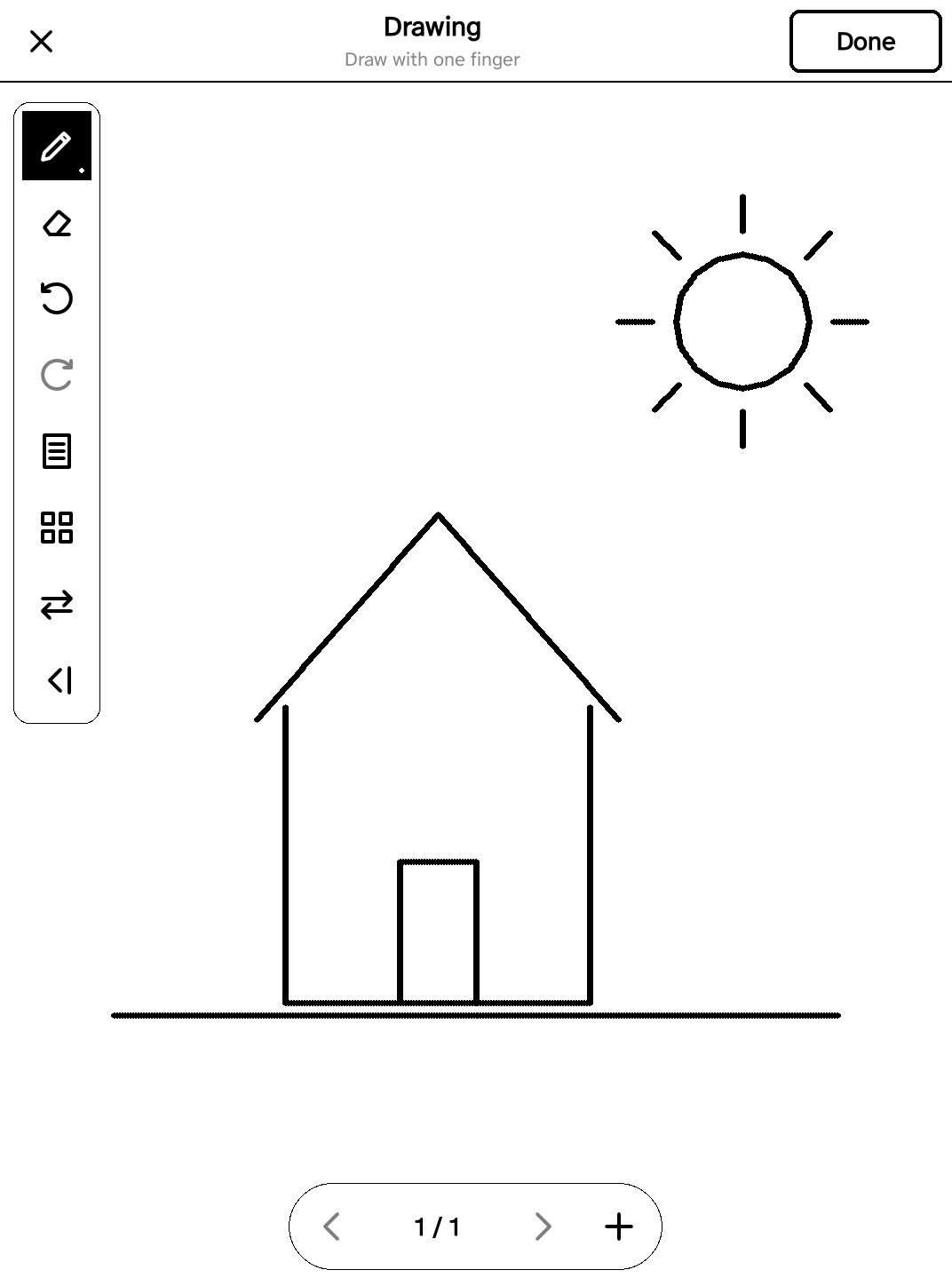
- The drawing screen is laid out as the Kindle Scribe's notebook. The page is the whole screen; the bar at the top and the tools at the side lie over it and fold away.
- At the top: ✕ (close; when you drew something it asks Save, Discard changes or Keep drawing), the drawing's name, then (left to right) All pages, Paper, and the note's icons, as in the note editor: a picture from Immich (put on the page), a tag, its space and who can see it; then ⋮ Options (New page, Picture from Immich… when Immich is connected, Erase page, Close without saving) and Done (keeps the drawings with the note). The small tab under the bar folds the bar away so you can draw on the top of the page; the tab stays at the top edge to bring it back. Pull down from the bar (folded away: from the very top edge) for the quick panel; the drawing stays as it is.
- A new drawing (Draw on the Notes tab) is named and tagged from the top bar: tap its name (Untitled drawing ✎) to type a title, which becomes the note's heading; tap Tags for your most used tags (tap one to add it, again to take it off) or + New tag. The tags show under the name. Done saves the note at once with that title and those tags; no window comes after.
-
The tools at the side (tap one to take it in hand, tap it again for
its choices, a list as on the Scribe):
- Pen: Pen, Fountain pen (pressure matters much more: light is very thin, pressing swells the line to almost three times), Marker (black, broad, the same width however you press) and Pencil (a soft, slightly wider line with a pencil's texture: dark grey specks with paper between them, sparse when you press lightly and nearly solid when you press hard); then five thicknesses, Fine to Heavy; on a colour screen eight colours; on a Kindle with a pen, Pressure and tilt on or off.
- Highlighter: a broad light grey band that stays under your writing, in five widths of its own.
- Shapes: Square, Circle, Triangle, Line and Arrow. Put the pen down at one corner and lift it at the other; the shape's outline follows the pen, and it's put on the page when you lift. It's drawn in the pen's thickness and colour, and is undone and rubbed out like a stroke (Memos gets it as a stroke along the outline). Draw and hold: with any pen, draw a line, circle, oval, triangle or box roughly and keep the pen still for a moment at the end: when you lift, it becomes a clean one in the same place (as on the Apple Newton). Lifted at once, or smaller than a fingertip, it stays as you drew it. The Shapes panel's Draw and hold: clean shapes switch turns it off.
- Text: typed text boxes. Tap the page where one goes and type its words (Add). The box is chosen: a frame with a handle at its bottom right corner. Drag the box to move it; drag its corner to make it wider or narrower (the words wrap at its width) or taller. Tap a chosen box to change its words (Delete takes it off); tap another box to choose it, or the page to choose none. Undo and Redo take back moves, sizes and words; Erase page takes the boxes too. Memos gets them as its own text boxes, so they can be edited there, and text boxes made in Memos can be moved and retyped here. Write by hand (tap Text again for its panel): write with the pen (or a finger on a Kindle without one) and, a moment after you lift it, what you wrote turns into typed text where you wrote it, as on the Apple Newton. Go on writing after it, on its line or the next, and the words go into the same box. Undo brings the writing back as ink. How it's read is in the panel (Read: …) and in Settings → Notes → Handwriting to text.
- Eraser: rubs out whole strokes, as in Memos; five sizes (how near a stroke it has to pass) and Erase page. It keeps up with the pen on a full page too.
- Lasso: draw a loop around some strokes to choose them. A dashed frame goes around them, with Copy, Cut, Delete and To text beside it. To text reads the chosen writing and shows the words to check and change: Convert puts them in a text box where the writing was (one Undo brings the writing back), Cancel leaves it as it is. Drag from inside the frame to move them; drag a corner to make them bigger or smaller. After Copy, tap an empty place and Paste appears there (the copy is kept for other drawings too, until the Kindle restarts). A tap outside the frame, or another tool, lets go. It chooses anything drawn on the Kindle (strokes and shapes) and pictures (from Immich or Memos: when the loop goes round a picture's middle), which move, resize, copy and delete with the rest; text boxes are moved with the Text tool, and shapes made in Memos stay where they are. The page's paper is never chosen.
- Hand: the pen (or a finger, where fingers draw) takes hold of the page and moves it; nothing is drawn. For a page you've zoomed in on.
- Pen / finger (Kindle Scribe): what draws. Its icon is a pen while the pen draws (fingers don't, and your hand can rest on the screen); tap it and it shows a finger: one finger draws, as on the other Kindles (the pen still draws too, but a resting hand would draw). Tap it again for the pen. Kept for next time.
- Undo, Redo, and ⋮: Move to right side (for the other hand; kept) and, with a pen, Stylus shortcut (what the pen's side button does; each tap takes the next tool) and, on the Kindle Scribe, Fast ink (Kindle pen mode): on, the line is put on the screen through the display's own pen mode, as the Kindle's notebook does, so it keeps up with the pen. While you write nothing else on the screen is touched; what a stroke leaves to do (a highlighter's grey, Undo waking up) happens when you pause for half a second. Turn it off if the ink ever looks wrong.
- The round button above the tools folds them into one dark button showing the tool in hand; tap it to bring them back. The pencil's specks go on as you draw and stay as they are; the highlighter shows as a light pattern while you draw and turns grey when you lift (with Fast ink: when you pause). Rubbing out a stroke, Undo and Redo redraw and refresh only that stroke's part of the page. In Memos the note shows the page as the Kindle drew it, the pencil's texture included. In Memos' own drawing editor the pencil's strokes are plain see-through lines you can move and erase; a drawing saved from there shows them that way until it's opened and saved on the Kindle again. Zoom: pinch to zoom in (up to 4×) and the page follows your fingers; two fingers move a zoomed page, and on a Kindle with a pen one finger does too. Pinch in for the whole page. Notes beside your book (Kindle Scribe): in a book, the quick panel's Notes puts the book in one half of the screen and a page for notes in the other (upright: the book on top; on its side: the book at the left). The pen draws in the notes, and the T (Text) tool types words on the page with the keyboard; a tap or swipe on the book turns its pages, and only the book's half refreshes (the notes don't flash). Done saves the note, named for the book, and the book has the whole screen again. Close the notes before turning the Kindle. A note that's only a drawing (a title and tags, no other words) opens on its drawing when you tap it; Done saves and goes back to the Notes tab. The tools, widths and shape are kept for next time. In Memos the pencil and the highlighter are see-through strokes, and each stroke opens again with its tool. Nothing is drawn under the tools: start a stroke beside them.
- The bar at the bottom: ◀, the page (2 / 3), ▶ and + for a new page after this one.
- All pages: every page as a small picture, three across. Tap one to choose it, tap it again (or Open) to go to it. + Add after, Duplicate, ◀ Move, Move ▶ and Delete (asks first) work on the chosen page. Memos gets the pages in this order.
- Pages: in Memos each page is a drawing of its own, in the order of the pages (Memos v0.31 and newer: GZreader sets the order after sending, since Memos lists a note's newest attachment first). A page rubbed out to nothing is left out (or taken off the note, when it's already in Memos).
-
Paper: shows the papers as a grid of small square tiles, six to a row
(four on a narrow screen), as the Kindle Scribe's notebook templates:
Blank, Medium ruled, Wide ruled and Narrow ruled (each
also with margin: notebook paper, with a red margin line and three
punched holes), Vertical ruled (and with margin),
Graph, Dotted, Checklist, Daily planner, Weekly
planner, Monthly planner, Habit tracker, Storyboard and
Music, then your own. The page's paper has a thick border. Tap one
to put the page on it; where there are more rows than fit, scroll with a
finger. A new drawing asks which paper first, in a window over the
Notes tab: tap one, then Create (Cancel, or a tap outside the
window, goes back). New pages start on
the paper you chose last. The paper goes to Memos with the drawing as its
background, as Memos' own drawing editor keeps one (a locked picture
under everything), so Memos shows and keeps it; on the Kindle it's grey.
Your own paper: put a PNG file in
GZreader/app/settings/gzreader-notepaperon the Kindle (at most 1440 pixels on its longer side and 600 KB); it's offered after the others, named after the file. On a paper the ink goes on the screen a little more slowly than on a blank page, so it stays solid where it crosses the paper's lines. On paper you draw only on the paper: a stroke stops at its edge and goes on where it comes back onto it. In Memos it's an attachment nameddrawing-<date>-<time>.canvas.png: Memos with drawings (its version after 26.11.0) opens it as a drawing you can edit there; an older Memos shows it as a picture. Until it's sent, the board shows the note with the drawing. - Editing drawings (touch Kindles): Edit on a note with drawings opens them, a page each (pictures added in Memos show too). Draw more, rub out (strokes made in Memos too), Undo, Redo, Clear page; Done goes back to the note's text and Save sends both. The new drawing goes over the old one in Memos (the same attachment, as Memos' Edit drawing does); an older Memos gets it added and the old one taken off; someone else's drawing keeps theirs and gets yours beside it. A drawing bigger than the screen is shrunk to fit. Shapes and text made in Memos stay as they are (they can't be changed on the Kindle). Done on an empty page takes the drawing off the note. Any note can get a drawing: ✎ Draw in its editor.
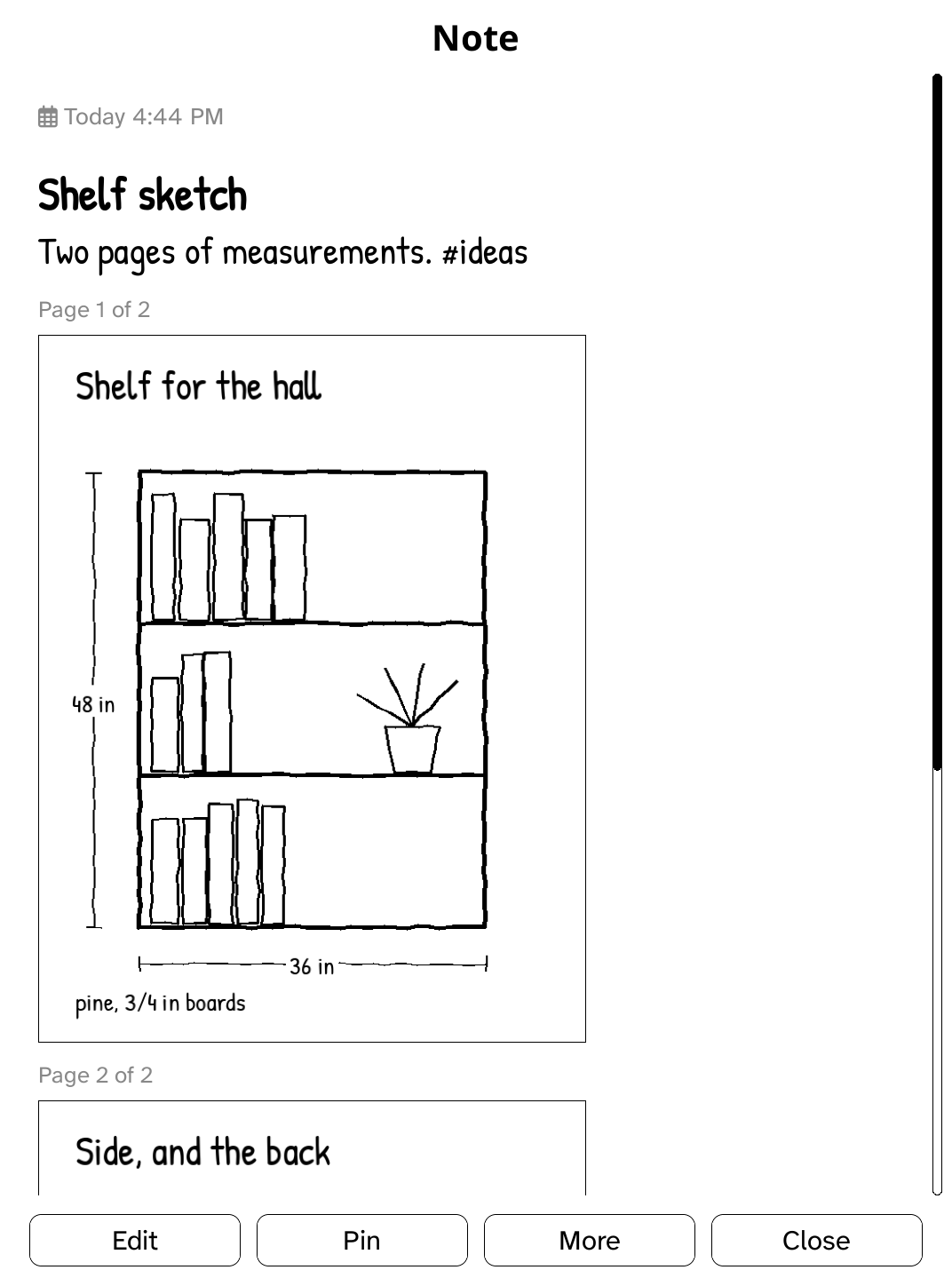
- Seeing drawings (made on the Kindle or in Memos): on the Notes tab a note with a drawing shows its heading (if it has one) and the drawing as big as the note allows; Layout → Full shows it bigger, with all the note's text. Open the note for everything: its text, then the drawing as wide as the page (tap it to see it on its own). A note with several shows them one under another, each with its page (Page 2 of 3). Drawings come down by themselves on Wi‑Fi, like the notes' other pictures.
- Kindles without a touch screen (keyboard Kindles, the Kindle 4) show drawings and never change them: every page is in the note (its letter, or ▲ ▼ and Press, opens one full screen), there is no Draw, and Edit opens the note's text and leaves its drawings as they are.
- Colours: Memos gets each stroke in its colour. A stroke coloured in Memos keeps its colour when the drawing is saved from any Kindle; a black-and-white screen shows it in black.
- Pressure and tilt (a Kindle with a pen): the line is as wide as the pen is pressed. Half pressure draws the thickness you chose, a light touch down to 0.4 of it, full pressure up to 1.6 of it. Tilt does what it does with the real tool: laid over, the pencil draws up to four times as wide and lighter (shading with the side of the lead; press harder for darker), and the marker up to twice as wide (the broad side of its tip). The pen, the fountain pen and the highlighter write the same at any angle. A pen held as you write (up to about 40 degrees from upright) counts as upright; the effect grows from there to 60 degrees. Memos gets each point's pressure and draws the stroke by it (tilt is kept for the Kindle; the note's picture shows the shading). The pen's choices (tap the pen again) have Pressure and tilt: on / off for an even line. Pens report different numbers, so the range is learned as you draw: the very first strokes can look lighter or heavier than later ones.
- Pinch to zoom: two fingers apart make the page bigger (up to 4×), together make it smaller again, down to the whole page; moving two fingers moves a zoomed page. The line under Drawing says how far it's zoomed. Draw and rub out as usual while zoomed: the pen's width is the page's, so lines come out the same size. Done (or another page) saves the whole page, zoomed or not. On a finger Kindle the second finger has to land within a third of a second of the first (later, it's ignored as before); on the Scribe, two fingers zoom when the pen is away, and a whole hand, or any touch while the pen is near, doesn't.
- With a pen (Kindle Scribe): only the pen draws (unless the toolbar's pen / finger button is on finger). Fingers on the page draw nothing, and while the pen is near the screen, and for a moment after it leaves, your hand can rest anywhere on it: it's ignored (palm rejection), even a whole hand while you write (before 1.32, a hand's touches could get mixed into the pen's line). The pen's other end rubs out. With the pen away, a finger can tap the buttons.
- With a finger (every other touch Kindle): one finger draws; a second finger at the same time is ignored.
- The pen's side button (Kindle Scribe, Premium Pen): hold it and the tip rubs out, like the pen's other end; let go and it draws again, with the Pen tool still chosen. Settings → Notes → Pen's shortcut button chooses what holding it does: Eraser (the default), or a writing tool: Pen, Pencil, Fountain pen or Highlighter (draw with it while the button is held, then you're back to the tool in hand).
- Not on Kindles syncing through a computer (the sync page doesn't send drawings).
-
Journal (the Journal button, J, or Menu → Journal entry on a Kindle 4): a journal entry, as the journaling mode of the Memos fork at github.com/9retirement6irk/memos makes them.
- How have you felt? Overall today or Right now, and seven steps from very unpleasant to very pleasant (the chosen step again takes it back). With a step chosen: What best describes this feeling? (the ten words nearest the step; More feelings… has them all) and What's behind it… (work, family, health…).
- What did you do? your activities. Goals: tick the ones you did.
- On touch Kindles it looks as the fork's web journal does: the question with small Overall today / Right now toggles beside it; a big face beside a slider of the seven steps (tap a place on it or drag along it: the dot follows your finger from step to step; the face shows the step, faded until one is chosen; Clear takes it back); feelings and causes as chips that fill black when chosen (light grey otherwise); activities as chips with their icons (the ones set in Memos: briefcase, dumbbell, people, book, music, coffee, plane, gamepad, palette, cutlery, tree, heart, star). The faces are the web's, in greys of the same lightness as its colours. Keyboard Kindles and the Kindle 4 keep the rows of buttons (for the keys and the 5-way).
- Saved entries show their mood as the web does: the face beside the note's time on the board's sticky note and, on its page, the face and the mood's name above the text, and the tags as light grey chips at the top, under the entry's heading.
- A prompt (↻ Another for the next one) and, right under it, your words on lined paper, typed straight in as plain text. A tap in it brings the keyboard; the questions above fold away while you type, so only the prompt and your words show. Done (top left) puts the keyboard away. ✎ in the box's top right corner opens the drawing screen right under the prompt, on lined paper: the same screen as a note's drawing, with every tool (pen, fountain pen, marker, pencil, highlighter, shapes, text, eraser, hand), pinch to zoom, moving the page (a finger on the Scribe once zoomed in, or the hand), paper and pages. Only its top bar differs: ← goes back to the whole entry (the drawing kept), Aa back to typing, and Save saves the journal entry, words and drawing together. ✎ shows how many sheets go with the entry, and after ← the drawing shows as a picture under the tags, above the prompt, before the entry is saved (as your words do); a tap on it opens it again to go on drawing. (Kindles with keys: W writes in a box of its own, as before.)
- Where and the weather (above the prompt, as the web journal's line): the entry's location, and the weather there at the entry's hour, like 56°F, clear. When the journal settings add a location and your Memos has Dawarich connected (the fork's Settings), it starts where Dawarich had you; tap the location for Where Dawarich had you, Search for a place… (a place, address or city, from OpenStreetMap) or No location. A Kindle has no GPS, so there's no "current location". The weather is for the location, or for the journal settings' default city when there's none, from Open-Meteo (only the point and the day are sent, never your name or notes). Both need Wi-Fi when the entry opens; without it the entry simply has neither. The location is saved as the note's own location in Memos (where Memos and the fork's map show it), the weather as a line in the entry. Places are never written to the log.
-
Save makes a private note: the prompt as a quote and your words (or
your drawing: an entry answered with only a drawing keeps its prompt
too), the goals as a checklist, the weather line, any drawings as the
note's drawings, then the tags, like
#mood/pleasant #mood/today #felt/grateful #impact/work #did/reading. It's written exactly as the fork's web editor writes an entry, so its Insights count entries from the Kindle; any Memos shows it as a note. - With that fork, your activities, goals, tag prefixes, hidden causes, whether a prompt and a date heading are used, whether a location and the weather are added, the default city and °F or °C, and your journal space come from Memos at each sync (Settings → Journal in its web app), and entries go to the journal space. With stock Memos the fork's defaults are used (no Dawarich: the weather only with a place you search for).
- Every button works with a tap, or with the 5-way and Press. On a keyboard Kindle: Alt+Q … U (1–7) the step, T today / right now, F feelings, I what's behind it, A what you did, G goals, P another prompt, W write, S save. Back asks whether to save.
-
A filter shows its notes at once, from the notes kept on the Kindle, then asks Memos (it may have older ones than the Kindle keeps), turning Wi‑Fi on for that when it's only on when needed. Without a connection the kept notes stay. Your tags list is kept from the last sync, so the tag chips and Filter → Tag work without a connection too.
-
Filters: Drawings (the notes with a drawing), tag, date (today, 7 days, 30 days, a year), pinned and search are Memos filters; place and "with attachments" are picked out on the Kindle (Memos v0.31 can't filter by them). Space… (when your Memos has spaces): No space or one of your spaces, with how many notes each has; the board's title says which.
-
Settings → Accounts and services → Notes: the Memos connection (connect again, disconnect); Sync all notes or only notes with chosen tags (Memos has no notebooks, so tags are the way to pick, and Filter → Space… for spaces; the list comes from Memos' tag counts,
users/<id>:getStats, and the filter istag in [...]); Storage used with Free up space (downloaded attachments, kept notes); Notes kept on the Kindle (50–500, fetched a page at a time); Attachment storage limit (10–100 MB or none; the attachments used longest ago go first). -
Wi‑Fi: only to sync (when the tab opens, at most every 5 minutes, or with changes waiting; M → Refresh any time), to send a change, and to open an attachment not on the Kindle yet. Pictures in notes are downloaded while syncing (up to 2 MB each, within the attachment limit).
-
Offline: the last list of notes is kept on the Kindle (
settings/gzreader-notes.json); new notes, edits, ticks and pins made without Wi‑Fi wait in a queue and are sent the next time the Notes tab can reach Memos ("not sent yet" on the note meanwhile). The Notes tab keeps Wi‑Fi up while it's open (Wi‑Fi on Auto).
- Saving… shows in the middle of the screen while a note or a drawing is saved, so the Kindle never looks stuck.
- ✕ asks, Back saves. ✕ at the top left of the note editor and the drawing screen asks what to do with changes: Save, Discard or keep going. The Kindle's Back key (keyboard Kindles) saves them as you leave; to leave without saving there: Alt+M → Discard changes. The quick note's window asks too.
- Drafts. While you write, the note is kept on the Kindle every few seconds. If the Kindle restarts, crashes or runs flat before you save, opening that note again (or a new note, for a new one) offers Put them back. Drafts never leave the Kindle, and go once the note is saved, when you choose Start from the saved note, or after two weeks.
-
Drawings are kept as you draw, a few seconds after each pause (at
most every 30 seconds, at least every minute and a half however long you
write, between strokes) and right before the Kindle goes to sleep, in
koreader/settings/gzreader-drawings/unsaved-….json. Never while the pen is on the page or has just moved, and by a background process, so writing isn't held up. If GZreader stops before you save (it hung, crashed or the battery ran out), the next time it starts it asks about each one: Open it (a journal entry comes back with its mood, tags, words and drawing, the drawing on the screen; a note's drawing opens as a new drawing note), Later (asked again at the next start) or Delete it. The copy goes once the drawing (or the journal entry) is saved or discarded. It never leaves the Kindle. - Drawing keeps the Kindle awake. Drawing counts as using the Kindle, as any tap does, so it doesn't go to sleep while you draw. Put down, it sleeps after the time set in its sleep setting.
Settings → Notes → Handwriting to text says how your writing is read, for the text tool's Write by hand and the lasso's To text:
-
On the Kindle (the default): nothing leaves the Kindle and no Wi‑Fi is
needed. It reads printed writing best: letters apart, English words and
digits; joined-up writing much less well. The reader, its small model and
its word list are Ink Away's
(MIT License; its notices are in the plugin's
data/handwriting/NOTICE.md). -
Claude: Anthropic's Claude reads it, joined-up writing too. Give it an
API key from console.anthropic.com (Claude key; paid by use, a few
words cost a tiny fraction of a cent). Claude model is
claude-haiku-5-5unless you change it. -
Online service (OpenAI-style): any service that reads pictures
through OpenAI's Chat Completions API: OpenAI, or a model you run
yourself. Give its address (
https://…/v1; plainhttp://only to a computer on your network), a key and a model that reads pictures.
Online, only the writing being read is sent, as a black-and-white picture: never the page, its pictures or your other notes. Wi‑Fi turns on for it. The keys are kept with GZreader's other sign-ins, off the Kindle's USB drive, and never written to the log. If a reading fails, the writing stays as you wrote it and a message says why.